
One day your phone sounds completely normal. The next day, you play a YouTube video, answer a call on speaker, or listen to music, and something feels wrong. The volume is already set to maximum, but the sound coming from your Android phone speaker is much lower than it used to be.
If you’re wondering, “Why did my phone speaker sound suddenly become low?”, you’re not alone. Thousands of Android users face this problem every day. The frustrating part is that the issue can happen without dropping the phone or doing anything unusual. Sometimes it starts after a software update. In other cases, it happens after installing a new app, exposing the phone to dust, or simply using the device for a long time.
The good news is that a low phone speaker doesn’t always mean the speaker is damaged. In fact, many speaker volume problems are caused by simple issues that you can fix yourself in just a few minutes. Cleaning the speaker grille, checking sound settings, disconnecting Bluetooth devices, or restarting your phone is often enough to restore the sound.
In this guide, you’ll learn the real reasons why your phone speaker volume suddenly became low, how to identify the actual cause, and the step-by-step solutions that work on most Android phones. Whether you use Samsung, Xiaomi, OnePlus, Motorola, Vivo, Oppo, Realme, Google Pixel, or any other Android device, these fixes can help you solve the problem before spending money on repairs.
Why Phone Speaker Sound Suddenly Became Low?
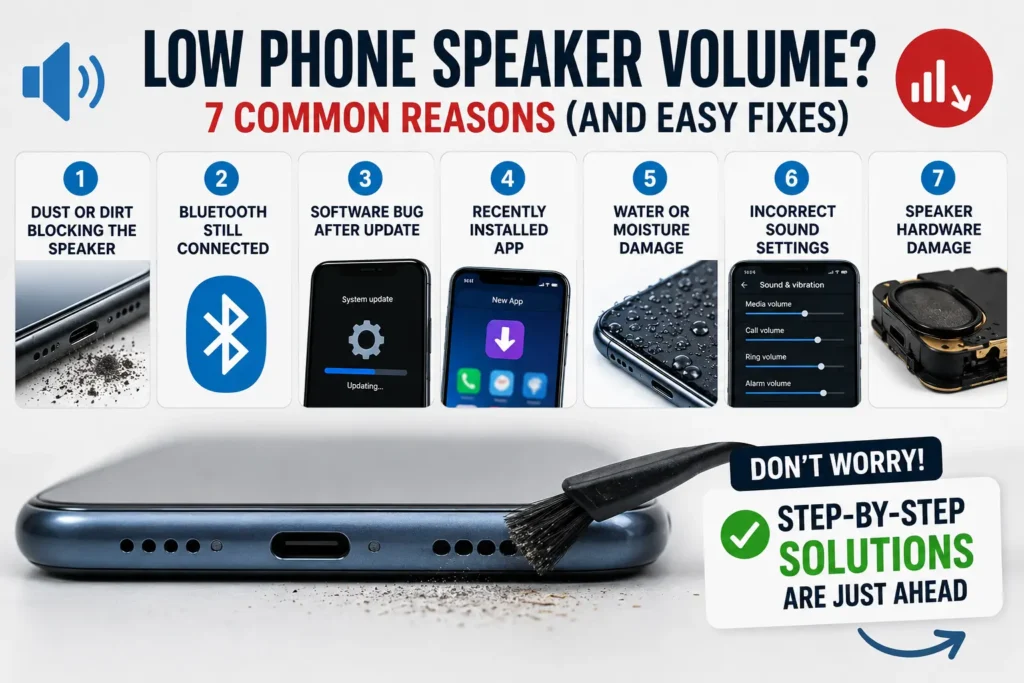
If your Android phone speaker sound suddenly became low, the most common reasons include dust blocking the speaker grille, incorrect volume settings, Bluetooth devices staying connected, software bugs after an Android update, water or moisture inside the speaker, conflicting audio apps, or hardware damage. Most software and cleaning-related problems can be fixed at home without replacing the speaker.
Why Does Your Phone Speaker Suddenly Become Quiet?
Your phone speaker may look like a small part of your device, but it depends on both hardware and software to work properly. Every time you play music, watch a video, or receive a call, Android processes the audio, sends it through the phone’s audio system, and finally plays it through the speaker.
If something interrupts this process, the sound can become lower than normal. Sometimes the problem is physical, such as dust, pocket lint, or moisture blocking the speaker grille. In other cases, the issue is related to software. A recent Android update, an app that changes audio settings, or even a Bluetooth device connected in the background can reduce the speaker volume without making the cause obvious.
This is why many users think their phone speaker is damaged when, in reality, the speaker is perfectly fine. Replacing the speaker without checking the common causes first can lead to unnecessary repair costs.
The best approach is to troubleshoot the problem step by step. Start with the simplest checks, such as cleaning the speaker and verifying your sound settings, before assuming it’s a hardware issue. In many cases, users are able to restore normal speaker volume within a few minutes.
A low speaker volume is only one of the many problems Android users can experience. If you’re dealing with other phone issues as well, our guide on common Android phone problems and how to fix them covers practical solutions for several everyday Android problems and can help you troubleshoot them step by step.
Quick Summary
| Problem You Notice | Most Likely Cause | First Thing to Try |
|---|---|---|
| Speaker volume suddenly became low | Dust blocking the speaker | Clean the speaker grille gently |
| Phone speaker is quiet after an update | Temporary software bug | Restart the phone and check for updates |
| No sound from the speaker but Bluetooth earbuds work | Bluetooth is still connected | Turn Bluetooth off and test again |
| Speaker sounds distorted or muffled | Water or moisture exposure | Let the phone dry naturally |
| Sound became low after installing a new app | Audio app conflict | Uninstall the recently installed app |
| Only one app has low sound | App-specific audio settings | Check that app’s sound settings |
| Nothing improves the sound | Possible hardware problem | Continue all fixes below before visiting a repair center |
7 Possible Reasons Why Your Phone Speaker Sound Suddenly Became Low
Not every low speaker problem has the same cause. That’s why trying random fixes often doesn’t work. Before you attempt any solution, it’s important to understand what might actually be causing the issue.
Below are the seven most common reasons why an Android phone speaker suddenly becomes quiet.
1. Dust or Dirt Is Blocking the Speaker Grille
The most common reason behind a low phone speaker is something very simple—dust.
Your phone goes everywhere with you. It stays in your pocket, bag, car, office, or on different surfaces throughout the day. Over time, tiny dust particles, pocket lint, and dirt collect inside the speaker grille. Even a thin layer of dust can partially block the sound coming out of the speaker, making it seem much quieter than before.
This usually happens gradually, so many users don’t notice the change until the volume becomes noticeably low.
Common Signs
- Music doesn’t sound as loud as before.
- Videos feel quieter even at full volume.
- Speakerphone calls are difficult to hear.
- The sound feels muffled instead of clear.
Fortunately, this is also one of the easiest problems to fix, and we’ll cover the safest cleaning method in the solutions section below.
2. Bluetooth Is Still Connected to Another Device
Another common reason is an active Bluetooth connection.
Sometimes your phone automatically reconnects to wireless earbuds, headphones, your car’s audio system, or a Bluetooth speaker that was paired earlier. Even if that device isn’t nearby, Android may still try to send audio through it.
As a result, you may think your phone speaker has become quiet when the audio is actually being redirected elsewhere.
This problem often happens after using wireless earbuds and forgetting to disconnect them.
Signs
- Speaker volume suddenly drops without warning.
- No sound or very low sound from the phone speaker.
- Bluetooth icon is visible in the status bar.
- Audio returns to normal after turning Bluetooth off.
Checking Bluetooth only takes a few seconds, but it solves the problem for many Android users.
3. A Recent Software Update Caused an Audio Glitch
Android updates usually improve security and fix bugs, but sometimes they introduce temporary software glitches.
If your phone speaker became quiet immediately after installing a system update, the problem may not be related to the speaker itself. The update could have affected audio processing, sound optimization, or system settings.
The good news is that software-related issues are often temporary and can usually be fixed without replacing any hardware.
In the next part of this guide, we’ll look at the remaining possible reasons and then walk through the step-by-step solutions that actually work.
4. A Recently Installed App Is Changing Your Audio Settings
If your phone speaker volume suddenly became low after installing a new app, the app itself could be the reason.
Some apps, especially equalizers, volume boosters, sound enhancement tools, screen recorders, gaming apps, and media players, can change your phone’s audio settings in the background. Sometimes these changes remain active even after you close the app.
In some cases, the app may conflict with Android’s default sound system, causing lower speaker volume or poor audio quality.
Common Signs
- The problem started after installing a new app.
- Only media sound feels quieter than before.
- Restarting the phone temporarily fixes the issue.
- The sound returns to normal after uninstalling the app.
If you recently installed any app before the problem started, it’s worth checking whether that app is affecting your phone’s audio.
If the same app is also making other apps freeze, crash, or close unexpectedly, there may be a wider software conflict affecting your phone. In that case, you can also check our guide on apps automatically closing on Android phones to find out whether a recently installed app is interfering with Android’s normal processes.
5. Water or Moisture Has Entered the Speaker
Your phone doesn’t have to fall into water for this problem to happen.
Rain, sweat, high humidity, or even using your phone in a bathroom filled with steam can allow small amounts of moisture to enter the speaker grille. When this happens, the speaker may sound quieter, muffled, or slightly distorted.
If your phone has an IP water-resistance rating, remember that water resistance doesn’t mean waterproof. Moisture can still affect speaker performance until it dries completely.
Common Signs
- Crackling or vibrating sound.
- Muffled speaker audio.
- Volume suddenly becomes much lower.
- The issue started after rain or water exposure.
Never try to dry the speaker using direct heat, as excessive heat can damage internal components.
6. Incorrect Sound Settings or Accessibility Features
Android includes several sound and accessibility features that can affect speaker performance.
Features like Mono Audio, Hearing Enhancements, Dolby settings, Adaptive Sound, or Sound Balance may change how audio is played through the speaker.
Sometimes these settings are changed accidentally after a software update or while exploring phone settings.
Common Signs
- Sound quality changed without any physical damage.
- Volume is low only in certain apps.
- Audio feels unbalanced or different than before.
Checking your phone’s sound settings only takes a minute and can often solve the issue.
7. The Speaker Hardware May Be Damaged
If none of the previous reasons apply, the problem could be related to the speaker itself.
Phone speakers naturally wear out over time. Physical drops, water damage, excessive dust, or internal component failure can permanently reduce speaker volume.
Although hardware failure is less common than software or cleaning-related issues, it should be considered after you’ve tried every other solution.
Common Signs
- Speaker remains quiet after trying every fix.
- Crackling or buzzing sound at any volume.
- Sound cuts in and out.
- The phone has been dropped recently.
- Water entered the device before the issue started.
If these symptoms match your situation, professional repair is usually the best option.
How to Fix a Phone Speaker That Suddenly Became Low
Now that you know the possible causes, let’s go through the fixes one by one.
Start with the first solution and only move to the next if the problem continues.
Solution 1: Restart Your Phone
This may sound simple, but restarting your phone clears temporary software glitches that can affect audio performance.
Steps
- Press and hold the Power button.
- Tap Restart.
- Wait for the phone to turn back on.
- Play a YouTube video or song to test the speaker.
If the volume returns to normal, the issue was likely caused by a temporary software bug.
Solution 2: Check All Volume Levels
Many Android users only increase the media volume and forget that Android has separate controls for different sounds.
Check these individually:
- Media Volume
- Call Volume
- Ringtone Volume
- Notification Volume
- Alarm Volume
Increase each slider and test the speaker again.
Solution 3: Disconnect Bluetooth Devices
Bluetooth is one of the most overlooked causes of low speaker sound.
Here’s what to do:
- Open Quick Settings.
- Turn Bluetooth off completely.
- Disconnect wireless earbuds or speakers.
- Play audio again.
If the sound immediately becomes louder, you’ve found the problem.
Solution 4: Clean the Speaker Grille Safely
If dust is blocking the speaker, cleaning it properly can make a noticeable difference.
Safe Cleaning Method
- Turn off your phone.
- Use a clean, soft toothbrush or anti-static brush.
- Gently brush the speaker grille.
- Blow light air across the speaker.
Avoid These Mistakes
- Don’t use pins or needles.
- Don’t pour water into the speaker.
- Don’t use excessive force.
A careful cleaning is usually enough to remove surface dust.
Solution 5: Remove Recently Installed Audio Apps
Think back to when the problem started.
Did you install:
- Equalizer apps?
- Volume booster apps?
- Sound enhancement apps?
- Screen recording apps?
- Music player apps?
If yes:
- Uninstall the newest app.
- Restart your phone.
- Test the speaker again.
Many audio conflicts disappear after removing the problematic app.
If you also noticed that your battery started draining much faster after installing the same app, the app may be running unnecessary processes in the background. You can learn more about this problem in our guide on phone battery draining fast after installing a new app, including what to check before removing the app completely.
Solution 6: Check for Android Updates
Software updates often include bug fixes for audio-related problems.
To check for updates:
- Open Settings.
- Go to Software Update or System Update.
- Download and install any available updates.
- Restart your phone.
If the issue started after an update, installing the latest patch may resolve it.
Solution 7: Test the Speaker Before Visiting a Repair Shop
Before assuming your speaker is damaged, test it using different types of audio.
Try:
- A YouTube video
- A music app
- A phone call on speaker
- Your alarm sound
- A notification tone
If every sound remains unusually quiet after trying all the fixes in this guide, there’s a good chance the speaker hardware needs professional inspection.
There’s no benefit in installing random “speaker booster” apps at this stage. They rarely fix hardware-related problems and can sometimes make audio quality worse.
In the next part, we’ll cover the common mistakes users make, prevention tips, two natural authority-link paragraphs, seven search-friendly FAQs with detailed answers, a premium conclusion, and the author box.
Common Mistakes Users Make
Even after noticing that their phone speaker volume has become low, many users make small mistakes that either fail to solve the problem or make it even worse. Avoiding these mistakes can save you both time and repair costs.
1. Cleaning the Speaker with Sharp Objects
Many people use a pin, needle, or safety pin to remove dust from the speaker grille. Although it may seem like a quick solution, it can easily damage the speaker mesh or the speaker itself.
Always use a soft brush instead of sharp objects.
2. Installing Random Volume Booster Apps
When the speaker volume becomes low, many users immediately download volume booster apps from the Play Store.
Most of these apps cannot fix hardware problems or remove dust. Some may even cause audio distortion or interfere with Android’s default sound settings.
3. Ignoring Bluetooth Connections
One of the most common mistakes is forgetting to check whether the phone is still connected to wireless earbuds, headphones, or a Bluetooth speaker.
Always disconnect Bluetooth devices before assuming your phone speaker is faulty.
4. Using a Hair Dryer to Dry the Speaker
If your phone has been exposed to water, avoid using a hair dryer or any direct heat source.
High temperatures can damage internal components and make the problem worse.
5. Assuming the Speaker Is Damaged Immediately
Many users think a quiet speaker automatically means expensive hardware damage.
In reality, simple issues like dust, software glitches, or incorrect settings are far more common than a damaged speaker.
How to Prevent Your Phone Speaker from Becoming Quiet Again
Once you’ve fixed the problem, a few simple habits can help keep your phone speaker working properly for a long time.
- Clean the speaker grille gently every few weeks.
- Keep your phone away from excessive dust and moisture.
- Avoid installing unnecessary audio enhancement or volume booster apps.
- Install Android software updates regularly.
- Disconnect Bluetooth devices when you’re not using them.
- Use a protective case that doesn’t block the speaker openings.
- Don’t expose your phone to rain or high humidity whenever possible.
Taking these small precautions can reduce the chances of facing the same issue again.
If your phone speaker volume became low after installing a recent Android update, it’s a good idea to check the official Android Help Center for the latest troubleshooting steps and software update guidance. Following Google’s recommendations can help you identify update-related audio issues before trying advanced fixes.
Frequently Asked Questions
Why did my phone speaker suddenly become low even though I didn’t drop it?
Your phone speaker can become quiet even without physical damage. The most common reasons include dust blocking the speaker grille, Bluetooth devices remaining connected, software bugs after an update, incorrect sound settings, or a recently installed app affecting audio performance. In many cases, the problem can be fixed at home without replacing the speaker.
Why is my Android phone speaker volume low after a software update?
Some Android updates may temporarily affect audio settings or introduce software bugs. Restarting your phone, checking for another update, and ensuring your sound settings haven’t changed often resolves the issue.
Can dust really make my phone speaker quieter?
Yes. Dust, lint, and small debris can partially block the speaker grille, reducing both volume and sound clarity. Regularly cleaning the speaker with a soft brush is one of the easiest ways to restore normal audio.
Should I use a volume booster app to fix low speaker sound?
Generally, no. Volume booster apps cannot repair a damaged speaker or remove dust. In some cases, they may distort audio or conflict with Android’s built-in sound settings. It’s better to identify the real cause before installing additional apps.
How do I know if my phone speaker is damaged?
If you’ve cleaned the speaker, checked your volume settings, disconnected Bluetooth devices, restarted the phone, updated Android, and removed recently installed audio apps—but the speaker is still unusually quiet or crackling—the hardware may be damaged and should be inspected by a qualified technician.
Can water permanently reduce my phone speaker volume?
Yes. Water or moisture can temporarily muffle the speaker, but if it reaches internal components, it may also cause permanent damage. Allow the phone to dry naturally before testing the speaker again.
When should I visit a repair center for a low phone speaker?
If none of the fixes in this guide improve the speaker volume, or if your phone has been dropped or exposed to significant water damage, it’s time to have the device professionally inspected. This helps prevent unnecessary repairs and ensures the correct problem is diagnosed.
If your phone was exposed to water or moisture before the speaker became quiet, avoid using heat or sharp tools to dry it. Instead, follow the official guidance in Android Water Damage Support to reduce the risk of permanent speaker damage and learn the safest recovery steps.
Final Thoughts
A phone speaker that suddenly becomes quiet can be frustrating, but it doesn’t always mean your device has a serious hardware problem. In most cases, the issue is caused by everyday factors like dust, Bluetooth connections, software glitches, or incorrect sound settings—all of which can usually be fixed in just a few minutes.
The key is to avoid guessing. By following the troubleshooting steps in this guide one by one, you can identify the actual cause instead of relying on temporary fixes or random apps that rarely solve the problem.
If your speaker starts working normally after trying these solutions, you’ve likely saved yourself both time and unnecessary repair costs. And if the issue still remains, you can confidently visit a repair center knowing you’ve already ruled out the most common causes.
At DeviceFixMaster, our goal is to provide practical Android troubleshooting guides that are easy to follow, beginner-friendly, and based on real-world solutions rather than myths. Whether your problem is fixed today or requires professional repair, we hope this guide helped you understand what went wrong and what to do next.
About the Author
Tamseel is the founder of DeviceFixMaster, where he writes simple, practical Android troubleshooting guides for everyday smartphone users. His goal is to help readers solve common phone problems with clear explanations, step-by-step solutions, and trustworthy information—without unnecessary technical jargon.