
About the Author
Hi, I’m Shad Ali Tamseel, the researcher and writer behind Device Fix Master. I research common Android problems using official documentation and practical troubleshooting methods, then turn that information into simple steps that are easy to follow.
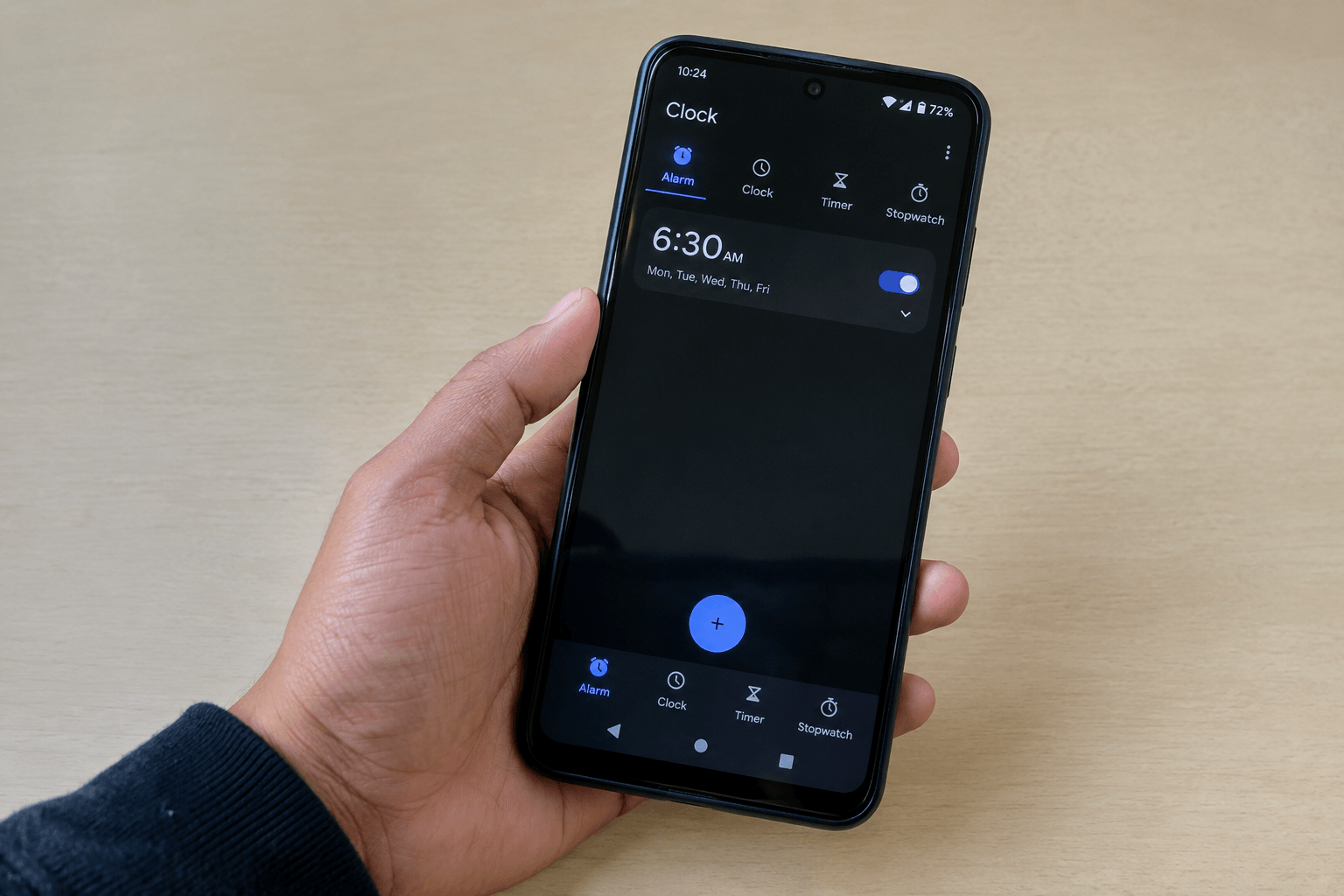
You set your alarm for the morning, but when the time comes, nothing happens.
Maybe there is no sound at all. Maybe the phone vibrates but stays silent. Or the alarm appears to be set correctly, yet it does not go off when you expect it to.
That can be confusing because the rest of the phone may be working normally.
In most cases, the problem is related to the alarm’s own settings, sound, volume, Do Not Disturb, battery restrictions, or the way the alarm is scheduled. The important part is finding out which one is affecting your phone before changing anything unnecessary.
So instead of jumping straight into random fixes, let’s first identify what is actually happening.
What Problem Are You Actually Dealing With?
Not every alarm problem has the same cause.
If the alarm never appears or does not trigger, you should start with the alarm schedule itself.
If it appears but there is no sound, focus on the alarm tone and Alarm volume.
And if it worked normally before but suddenly stopped, check the settings or system changes that may have happened since the last successful alarm.
This small distinction makes troubleshooting much easier.
Quick Diagnosis: Start Here
| What is happening? | What to check first |
|---|---|
| Alarm does not trigger at all | Alarm time, AM/PM, repeat days |
| Alarm appears but stays silent | Alarm sound and Alarm volume |
| Alarm vibrates but makes no sound | Alarm tone, volume and vibration |
| Alarm worked yesterday but not today | DND, Battery Saver and alarm schedule |
| Alarm turns off unexpectedly | Alarm type, repeat settings and Clock app |
| Problem started after a software change | Clock app and Android updates |
| Only a scheduled wake-up alarm is affected | Bedtime/Wake-up schedule |
You do not need to try every setting immediately. Start with the case that matches what you are seeing.
7 Cases Where Your Android Alarm May Not Go Off — and How to Fix Them
1. The Alarm Time, AM/PM, or Repeat Day Is Wrong
Before looking at Android’s advanced settings, check the alarm itself.
This is especially important when the alarm is set to repeat on selected days. You may have created the alarm correctly but selected the wrong days, changed AM to PM, or accidentally switched the alarm off.
Open:
Clock → Alarm
Then tap the alarm and check:
- Correct hour and minutes
- AM or PM
- Correct repeat days
- Alarm switch is ON
- The alarm has not been accidentally disabled
Also look at your other alarms.
Google notes that two alarms set too close together can cause the first one to be canceled. It recommends keeping at least a 5-minute gap between alarms.
So if you use backup alarms, avoid setting them only one or two minutes apart.
Test it before going to bed
Set a temporary alarm for a few minutes from now.
If that alarm works, your phone’s basic alarm system is probably fine and the problem may be with the original schedule.
2. The Alarm Sound Is Silent or the Alarm Volume Is Too Low
If you are thinking, “My Android alarm is not ringing, but my phone’s other sounds work,” check this next.
Your media volume and Alarm volume are separate controls on Android devices. So having YouTube or music volume turned up does not necessarily mean the alarm will be loud enough.
Open:
Settings → Sound & vibration → Alarm volume
Increase the Alarm volume to a level you can clearly hear.
Then open:
Clock → Alarm → Select your alarm → Alarm sound
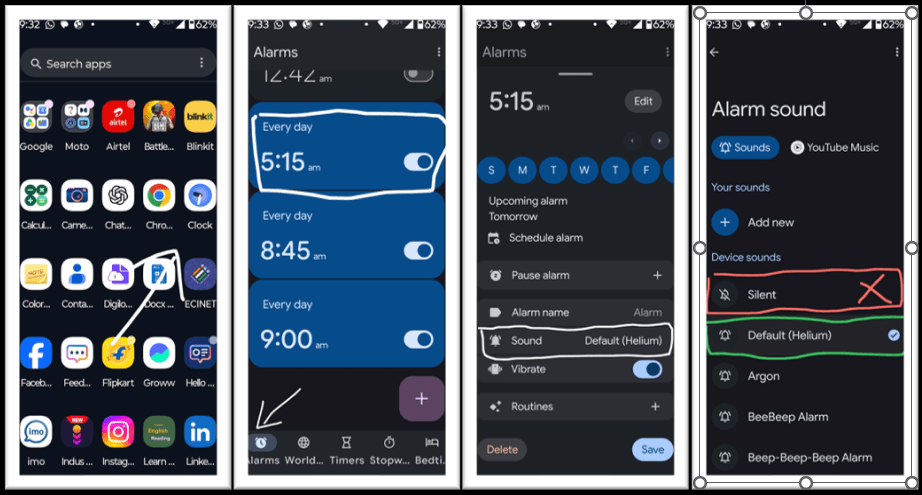
Make sure the selected sound is not Silent.
Also make sure the sound you selected can actually be previewed.
Google’s current Android Help specifically lists a silent alarm sound and very low alarm volume among the alarm issues to check.
For troubleshooting, I recommend using a built-in alarm tone first. This does not mean custom sounds are bad; it simply removes one extra variable while you are trying to find the problem.
You can also read Google’s official Android Help guide for setting and troubleshooting alarms, which covers alarm sound, volume and other alarm-related settings.
3. Do Not Disturb or Another Mode Is Affecting the Alarm
Do Not Disturb is useful at night, but its rules can affect which interruptions are allowed.
Open:
Settings → Modes → Do Not Disturb
On some phones, you may find it under:
Settings → Sound & vibration → Do Not Disturb
Look for the section that controls which interruptions are allowed and check whether Alarms are permitted.
Also check whether you have an automatic:
- Bedtime mode
- Sleep mode
- Do Not Disturb schedule
- Custom Mode
The exact menu depends on your Android phone and software version.
You can temporarily turn DND off and then create a short test alarm.
If the test alarm works, go back into DND and adjust its alarm-related settings instead of leaving DND permanently disabled.
4. Battery Saver Is Restricting the Clock App
Battery Saver can be easy to forget because you may turn it on before going to sleep and never think about it again.
Google specifically lists Battery Saver as a possible reason an alarm may not go off and recommends reviewing the Battery Saver settings when this happens.
First check:
Settings → Battery → Battery Saver
Temporarily turn it off and test the alarm.
You can also check the Clock app’s battery settings:
Settings → Apps → Clock → Battery
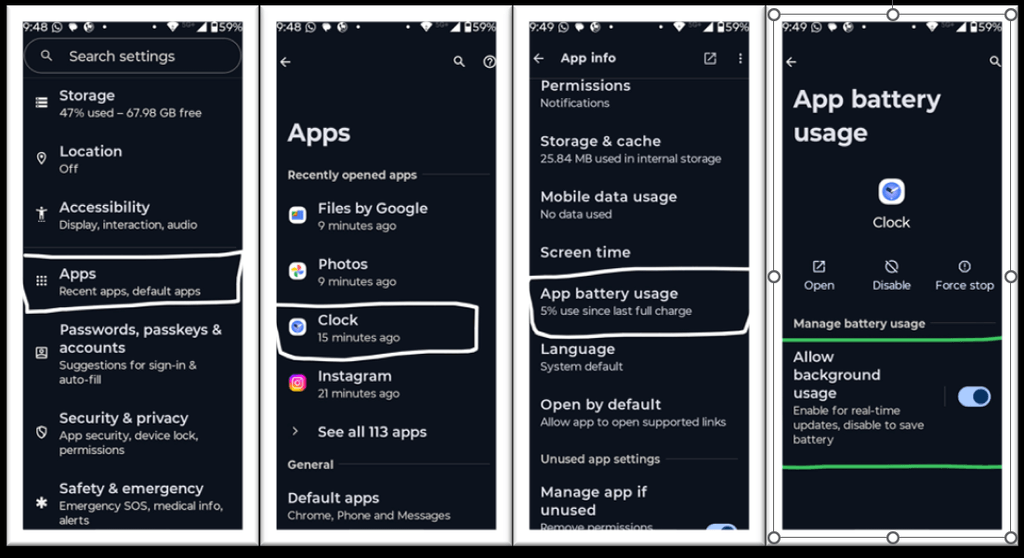
Depending on your phone, you may see options such as:
Optimized, Unrestricted, Allow background usage, or No restrictions.
Do not assume every Android phone needs the same option. The names and available controls can vary by manufacturer.
The useful test here is simple:
Turn Battery Saver off → set a short test alarm → see what happens.
If the alarm starts working, you have a much stronger clue about where the problem is.
And if the battery has also started draining unusually fast, our guide on Android Phone Battery Draining Fast? 11 Fixes That Work may help you investigate that broader battery problem.
5. You Have Multiple Alarms Scheduled Too Close Together
Using several backup alarms is common, especially when you really need to wake up on time.
The problem is when those alarms are almost on top of each other.
For example:
6:00 → 6:02 → 6:04
Google warns that alarms set too close together can result in the first alarm being canceled. Leaving a 5-minute gap is the safer setup.
Try something like:
6:00 → 6:10 → 6:20
You do not need ten alarms to make your phone reliable. A few properly spaced alarms are a much cleaner setup.
If you currently have a long list of old alarms, remove the ones you no longer use and test with one simple alarm first.
6. The Clock App Has a Temporary Software Problem
Sometimes the alarm settings look perfectly correct, but the Clock app itself is behaving unexpectedly.
This is more worth checking when the problem appears suddenly, especially after an app update, Android update, restart, or another recent software change.
Start with the simplest steps.
Restart your phone
Restart Android normally and create a new test alarm.
Update the Clock app
Open the Google Play Store, search for your Clock app, and install an available update.
Check for an Android update
Go to your phone’s software update settings and install an available update when appropriate.
Clear the Clock app cache
On many Android phones, this can be found under:
Settings → Apps → Clock → Storage & cache → Clear cache
Start with Clear cache, not Clear storage.
Clearing app storage can remove app data or reset settings, depending on the device, so there is no reason to jump to that step while basic troubleshooting is still available.
If other apps have also started closing, freezing, or behaving strangely around the same time, you may be dealing with a wider software problem. In that situation, our guide on Apps Automatically Closing on Android? 7 Easy Fixes That Actually Work is a useful related troubleshooting guide.
7. Your Wake-Up Alarm Is Controlled by a Bedtime Schedule
This case is easy to miss on phones that use a separate Bedtime or Wake-up schedule.
For example, you may have a wake-up time configured through the Clock app’s Bedtime section and assume it behaves exactly like a normal manually created alarm.
Check:
Clock → Bedtime
Then review:
- Wake-up time
- Selected days
- Bedtime schedule
- Whether the schedule is currently active
Google’s Clock documentation notes that an alarm created through the Bedtime schedule also appears in the Alarm section.
If your normal alarms work but your scheduled wake-up alarm does not, this is one of the first places to look.
If your phone does not have a Bedtime feature, simply skip this step.
Special Cases You May Be Seeing
Sometimes the problem does not fit neatly into one reason above. These are the situations I would look at next.
The Alarm Goes Off but There Is No Sound
Focus on these three things:
Alarm sound → Alarm volume → Vibration
Make sure the alarm is not using Silent, increase the dedicated Alarm volume, and turn vibration on as an additional check.
If music, videos and calls are also unusually quiet, then the problem may not be limited to the alarm. In that case, see our guide on Why Phone Speaker Sound Suddenly Became Low? 7 Easy Fixes That Actually Work for broader speaker troubleshooting.
The Alarm Turns Off by Itself
First ask when it turns off.
A one-time alarm may naturally become inactive after its scheduled occurrence. That alone does not show that something went wrong.
The more important situation is when the alarm becomes inactive before the scheduled time.
In that case, check the alarm’s repeat schedule, remove the old alarm, and create a completely new one.
A fresh test alarm can tell you more than repeatedly editing an old alarm that may already have a configuration problem.
The Alarm Worked Yesterday but Not Today
Look for what changed.
Did you turn on Battery Saver?
Did a DND or Bedtime schedule run overnight?
Did you change the alarm’s repeat days?
Did the Clock app or Android update recently?
You don’t need to assume that the latest update caused the problem. Just use the timing as a clue and check the settings that may have changed.
Common Mistakes That Cause Alarm Problems
A few small mistakes can make a working alarm appear broken.
Checking Media Volume Instead of Alarm Volume
Your music can be loud while the alarm is still too quiet.
Always check the dedicated Alarm volume control.
Forgetting AM or PM
This is especially easy to miss when creating an alarm late at night.
Selecting the Wrong Repeat Days
A weekday alarm will not necessarily ring on Saturday or Sunday unless those days are selected.
Choosing Silent Without Realizing It
Always open the alarm sound setting and verify the selected tone.
Setting Backup Alarms Only One or Two Minutes Apart
Leave a reasonable gap between them. Google recommends five minutes.
Changing Too Many Settings at Once
If you change volume, DND, Battery Saver, notifications and the Clock app at the same time, you won’t know what actually fixed the problem.
Change one important setting, test the alarm, then continue.
Repeatedly Editing the Same Problematic Alarm
When an alarm behaves strangely, delete it and create a fresh test alarm.
That gives you a much cleaner troubleshooting result.
30-Second Alarm Checklist Before You Go to Sleep
For an important morning, take half a minute to check these:
✓ Alarm is ON
✓ Correct time and AM/PM
✓ Correct repeat days
✓ A real alarm sound is selected
✓ Alarm volume is high enough
✓ DND/Mode allows alarms
✓ Battery Saver is not causing restrictions
Then, for something genuinely important, set a test alarm for a few minutes later while you are still awake.
That one small test can save you from finding out about the problem the next morning.
Frequently Asked Questions
Why is my Android alarm not ringing?
Start with the alarm’s time, repeat days, sound and Alarm volume. If those look correct, check Do Not Disturb, Battery Saver and the Clock app.
Why does my Android alarm go off but make no sound?
Check the selected alarm tone and dedicated Alarm volume. Also make sure the alarm is not set to Silent. If other sounds on the phone are also unusually quiet, investigate the phone’s wider audio system.
Can Do Not Disturb affect Android alarms?
Depending on your DND or Mode settings, alarms can be included in the notification rules. Check that alarms are allowed rather than assuming DND always handles them the same way.
Can Battery Saver affect an Android alarm?
Battery Saver may interfere with an alarm on some Android setups. Check Battery Saver and the Clock app’s battery settings if the problem happens while battery-saving features are active.
Why does my Android alarm turn off by itself?
If it becomes inactive after a one-time alarm has already passed, that can be normal. If it turns off before the scheduled time, check the alarm schedule and create a new test alarm.
Why did my alarm work yesterday but not today?
Check anything that may have changed since the last successful alarm, especially the alarm schedule, DND, Battery Saver, Clock app and recent software changes. A short test alarm can help identify whether the issue is still happening.
Conclusion
When an Android alarm stops working, the phone itself is not necessarily the problem.
Start by identifying what the alarm is actually doing. If it never triggers, check its schedule and repeat days. If it triggers without sound, focus on the alarm tone and volume. If the problem appeared suddenly, check DND, Battery Saver and the Clock app before making more drastic changes.
Most importantly, don’t change everything at once. A short test alarm after each important change gives you a much clearer idea of what fixed the problem.
And before relying on your phone for an important morning, spend 30 seconds checking the alarm settings and testing it while you’re still awake. That is a much safer habit than discovering the problem after you have already missed the alarm.