
Author Bio
Hi, I’m Shad Ali Tamseel, the researcher and writer behind Device Fix Master. I research Android problems by checking information from official sources, device documentation, and reliable technical references before turning it into practical troubleshooting guides.
My goal is simple: to help you understand what is actually causing a phone problem and what you can safely try to fix it. Instead of throwing random tips at you, I focus on clear, useful steps that you can follow on your own before deciding that your phone needs a repair.
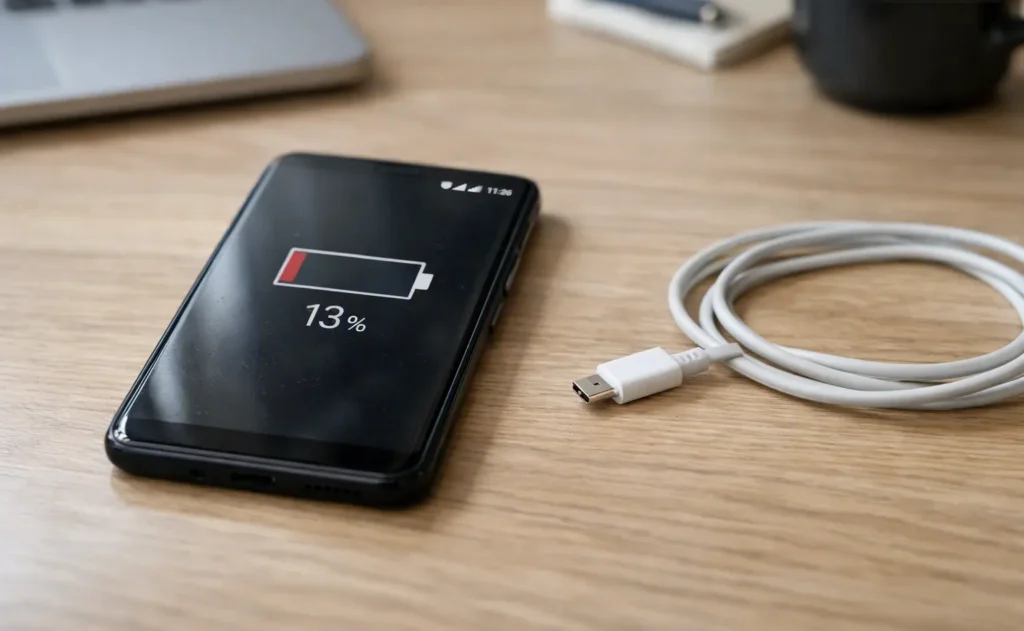
Android Phone Battery Draining Fast? 11 Fixes That Work
You charge your Android phone to 100%, unplug it, and everything looks normal. Then a few hours later, you notice the battery has already dropped far more than it should. Maybe you barely used the phone. Maybe it was sitting in your pocket most of the time. Or perhaps you went to sleep with a full battery and woke up to a phone that had lost a surprising amount of charge overnight.
That is the point when most people start wondering, “Is my battery dying?”
Not necessarily.
Fast battery drain on Android can happen because of a power-hungry app, a bright or high-refresh-rate display, weak mobile signal, background activity, location services, a recent software change, or simply a battery that has started to age. The tricky part is that two phones can show exactly the same symptom—battery percentage dropping too quickly—but have completely different causes.
That is why changing five or six settings at once is usually a poor way to troubleshoot the problem. You may reduce battery usage for a while without ever finding out what was actually causing the drain.
A better approach is to start with one simple question:
What is using your battery right now?
In this guide, we’ll first help you identify the type of battery drain you’re experiencing, then show you where to look in Android’s battery settings, and finally walk you through 11 practical fixes. You’ll also learn what to check if the battery drains overnight, gets hot while losing charge, or suddenly started draining after an app or Android update.
The goal is not just to make the battery percentage last a little longer. It is to help you find the real cause and fix the problem without wasting time on random solutions.
For more battery-saving recommendations directly from Android, you can also check Google’s official Android battery guidance, which covers settings and habits that can help reduce unnecessary battery consumption.
Why Is My Android Phone Battery Draining So Fast?
When an Android phone battery starts draining unusually quickly, the battery itself is not always the reason. In many cases, something on the phone is simply using more power than it normally should.
Think about what your phone has to do throughout the day. The display has to stay on, apps may refresh content in the background, your phone may stay connected to Wi-Fi or mobile networks, location services may run for certain apps, and notifications and account syncing can continue even when you are not actively using the device. Add gaming, video streaming, GPS navigation, camera use, or poor signal conditions, and battery consumption can rise quickly.
The important part is that battery drain is usually a pattern, not a single problem.
For example, if your battery drops quickly only while you are using Instagram, YouTube, a game, or another demanding app, that points in a different direction than a phone that loses a large amount of charge while the screen is turned off.
The same is true for overnight battery drain. If your phone is sitting unused for several hours but still loses a noticeable amount of battery, background activity, network conditions, syncing, or an app keeping the phone active may be worth checking.
Your screen may be using more power than you realize
The display is one of the biggest power consumers on many smartphones. High brightness, a higher refresh rate, long screen-on time, and features such as an always-on display can all increase battery usage.
This does not mean you should immediately turn everything off. A better approach is to check whether your usage actually explains the battery drop.
One app can sometimes make a big difference
A poorly optimized, recently updated, or misbehaving app can keep working in the background or use more processing power than expected.
That is why Android’s Battery Usage screen is so useful. Instead of guessing which app is responsible, you can check which apps and services have actually consumed the battery.
If one app is taking a much larger share than expected, that gives you a much stronger starting point than simply installing a “battery saver” app or clearing everything from recent apps.
Weak signal can also increase battery usage
Your phone uses more power when it has difficulty maintaining a mobile connection. In areas with weak coverage, the device may work harder to maintain or search for a usable signal.
This is one reason battery drain can sometimes be worse in places such as basements, elevators, rural areas, large buildings, or locations with poor network coverage.
So if your phone seems to lose battery much faster in one particular location, the network may be part of the problem.
Background activity matters even when the screen is off
Your phone does not completely stop working when you lock it.
Apps can still perform certain background tasks, accounts can sync data, notifications can arrive, and system services can continue doing their jobs. Normally, Android manages these activities efficiently. But if a particular app or service starts behaving badly, the battery can fall much faster than expected.
This is especially worth checking when you notice screen-off battery drain or when the phone loses power even though you have hardly used it.
Recent changes are important clues
A sudden change in battery life is often more useful than the exact battery percentage you see.
Ask yourself:
- Did you install a new app recently?
- Did one of your apps receive a major update?
- Did the battery drain begin after an Android update?
- Did you change your network settings?
- Have you recently started using 5G, GPS, hotspot, or another power-hungry feature more often?
- Has the phone started getting warmer than usual?
These clues can help narrow down the problem much faster.
And sometimes, the battery really is the problem
A battery naturally loses capacity as it ages. If the phone has been used for a long time and its battery life has gradually become much worse, the battery itself may no longer hold as much charge as it once did.
Hardware becomes more likely when battery drain is accompanied by other warning signs, such as unusual heat, unexpected shutdowns, severe percentage drops, or a swollen battery.
That is why the first step should not be “How do I save more battery?” It should be “What is causing my battery to drain?”
Once you know that, the right fix usually becomes much clearer.
Before You Start: Identify What Kind of Battery Drain You Have
Before changing settings or uninstalling apps, spend a minute figuring out how your battery is actually draining.
This small check can save you a lot of time because the right troubleshooting steps depend on the pattern you are seeing.
Is the battery draining quickly while you are actively using the phone?
For example, maybe you are browsing, watching YouTube, using social media, taking photos, or playing a game, and the battery percentage falls much faster than expected.
In that situation, start by looking at screen usage and battery-heavy apps. Display brightness, refresh rate, gaming, video playback, camera use, and other demanding tasks can all increase power consumption.
Does the battery keep dropping when the screen is off?
This pattern is more important than it may seem.
If your phone is losing a noticeable amount of battery while sitting untouched, check Battery Usage and look for apps or activity that continued running in the background.
This is particularly useful when the phone seems fine during normal use but loses a surprising amount of charge while you are asleep or during long periods when you are not using it.
Is the battery draining unusually fast overnight?
Check the battery percentage before going to sleep and again when you wake up.
You do not need to treat every small overnight drop as a problem because battery usage varies with the device, signal strength, notifications, connected devices, and other settings. What matters is whether the drop is clearly larger than what you normally experience.
A sudden change in overnight battery drain is a good reason to investigate background activity and network conditions.
Did the problem begin after installing or updating an app?
Think about what changed around the same time the battery problem started.
If one particular app was installed or updated just before the drain became noticeable, check its battery usage first. A problematic app does not always crash or show an obvious error. Sometimes its only sign is unusually high battery consumption.
Did the battery drain start after an Android update?
A software update is another useful clue, especially when the battery behavior changed suddenly.
That does not automatically mean the Android update is defective. The change could be related to a specific app, background activity, settings, or temporary system behavior. The important thing is to compare the timing and then check your battery usage instead of assuming the update is responsible.
Is the phone getting hot at the same time?
Heat can help you separate normal battery usage from something more unusual.
If the phone becomes noticeably warm while the battery percentage is falling quickly, pay attention to what the phone is doing at that moment. A demanding app, gaming session, camera use, navigation, charging, or poor network conditions can all contribute to heat.
But if the phone gets hot while sitting idle, that deserves closer investigation.
Does the problem happen everywhere or only in certain places?
This is an easy clue to miss.
If your battery seems to drain much faster in one building, workplace, basement, or other location but behaves normally elsewhere, weak network coverage may be contributing to the problem.
That kind of pattern is useful because it tells you the battery itself may not be the main issue.
Has the battery life been getting worse gradually or suddenly?
This is another important distinction.
A gradual decline over a long period can be consistent with normal battery aging.
A sudden decline is more likely to make you look for a recent app installation, software change, unusual background activity, network problem, or another recent event.
You do not need to solve the problem yet. At this stage, you are simply collecting clues.
Once you know whether the drain happens during screen use, while the phone is idle, overnight, in a specific location, or after a recent change, you can move to the most relevant troubleshooting step instead of trying everything at once.
Quick Battery Drain Diagnostic Table
| What You Notice | What It May Point To | What You Should Check First |
|---|---|---|
| Battery drops quickly while using the phone | Display or power-hungry apps | Screen brightness, refresh rate, Screen-on time, and Battery Usage |
| Battery drops even when the screen is off | Background activity | Battery Usage, background apps, syncing, and notifications |
| Battery drains much faster overnight | Background activity or network conditions | Battery Usage, mobile signal, Wi-Fi, and apps active in the background |
| Phone becomes hot while battery drops quickly | Heavy processing or network activity | Battery Usage, recently used apps, gaming, streaming, navigation, or hotspot |
| Drain started after installing an app | Problematic or poorly optimized app | Recently installed apps and their battery usage |
| Drain started after an app update | App-related issue | App update, Battery Usage, background activity, and app behavior |
| Drain started after an Android update | Software-related change | Battery Usage, app updates, and any recent system changes |
| Battery drains faster in certain places | Weak mobile signal | Signal strength and network behavior in that location |
| Battery life has gradually become worse over time | Battery aging | Battery condition/health information and overall battery performance |
| Battery drops unusually fast in every situation | Possible battery or hardware issue | Battery condition and signs of physical damage or abnormal heating |

This table is a starting point, not a final diagnosis. The same symptom can have more than one cause, so use it to decide where to investigate first.
The most useful next step is usually to check Android’s Battery Usage screen and compare what is actually consuming power with the pattern you noticed above.
7 Reasons Why Your Android Phone Battery Is Draining Fast
A fast-draining battery is not always a sign that your Android phone needs a new battery. In many cases, the phone is simply being asked to do more work than you realize.
The difficult part is figuring out what kind of activity is causing the extra power usage. A phone that loses battery quickly while you are watching videos has a different problem from a phone that loses 20% of its battery while sitting untouched in your pocket.
That distinction matters because the wrong fix can waste your time. Lowering screen brightness will not solve a background app that keeps waking the phone, and restricting apps will not fix a battery that has physically degraded.
Here are the seven most common causes to investigate.
1. A Battery-Heavy App Is Using Too Much Power
Apps are not equal when it comes to battery consumption.
A game may use a lot of CPU and GPU power. A video app may keep the display, processor, speakers, and network connection active. A navigation app can continuously use location services. Social media apps can also perform background work to refresh content and deliver notifications.
None of that is automatically a problem. Heavy battery usage is expected when you are actively using a demanding app.
The warning sign is when an app is consuming far more battery than its actual usage would suggest.
For example, suppose you opened an app for only a few minutes but it appears near the top of your Battery Usage list. That is much more interesting than an app you used continuously for an hour.
This is why you should check Android’s battery usage information before uninstalling random apps or installing a third-party battery optimizer. Your phone can often show you which apps are actually consuming the most power.
What this usually looks like: battery drain is closely related to one particular app, and the problem may have started after installing or updating it.
2. The Display Is Consuming More Power Than Necessary
Your phone’s screen can be one of the biggest contributors to everyday battery consumption because it can remain active for hours.
Three settings are particularly worth watching:
Brightness: A very bright display requires more power than a dimmer one.
Refresh rate: A higher refresh rate can make scrolling and animations feel smoother, but it can also increase power consumption depending on the device and how the feature is implemented.
Always-on display: Keeping parts of the screen active to show the time, notifications, or other information can add to daily battery usage.
There is no need to turn everything off just to save a few percentage points. The better approach is to match the display settings to how you actually use the phone.
For example, if you are indoors most of the day, keeping brightness near maximum is usually unnecessary. If battery life matters more than maximum smoothness, a lower refresh-rate mode can also be a sensible choice.
The important clue here is simple: if most of the battery disappears while the screen is on, investigate display usage before blaming the battery itself.
3. Weak Mobile Signal Is Making the Phone Work Harder
This is one of the less obvious causes of battery drain.
When your phone has a strong, stable mobile connection, it can communicate with the network normally. But when signal strength is poor or constantly changing, the device may have to work harder to maintain connectivity.
You may notice this in places such as:
- Underground areas
- Basements
- Large concrete buildings
- Remote locations
- Areas with inconsistent carrier coverage
The easiest way to spot this pattern is to compare locations.
If your phone lasts normally when you are at home but drains much faster at work, in a particular building, or while travelling through an area with poor reception, the network environment may be contributing to the problem.
This can be especially noticeable when the battery drain happens even though you are not actively using the phone.
So before concluding that your battery is failing, ask yourself:
“Does this happen everywhere, or mainly where my signal is weak?”
That one observation can sometimes save you from unnecessary troubleshooting.
4. Location, Hotspot, Bluetooth, and Other Active Features Are Doing More Work Than You Need
Modern Android phones contain a lot of features designed to stay connected and make your life easier.
Location can support maps and other location-aware apps. Bluetooth can keep accessories connected. A hotspot can share your mobile connection with other devices. Other manufacturer-specific services may also continue working in the background.
These features are not inherently bad for battery life. The problem is leaving power-consuming features active when you no longer need them.
A good example is hotspot usage. When your phone is sharing its mobile connection, it is performing additional networking work continuously. That can use considerably more power than simply having the hotspot turned off.
Similarly, a long GPS navigation session can keep location services active for an extended period.
The practical rule is not “turn everything off.”
It is:
Use power-hungry features when you need them, and turn them off when you are finished.
This is more realistic than trying to keep your phone in an artificially restricted state all day.
5. Background Activity Is Keeping the Phone Busy Even When You Are Not Using It
One of the biggest reasons a battery can feel unusually weak is that the phone may be doing work while you are not looking at it.
The screen being off does not mean the phone is completely inactive.
Apps may sync information, process notifications, refresh content, upload files, check for new data, or perform other background tasks. Android is designed to control this activity, but a badly behaved app or excessive background activity can still increase power consumption.
This is why screen-off battery drain deserves separate attention.
Imagine going to bed with 80% battery and waking up with 65%, even though the phone was not being used. The display is unlikely to be the main explanation because it was off for most of the night.
In that situation, investigate:
- Which apps are using battery in the background
- Whether one app is unusually active
- Whether syncing or notifications increased recently
- Whether mobile signal was weak overnight
The important lesson is that idle battery drain and active-use battery drain are not the same problem. Identifying which one you have makes troubleshooting much more precise.
6. A Recent App or Software Change Has Triggered Unusual Battery Drain
Timing can be one of your strongest clues.
If your Android phone had normal battery life for months and then suddenly became much worse after installing an app, updating an app, or receiving a system update, do not ignore that connection.
If the battery problem started soon after installing a new app, it is worth checking whether that app is responsible before changing other system settings. For a more focused troubleshooting guide, see Phone Battery Draining Fast After Installing New App.
A problematic app may start behaving differently after an update. A software update may also temporarily change battery behavior while the phone completes background optimization and setup tasks.
This is particularly important because users often make the same mistake: they notice the battery drain after an update and immediately assume the entire operating system is broken.
That is not always what happened.
Instead, check what changed around the same time and then look at Battery Usage. If one app suddenly appears much higher than before, it is a much stronger lead.
For Pixel devices, Google notes that battery usage can temporarily increase after a software update while the phone completes optimization, and recommends checking the device if unusual drain continues.
So the question should not simply be:
“Did Android update?”
It should be:
“What changed, and what is now using the extra battery?”
That mindset leads to much better troubleshooting.
7. The Battery Has Naturally Degraded—or There Is a Hardware Problem
Sometimes the software is not the problem at all.
Rechargeable lithium-ion batteries gradually lose their ability to hold their original amount of charge as they age. That means a phone that once comfortably lasted all day may eventually need to be charged much sooner.
Battery aging is more likely when the decline happens gradually over a long period and affects the phone regardless of which apps or settings you use.
Hardware becomes a stronger suspect when the battery problem is accompanied by other unusual behavior, such as:
- Unexpected shutdowns
- Large or sudden percentage drops
- Very short battery life even during light use
- Unusual heating
- Physical swelling or damage
A swollen battery is particularly important because it is not simply a battery-life inconvenience. It can indicate physical battery damage and should be handled by a qualified professional rather than through software troubleshooting.
If you use a Samsung Galaxy phone, you can also check Samsung’s official battery support guide for more information about battery condition, diagnostics, and when a battery may need professional service.
Google describes phone batteries as consumable components that gradually lose capacity over time and provides battery-health guidance for supported Pixel devices.
So if you have already ruled out unusual app activity, display settings, network conditions, and recent software changes, it may be time to stop looking for another setting and check the battery’s actual condition.
The key takeaway
These seven causes can produce almost the same symptom—“my Android battery is draining fast”—but the solution is different for each one.
If the drain follows a specific app, investigate that app.
If it mainly happens during screen use, examine display settings and usage.
If it happens while the phone is idle, look for background activity.
If it happens mainly in weak-signal areas, consider the network.
And if the problem persists across everything and the phone shows physical or abnormal battery behavior, start considering battery health or hardware.
Finding that pattern first is much more effective than changing every battery setting at once.
How to Fix Android Phone Battery Draining Fast
Now that you have an idea of what may be causing the drain, the next step is to troubleshoot it in the right order. Start with the fixes that can identify the problem, then move toward changes that reduce unnecessary power use.
Fix 1. Check Battery Usage to Find What Is Draining Your Battery
This is the most useful fix to start with because it turns a guess into evidence.
Open your phone’s Settings and look for Battery, Battery usage, or a similarly named option. The exact wording and layout depend on your Android version and phone manufacturer.
Look at the apps and services consuming the most battery.
Do not automatically assume that the app at the top is “bad.” A navigation app or game can legitimately use a lot of power if you spent an hour using it. What matters is whether the amount of battery usage makes sense compared with how much you actually used that app.
For example, if you used YouTube for an hour and it appears high in the list, that may be expected. But if an app you barely opened is near the top, that is worth investigating.
This one check can often tell you which fix to try next.
Fix 2. Restrict or Remove Apps That Use Too Much Battery

Once you identify an app that appears to be consuming an unusual amount of power, check what options your phone provides for controlling its background activity.
Depending on the device, you may see options such as Battery optimization, Background usage, Restricted, Sleeping apps, or similar settings.
Restricting background activity can reduce battery usage, but there is a trade-off: some apps may refresh less often or delay certain notifications. Samsung, for example, notes that sleeping and deep-sleeping apps can have limited or no background activity.
So do not restrict everything.
Use this setting mainly for apps you do not need running in the background. If an app continues to use excessive battery after reasonable troubleshooting, uninstalling and reinstalling it—or replacing it with a reliable alternative—may be more useful.
Fix 3. Lower Screen Brightness and Reduce the Refresh Rate When Appropriate

You do not need to keep your display extremely dim. A sensible brightness level is enough.
Start by enabling Adaptive brightness if your phone offers it, or manually lower brightness when you are indoors or in darker environments.
If your phone supports multiple refresh-rate modes, consider using a lower setting when battery life matters more than maximum smoothness.
Also check the screen timeout and always-on display settings. A display that remains active longer than necessary wastes battery without giving you any real benefit.
Google specifically recommends reducing brightness, allowing the screen to turn off sooner, and adjusting other display-related settings to help extend battery life.
Fix 4. Turn Off Power-Using Features You Are Not Actually Using

Go through your Quick Settings and look for features that are currently active but not needed.
These may include:
- Hotspot or tethering
- Location
- Bluetooth
- Certain wireless connections
- Other manufacturer-specific connectivity features
The goal is not to disable everything permanently. It is simply to avoid keeping features active when you have no reason to use them.
For example, leaving a hotspot running after you have finished sharing your connection can continue consuming power unnecessarily.
Fix 5. Deal With Poor Network Conditions
If your phone loses battery much faster in areas with weak signal, pay attention to the network before blaming the battery.
Try comparing battery behavior in a location with stronger coverage. If the drain improves noticeably, you have found an important part of the problem.
When you do not need cellular connectivity for a period of time, Airplane mode can also reduce radio activity, although this obviously means you will not receive normal cellular calls or messages while it is enabled.
Google includes limiting connectivity and long periods of GPS or hotspot use among its recommendations for extending battery life.
Fix 6. Reduce Unnecessary Background Activity and Sync
If your battery drops while the phone is mostly idle, look more closely at the apps that are allowed to work in the background.
Review apps you rarely use and check whether they really need frequent background access, notifications, or syncing.
Removing unused accounts and limiting unnecessary background activity can help reduce battery use. Android’s own guidance also recommends restricting apps with high battery usage and removing unused accounts.
Be selective here. Messaging, email, security, and other important apps may need background access to work properly.
Fix 7. Restart Your Android Phone
A restart is simple, but it is still worth trying when battery behavior suddenly becomes abnormal.
A restart clears the current software session and can stop a process or temporary software issue that is consuming unusual resources.
It is especially reasonable to try after:
- Installing or updating an app
- Applying a system update
- Experiencing unusual heating
- Noticing sudden battery drain that was not present before
A restart is not a permanent solution to a bad app or failing battery, but it is a safe troubleshooting step that can help rule out a temporary software problem.
If the battery drain started together with freezing, slow performance, or apps taking unusually long to respond, the problem may involve a broader performance issue. In that situation, our guide Android Phone Keeps Freezing and Lagging? 10 Fixes may help you troubleshoot the problem further.
Fix 8. Update Your Apps and Android Software
If your battery drain is related to an app bug or software issue, an available update may contain the fix.
Open the Play Store and check for pending app updates. Also check your phone’s system update section for an available Android update.
There is one important exception: if the battery problem started immediately after an update, do not assume another update will automatically solve it. First check Battery Usage and see whether a particular app or process is responsible.
For Pixel devices, Google recommends keeping Android up to date and notes that temporary extra battery use can happen after a software update while the device optimizes itself.
Fix 9. Use Battery Saver When You Need Extra Runtime

Battery Saver is useful when you need your remaining charge to last longer, especially when you are away from a charger.
Depending on the phone, Battery Saver can limit background activity and reduce or change some power-hungry behavior. Google notes that Battery Saver can restrict or turn off certain background activity, visual effects, features, network behavior, or apps.
Think of Battery Saver as a power-management tool, not a cure for an unhealthy battery.
If your phone is losing battery unusually fast every day, turning Battery Saver on permanently may hide the symptom without addressing the cause.
Fix 10. Use Safe Mode to Check Whether a Third-Party App Is the Problem

When the usual checks do not reveal the cause, Safe Mode can help answer an important question:
Is a third-party app responsible?
Safe Mode temporarily prevents many downloaded apps from running. If your phone behaves normally in Safe Mode and the battery drain improves significantly, that makes a third-party app a stronger suspect.
The exact way to enter Safe Mode differs between Android manufacturers, so use the instructions for your specific phone model.
Once you identify a likely app, remove recently installed or suspicious apps one at a time rather than deleting everything at once. That makes it much easier to identify the actual cause.
Fix 11. Check the Battery’s Condition and Get It Serviced When Necessary

If you have tried the software fixes and the battery still drains unusually fast, stop assuming that another setting will solve it.
Some phones provide a built-in battery health or diagnostics screen. For example, Google provides Battery Health and Battery Diagnostics features on supported Pixel devices, while Samsung offers battery diagnostics through Samsung Members on supported Galaxy phones.
Battery replacement becomes more reasonable when battery capacity has significantly declined or the phone shows persistent signs of battery failure.
Also pay attention to warning signs such as:
- The battery percentage drops unusually quickly in almost every situation
- The phone shuts down unexpectedly even with charge remaining
- The phone becomes abnormally hot during light use
- The battery or phone body appears swollen
- Battery life remains poor after you have ruled out apps and settings
A swollen or physically damaged battery should not be treated as a normal battery-life problem. Stop using the device and seek professional service.
What If Your Android Battery Drains Fast Overnight?
Overnight battery drain is slightly different from normal daytime usage because the screen may be off for several hours.
Start by checking how much battery the phone loses during a typical night. You are looking for a clear change from your normal behavior, not a perfect zero-percent drop.
Then check Battery Usage and look for apps or activity that remained active during that period.
Network conditions are also worth considering. If your phone is in an area with poor mobile coverage, it may use more power trying to maintain a connection.
If the phone is losing a large amount of battery every night, gets warm while you are not using it, or shows unusual background activity, do not simply turn on Battery Saver and forget about it. Find the process that is responsible.
What If Battery Drain Started After a Software Update?
A noticeable battery change immediately after an update can be confusing because the update may not be the long-term problem.
Some devices can temporarily use more battery after an update while apps and system components are being optimized. Google specifically notes this behavior for Pixel phones and recommends checking again after a few days if unusual drain continues.
During that period, keep an eye on Battery Usage and make sure your apps are updated as well.
If the drain remains unusually high after the phone has settled, look for a specific app or service consuming more power than expected. That will give you a much better direction than assuming the entire operating system is responsible.
What If Only One App Is Draining the Battery?
When one app clearly stands out in Battery Usage, focus on that app instead of changing the whole phone.
First, make sure the app is updated. Then check whether your phone allows you to restrict its background activity or optimize its battery usage.
If the problem started after a recent app update, you can also check whether other users are reporting similar issues through the app’s official support channels or store listing.
If the app continues to consume excessive battery despite normal use, uninstalling and reinstalling it can help rule out a corrupted app state. If the problem returns immediately, replacing that app may be the most practical solution.
What If the Phone Gets Hot and the Battery Drains Quickly?
Fast battery drain together with noticeable heat deserves more attention than battery drain alone.
A phone can become warm during demanding tasks such as gaming, long navigation sessions, video recording, or heavy streaming. That does not automatically mean something is wrong.
The concern is when the phone becomes unusually hot during light use—or while it is sitting idle—and the battery is dropping quickly at the same time.
If Instagram is one of the apps that makes your phone noticeably warm or causes unusually fast battery drain, you can also check our guide on Why Phone Gets Hot While Using Instagram for more specific troubleshooting steps.
In that situation, stop demanding tasks, move the phone away from excessive heat, and investigate Battery Usage. If the phone remains very hot or shows signs of physical battery damage, professional service is the safer option.
Google specifically advises keeping the phone cool because batteries drain faster when hot, and prolonged heat can damage battery health.
Common Mistakes That Can Make Battery Drain Worse
Trying to save battery can sometimes create a different set of problems.
Constantly Force-Closing Every App
Many users swipe away every app from the recent-apps screen several times a day because they believe it always saves battery.
That is not a reliable battery-saving strategy. It is more useful to identify an app that is genuinely consuming too much power and manage that app specifically.
Turning Every Setting Off
Disabling Wi-Fi, Bluetooth, location, sync, notifications, and other features all at once may make the battery last longer—but it can also make your phone much less useful.
The better strategy is targeted troubleshooting. Disable or restrict something when you have a reason to believe it is contributing to the problem.
Installing Random Battery-Saver or Cleaner Apps
Be careful with apps that promise to “double” or “triple” battery life.
You generally do not need a third-party app to discover basic battery usage information or manage standard Android power settings. In some cases, adding another background app can create more activity instead of less.
Ignoring a Sudden Change in Battery Behavior
A phone that has slowly lost some battery life over a long period is different from a phone that suddenly starts dropping charge much faster than before.
A sudden change is a clue. Think about what changed around the same time: an app, an update, a network environment, or the phone’s physical condition.
Continuing to Use a Phone That Is Seriously Overheating
Mild warmth during demanding use can happen. A phone that becomes excessively hot for no obvious reason is different.
Do not keep pushing the phone through heavy tasks just because the battery is still working. Give it time to cool and investigate the cause.
Ignoring Signs of Physical Battery Damage
A swollen battery should never be treated as an ordinary battery-drain problem.
If the phone’s body appears to bulge, the screen is lifting, or you notice other signs of battery damage, stop using the phone and seek professional assistance.
How to Prevent Fast Battery Drain on Android
You do not need to constantly monitor your phone to maintain reasonable battery life. A few habits can make a noticeable difference over time.
Keep your apps and Android software reasonably up to date, but pay attention to sudden changes in battery behavior after an update.
Review Battery Usage occasionally, especially when you notice a change. This makes it much easier to spot an app that starts consuming far more power than expected.
Use a comfortable screen brightness instead of keeping it unnecessarily high all day, and use a lower refresh rate when you do not need maximum smoothness.
Turn off features such as hotspot or long-running GPS sessions when you are finished with them.
Try to keep the phone away from excessive heat. Temperature affects battery performance and long-term battery health, so avoiding prolonged high temperatures is more useful than chasing every small percentage of battery savings.
Finally, pay attention to changes rather than chasing a specific battery percentage. A phone does not need to behave exactly like someone else’s phone to be healthy. Your own battery history is often the better reference point.
Simple Android Battery Maintenance Checklist
| Check | When to Do It | Why It Helps |
|---|---|---|
| Review Battery Usage | When you notice unusual drain | Helps identify the app or activity using the most power |
| Remove apps you no longer use | Every few weeks or when needed | Reduces unnecessary background activity |
| Check app and Android updates | Regularly | Can resolve bugs and compatibility issues |
| Review background activity | When idle or overnight drain increases | Helps find apps working when you are not using them |
| Check battery condition | When battery life declines significantly | Helps separate normal software drain from battery aging |
| Watch for unusual heat | Whenever it occurs | Can reveal heavy activity or a possible hardware issue |
| Keep the phone away from excessive heat | All the time | Helps protect battery performance and long-term health |
The point of this checklist is not to create another daily task. Use it when something changes or when battery performance starts behaving differently.
When Should You Suspect a Battery or Hardware Problem?
Software troubleshooting makes sense when the battery problem is connected to an app, setting, network condition, or recent software change.

Hardware becomes more likely when the problem is persistent across different situations and cannot be explained by Battery Usage, app activity, or normal settings.
Pay closer attention if you notice:
- Fast battery loss even during light use
- Unexpected shutdowns
- Severe or unusual heating
- Physical damage to the phone
- A bulging or swollen battery
- Battery problems that continue after software troubleshooting
If you are also seeing a situation where the phone shows that it is charging but the battery percentage barely increases, that is a different charging-related problem. Our guide Phone Charging But Battery Percentage Not Increasing covers the common causes and troubleshooting steps.
Aging batteries naturally lose capacity over time. For example, Google states that lithium-ion batteries are consumable components and provides battery-health and replacement guidance for supported Pixel devices.
The exact replacement threshold depends on the phone manufacturer and model, so do not use one percentage as a universal rule for every Android phone.
When Should You Replace the Battery or Visit a Service Center?
You should seriously consider professional service when the battery is clearly degraded, the phone shows abnormal behavior that software troubleshooting cannot explain, or there are signs of physical battery damage.
For supported Pixel phones, Google provides built-in battery health and diagnostics information, while Samsung offers battery diagnostics on Galaxy devices through Samsung Members. Other manufacturers may provide similar tools or use different names and menu locations.
A battery replacement can make sense when the battery has lost a substantial amount of its original capacity and the phone is otherwise in good condition.
On the other hand, if the phone has severe physical damage, persistent overheating, or a swollen battery, do not keep experimenting with settings. Have the device inspected by an authorized or qualified service professional.
Avoid opening or replacing a swollen lithium-ion battery yourself. Battery damage can create a serious safety risk.
Frequently Asked Questions About Android Battery Drain
Why is my Android phone battery draining so fast all of a sudden?
A sudden change usually deserves investigation rather than an immediate battery replacement. Check Battery Usage first, then think about any recently installed or updated apps, software updates, network changes, or unusual heating.
Why does my Android battery drain overnight?
Overnight drain can be caused by background apps, syncing, notifications, network activity, or another process that remains active while the screen is off. Check Battery Usage and compare the overnight drop with your normal battery behavior.
Which apps drain Android battery the most?
There is no single list that applies equally to every phone. Gaming, video streaming, navigation, social media, camera, and other apps that use the display, processor, GPS, camera, or network heavily can consume more power depending on how you use them.
Does high brightness drain battery faster?
Yes. A brighter display generally uses more power, particularly when the screen remains on for long periods. Reducing brightness or using adaptive brightness can help extend battery life.
Does 5G drain more battery than 4G?
Battery impact depends on the phone, network, coverage, modem behavior, and how the connection is being used. Poor or unstable coverage can be more important than the network label itself.
Why does my phone battery drain when I’m not using it?
The screen being off does not mean the phone is completely inactive. Background apps, syncing, notifications, network activity, and system processes can still use power.
Does Battery Saver really improve battery life?
Yes, Battery Saver is designed to reduce power consumption and can make the remaining charge last longer. However, it is mainly a power-saving feature, not a fix for a failing battery or a badly behaving app.
Can an Android update cause battery drain?
A software update can temporarily increase battery usage while the phone performs optimization and background setup tasks. If unusual drain continues beyond that period, check Battery Usage and look for a specific app or process responsible.
How do I find which app is draining my Android battery?
Open your phone’s Settings and look for Battery Usage or a similarly named battery section. Review the apps using the most power and compare their usage with how much you actually used them.
Can weak mobile signal drain the battery?
Yes. When the network connection is weak or unstable, the phone may use additional power trying to maintain connectivity. This can be particularly noticeable in locations with poor coverage.
How do I know if my Android battery is bad?
A battery may be nearing the end of its useful life when battery runtime has fallen significantly over time, unexpected shutdowns occur, or the phone behaves abnormally even after software and app issues have been ruled out. Some phones also provide a battery-health or diagnostic feature.
When should I replace my Android battery?
Consider replacement when the battery has significantly degraded, runtime has become unacceptable, or the manufacturer recommends replacement based on battery-health information. If the battery is swollen, physically damaged, or causing abnormal heat, seek professional service rather than continuing to troubleshoot it yourself.
Battery drain is only one of the problems that can affect an Android phone. If you are dealing with other issues at the same time, our broader guide Common Android Phone Problems and How to Fix Them covers several common Android problems and their practical solutions.
Final Thoughts: How to Stop Android Battery Drain
When your Android phone battery starts draining fast, the worst thing you can do is assume that one setting must be responsible and start changing everything at once.
Start with the evidence.
Check Battery Usage and look at what is actually consuming power. Then think about the pattern: does the drain happen while the screen is on, while the phone is idle, overnight, in places with weak signal, or after a recent app or software change?
From there, work through the relevant fixes. Control unusually active apps, reduce unnecessary display and background activity, manage features you are not using, keep software updated, and use Battery Saver when you need extra runtime.
If the phone still drains unusually fast after those checks—or the problem comes with excessive heat, unexpected shutdowns, or physical battery damage—treat it as a possible hardware issue instead of endlessly changing settings.
A healthy phone does not need every battery-saving feature turned off. It needs the right cause identified and the right fix applied.
That is the real key to improving Android battery life: find what is using the power, fix the cause, and only replace the battery when the evidence points to the battery itself.