
About the Author
Shad Ali Tamseel is the writer behind DeviceFixMaster, a website focused on practical Android troubleshooting, phone settings, battery, charging, performance, and common smartphone problems.
His approach is simple: explain everyday phone problems in clear language and help readers troubleshoot them step by step without unnecessary technical jargon.
This guide follows the same approach. Instead of asking you to try random “speed-up” tricks, it helps you identify what is actually causing the freezing or lag and then choose the most appropriate fix.
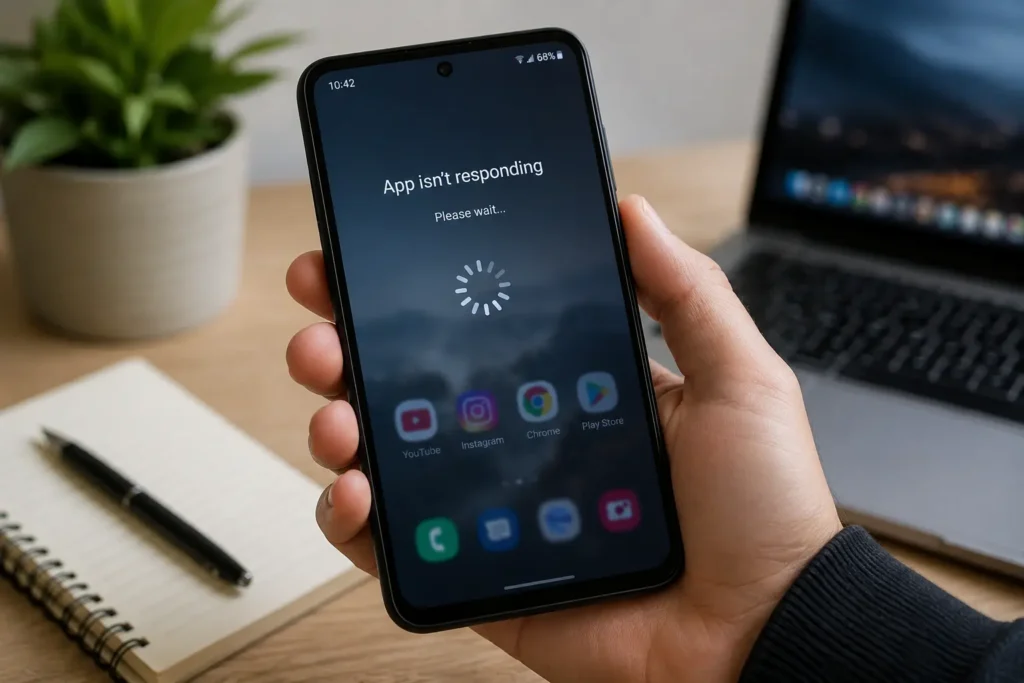
Android Phone Keeps Freezing and Lagging? Here’s What to Do
A phone that freezes once in a while is annoying.
A phone that keeps freezing, stuttering, or becoming painfully slow is a different problem.
You tap an app and nothing happens. You swipe through the home screen and the animation stops halfway. The keyboard appears several seconds late. Sometimes the entire screen becomes unresponsive, while other times the phone suddenly catches up and performs all the actions you made at once.
And the frustrating part is that you may not know what is actually causing it.
Is the storage almost full?
Is one app misbehaving?
Did a recent update cause the problem?
Is the phone getting too hot?
Is Android running out of resources?
Or is the phone starting to develop a hardware problem?
That’s why simply searching for “how to speed up Android” isn’t enough.
You don’t need another list telling you to clear RAM, install a cleaner app, or restart your phone every few hours.
You need to figure out why your phone is freezing in the first place.
This guide takes a different approach.
We’ll start with the safest checks, look at the clues your phone is giving you, and then work through the fixes from the simplest to the more advanced ones.
And you don’t necessarily need to try all 10 fixes.
If one step identifies the cause and solves the problem, stop there.
Quick Answer: What Should You Do If Your Android Phone Keeps Freezing and Lagging?
If your Android phone keeps freezing or lagging, start by checking what triggers the problem rather than immediately performing a factory reset.
Try these steps in order:
- Restart the phone and see how quickly the problem returns.
- Check available storage and free up space if the phone is nearly full.
- Install pending Android and app updates.
- Think about whether the problem started after installing or updating an app.
- Check whether the phone becomes unusually hot before the lag begins.
- Use Safe Mode to find out whether a downloaded app is causing the problem.
- Troubleshoot or remove a suspicious app if the phone becomes normal in Safe Mode.
- Test recently added external storage or accessories if the timing matches the problem.
- If the freezing continues, move to deeper software troubleshooting.
- Consider a factory reset or professional diagnosis only after the simpler causes have been ruled out.
The important part is not to blindly perform every fix.
The way your phone freezes can tell you which fix to try first.
Before You Fix Anything: Find Out What Kind of Freezing You’re Dealing With
Before changing settings, deleting apps, or resetting anything, spend two minutes observing the problem.
This can save you a lot of unnecessary troubleshooting.
Does the entire phone freeze?
If the home screen, Settings, keyboard, notifications, and multiple apps all become unresponsive, you’re probably dealing with a device-level problem.
Does only one app freeze?
That’s a very different situation.
If Instagram, Chrome, YouTube, or another specific app repeatedly stops responding while everything else works normally, start with that app instead of changing the entire phone.
Does the phone become slow only when it’s hot?
That points you in a different direction again.
If the phone is smooth when cool but becomes noticeably slower after gaming, recording video, navigating, or performing another demanding task, heat may be contributing to the slowdown.
Did the problem start after something changed?
Think about the last few days:
- A new app was installed.
- An existing app was updated.
- Android received an update.
- Storage became almost full.
- A microSD card was added.
- A new accessory was connected.
- The phone started getting hotter than usual.
The timing can be more useful than the error itself.
Why Does an Android Phone Keep Freezing and Lagging?
There isn’t one universal reason.
Android phones can freeze because of storage pressure, problematic apps, software bugs, excessive background activity, overheating, or hardware problems. Sometimes several of these happen together.
For example, imagine your phone has very little free storage and several demanding apps running in the background.
You might experience:
Low free space → slower operations → apps take longer to respond → phone feels laggy → occasional freezes.
Now compare that with a different situation:
New app installed → phone starts freezing → Safe Mode works normally.
The two phones have the same symptom — freezing — but they need completely different solutions.
That’s why this guide doesn’t treat “freezing” as a diagnosis.
It’s a symptom.
The goal is to identify the condition behind it.
7 Possible Reasons Your Android Phone Keeps Freezing
1. Your Phone Is Running Critically Low on Storage
One of the first things worth checking is how much storage is actually available.
Your phone needs storage not only for photos, videos, and apps, but also for normal system operations, temporary files, updates, and app data.
When available space becomes extremely low, Android and individual apps can start behaving poorly.
Google says Android devices can start experiencing issues when less than 10% of storage is free.
That doesn’t mean 10% is a magical cutoff where every phone suddenly starts freezing.
Think of it as a useful warning point.
What usually fills up storage?
Often it’s not the operating system.
It can be:
- Large videos
- Screen recordings
- Downloads
- Offline movies or music
- Old messaging-app media
- Unused games
- Duplicate photos
- Large app data
So don’t just delete random files.
Open your phone’s Storage section and find out what’s actually using the space.
If your phone is almost full, freeing a meaningful amount of storage is a much better first step than installing a “phone booster.”
2. One Downloaded App Is Causing the Problem
Sometimes the phone isn’t the real culprit.
A badly behaved app can repeatedly crash, consume excessive resources, behave incorrectly in the background, or conflict with the current software environment.
The biggest clue is often when the problem started.
For example:
Your phone worked normally on Monday.
You installed a new app on Tuesday.
The phone started freezing on Wednesday.
That doesn’t prove the app is responsible.
But it makes the app worth testing.
The same applies to an app that was recently updated.
You may notice:
- One particular app freezes repeatedly.
- The phone becomes sluggish after opening it.
- The problem started after an app update.
- Removing the app makes the phone more stable.
If the evidence points toward one app, troubleshoot that app first.
Don’t uninstall half your phone at once.
A suspicious app doesn’t always reveal itself by freezing the phone immediately. Sometimes the first clue is unusual battery drain, heat, or background activity after the app is installed. If you also noticed your battery dropping much faster after installing a new app, see our guide on phone battery draining fast after installing a new app to investigate that connection.
3. Too Much Background Activity Is Putting Pressure on the Device
Seeing several apps in your recent-apps list does not automatically mean your phone is overloaded.
Android is designed to manage memory and background activity.
The problem is when a particular app or process is doing unusually heavy work.
This could involve:
- Continuous syncing
- Large uploads
- Backup operations
- Location activity
- Media processing
- Demanding social apps
- Apps repeatedly crashing and restarting
On a phone with limited hardware resources, heavy activity can make the device feel less responsive.
So instead of asking:
“How do I keep RAM completely empty?”
ask:
“Is something actually using an unusual amount of resources?”
That is a much more useful troubleshooting question.
4. A Software Update or App Update Is Involved
Software can cause performance problems in two different ways.
An update may fix an existing bug.
But an update can also introduce a new compatibility problem.
If your phone has been freezing for months and an Android update is available, updating may be sensible.
But if the freezing started immediately after a specific update, don’t ignore that timing.
Check:
- Whether another update is available.
- Whether the problem affects one app or the whole phone.
- Whether other apps are behaving normally.
- Whether the problem disappears in Safe Mode.
The goal isn’t to label updates as good or bad.
It’s to understand whether the timing connects the update to the problem.
If the freezing started around the same time that several apps began crashing after an update, don’t assume the entire phone is failing. The problem may be connected to app compatibility or a specific updated app. In that case, our guide on Android apps keep crashing after an update can help you troubleshoot that part separately.
5. The Phone Is Getting Too Hot
Heat is an easy clue to miss because users often notice the lag before they think about temperature.
A phone under heavy load generates heat.
If the temperature rises significantly, the device may reduce performance to help manage that heat.
You might notice:
- Gaming becomes less smooth.
- Scrolling starts stuttering.
- Apps respond more slowly.
- The phone feels unusually warm.
- Performance improves after the device cools down.
Common triggers include:
- Long gaming sessions
- Extended video recording
- Heavy camera use
- Navigation for long periods
- Demanding apps
- Charging while performing intensive tasks
- Direct sunlight
The pattern matters.
If the phone repeatedly follows this sequence:
Heavy use → heat → lag → cooling → normal performance
then temperature is an important clue.

If you notice that your phone becomes particularly hot while using social media apps, don’t ignore the pattern. Heavy activity, background processes, or an app behaving unusually can all contribute to higher heat. If Instagram is where you notice the problem most often, our guide on why your phone gets hot while using Instagram covers that specific situation in more detail.
6. Battery or Other Hardware Is Starting to Age
Not every freezing problem is software-related.
An aging battery, damaged component, failing storage, or physical damage can sometimes create symptoms that look like ordinary Android lag.
Hardware becomes more suspicious when freezing appears together with other unusual behavior, such as:
- Unexpected shutdowns
- Random restarts
- Severe battery problems
- Unusual heat
- Display problems
- Physical damage
- Problems after liquid exposure
One freeze doesn’t mean your phone has a hardware problem.
The suspicion becomes stronger when the problem continues despite reasonable software troubleshooting.
7. There’s a Deeper System-Level Problem
If multiple apps are crashing, the interface repeatedly stops responding, or the problem survives basic troubleshooting, the issue may be deeper than one problematic app.
This is where controlled testing becomes more useful than random fixes.
Safe Mode is particularly helpful because it temporarily disables downloaded apps.
If the phone becomes stable in Safe Mode, a downloaded app becomes a strong suspect.
If it continues freezing in Safe Mode, downloaded apps become less likely to be the main cause.
That doesn’t immediately prove that Android itself or the hardware is faulty.
It simply tells you:
Stop looking in the wrong place.
And that can save you from unnecessary app deletions or a premature factory reset.
If the freezing is happening alongside apps that repeatedly close on their own, the problem may not be limited to one isolated app. In that situation, it can help to troubleshoot the app-crashing behavior separately rather than treating every symptom as simple phone lag. You can follow our guide on apps automatically closing on Android for a more focused set of fixes.
The Most Useful Diagnostic Test: Does Safe Mode Change the Problem?
Safe Mode deserves special attention because many troubleshooting articles mention it without explaining why it matters.
Safe Mode isn’t primarily a “phone speed boost.”
It’s a test.
It temporarily prevents downloaded apps from running normally, allowing you to compare the phone’s behavior with and without those apps involved.
If your phone becomes noticeably smoother in Safe Mode
A downloaded app is more likely to be involved.
You can then focus on:
- Recently installed apps
- Recently updated apps
- Apps that repeatedly crash
- Apps that behave strangely in the background
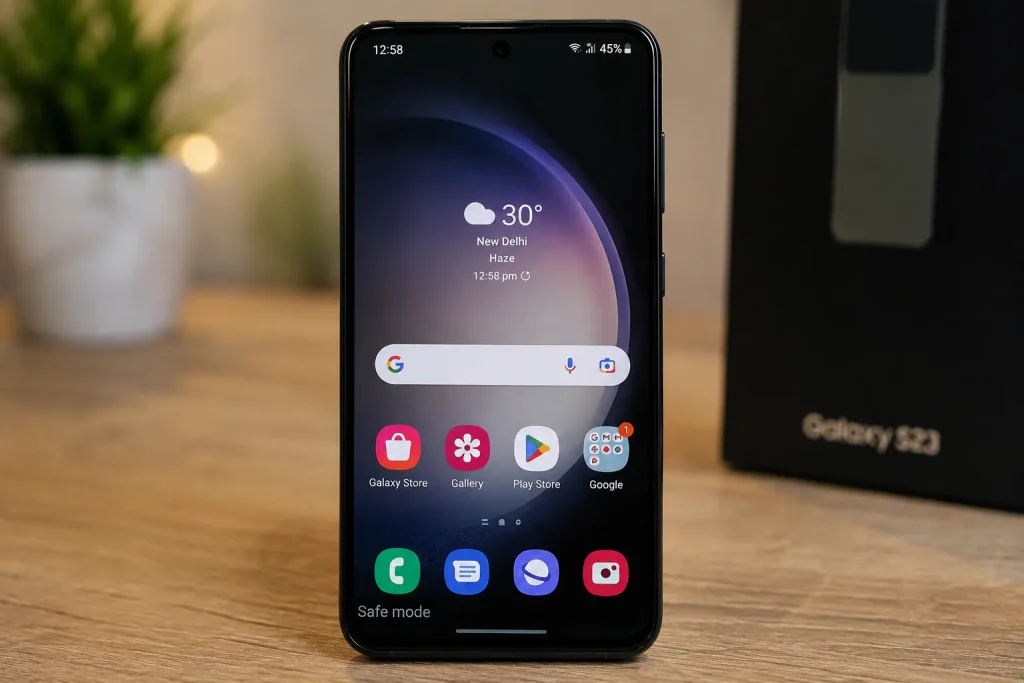
If the phone still freezes in Safe Mode
That makes downloaded apps less likely to be the primary cause.
You should then look more closely at:
- Storage
- System software
- Heat
- External storage
- Hardware symptoms
- Deeper system troubleshooting
Safe Mode is especially useful when you suspect a downloaded app. It temporarily turns off downloaded apps, allowing you to compare how the phone behaves without them. If the freezing disappears, you can restart normally and remove recently downloaded apps one at a time to identify the likely culprit. Google’s Android Safe Mode guide explains this testing process in more detail.
Why this test is better than guessing
Imagine you have 70 installed apps.
Without Safe Mode, you could spend hours uninstalling and reinstalling them.
With Safe Mode, you can first answer a much simpler question:
Does the problem still happen when downloaded apps aren’t running normally?
That single answer can dramatically narrow the troubleshooting path.
Quick Diagnosis: Find Your Starting Point
| What you’re seeing | What it points toward | Start here |
|---|---|---|
| Entire phone freezes randomly | Device-level issue | Restart + storage check |
| Only one app freezes | App-specific issue | Troubleshoot that app |
| Phone is nearly full | Storage pressure | Free up space |
| Problem started after an app change | Third-party app | Test/remove that app |
| Phone lags mainly when hot | Thermal slowdown | Stop heavy use and cool it |
| Phone becomes normal in Safe Mode | Downloaded app | Investigate recent apps |
| Phone freezes in Safe Mode too | Less likely to be a downloaded app | Continue deeper diagnosis |
| Problem started after an update | Software/compatibility issue | Check updates and affected apps |
| Problem involves files on an SD card | External storage | Test without the card if supported |
| Phone freezes after a clean reset | Deeper issue | Professional diagnosis may be needed |
Don’t treat this table as a checklist of 10 things to do.
Use it to decide where to start.
10 Fixes for an Android Phone That Keeps Freezing and Lagging
The fixes below are intentionally arranged from low-risk and easy to test toward more involved troubleshooting.
You don’t need to complete all 10 if an earlier step solves the problem.
Fix 1: Restart the Phone — Then See How Quickly the Problem Returns
A restart is still worth trying.
It closes active processes and starts a fresh Android session.
But there’s a more useful way to think about a restart.
Don’t ask only:
“Did restarting make the phone faster?”
Ask:
“How long did the phone stay normal after restarting?”
If the phone remains smooth for hours, the problem may have been temporary.
If it freezes again after five minutes, the restart probably cleared the symptom without removing the cause.
If the phone is responding normally
Use the standard Restart option from the power menu.
If the phone is completely frozen
The exact forced-restart method depends on the manufacturer.
On many Android phones, holding the power button for an extended period can force a restart, while some manufacturers use a specific button combination.
After restarting, don’t immediately launch every demanding app.
Use the phone normally for a few minutes.
What the result means
Problem disappears: keep monitoring.
Problem returns quickly: move to the next diagnostic step instead of repeatedly restarting.
Fix 2: Free Up Storage — But Focus on the Biggest Problems
If your phone is almost full, this deserves attention.
Open:
Settings → Storage
The exact menu name can vary by manufacturer.
Now look at what is consuming the most space.
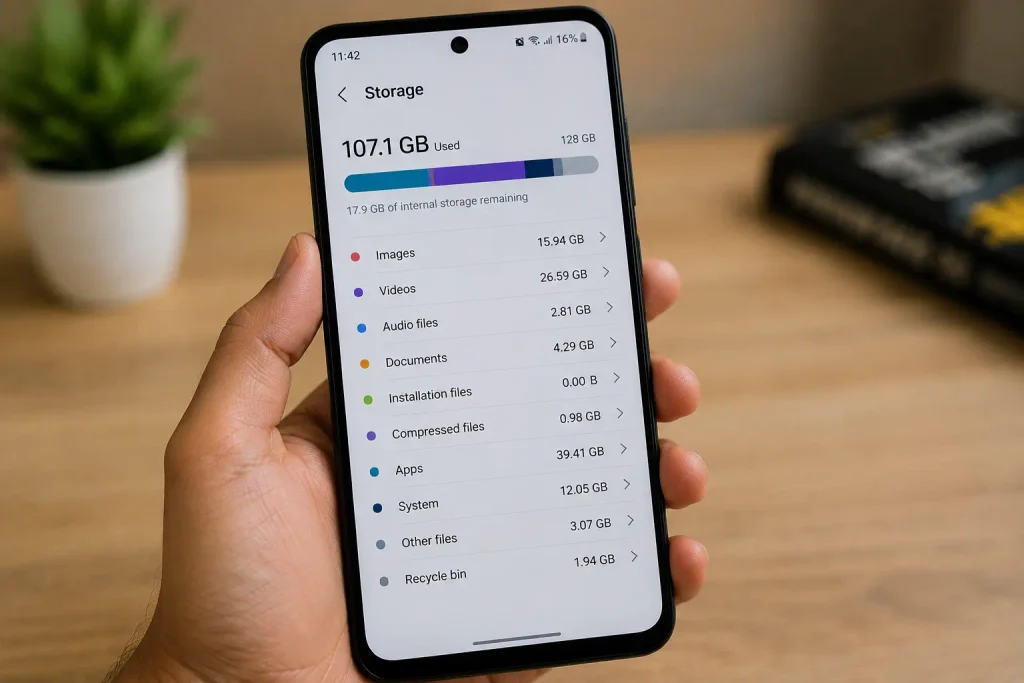
Start with data you can safely identify
Good candidates include:
- Old downloaded videos
- Large screen recordings
- Unused apps and games
- Offline media
- Old downloads
- Duplicate files
- Unnecessary media you’ve already backed up
Don’t delete system files simply because their names look unfamiliar.
And don’t delete important photos or videos just to make the storage number smaller.
Back them up first.
If your phone is almost full, don’t just delete random files. First open the Storage section and check which categories are taking up the most space. Google also notes that Android devices can start having issues when less than 10% of storage is free, so keeping a reasonable amount of free space is a practical part of troubleshooting. For more details on checking storage and safely freeing up space, see Google’s guide to freeing up storage on Android.
Why meaningful free space matters
If your phone is sitting with almost no free storage, freeing a few megabytes may not be enough.
Look for the biggest categories.
For example:
2 GB freed on a phone with 1 GB remaining can make a meaningful difference.
50 MB freed on a phone with 20 GB available probably won’t.
The goal isn’t to make the storage screen look pretty.
The goal is to give Android enough working room and remove unnecessary storage pressure.
After cleaning up
Restart the phone once.
Then test the apps and situations that previously caused freezing.
If the problem improves significantly, you’ve learned something important about the cause.
Fix 3: Update Android and Your Apps — But Pay Attention to Timing
Check for a pending Android update.
Depending on the manufacturer, it may appear under something like:
Settings → System → Software update
or:
Settings → Software update
Then check your apps through the Play Store.
Why update both?
An outdated Android system and outdated apps can sometimes create compatibility problems.
But remember the earlier point:
Timing matters.
If the phone started freezing immediately after a specific app update, don’t assume updating everything will automatically solve it.
Instead:
- Identify the affected app.
- Check whether a newer version is available.
- See whether the problem occurs outside that app.
- Test the phone in Safe Mode if necessary.
This gives you more useful information than simply pressing “Update all.”
Fix 4: Remove the App That Changed Before the Problem Started
If the freezing began shortly after installing or updating an app, test that app.
Start with the strongest suspects:
- Recently installed apps.
- Recently updated apps.
- Apps that repeatedly crash.
- Apps that seem to make the phone hot.
- Apps installed from outside the normal app store that you don’t fully trust.
Remove one suspect at a time
This is important.
Suppose you uninstall five apps and the freezing disappears.
You know the problem is gone.
But you don’t know which app caused it.
Instead:
Remove one → restart if necessary → test → observe.
If the problem remains, move to the next suspect.
This is slower than deleting everything, but much better troubleshooting.
Fix 5: Use Safe Mode to Confirm Whether a Downloaded App Is Responsible
If you’re still unsure, use Safe Mode.
The exact steps differ by manufacturer, so follow the instructions for your particular Android phone.
Once Safe Mode is active, use the phone normally.
Open Settings.
Scroll through menus.
Try the actions that usually cause the freezing.
Don’t judge the test after 20 seconds.
Give yourself enough time to see whether the problem returns under normal light use.
If the phone suddenly becomes stable
That’s a strong clue that one of your downloaded apps is involved.
Restart normally and start investigating recently installed or updated apps.
If the phone is still freezing
That’s also useful.
It means you shouldn’t waste hours uninstalling every app.
Move on to system-level troubleshooting.
The important distinction
Safe Mode doesn’t tell you:
“This exact app is bad.”
It tells you:
“Downloaded apps are more or less likely to be involved.”
You still have to identify the specific app if Safe Mode changes the behavior.
Fix 6: Stop Treating RAM as the Enemy
One of the most common Android troubleshooting myths is:
“My RAM is full, so my phone is slow.”
That’s too simplistic.
Android uses available memory to keep things ready and manages memory based on what the system needs.
So seeing RAM being used isn’t automatically a problem.
What should you look for instead?
Look for abnormal behavior.
Depending on your phone, check areas such as:
Settings → Battery
or:
Settings → Battery and device care
or your manufacturer’s equivalent device-care tools.
If one app consistently shows unusual activity and the freezing started around the same time, investigate that app.
You can:
- Update it.
- Force stop it when it is actively misbehaving.
- Clear its cache where appropriate.
- Reinstall it.
- Remove it if the problem continues.
What you shouldn’t do
Don’t install several RAM booster apps and expect them to fix the underlying issue.
And don’t make “clear all recent apps” a daily maintenance ritual.
The goal is to find the process causing trouble, not to make the recent-apps screen empty.
Fix 7: Cool the Phone Down and Test It Again
If your phone is noticeably hot when the lag starts, stop the activity that’s generating the heat.
For example:
- Exit a demanding game.
- Stop long video recording.
- Avoid direct sunlight.
- Give the device time to cool naturally.
- Avoid continuing intensive tasks while the phone is already very hot.
Then test it again.
Use the temperature pattern as evidence
Compare:
Phone cool → normal
versus:
Phone hot → laggy
If that pattern repeatedly appears, heat is likely contributing to the slowdown.
But if the phone becomes unusually hot during light tasks — or remains excessively hot without a clear reason — don’t treat it as ordinary lag.
That may warrant further diagnosis.
Fix 8: Test External Storage and Recently Added Accessories
This is one of the easier possibilities to overlook.
Think about what changed shortly before the problem appeared.
Did you add:
- A microSD card?
- A new USB accessory?
- An external device?
- Another hardware accessory?
If the freezing seems connected to accessing files on an SD card, test the phone without the card if your device supports safe removal.
For example, if:
Opening files/photos → phone freezes
but the phone is otherwise normal, external storage becomes more interesting.
You don’t need to immediately conclude that the SD card is defective.
You’re simply trying to answer:
Does removing it change the behavior?
A change in behavior is valuable evidence.
Fix 9: Reset the Problematic App Instead of Resetting the Entire Phone
If your diagnosis points strongly toward one app, don’t jump from:
“This app is acting weird”
to:
“Factory reset the phone.”
There is a much smaller step in between.
Try:
- Update the app.
- Force stop it if it is currently stuck.
- Clear its cache.
- Reopen it.
- If the problem continues, reinstall it.
Be careful with “Clear storage” or “Clear data”
These options are not the same as clearing cache.
Clearing an app’s stored data can reset the app and may remove locally stored information depending on how that app works.
Before using it, make sure you understand what will be removed and that anything important is backed up or synced.
Why this fix matters
If only one app is causing the problem, repairing that app is far better than resetting the entire phone.
What If the Phone Still Freezes After These Fixes?
At this stage, don’t simply repeat the same steps.
Go back to the evidence.
Ask:
- Does it freeze across the entire phone?
- Does it happen in Safe Mode?
- Is storage still critically low?
- Does heat trigger it?
- Did the problem start after an update?
- Does external storage affect it?
- Are there random restarts or shutdowns?
- Has the phone suffered physical or liquid damage?
The answers determine what you should do next.
If the phone works normally in Safe Mode, continue investigating downloaded apps.
If it freezes even in Safe Mode, downloaded apps are less likely to be the main cause.
If it continues after a clean factory reset, the situation becomes even more significant because you’ve removed many ordinary software causes.
At that point, repeatedly installing cleaner apps or clearing RAM is not troubleshooting anymore. It’s guessing.
9. Common Mistakes That Can Make Android Lag Worse
When a phone starts freezing, most people want the quickest possible solution.
That’s understandable.
But troubleshooting becomes harder when you start changing several things at once without knowing what caused the problem.
Some common “speed-up” habits can also waste your time or make it harder to identify the real issue.
Here are the mistakes worth avoiding.
Mistake 1: Installing a RAM Cleaner or Phone Booster
If your phone is lagging, installing another app to “boost” it may seem like an obvious solution.
Usually, it’s not.
Android already manages memory and background processes on its own. A third-party cleaner running in the background can become another process your phone has to handle.
Instead of asking:
“Which cleaner app should I install?”
ask:
“What is actually making the phone slow?”
If storage is full, free storage.
If one app is misbehaving, troubleshoot that app.
If the phone is overheating, deal with the heat.
The solution should match the problem.
Mistake 2: Trying to Keep RAM Empty
An Android phone having used RAM doesn’t automatically mean something is wrong.
Memory is there to be used.
The number you see in a memory screen isn’t, by itself, a diagnosis of poor performance.
If the phone is genuinely struggling, look for a pattern:
- One app constantly misbehaves.
- The phone becomes hot.
- Apps repeatedly crash.
- Performance drops during specific tasks.
- The entire interface becomes unresponsive.
That’s much more useful than repeatedly clearing recent apps just to see an empty screen.
Mistake 3: Force-Stopping Everything
Force stop can be useful when a particular app is stuck or behaving incorrectly.
But force-stopping dozens of apps every day isn’t a proper performance strategy.
If you repeatedly need to force-stop the same app, that’s actually useful information.
It may mean:
“This app needs troubleshooting.”
So use force stop as a targeted troubleshooting step, not as daily maintenance.
Mistake 4: Deleting Random Files to Free Storage
When storage is almost full, it’s tempting to delete anything that looks unfamiliar.
Don’t do that.
You should be able to identify what you’re removing.
Good candidates include:
- Old downloads
- Unwanted videos
- Large screen recordings
- Unused apps
- Offline media
- Duplicate files
If you’re unsure what a system file does, leave it alone.
Freeing storage should solve a storage problem, not create a new one.
Mistake 5: Clearing App Data When You Only Meant to Clear Cache
This is an easy mistake to make because the options can appear close together.
Clear cache removes temporary cached information.
Clear storage/data can reset the app and may remove locally stored information, depending on how the app works.
So if you’re troubleshooting one app, start with the less destructive option when appropriate.
And before clearing app data, make sure you understand what the app may lose.
Mistake 6: Factory Resetting the Phone Too Early
A factory reset is powerful.
That’s exactly why it shouldn’t be your first response to a slow phone.
A factory reset removes data from the device and uninstalls apps and their associated data. Google recommends trying other troubleshooting steps first and backing up important information before resetting the phone.
If your problem is caused by:
- One bad app
- Low storage
- Overheating
- A temporary software issue
then a factory reset may be unnecessary.
Use it when the evidence points toward a deeper software problem and the simpler options haven’t helped.
A factory reset should be treated as a last-resort software troubleshooting step, not a quick way to make an Android phone faster. It removes data and installed apps from the device, so you should back up important information before using it. Google’s Android factory reset guidance explains what gets removed and what you should do before resetting the phone
Mistake 7: Reinstalling Every App Immediately After a Factory Reset
This is one of the biggest mistakes you can make after resetting a phone.
Imagine the phone was freezing because of one downloaded app.
You perform a factory reset.
The phone works perfectly.
Then you reinstall all 50 apps in one afternoon.
A few hours later, the freezing comes back.
Now you’ve lost an important clue.
You don’t know which app brought the problem back.
Instead, rebuild the phone gradually.
Install your important apps first and use the phone normally for a while.
Then add the rest over time.
If the problem returns after a particular app is installed, you’ve created a much clearer trail.
Mistake 8: Ignoring What Changed Before the Problem Started
This is one of the most useful questions you can ask:
What changed?
Think back to when the freezing began.
Did you:
- Install an app?
- Update an app?
- Update Android?
- Add an SD card?
- Start using a demanding game?
- Fill your storage?
- Notice unusual heat?
- Drop or expose the phone to liquid?
The answer doesn’t automatically identify the cause.
But it gives you a starting point.
Mistake 9: Assuming an Old Phone Is Automatically the Problem
An older phone can certainly have weaker hardware than a newer model.
But age alone doesn’t explain sudden freezing.
If an older phone worked normally for months and suddenly started freezing after an app installation, the app is still worth investigating.
Likewise, a relatively new phone can freeze because of software, storage, heat, or hardware problems.
Don’t replace a phone before you’ve diagnosed it.
10. How to Prevent Your Android Phone From Freezing and Lagging Again
Once the phone is working normally, the goal is to keep it that way.
You don’t need to constantly “optimize” your phone.
A few sensible habits are enough.
Keep Your Storage From Reaching the Limit
You don’t have to obsess over storage every day.
But don’t wait until Android starts warning you that the phone is nearly full.
Google notes that devices can start experiencing issues when less than 10% of storage remains free.
Every few weeks, check what’s taking up the most space.
Large videos and unused apps are usually better targets than random system files.
Keep Android and Your Important Apps Updated
Updates can include bug fixes, compatibility improvements, and security improvements.
Don’t ignore available updates for months without a reason.
At the same time, remember that timing matters.
If a problem appears immediately after an update, don’t automatically assume the update fixed nothing or that your phone is suddenly failing.
Observe whether the problem affects:
- One app
- Several apps
- The whole system
- Safe Mode as well
That information is more useful than simply blaming the update.
Don’t Ignore Repeated App Crashes
An app that crashes once isn’t necessarily a concern.
An app that crashes every day is different.
Pay attention if the same app repeatedly:
- Stops responding
- Closes itself
- Makes the phone hot
- Uses unusual battery
- Causes the interface to become sluggish
Repeated behavior is a clue.
Treat it like one.
Give the Phone a Break When It’s Already Very Hot
Heavy tasks are normal.
Gaming, video recording, navigation, and other demanding activities can put more load on the device.
The problem is continuing to push the phone when it is already noticeably hot.
If performance starts dropping because of heat:
stop → let it cool naturally → test again.
If the phone repeatedly becomes unusually hot during light use, that’s different and deserves further investigation.
Don’t Turn Troubleshooting Into a Daily Ritual
You shouldn’t need to:
- Clear RAM every few hours
- Force-stop every app
- Restart the phone repeatedly
- Install cleaner apps
- Clear caches constantly
just to make the phone usable.
If you do, there’s probably an underlying problem that hasn’t been identified.
A healthy phone shouldn’t require constant manual “optimization” just to function normally.
11. When Should You Repair or Replace an Android Phone?
Not every freezing problem means you need a new phone.
And not every hardware problem is worth repairing.
The decision should come after diagnosis, not before it.
Repair May Be Worth Considering If:
- The phone is otherwise in good condition.
- A specific hardware problem has been identified.
- The device is still relatively new.
- The repair cost is reasonable.
- Your data and setup are already on the phone.
- The phone provides enough performance for what you actually use it for.
For example, if professional testing identifies a particular hardware component as the problem, repairing that component may be much more sensible than replacing the whole device.
Replacement May Make More Sense If:
- Several hardware problems are appearing together.
- The phone is significantly outdated.
- Repair costs approach the price of a suitable replacement.
- Software support has become inadequate for your needs.
- Serious performance problems continue after clean software troubleshooting.
- Battery, display, storage, and other components are all showing signs of age.
There is no universal rule saying:
“Replace your Android phone after exactly X years.”
Your actual condition matters more than the calendar.
One Test That Can Help Before You Spend Money
Ask yourself:
Does the phone still freeze after a clean software setup?
If it continues freezing in Safe Mode, or continues freezing after a factory reset before you’ve reinstalled your usual collection of apps, ordinary downloaded-app problems become less likely.
That doesn’t automatically prove a hardware failure.
But it does make professional diagnosis more reasonable.
At that point, repeatedly resetting the phone or installing another cleaner app isn’t likely to give you a useful answer.
12. Android Phone Freezing and Lagging: Final Diagnosis Table
You’ve now gone through the fixes.
So instead of making you remember everything, here’s the simplest way to interpret what you’ve found.
| What happened during testing | What it tells you | Best next move |
|---|---|---|
| Restart fixed the problem and it hasn’t returned | Likely temporary issue | Keep monitoring |
| Phone improved after freeing storage | Storage was likely contributing | Keep adequate free space |
| Only one app causes the freezing | App-specific problem | Update, reset, reinstall, or remove it |
| Problem began after installing an app | App is a strong suspect | Remove/test that app |
| Phone works normally in Safe Mode | Downloaded app is more likely involved | Investigate recent apps |
| Phone freezes in Safe Mode | Downloaded apps are less likely to be the main cause | Continue system/hardware diagnosis |
| Lag appears mainly when phone is hot | Heat is likely contributing | Reduce heat and investigate if excessive |
| Problem began around an SD card/accessory change | External hardware may be involved | Test without it if supported |
| Freezing continues after a clean reset | Deeper issue becomes more likely | Consider professional diagnosis |
The most important takeaway
You don’t need to perform every fix.
Your test results should decide what happens next.
That’s what makes troubleshooting different from simply following a checklist.
13. Related Android Problems You May Also Want to Fix
If your Android phone is freezing or lagging, another issue may be contributing to the problem.
For example, overheating can cause performance problems, while an app that repeatedly crashes can make the phone feel unstable.
You can naturally connect this guide with related troubleshooting articles such as:
- Android phone battery draining quickly
- Phone overheating while using Instagram
- Android apps automatically closing
- Phone charging but battery percentage not increasing
- Phone touch screen not working after restart
- Common Android phone problems and how to fix them
Don’t place these links randomly.
The strongest internal links should appear where the reader actually needs them.
For example:
When discussing overheating, link to the overheating guide.
When discussing apps repeatedly closing, link to the app-crashing guide.
When discussing charging-related heat or battery behavior, link to the relevant charging article.
This creates a useful path through your site instead of turning the article into a collection of unrelated links.
14. Why You Can Trust This Guide
Troubleshooting a phone shouldn’t be about throwing ten random solutions at the problem and hoping one works.
That’s why this guide focuses on diagnosis before drastic changes.
The steps are arranged so you can start with relatively simple checks, observe what happens, and then move toward more involved troubleshooting only when the evidence points in that direction.
For example, Safe Mode isn’t presented as a magical performance fix.
It’s used as a way to determine whether downloaded apps are likely involved.
Likewise, a factory reset isn’t presented as the answer to every freezing problem.
It’s treated as a more advanced option because it removes data and apps from the device and requires proper preparation. Google’s own Android troubleshooting guidance recommends trying other steps first and backing up before a factory reset.
The guide also avoids promising that one trick will work on every Android phone.
Android devices differ by manufacturer, model, hardware, and software version, so menu names and exact steps can vary.
What remains consistent is the troubleshooting principle:
Look at the symptoms, test the most likely cause, and use the result to decide what to do next.
That’s much more reliable than blindly installing optimization apps or repeatedly resetting the phone.
Frequently Asked Questions About Android Phone Freezing and Lagging
Why does my Android phone keep freezing and lagging?
The most common causes include very low storage, a problematic app, overheating, software issues, or aging hardware. Start by checking storage, recent app changes, and whether the phone behaves normally in Safe Mode.
How do I stop my Android phone from freezing?
Restart the phone first, then check available storage and pending updates. If the freezing continues, test Safe Mode to see whether a downloaded app is causing the problem.
Can low storage make an Android phone freeze?
Yes. Android can start having problems when available storage becomes very low. If your phone has less than about 10% free space, remove unnecessary files and apps before trying more advanced fixes.
Why is my Android phone suddenly so slow?
A sudden slowdown can be caused by a new app, an update, low storage, overheating, or a system problem. Think about what changed shortly before the slowdown started, because that can help narrow down the cause.
How do I know if an app is making my Android phone freeze?
Start the phone in Safe Mode and use it normally for a while. If the freezing disappears in Safe Mode, a downloaded app is likely involved. You can then remove recently installed or updated apps one at a time.
Does restarting an Android phone fix freezing?
A restart can clear a temporary software problem, but it may not fix the underlying cause. If the phone freezes again shortly after restarting, continue troubleshooting instead of repeatedly rebooting it.
Can overheating cause Android phones to lag?
Yes. Heavy workloads can make a phone hot, and performance may drop as the device manages that heat. If lag consistently appears when the phone becomes hot, let it cool and check what activity is causing the temperature to rise.
Should I use a RAM cleaner if my Android phone is lagging?
Usually, no. Android already manages memory, and you don’t normally need to keep RAM empty. Instead, look for a specific app or activity that is actually causing unusual resource usage.
Will clearing an app’s cache fix Android freezing?
It can help if a particular app is misbehaving, but it isn’t a universal fix for phone-wide freezing. Clear the cache of the suspected app first; avoid clearing its stored data unless you understand what information may be removed.
Should I factory reset my Android phone if it keeps freezing?
Only after you’ve tried the simpler troubleshooting steps and backed up important data. A factory reset removes the phone’s data and installed apps, so it should be treated as an advanced troubleshooting step, not the first fix
Why does my Android phone freeze even in Safe Mode?
If freezing continues in Safe Mode, downloaded apps are less likely to be the main cause. Check storage, software updates, overheating, external accessories, and possible hardware problems next.
When should I get my Android phone repaired?
Consider professional diagnosis if freezing continues after reasonable software troubleshooting, especially if you also notice random shutdowns, unusual heat, physical damage, liquid exposure, or other hardware problems.
Final Conclusion
An Android phone that keeps freezing and lagging can make the device feel like it’s ready for replacement.
But don’t make that decision too quickly.
Freezing is a symptom, not a diagnosis.
The real cause could be something relatively simple, such as critically low storage or a problematic app. It could be connected to overheating, software changes, external storage, or — in some cases — an underlying hardware problem.
The most important thing is to stop treating every slow phone the same way.
If one app is freezing, start with that app.
If the whole phone becomes unresponsive, investigate the device as a whole.
If the problem appears when the phone is hot, test that pattern.
If the phone becomes normal in Safe Mode, investigate downloaded apps.
If it continues freezing even after you’ve removed the usual software causes, stop repeating the same fixes and consider deeper diagnosis.
And don’t let the fear of losing your data push you into a factory reset too early.
A factory reset can be useful, but it should be a considered troubleshooting step — not the first button you press when your phone becomes slow.
The best troubleshooting approach is surprisingly simple:
Notice what changed.
Test one thing at a time.
Use the result as a clue.
Then choose the next step.
You don’t need to make your Android phone “perfectly optimized.”
You need to find out what is actually making it freeze.
Once you identify that, the right fix usually becomes much clearer.
Freezing and lagging can sometimes be only one part of a larger Android problem. If you’re also dealing with battery, charging, network, app, or performance issues, our broader guide to common Android phone problems and how to fix them can help you troubleshoot other symptoms without jumping between unrelated fixes.