
About the author
Android Auto-Rotate Not Working
You turn your Android phone sideways to watch a video, look at a photo, or read something more comfortably, but the screen stays upright.
You turn the phone again. Nothing happens.
Even worse, Auto-Rotate is already turned on, so it becomes difficult to understand what is actually wrong.
This problem can happen in different ways. Sometimes the screen will not rotate in one particular app, while everything else works normally. Sometimes the Android screen is not rotating in any app. In other cases, the problem starts after an update, an app installation, or a change in your phone’s settings.
When I troubleshoot this kind of Android problem, I don’t start by changing ten settings at once. I first check whether the problem is happening in one app or across the whole phone. That small test often tells you where to look next.
So, if your Android Auto-Rotate is not working, this guide will help you find the actual cause and try practical fixes without jumping straight to a factory reset.
Quick Answer: Why Is Auto-Rotate Not Working on Android?
The most common reasons are simple:
- Auto-Rotate is turned off or the phone is locked to Portrait mode.
- The app you are using does not support landscape mode on that screen.
- Android has temporarily stopped responding correctly.
- A recently installed or updated app may be causing a problem.
- The phone may not be detecting when you turn it sideways properly.
- The issue may only affect the Home screen or another screen that is designed to stay in portrait mode.
- A recent drop or liquid exposure may have caused a hardware-related problem.
The exact settings can look different on Samsung, Pixel, Xiaomi, OnePlus, Motorola, and other Android phones, so don’t worry if your menu looks a little different.
First, Find Out What Is Actually Not Working
Before trying the fixes below, do this quick test.
Open an app where landscape mode normally makes sense, such as YouTube.
Now turn your phone sideways.
Then open another app, such as your browser, and test again.
What happens?
Only one app refuses to rotate?
The phone may be fine. The app may simply not support landscape mode on that particular screen.
Several apps refuse to rotate?
The problem is more likely related to Android settings, a temporary system problem, or another phone-wide issue.
Nothing rotates anywhere?
Continue with the fixes below. At that point, it makes more sense to look at the phone rather than blaming just one app.
This is important because an Android screen rotation problem is not always a phone problem. Sometimes the app is the part that is behaving differently.
Why Does Android Auto-Rotate Stop Working?
There are several possible reasons behind an Android screen not rotating.
The setting may be turned off, the problem may be limited to one app, or Android may have temporarily stopped responding correctly. In some cases, a recently installed or updated app can be involved. And if the screen refuses to rotate in supported apps even after a restart, a problem with the phone’s built-in movement detection becomes more worth considering.
Here are the seven most common possibilities.
7 Possible Reasons Your Android Screen Won’t Rotate
1. Your Phone Is Locked to Portrait Mode
This is the first thing to check because it is easy to miss.
Android can keep the screen in Portrait mode even when you turn the phone sideways.
When this happens, the phone is not necessarily broken. The rotation setting is simply locked.
2. The App Does Not Support Rotation on That Screen
Some apps support landscape mode only in certain places.
For example, a video may rotate while the app’s home screen stays in portrait mode.
So when the phone screen won’t rotate, always test another app before changing deeper settings.
3. Android Has Temporarily Stopped Responding Correctly
Sometimes a small software problem can affect a single feature.
You may not notice anything else wrong with the phone, but rotation can stop responding until the phone or the affected app is restarted.
If your phone is also showing signs like freezing, lagging, or apps behaving strangely, you can also look at our Android Phone Keeps Freezing and Lagging? 10 Fixes guide.
4. A Recently Installed or Updated App May Be Involved
If Auto-Rotate was working normally and stopped after installing or updating something, pay attention to that timing.
It does not prove that the app caused the problem, but it gives you a useful clue.
This is especially worth checking when rotation works normally before opening a particular app.
5. The Home Screen May Simply Not Support Rotation
This one confuses many users.
Some phones or launchers may keep the Home screen or certain built-in screens in portrait mode, even though other apps can rotate normally.
So, if the only place that stays vertical is your Home screen, do not immediately assume that Auto-Rotate is not working on your Android phone.
6. A Special Accessibility Setting May Affect Rotation
This mainly matters if you use accessibility features or recently changed one of them.
For example, Google notes that people using TalkBack should turn off auto-rotate because rotating the screen can interrupt spoken feedback.
This is not a common cause for every Android user, so treat it as a special case rather than assuming it is the reason for your problem.
7. The Phone May Have a Sensor or Hardware Problem
Your phone uses built-in sensors to know when you turn it from portrait to landscape.
If rotation fails across supported apps even after the basic troubleshooting steps, the phone may not be detecting its position correctly.
This becomes more important when the phone has recently been dropped, hit hard, or exposed to liquid.
Step-by-Step Fixes
Fix 1: Turn Auto-Rotate On Properly
Start here.
Swipe down from the top of the screen to open Quick Settings.
Look for:
Auto-Rotate
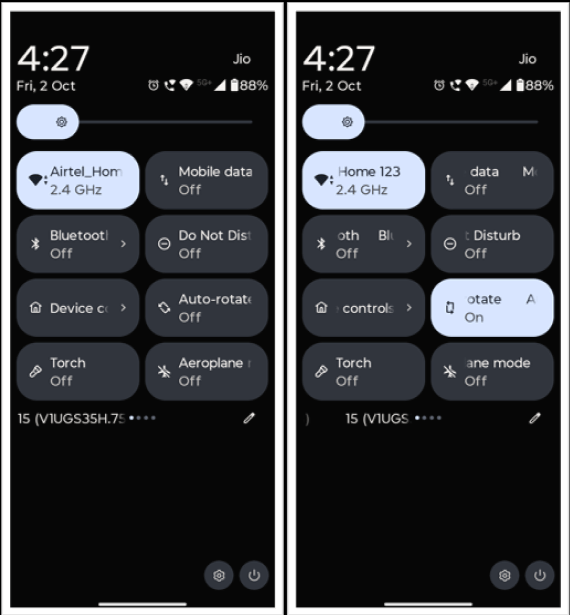
On some phones, you may instead see:
Portrait
If you see Portrait, tap it to switch back to Auto-Rotate.
You can also search your Settings app for Auto-Rotate if you cannot find the option.
On Google’s version of Android, the setting is available through Quick Settings and under Display settings. The exact location and wording can vary on other phones.
For Google’s general instructions, see Google’s guide to turning screen rotation on and off.
Now rotate the phone and test it again.
Still not working?
That’s okay. Don’t change a lot of other settings at once. Move to the next fix and test again.
Fix 2: Restart Your Android Phone
If Auto-Rotate is failing in several apps, restart the phone before trying anything drastic.
Choose:
Power → Restart
Then wait for the phone to fully start again.
After the restart, test rotation in more than one app.
A temporary Android problem can sometimes disappear after the system starts fresh. Restarting is also a standard first troubleshooting step for many Android issues.
Fix 3: Force Close the App That Is Not Rotating
Suppose YouTube rotates normally, but one particular app refuses to rotate.
In that case, treat it as an app problem first.
Go to:
Settings → Apps → [Problem App] → Force Stop
Then open the app again and test rotation.
On many phones, you can also clear the app’s cache:
Settings → Apps → [Problem App] → Storage → Clear Cache
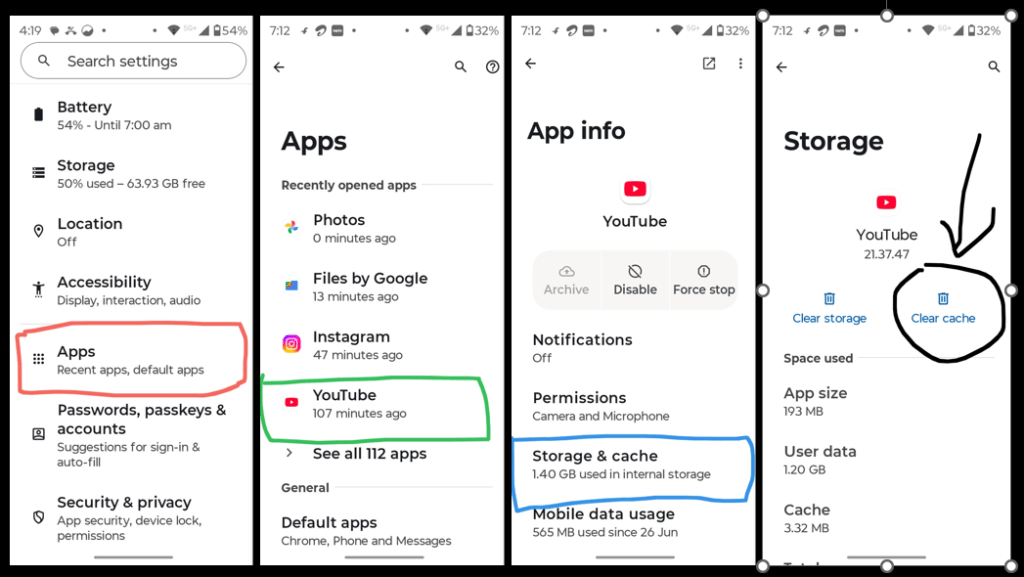
The exact menu can vary by phone.
Do not clear the app’s data unless you know what it will remove. Clearing the cache is the safer first step.
When app problems are involved, you may also find our Apps Closing as Soon as I Open Them on Android? 8 Fixes guide useful.
Fix 4: Check Whether the App Supports Landscape Mode
Before changing more phone settings, make sure the app itself supports rotation.
Some apps are designed to stay in portrait mode. Others may support landscape only on certain screens.
For example, an app may rotate while playing a video but stay vertical on its main screen.
So, if Android screen rotation is not working in one app, test another supported app before assuming your phone has a problem.
Fix 5: Check for Android and App Updates
If the problem started recently, check whether an update is available.
For Android, try:
Settings → System → Software Update
On some phones, this option may be under a different menu.
Then open the Play Store and check for updates to the app where you first noticed the problem.
You don’t need to assume that an update caused the problem. Just check whether a newer version is available.
If an app has been crashing or behaving strangely since an update, our Android Apps Keep Crashing After Update? 7 Fixes guide covers that type of problem in more detail.
Fix 6: Check Accessibility Settings If You Recently Changed Them
This step is mainly for people who have changed accessibility features recently.
Open your phone’s Accessibility settings and look for options related to screen behavior.
If you use TalkBack, remember that Google recommends keeping auto-rotate off because rotation can interrupt spoken feedback.
So, in that situation, what looks like an Auto-Rotate problem on Android may actually be part of an accessibility setup.
You do not need to change every accessibility option. Focus on anything you recently enabled or changed.
Fix 7: Check Whether a Recently Installed App Is Causing the Problem
This step matters when the problem started after installing a new app.
If rotation was working normally before you installed an app and the problem started soon afterward, try removing that recently installed app and test rotation again.
You do not have to uninstall several apps at once. Start with the apps you installed or updated around the time the problem began.
If you are not sure which app may be involved, Safe Mode can help you test the phone without downloaded apps running normally.
The exact way to enter Safe Mode depends on your phone manufacturer.
If rotation works in Safe Mode
A downloaded app may be causing the issue.
Start by removing recently installed apps one at a time and testing the phone after each removal.
If rotation still does not work
A downloaded app is less likely to be the cause, so continue with the remaining checks.
For more detail, see Google’s guide to finding problem apps.
Fix 8: Check for Physical Damage Before Doing Anything Drastic
If Auto-Rotate still does not work in multiple supported apps after you have enabled it and restarted the phone, take a look at what happened around the time the problem started.
Ask yourself:
Did the phone fall recently?
Was it exposed to water or another liquid?
Did the rotation problem begin immediately after that?
If yes, changing more settings may not solve the real problem.
A phone that has suffered physical damage may need to be inspected rather than repeatedly reset or adjusted.
What to Do If Nothing Worked
At this point, you’ve already checked the main settings, tested different apps, restarted the phone, checked updates, and investigated recently installed apps.
If the screen still will not rotate anywhere, especially after physical damage, a hardware-related problem becomes more possible.
You do not need to factory reset a phone just because Auto-Rotate stopped working.
A factory reset removes data from the device, so it should be treated as a last-resort step rather than the first response to a rotation problem.
If you eventually decide that a reset is necessary, back up your important data first.
If the problem continues after the normal troubleshooting steps, contacting the phone manufacturer or a qualified service center is a better next step.
A Simple Way to Diagnose the Problem
Here is the easiest way to think about it:
| What You See | What You Should Check First |
|---|---|
| One app does not rotate | That app’s behavior, force stop, and cache |
| YouTube rotates but another app does not | The app may not support rotation on that screen |
| Several apps do not rotate | Auto-Rotate, restart, updates, and system settings |
| Nothing rotates after restart | A system-wide issue or phone movement detection problem may be involved |
| Problem started after a new app | Remove the recent app or test in Safe Mode |
| Problem started after a drop or liquid exposure | A hardware-related problem is possible |
This approach is better than trying random fixes in no particular order.
Common Mistakes Users Make
They Assume Every Screen Should Rotate
It doesn’t work that way.
Some screens and apps are designed to stay in portrait mode.
They Test Only the App Where They Found the Problem
This can give you the wrong idea about the entire phone.
Always test at least one or two other apps that normally support landscape mode.
They Keep Turning Auto-Rotate On and Off
That does not tell you whether the problem is actually fixed.
Change the setting, test it, and then move on.
They Clear App Data Too Quickly
If only one app has the problem, start with Force Stop and Clear Cache.
Clearing data can sign you out of the app or remove locally stored information, so it should not be your first step.
They Factory Reset the Phone Too Early
A factory reset is a major step for a relatively small problem.
Back up your data and use simpler troubleshooting first.
They Immediately Blame the Sensor
A sensor problem is possible, but you should not assume it before testing the basics.
The better question is:
Does rotation fail everywhere, or only in one place?
That answer gives you a much better starting point.
How to Prevent Auto-Rotate Problems in the Future
There is no setting that guarantees Auto-Rotate will never have a problem, but a few habits can make things easier.
Keep Android and your important apps updated.
When a problem starts, remember what changed around that time. A new app, an update, or a settings change can provide a useful clue.
Also, avoid installing random apps that claim to “repair” Android system features automatically. Basic Android problems are usually better handled through the phone’s own settings first.
And when a problem appears after physical damage, don’t keep changing software settings forever. That timing is useful information.
Frequently Asked Questions
Why won’t my Android screen rotate even when Auto-Rotate is on?
First, test another app. If rotation works there, the original app may not support landscape mode on that screen. If nothing rotates anywhere, restart the phone and continue with the system-level fixes in this guide.
How do I fix Auto-Rotate on an Android phone?
Start by opening Quick Settings and making sure Auto-Rotate is enabled. Then test another app, restart the phone, check for updates, and investigate recently installed apps if the problem continues.
Why does my screen rotate in one app but not another?
Different apps can handle screen orientation differently. One app may support landscape mode while another stays portrait on certain screens. Test more than one app before assuming your phone has a fault.
Why is my Android screen not rotating in any app?
If Auto-Rotate is enabled and no supported app rotates, restart the phone first. Then check for updates and recently installed apps. If the problem continues everywhere, a wider system issue or hardware-related problem may be involved.
Can a recent Android update cause screen rotation problems?
It is possible for a problem to appear around the time of an update, but timing alone does not prove the update caused it. Check whether a newer update is available and test whether the issue is happening in all apps or only one.
What should I do if Auto-Rotate stopped working after I installed an app?
Start by removing apps you installed or updated around the time the problem began. If you’re not sure which app is causing the issue, test the phone in Safe Mode to see whether rotation works without downloaded apps running normally.
Can a damaged phone stop Auto-Rotate from working?
It can be a possibility when rotation fails across multiple apps and the phone has recently suffered a drop or liquid exposure. In that situation, a professional inspection may be more useful than changing more settings.
Do I need to factory reset my Android phone for a rotation problem?
Usually, no. Try the basic troubleshooting steps first. A factory reset deletes data from the phone, so back up your important information before considering it.
Final Conclusion
When Android Auto-Rotate is not working, the first thing you need is not another random fix. You need to know where the problem actually happens.
Start by checking Auto-Rotate, then test a couple of supported apps. If one app works and another doesn’t, focus on the app. If several apps fail, restart the phone and continue with updates and recently installed apps.
That simple process can save you from making unnecessary changes to your phone.
And when rotation still fails everywhere after the basic troubleshooting, especially after a drop or liquid exposure, it may be time to look beyond settings.
The important thing is to work from the easiest checks to the more serious possibilities. That way, you have a better chance of fixing the problem without losing your data or resetting the entire phone.