

You open an app on your Android phone, wait for it to load, and then—it suddenly closes.
You try opening it again. It happens again.
Maybe the app works for a few minutes before crashing. Maybe it closes the moment you tap on it. Or perhaps you’ve started noticing the same thing with several apps on your phone.
If you’re dealing with this right now, the problem can feel confusing because your phone may otherwise look completely normal. The screen works, you can browse the web, receive notifications, and use other features—but one or more apps simply won’t stay open.
The good news is that an app repeatedly closing doesn’t automatically mean your phone needs a factory reset or that something is seriously broken.
In many cases, the cause is something you can fix yourself. It could be a temporary Android glitch, very low storage, corrupted app files, an outdated app, a problematic update, aggressive battery restrictions, or another app interfering in the background.
The important part is not to start changing random settings.
Instead, we’ll first narrow down what kind of problem you’re dealing with and then work through the fixes from the safest and simplest options to the more advanced ones. That way, you can stop as soon as the app starts working normally again.
By the end of this guide, you should have a much clearer idea of why your apps keep closing, what to try first, and when the problem may need professional attention.
Quick Answer: Why Do Apps Keep Closing on Android?
Apps can keep closing on Android because of low storage, limited available memory, corrupted app cache or data, outdated software, buggy app or Android updates, problematic third-party apps, overheating, or battery restrictions.
If only one app keeps closing, start by restarting your phone, force-stopping the app, clearing its cache, updating it, and reinstalling it if necessary. If several apps are crashing, check your phone’s storage, Android updates, overheating, and recently installed apps because the problem may be system-wide.
Before You Start: Identify What Is Actually Going Wrong
Before jumping into the fixes, take a few seconds to look at exactly how the app is failing.
This matters because two people can have the same complaint—“my apps keep closing”—but completely different causes.
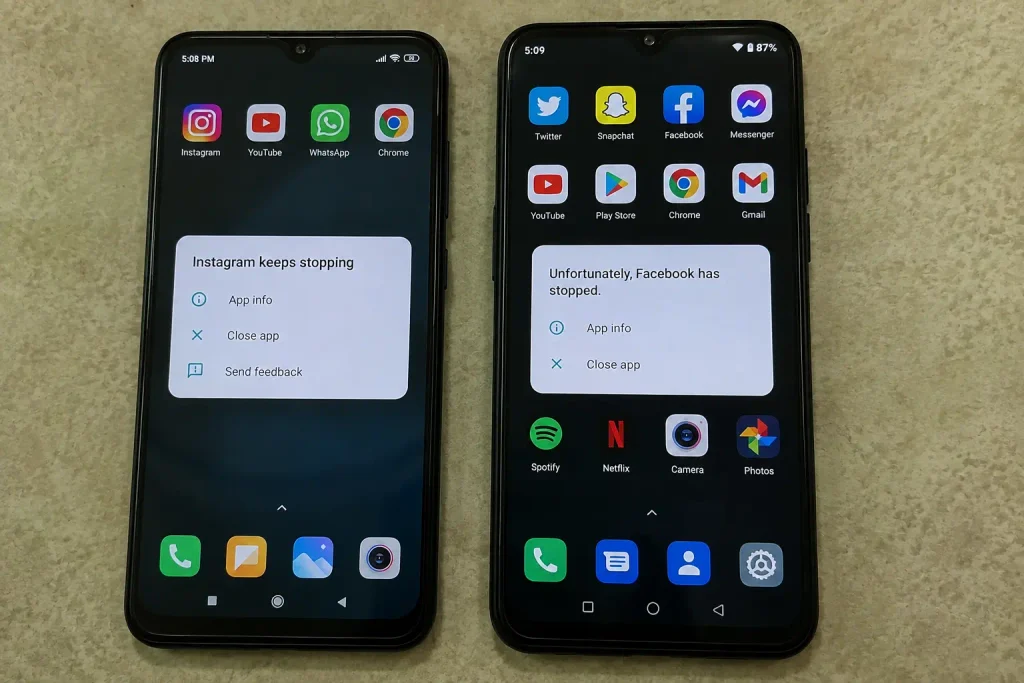
Is Only One App Closing?
If Instagram, YouTube, WhatsApp, or another specific app is the only one crashing while everything else works normally, the problem is probably related to that particular app.
Its cache may be corrupted, its current version may have a bug, or its files may have become damaged.
In that situation, focus on the app itself first.
Are Several Apps Closing?
If different apps are crashing, don’t keep reinstalling them one by one.
When multiple unrelated apps start closing, the problem is more likely connected to Android, storage, memory, overheating, a recent update, or another system-level issue.
That’s an important clue because it changes where you should start troubleshooting.
Does the App Close Immediately?
If an app shows its logo for a second and then closes, or Android displays an “App keeps stopping” message, the app may be failing during startup. This can happen because of corrupted temporary files, an outdated app, compatibility problems, insufficient storage, or a temporary software issue.
The right fix depends on whether one app or several apps are affected.
If Only One App Closes Immediately
Try these steps in order:
- Restart your Android phone.
- Open Settings → Apps → select the affected app → Force stop. Then open it again.
- Go to the app’s Storage settings and tap Clear cache.
- Check the Google Play Store for an app update.
- If the problem continues, reinstall the app after checking whether important information is stored locally.
The exact Settings menu names may differ by phone manufacturer.
If Several Apps Close Immediately
Do not reinstall every app one by one. Check your available storage, install pending Android and app updates, and investigate whether a recently installed app may be causing a conflict.
If the crashes continue, use Safe Mode to help determine whether a downloaded app is involved. The next section explains how to interpret that test.
If only one app continues crashing after a clean reinstall while other apps work normally, check the app developer’s support information for known bugs or device compatibility problems. Reinstalling the same faulty version repeatedly is unlikely to help.
Why Do Apps Keep Closing on Android?
An Android app doesn’t work completely on its own. It depends on the Android system, available memory, storage, permissions, background processes, and other system components.
When something goes wrong with one of those parts, Android may stop the app instead of allowing it to continue running incorrectly.
That’s why “the app keeps closing” doesn’t always mean “the app is bad.”
For example, an app can crash because its own files are corrupted. But the same app can also crash because your phone has almost no free storage, Android has a compatibility problem, or another application is interfering with it.
The key is to figure out whether the problem belongs to the app or to the phone around it.
The seven reasons below cover the most common possibilities.
If an app keeps crashing even after the basic fixes, it’s also worth checking whether Android or the app itself has a known compatibility or software issue. Google’s Android Help provides additional guidance for troubleshooting apps that aren’t working properly, including steps such as restarting the device, checking for updates, and troubleshooting the affected app.
7 Possible Reasons Why Apps Keep Closing
1. Your Phone Is Low on Available RAM
Android manages memory automatically, but phones with limited RAM can struggle when many demanding apps and processes are active at the same time.
You may notice this when switching repeatedly between games, social media, browsers, video apps, and other heavy applications.
When memory pressure becomes high, Android may stop background processes to keep the system responsive. In some situations, that can make an app reload or close unexpectedly.
What this usually looks like:
Apps become more likely to close when you multitask heavily, especially on older or lower-RAM phones.
2. Your Storage Is Almost Full
Very little free storage can cause more problems than simply preventing you from saving new photos.
Apps and Android need storage for temporary files, updates, cached data, and normal system operations.
If your phone is almost completely full, apps may become unstable, updates may fail, and overall performance can suffer.
What this usually looks like:
You may also notice slow performance, failed downloads, update problems, or warnings about low storage.
3. The App or Android Is Outdated
Apps are updated regularly to fix bugs and maintain compatibility with newer Android versions.
If an app hasn’t been updated for a long time, it may eventually have compatibility problems. The same can happen when your Android version is outdated.
What this usually looks like:
The app may start crashing after an Android update or behave differently from how it used to.
4. The App’s Cache or Data Has Become Corrupted
Apps store temporary files and other information locally to make them work faster and remember your preferences.
Sometimes those files become corrupted.
When that happens, an app may freeze, fail to load properly, or close every time you try to use a particular feature.
What this usually looks like:
The rest of your phone works normally, but one specific app repeatedly crashes.
5. A Recent Update Has Introduced a Bug
Updates normally improve apps, but occasionally a new version introduces a bug that affects certain devices.
The same thing can happen after an Android system update if an app hasn’t fully adapted to the new software yet.
What this usually looks like:
Everything worked normally before an update, and the crashes started shortly afterward.
6. Another App Is Interfering With It
Not every app behaves well alongside every other app.
Background utilities, screen overlays, launchers, accessibility tools, cleaners, boosters, and similar apps can sometimes interfere with other applications.
This is less obvious because the app causing the problem may not be the app that’s crashing.
What this usually looks like:
The problem begins after installing or changing another app or system utility.
7. Your Phone Is Overheating or Has a Deeper System Problem
When a phone becomes very hot, Android may change how processes run to protect the device.
Battery management can also restrict an app’s activity, particularly when aggressive power-saving settings are enabled.
And if many apps are crashing along with random restarts, severe overheating, storage errors, or other unusual behavior, the problem may go beyond a single app.
That’s when it’s important to consider a deeper software or hardware issue.
How to Fix Apps That Keep Closing on Android: 9 Fixes
Now let’s fix the problem.
You don’t need to perform all nine fixes. Start at the top, test the app, and move to the next step only if the problem is still there.
This approach saves time and reduces the chance of changing something you didn’t need to change.
Fix 1: Restart Your Android Phone
Let’s start with the simplest fix because it genuinely can solve temporary problems.
A restart clears many temporary processes and gives Android a fresh session. If an app crashed because of a one-time system glitch or a stuck background process, you may not need to do anything more.
Try this first:
- Press and hold the Power button.
- Tap Restart.
- Wait until the phone starts completely.
- Open the app that was closing.
- Use it normally for a few minutes.
If the app stays open after the restart, you can stop here.
If it crashes again, move to the next fix.
Fix 2: Force Stop the App and Open It Again
If the app’s current process has become stuck, force stopping it gives the app a clean start.
This is different from simply leaving the app and opening it again because Android completely stops the app’s active process.
To force stop an app:
- Open Settings.
- Tap Apps or Apps & notifications.
- Select the app that’s crashing.
- Tap Force stop.
- Confirm if Android asks.
- Open the app again.
Don’t worry if your phone uses slightly different menu names. Samsung, Xiaomi, OnePlus, Pixel, Motorola, and other Android phones can organize these settings differently.
If the app still closes, continue to the next step.
Fix 3: Clear the App’s Cache
This is one of the most useful fixes when one particular app keeps crashing.
The cache contains temporary files. Clearing it removes those temporary files without normally removing your account or personal information.
Here’s how:
- Go to Settings.
- Open Apps.
- Select the problematic app.
- Tap Storage or Storage & cache.
- Select Clear cache.
- Open the app again.
If the app now works normally, the problem was likely connected to one or more temporary files.
Important: Don’t immediately tap Clear storage or Clear data unless you’re prepared to sign in again or potentially lose locally stored app information. That’s a more aggressive step than clearing the cache.
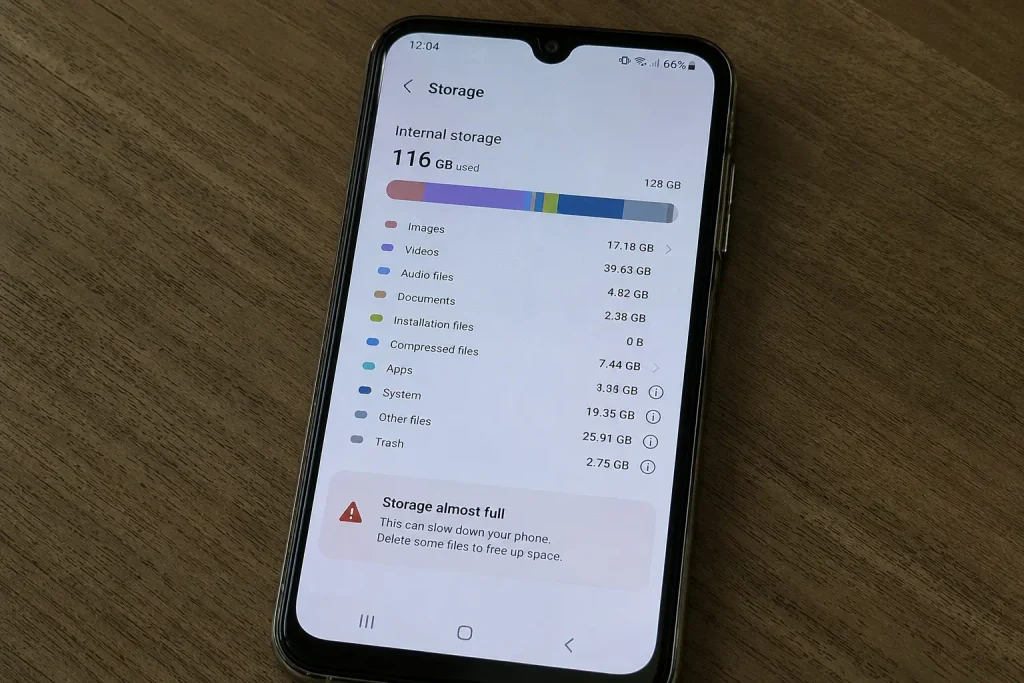
Fix 4: Free Up Some Storage
Now check your phone’s available storage.
Go to Settings → Storage and see how much space is left. The exact menu can vary between Android phones.
If you’re almost out of space, start removing things you genuinely don’t need.
Good places to check include:
- Large videos
- Old downloads
- Duplicate photos or files
- Unused apps
- Offline videos or music
- Large files stored by messaging apps
You don’t need to install another “phone cleaner” just to free up storage. Your phone’s built-in storage manager is usually enough for basic cleanup.
After freeing some space, restart the phone and test the app again.
Fix 5: Update the App and Check for Android Updates
If the app has a known bug, an update may already contain the fix.
Open the Google Play Store, search for the affected app, and check whether an Update button is available.
You should also check whether your phone has a pending Android or system update.
Keeping Android up to date can help resolve compatibility problems and known software bugs. If your apps started crashing after a system change, it’s worth checking whether your phone has another update available. Google’s official Android update guide explains how to check your Android version and look for available system updates on your device.
The exact location varies, but it’s usually somewhere under:
Settings → System → Software update
or
Settings → Software update
If the crashes started immediately after an update, however, pay attention to the timing.
A new update can occasionally introduce a bug. If another update becomes available later, installing it may resolve the issue.
Fix 6: Remove or Check Recently Installed Apps
Think about what you installed around the same time the crashes began.
If you recently added a:
- RAM booster
- Cleaner
- Battery optimizer
- Launcher
- Screen overlay
- Accessibility utility
- Security or antivirus app
- Other background utility
try temporarily disabling or uninstalling it if you don’t need it.
Then restart your phone and test the affected app.
This is particularly useful when an app that used to work perfectly suddenly starts crashing after you install something else.
If removing the recent app fixes the problem, you’ve found a strong lead.
Fix 7: Check the App’s Battery Settings
Android can restrict how apps run in the background to reduce battery consumption.
Usually, this is helpful. But for some apps, particularly those that rely on background activity, aggressive restrictions can cause unexpected behavior.
Open:
Settings → Apps → [Problematic App] → Battery
Depending on your phone, you may see options such as:
- Unrestricted
- Optimized
- Restricted
If the app is heavily restricted, try a less restrictive option temporarily and test it again.
Don’t change this setting for every app on your phone. Start with the one that’s actually causing trouble.
If changing the battery setting makes no difference, you can return it to the previous option.
Is It a Background Restriction or an Actual App Crash?
An app that stops running after you switch to another app is not necessarily experiencing the same problem as an app that crashes while you are using it.
If music stops playing, notifications stop arriving, or an app repeatedly reloads when you return to it, check whether your phone restricts that app’s background activity. Depending on the device, you may find this under Settings → Apps → the affected app → Battery. The available options and their names vary by manufacturer.
Change background battery restrictions only for the app that needs them, and only when the symptoms suggest a background-activity problem.
If the app closes while you are actively using it, particularly with an “App keeps stopping” message, focus first on app updates, cache, compatibility, and the other crash-specific fixes in this guide. Battery restrictions are not the explanation for every app crash.
Fix 8: Uninstall and Reinstall the App
If the app is still crashing, its installation or stored files may be damaged.
A clean reinstall gives you a fresh copy of the app.
Before uninstalling, remember that some apps store information locally. Make sure important data is synced or backed up, and make sure you know your login details.
Then:
- Uninstall the problematic app.
- Restart your phone.
- Open the Google Play Store.
- Install the app again.
- Open it and sign in if necessary.
- Test it before changing other settings.
If the app works after reinstalling, the previous installation or stored data was likely part of the problem.
Fix 9: Consider a Factory Reset Only as a Last Resort
If you’ve reached this point and multiple apps are still crashing, the issue may be deeper than a single app.
A factory reset can sometimes resolve serious software problems by returning the phone to a clean state.
But don’t rush into it.
A factory reset removes your personal data, installed apps, and many device settings. It should be one of the final options, not the first thing you try when an app crashes.
Before considering a reset:
- Back up your photos and videos.
- Back up contacts and important files.
- Make sure important app data is synced.
- Confirm that you know your Google account credentials.
- Check for available Android updates.
- Try the less destructive fixes in this guide first.
If the problem continues even after a clean factory reset, or the phone also has random restarts, serious overheating, storage errors, display problems, or other hardware symptoms, it’s time to consider professional repair.
The important thing is that you don’t have to jump straight to a factory reset just because an app keeps closing. In most cases, there are several safer things worth trying first.
What If Only One App Keeps Closing?
If your phone is working normally but one particular app keeps closing, that’s actually good news in terms of troubleshooting.
It gives you a much narrower place to look.
For example, if Instagram keeps crashing but Chrome, YouTube, WhatsApp, and your other apps work without any problem, it’s unlikely that your entire phone suddenly developed a serious problem. The issue is more likely connected to Instagram itself, its stored files, its current version, or its compatibility with your device.
First, Check Whether the Problem Is Limited to That App
Before changing anything else, open two or three other apps that you use regularly.
If they open and stay running normally, focus your troubleshooting on the affected app.
This simple check can save you from making unnecessary system changes.
Check the App’s Cache and Stored Data
A corrupted cache can cause an app to crash during startup or when you try to use a particular feature.
Clearing the cache is the safer first step because it removes temporary files without normally affecting your account.
If clearing the cache doesn’t help and the app still crashes every time, you may eventually need to clear its stored data or reinstall it. Before doing that, check whether the app has important information stored locally and make sure it is backed up or synced.
Make Sure You’re Running the Latest Stable Version
An outdated app can become unstable after an Android update or when its older components are no longer compatible with your device.
Check the Play Store for an update.
However, there’s another possibility: the newest version itself may contain a bug.
If the app worked perfectly before a recent update and started crashing immediately afterward, don’t automatically assume your phone is the problem. The update may be responsible.
Consider Compatibility Problems
Some apps don’t behave the same way on every Android phone.
An app may work normally on one Android version or device but crash on another because of differences in software, hardware, screen configuration, permissions, or other system components.
This becomes more likely if:
- The app is relatively old.
- Your phone recently received a major Android update.
- Other apps continue working normally.
- The crashes started after an app or system update.
- Reinstalling the app doesn’t change anything.
It Could Also Be a Server-Side or Developer Problem
Not every app crash can be fixed from your phone.
Sometimes an app has a bug that affects many users at the same time. In other cases, a problem with an online service can make an app behave unexpectedly.
If you have already tried the normal app-level troubleshooting and the problem appeared suddenly, check the app developer’s official support channels or recent service reports before changing more settings on your phone.
The key takeaway: when one app crashes while everything else works normally, don’t treat the entire phone as broken. Narrow the problem down to that app first.
Not every app problem is caused by corrupted files or an Android system issue. Some apps depend heavily on an active internet connection, and connection problems can sometimes make an app appear broken even when the app itself is fine. If you’re having trouble specifically with YouTube while your Wi-Fi shows as connected, our guide on Wi-Fi connected but YouTube not working on your phone may help.
What If Multiple Apps Keep Closing?
When several unrelated Android apps start crashing around the same time, the cause may be broader than any one application. Possible causes include very low storage, outdated system software, or a recently installed app that is interfering with normal operation.
Start with these checks:
- Check storage. Open Settings → Storage. Google notes that Android devices can experience problems when less than 10% of their storage remains available. Free up space if your phone is nearly full.
- Check for updates. Update the affected apps through the Google Play Store and check whether an Android software update is available.
- Think about recent changes. Consider whether the crashes began after installing or updating an app, particularly a cleaner, booster, launcher, or other utility.
- Test Safe Mode. Safe Mode temporarily disables downloaded apps. The method for entering it varies by phone manufacturer, so follow the instructions for your particular device.
What the Safe Mode Result Means
If the crashes stop in Safe Mode: A downloaded app may be contributing to the problem. Restart your phone normally and remove recently installed or updated apps one at a time, testing the phone after each removal.
If the crashes continue in Safe Mode: A downloaded app is less likely to be responsible. Check system updates and storage, and consider contacting your phone manufacturer’s support team if built-in apps or Android functions are also failing.
Safe Mode helps narrow down the cause, but it does not automatically identify the exact app responsible. Avoid a factory reset until less destructive troubleshooting steps have failed and your important data is backed up.
Common Mistakes Users Make When Apps Keep Closing
Troubleshooting becomes much easier when you know what not to do.
A lot of users don’t actually make the problem worse intentionally. They simply try too many things at once and lose track of what helped or what caused another problem.
1. Reinstalling the Same App Repeatedly
If you’ve already performed a clean reinstall and the app starts crashing again, repeating the exact same process isn’t likely to reveal the cause.
At that point, ask:
What else could be affecting the app?
Check compatibility, Android version, storage, recent updates, and whether other apps are affected.
2. Installing RAM Boosters and “Phone Cleaner” Apps
When an app crashes, searching for a “RAM booster” can seem like an obvious solution.
But installing another app to constantly manage memory isn’t necessarily helpful.
Some of these utilities run continuously in the background, display notifications, perform aggressive cleanup, or interfere with normal app behavior.
If your phone has a storage or performance problem, start with Android’s own settings instead of adding another layer of software.
3. Clearing Everything Without Knowing What It Does
There is a major difference between:
Clear cache → removes temporary cached files.
Clear storage/data → can remove locally stored app information and reset the app.
If you’re troubleshooting carefully, don’t jump to the more destructive option simply because you see it in the same menu.
4. Ignoring the Timing of the Problem
The question “When did this start?” can sometimes be more useful than any setting on your phone.
If the crashes started:
- Immediately after an app update
- After an Android update
- After installing another app
- After storage became full
- After the phone started overheating
then you’ve already found a valuable lead.
5. Using Beta Software and Assuming Every Crash Is a Phone Problem
Beta software exists so developers can test features before a stable release.
That also means bugs are expected.
If you’re running a beta version of Android or an app and the crashes started after joining the beta, instability may be related to that software.
If your priority is reliability, stable releases are generally the better choice.
Don’t Clear Google Play Services Data as a First Fix
Google Play services supports several Android features and apps, but clearing its storage or data is not a routine first step for an app that keeps crashing.
Start with the affected app’s cache, available updates, storage checks, and other relevant troubleshooting steps. Clearing Google Play services data can remove some information stored on the device and may require you to authenticate certain services again.
Consider this advanced step only when there is a specific reason to suspect Google Play services and you are following appropriate troubleshooting guidance. Do not use it simply because one app closes immediately after opening.
6. Factory Resetting Too Quickly
A factory reset feels like the ultimate solution because it gives you a “fresh” phone.
But it’s also one of the most disruptive troubleshooting steps.
You have to back up your data, sign in again, reinstall apps, restore settings, and set everything up.
If the actual problem is a buggy app update, a factory reset won’t necessarily fix it.
Use it only when simpler troubleshooting has failed and you have a good reason to believe the problem is software-related.
7. Ignoring Severe Heat or Physical Damage
If your phone is unusually hot, has been dropped badly, exposed to liquid, or has developed other physical symptoms, don’t keep treating every crash as a normal software glitch.
Those details can change the diagnosis completely.
When Should You Suspect a Hardware Problem?
This is one of the most important things to understand:
An app crashing occasionally doesn’t automatically mean your phone has a hardware problem.
Hardware becomes more suspicious when the instability starts affecting the entire device.
Look for the combination of symptoms rather than focusing on one crash.
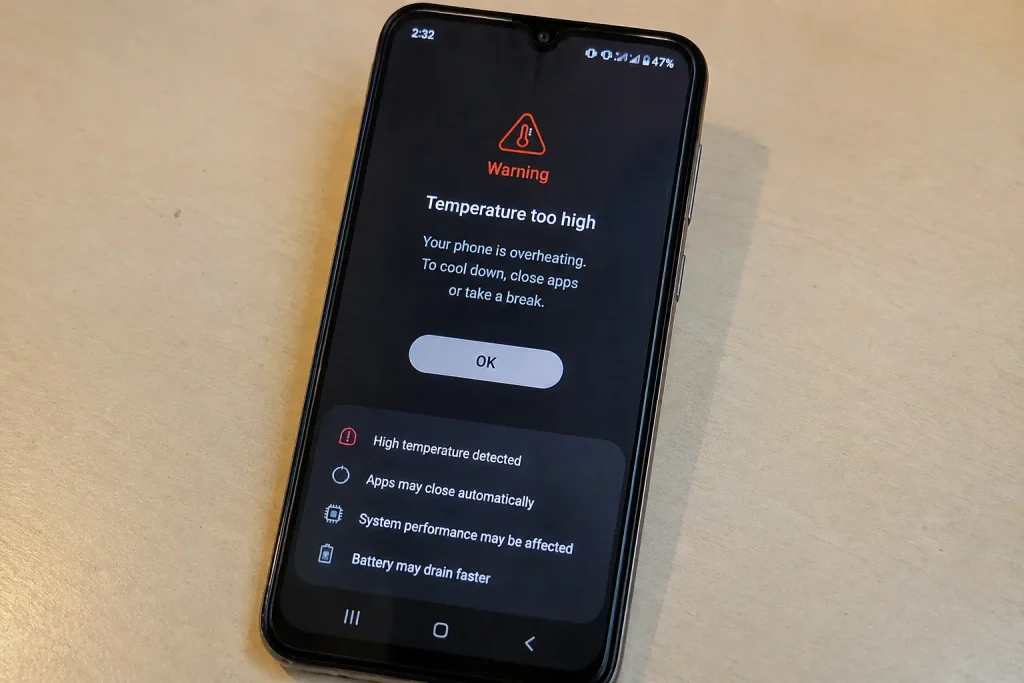
Multiple Apps Crash Even After Normal Troubleshooting
If unrelated apps continue crashing despite updates, storage cleanup, restarts, clean installations, and other reasonable software troubleshooting, the problem may be deeper.
Especially if the crashes aren’t limited to one type of app.
The Phone Randomly Restarts or Shuts Down
An app closing is one thing.
The entire phone rebooting is another.
If your phone randomly restarts while using different apps, freezes before restarting, or shuts down without an obvious reason, don’t assume the crashing apps are the root cause.
They may simply be exposing a larger problem.
The Phone Gets Abnormally Hot
Some heat is expected during demanding tasks.
But if the phone becomes extremely hot during light use—or heats up alongside crashes, shutdowns, or battery problems—that deserves attention.
Stop demanding tasks and allow the device to cool down. If the behavior keeps returning, consider getting it checked.
You Notice Storage or File Errors
Be particularly careful if you start seeing:
- Files disappearing unexpectedly
- Apps failing to read or save data
- Repeated storage warnings
- Downloads failing without an obvious reason
- Files becoming corrupted
- The phone reporting storage problems
Those symptoms can indicate something beyond a normal app crash.
The Entire Phone Becomes Unstable
Does the Settings app freeze?
Does the launcher restart?
Does the keyboard disappear?
Does the phone become unresponsive?
Does it lag badly even when you’re not running demanding apps?
When problems spread beyond individual apps, you’re no longer dealing with a simple “app keeps closing” issue.
The Phone Has Been Dropped or Exposed to Liquid
Physical damage doesn’t always show up immediately.
A phone can continue working after a drop and then develop strange behavior later. Liquid exposure can also cause problems that become worse over time.
If the crashes started after physical or liquid damage, professional inspection is safer than repeatedly changing software settings.
The Problem Survives a Clean Software Setup
If you’ve gone through the normal software troubleshooting and the phone is still unstable, don’t keep repeating the same fixes indefinitely.
At that point, a technician can test the device’s hardware and determine whether the issue is related to storage, memory, battery, motherboard components, or another internal fault.
Your stopping point should be clear: if the entire phone is becoming unstable, especially with heat, restarts, storage errors, or physical damage, move from DIY troubleshooting toward professional diagnosis.
If app crashes are happening alongside other unusual phone behavior, don’t focus only on the apps. Problems such as an unresponsive display, random system behavior, or issues that appear after restarting can point to a wider device problem. If you’re also dealing with a touch screen that stops responding after a restart, see our guide on how to fix a phone touch screen that isn’t working after restart.
How to Prevent Android Apps From Crashing Again
Fixing the current crash is only half the job.
If the same problem keeps returning every few weeks, it’s worth changing how you maintain the phone.
Keep Enough Free Storage
You don’t need to obsess over the exact percentage of storage you’re using.
Just avoid running the phone with almost no free space.
Every few weeks, check your storage and remove large files, old downloads, unused apps, and media you no longer need.
This also makes future app and system updates less troublesome.
Keep Apps and Android Updated
Stable updates often contain important bug fixes and compatibility improvements.
Keep your commonly used apps updated, and don’t ignore Android system updates for months unless you have a specific reason to delay one.
At the same time, remember that an update can occasionally introduce a new bug. If a problem starts immediately after an update, pay attention to that timing rather than assuming your phone suddenly became faulty.
Remove Apps You Don’t Use
Unused apps don’t need to stay on your phone forever.
Removing apps you no longer need can free storage and reduce the number of background services running on the device.
This is especially useful if you’ve accumulated dozens of utilities, launchers, editors, games, and other apps over time.
Be Careful With Cleaner and Booster Apps
You don’t need an app for every small maintenance task.
If an unknown app promises to constantly “boost RAM,” “cool your phone,” “clean junk,” or “speed up Android,” think twice before installing it.
More software isn’t always the solution to a software problem.
Avoid Excessive Heat
Don’t ignore repeated overheating.
If your phone gets hot during heavy gaming or charging, give it time to cool down before continuing demanding tasks.
Also avoid exposing it to direct sunlight or other high-temperature environments for long periods.
Heat isn’t only something to watch when you’re using demanding apps. If your phone also becomes unusually warm while charging or seems to struggle with charging normally, it’s worth checking the charging system separately. You can also read our guide on what to do when your phone says it’s charging but the battery percentage isn’t increasing.
Restart When the Phone Starts Behaving Strangely
You don’t need to restart your phone on a strict daily schedule.
But if apps begin freezing, the phone becomes unusually slow, or background processes start behaving strangely, a restart is an easy first step.
It’s better to address unusual behavior early than wait until the phone becomes difficult to use.
Keep Your Important Data Backed Up
A backup is one of those things you appreciate most after something goes wrong.
Keep important photos, contacts, documents, and other irreplaceable information backed up.
If a future software problem eventually requires a factory reset or repair, you’ll have one less thing to worry about.
FAQ: Apps Keep Closing on Android
Why do my apps keep closing on Android?
Apps can keep closing because of several reasons, including low storage, limited RAM, corrupted app cache, outdated apps, Android software bugs, overheating, or conflicts with another app.
If only one app keeps crashing, start by troubleshooting that app. But if several different apps are closing, the problem may be related to your Android system, storage, memory, or a recent update.
Start with a phone restart, then check your available storage and app updates. If the problem continues, move on to the more specific fixes in this guide.
Why does an app keep closing as soon as I open it?
If an app closes immediately after you open it, the app may have corrupted cache or data, an incompatible version, or a bug in its current release.
First, restart your phone and try opening the app again. If it still closes, force stop the app and clear its cache. Then check the Play Store for an update.
If none of these work, reinstall the app. If the freshly installed app still crashes while other apps work normally, the problem may be related to the app’s current version or compatibility with your device.
Why are all my apps suddenly closing on Android?
When multiple unrelated apps suddenly start closing, it’s unlikely that every app developed a problem at the same time.
A phone-wide issue such as extremely low storage, memory pressure, overheating, a recent Android update, or problematic background software is more likely.
Think about what changed before the problem started. If the crashes began after an Android update, a new app installation, or your storage becoming full, that timing can help identify the cause.
Can low storage make apps keep crashing?
Yes. Extremely low storage can cause Android and apps to behave unpredictably.
Apps need storage not only for your personal files but also for temporary files, cached data, updates, and other normal operations. When there is almost no free space left, apps may become unstable or fail to complete certain tasks.
Go to Settings → Storage and check how much space is available. If your phone is nearly full, remove large videos, old downloads, unused apps, and other unnecessary files, then restart the phone and test the affected app again.
Can low RAM cause apps to close by themselves?
It can, particularly when you’re using several demanding apps at the same time.
Android manages RAM automatically, but when memory pressure becomes high, the system may stop background processes to keep the phone responsive. This can cause an app to reload when you return to it or, in some situations, appear to close unexpectedly.
If you notice the problem mainly while multitasking between games, browsers, social media, and other heavy apps, memory pressure may be contributing to it.
Will clearing the app cache fix apps that keep crashing?
Clearing the cache can fix crashes caused by corrupted or problematic temporary files.
It is one of the safer troubleshooting steps because it normally doesn’t delete your account or personal information. Android will simply create new cache files as you continue using the app.
Go to Settings → Apps → [App name] → Storage → Clear cache. Then open the app again.
If the app continues crashing, the cause may be something else, such as corrupted app data, an update bug, compatibility problems, or an issue with Android itself.
Why do apps keep crashing after an Android update?
An Android update can sometimes introduce compatibility problems with apps that haven’t been updated for the new system version.
If your apps worked normally before the Android update and started crashing afterward, the update timing is an important clue.
First, check whether another Android update is available and make sure the affected apps are also updated. If only one app is affected, the developer may need to release a compatibility fix.
In this situation, repeatedly reinstalling the app may not help if the underlying problem is a software bug.
Why do apps keep closing when my phone gets hot?
Heat can affect phone performance, especially during demanding activities such as gaming, video recording, navigation, or heavy multitasking.
If you notice that apps work normally when the phone is cool but start crashing after it becomes very hot, overheating may be contributing to the problem.
Stop demanding tasks and allow the phone to cool down naturally. If your phone becomes unusually hot even during light use—or repeatedly crashes whenever it heats up—don’t ignore it. Persistent excessive heat can point to a deeper software, battery, or hardware problem.
Why does Android close apps in the background?
Android automatically manages background processes to balance performance, memory, and battery life.
On some phones, especially those with aggressive battery optimization, background apps may be restricted more heavily. This can affect apps that need to keep running or perform background tasks.
Check the affected app under Settings → Apps → [App name] → Battery. Depending on your phone, you may see options such as Restricted, Optimized, or Unrestricted.
If the app is heavily restricted, temporarily choosing a less restrictive option can help determine whether battery management is involved.
Why do apps keep crashing even after I reinstall them?
If a clean reinstall doesn’t solve the problem, the installation itself may not be the real cause.
The app could have a compatibility problem, a bug in its current version, or an issue with your Android system. If several other apps are also crashing, the problem is even less likely to be the installation of one particular app.
At this point, check your storage, Android version, recent updates, overheating, and recently installed third-party apps instead of repeatedly reinstalling the same application.
Should I clear app data if an app keeps closing?
Clearing app data can sometimes fix a serious app-level problem, but it should be treated differently from clearing the cache.
Clear cache removes temporary files and is generally the safer first step.
Clear storage/data resets the app and can remove locally stored information, saved settings, or sign-in information depending on the app.
Before clearing app data, make sure important information is synced or backed up and that you know your login details. If you’re unsure, try clearing the cache first or reinstalling the app.
Should I factory reset my Android phone if apps keep closing?
A factory reset should be a last resort, not the first solution.
It can help when serious software problems are affecting the entire phone, but it also removes your personal data, installed apps, and many settings.
Before considering a reset, try the simpler troubleshooting steps, check for updates, free up storage, and identify whether one app or multiple apps are affected.
If the phone continues crashing across the system even after proper software troubleshooting, back up your important data and consider a factory reset or professional diagnosis. If problems remain even after a clean reset, a hardware issue becomes more likely.
Final Conclusion
When apps keep closing on Android, the most important thing is to stop treating every crash as the same problem.
If one app is crashing while everything else works, start with that app. Its cache, data, version, compatibility, or a bug in the current release is more likely to be responsible.
If several unrelated apps are crashing, step back and look at the phone as a whole. Check storage, memory pressure, recent Android updates, newly installed software, and overheating. These clues can tell you far more than repeatedly reinstalling apps.
And if the problem comes with random restarts, severe heat, storage errors, physical damage, or system-wide freezing, that’s your signal to stop experimenting with random fixes. At that point, the issue may be deeper than an ordinary app crash and may need professional diagnosis.
The good thing is that you don’t have to jump straight to a factory reset.
Start with the simplest change, test the result, and move forward only when the previous step hasn’t solved the problem. This gives you the best chance of fixing the crashes without deleting your data or changing settings you didn’t need to touch.
Most importantly, once you identify whether you’re dealing with one problematic app or a phone-wide problem, the troubleshooting becomes much easier.
That one distinction can save you a lot of time—and can help you find the actual cause instead of simply hiding the symptom.