
About the Author
Android Notification Sound Not Working? 10 Practical Fixes That Actually Help
You get a WhatsApp message, a text, or an email, but your phone stays completely quiet. The notification appears on the screen, yet there is no sound to tell you that something just came in.
That can become a real problem when you start missing messages without even realizing it.
I ran into this myself after a friend called me and said, “Yaar, maine tujhe message kiya tha, tune dekha hi nahi.”
I checked my phone, and his message was actually sitting there. I had received it. I just never heard the notification.
After that, I started paying closer attention to incoming alerts and noticed that the same thing was happening with WhatsApp and some other apps. The notifications were showing up, but the sound was missing.
That is an important clue.
When Android notification sound is not working, the notification itself may still be arriving normally. The problem can be somewhere between your phone’s sound settings, Do Not Disturb, the app’s notification settings, an individual notification category, or an audio device connected to the phone.
So before assuming that the speaker is damaged or doing a factory reset, work through the checks below in order.
Quick Answer
If your Android notifications are showing up but there is no sound, start with these checks:
- Increase notification or ring volume.
- Make sure the phone is not on Silent or Vibrate.
- Turn off Do Not Disturb and check scheduled Modes.
- Check the affected app’s notification settings.
- Make sure the notification category is not set to Silent.
- Turn Bluetooth off temporarily.
- Restart the phone.
- Update the app and Android.
- Check battery and background restrictions if notifications are delayed.
- Use Safe Mode or app-reset options only when the simpler checks fail.
Android allows you to control notifications at both the phone and app level, and some notifications can be set to Alerting or Silent. Silent notifications can still appear in the notification shade without making a sound.
Before You Try Any Fix
Before changing several settings, answer one simple question:
Are the notifications arriving, or are they missing completely?
Swipe down on the notification panel after sending yourself a test message.
If the notification is there but your phone made no sound, you are mainly dealing with a notification sound problem.
If the notification never appears, the problem may instead involve app permissions, background activity, network connectivity, or the app itself.
You can also check Notification history on phones that support it. Android says notification history can show recently dismissed notifications and notifications from the last day, although the feature and menu can vary by device.
Why Is My Android Notification Sound Not Working?
Android does not use one single switch for every type of notification audio.
Your phone can have a normal sound mode and still have one app set to silent. One notification category inside that app can also be silent while another category makes a sound. Do Not Disturb can change what is allowed to interrupt you, and connected audio devices can change where sound is played.
That is why two people can have the same symptom—“my Android notification sound is not working”—but need completely different fixes.
7 Possible Reasons Your Android Notifications Have No Sound
1. Notification Volume Is Turned Down
This is one of the first things to check.
A common mistake is increasing media volume while watching YouTube and assuming notification volume has also increased.
Your phone can still play videos and music normally while notification alerts remain very quiet or muted.
2. The Phone Is on Silent or Vibrate
Your notification settings can be perfectly fine, but the phone may simply be using the wrong sound profile.
This can happen after pressing the volume buttons or changing the sound mode from Quick Settings.
3. Do Not Disturb or Another Mode Is Silencing Alerts
Do Not Disturb can change how notifications interrupt you. Android also has modes such as Bedtime and Driving, and these can have their own notification filters or schedules.
This can create a confusing situation where notifications still appear, but your phone does not make the expected sound.
4. Notifications for the App Are Disabled or Changed
If only WhatsApp, Messages, Gmail, or another single app is affected, the system-wide sound setting may not be the problem.
Android lets you control notification behavior separately for individual apps.
5. The Notification Category Is Set to Silent
This is one of the most easily missed causes.
An app can have different notification types, and Android may allow each type to behave differently. One can be alerting while another stays silent.
So you can receive a notification from an app without hearing anything.
6. Bluetooth or a Connected Device Is Involved
If earbuds, headphones, a smartwatch, car audio system, or another Bluetooth device is connected, audio behavior may be different from what you expect.
Turning Bluetooth off temporarily is a simple way to rule this out.
7. A Temporary App or Android Glitch
Sometimes the settings look correct and the problem still appears.
A temporary software glitch, an app problem, or a recent update can interfere with normal notification behavior. A restart is a good first way to rule out a temporary issue.
Step-by-Step Fixes for Android Notification Sound Not Working
Fix 1: Increase Notification Volume First
Start with the simplest check.
Press a volume button, open the expanded volume controls, and look for the notification or ringtone-related volume slider.
Turn it up and test with a new message.
Do not judge the result by playing YouTube. Send an actual notification to your phone and listen for it.
If the notification sound comes back immediately, you have found the problem.
Fix 2: Switch the Phone Back to Sound Mode
Open Quick Settings and check whether your phone is set to:
- Silent
- Vibrate
- Sound
Choose Sound mode and then test another notification.
If your phone uses a different interface, open Settings > Sound & vibration and look for the current sound profile.
Google’s Android guidance also provides controls for changing the default notification sound and other sound-related settings, although menu names can vary by device.
Fix 3: Turn Off Do Not Disturb and Check Its Schedule
Turn off Do Not Disturb temporarily and send yourself another test notification.
Do not stop there if the sound returns only temporarily.
Open the DND or Modes settings and check whether a schedule is automatically turning it back on later. Android allows modes to use schedules and notification filters, so the phone can become silent at specific times without you manually changing the setting each time.
This is especially important if notifications work normally during the day but become silent every night.
Fix 4: Check the Affected App’s Notification Settings
Suppose WhatsApp notification sound is not working, but Gmail and other apps still make sounds.
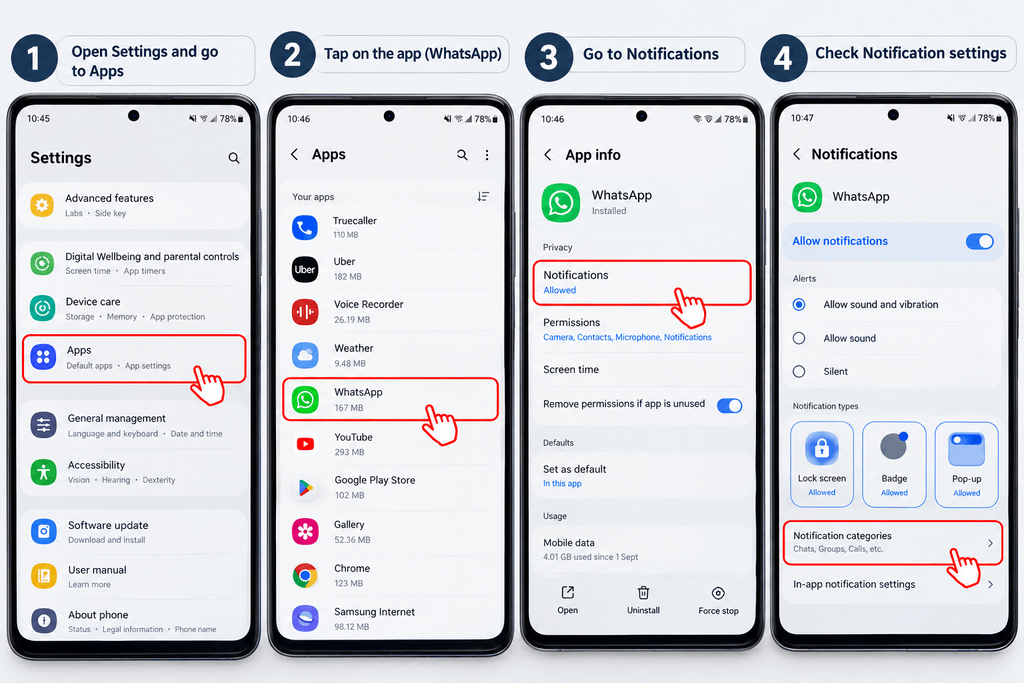
In that situation, go directly to WhatsApp’s notification settings instead of changing every sound setting on the phone.
A typical path is:
Settings > Apps > WhatsApp > Notifications
Make sure notifications are allowed.
Then open the available notification types or categories and look for sound-related settings.
The exact path can vary by Android version and phone manufacturer. Google also notes that notification settings can differ between devices.
A useful shortcut
If a notification from the app is already visible, try pressing and holding that notification and opening its notification settings. This can take you directly to the category that controls that alert.
Fix 5: Make Sure the Notification Category Is Not Silent
This is the fix to try when the app is allowed to send notifications but one type of notification still has no sound.
Open the affected app’s notification categories.
Look for the category connected to the alert you are missing, such as:
- Messages
- Chats
- Calls
- Direct messages
- Reminders
Open that category and check whether it is set to Silent.
On supported Android interfaces, changing it to an alerting option and selecting a sound can restore audible notifications. Google describes the difference clearly: Alerting notifications can make a sound, while Silent notifications can still appear without sound or vibration.
If you’re on a Pixel phone, Google specifically documents the path through Notifications > App notifications > app name > Notification categories > category > Sound.
Fix 6: Turn Bluetooth Off Completely for a Test
Even when you are not actively using earbuds, Bluetooth can remain connected to a previously paired device.
Turn Bluetooth off from Quick Settings.
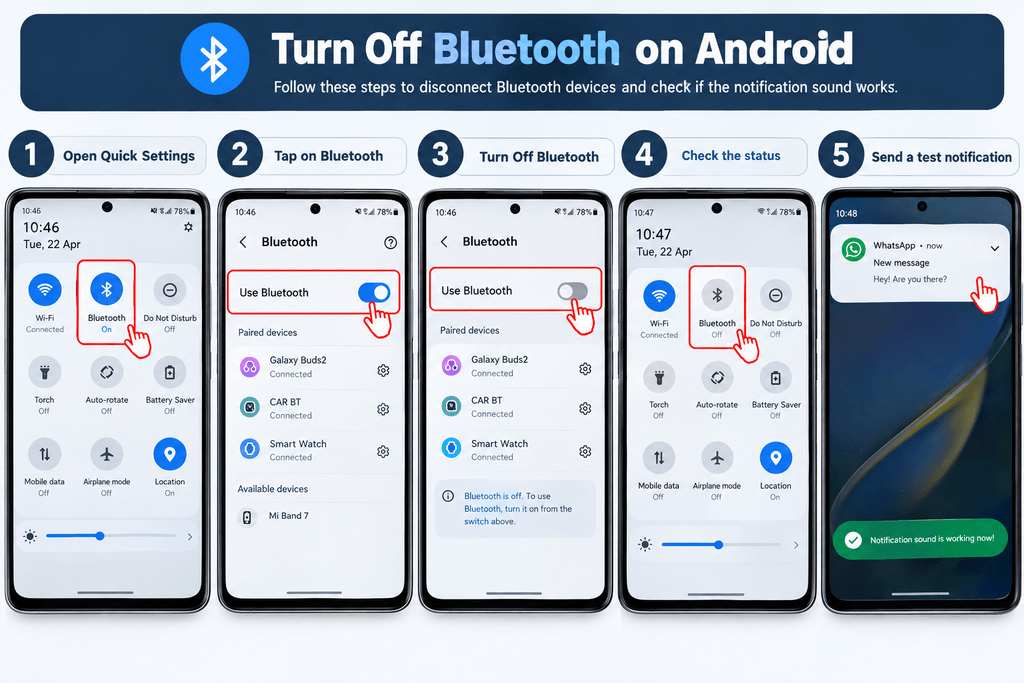
Then send yourself another notification.
If your phone immediately starts making notification sounds again, reconnect your devices one by one and test them.
This simple test is much better than guessing whether the phone speaker is damaged.
If you also experience other sound problems, our guide on why phone speaker sound suddenly became low covers additional checks for speaker, Bluetooth, software, and hardware-related sound issues.
Fix 7: Restart the Phone
When every setting looks correct, restart the phone.
Press and hold the power button, choose Restart, wait for Android to load completely, and then send another test notification.
A restart will not fix a permanently changed notification category, but it can clear a temporary system or app state that is preventing normal audio behavior.
This is particularly worth trying when the issue appeared suddenly without you changing anything.
Fix 8: Update the App and Android
If the issue started recently, check for software updates.
Open the Play Store and update the affected app.
Then open your phone’s system update section and check whether an Android update is available.
Also think about timing.
If your notification sound stopped working immediately after an app update, that app deserves more attention.
If several unrelated apps started behaving strangely after an Android update, the issue may be broader.
Before changing lots of settings, check whether another update has already been released.
Fix 9: Check Background and Battery Restrictions When Notifications Are Delayed
This fix is slightly different.
Suppose the notification sound is not always missing. Instead, messages arrive late and then appear silently or all at once.
That can point toward background restrictions.
Open the affected app’s battery settings and see whether it is heavily restricted in the background.
Do not blindly choose unrestricted settings for every app. Messaging and email apps may need background access, while apps you rarely use may not.
The goal is to check whether Android is delaying the app rather than simply muting its sound.
Fix 10: Use Safe Mode or Reset App Preferences as a Last Software Check
If notification sounds still do not work after the normal settings have been checked, Safe Mode can help determine whether a third-party app is interfering.
This is especially useful if the problem began after installing:
- A volume booster
- An equalizer
- A sound enhancement app
- A device management app
- A notification customization app
The exact Safe Mode process varies between Android brands.
Another advanced option is Reset app preferences, which can restore default behavior for certain app-related settings without performing a full factory reset. However, it may also reset preferences you have customized, so treat it as a later troubleshooting step rather than the first one.
A Simple Way to Find the Real Cause
You do not need to try every fix blindly.
Use the pattern below.
| What you notice | Where to look first |
|---|---|
| No app makes notification sounds | Volume, Sound mode, DND, Bluetooth |
| Only WhatsApp is silent | WhatsApp notification settings |
| Only some notifications from WhatsApp are silent | Notification categories |
| Notifications arrive but are delayed | Battery/background restrictions |
| Sound disappears after using earbuds | Bluetooth/audio routing |
| Problem started after an update | App/Android update and restart |
| Notifications and other phone sounds are also weak | Speaker/audio troubleshooting |
This small distinction can save a lot of time.
For example, if WhatsApp is silent but YouTube, Gmail, and incoming calls sound normal, there is little reason to start changing system-wide audio settings.
On the other hand, if ringtone, media, alarms, and notifications are all unusually quiet, you may be dealing with a broader audio problem. In that situation, our guide on common Android phone problems and how to fix them can help you work through other system-level symptoms as well.
One Useful Official Reference
Android’s notification controls can look different depending on your phone and Android version, so it is helpful to compare your settings with Google’s current documentation rather than following a menu path meant for a different device.
For a complete overview of app notification controls, alerting versus silent notifications, and other notification options, see Control notifications on Android.
Common Mistakes Users Make
Mistake 1: Turning Up Media Volume and Stopping There
YouTube sounding loud does not prove that notification volume is set correctly.
Mistake 2: Checking Only the App
Sometimes the app is configured correctly, but the phone is in Silent mode or DND is active.
Mistake 3: Ignoring Notification Categories
This is one of the biggest reasons users say, “Notifications are coming, but there is no sound.”
The app may be allowed to send notifications while one specific category is silent.
Mistake 4: Forgetting Bluetooth
Users often remember that earbuds were connected earlier but forget to check them when a sound problem appears later.
Mistake 5: Factory Resetting Too Early
A factory reset is a major step and should not be the normal response to a notification sound problem.
Check the simple settings first.
How to Prevent Android Notification Sound Problems
Once the sound is working again, there are a few habits worth keeping.
Check Do Not Disturb schedules if your notifications regularly become silent at the same time of day.
After major Android updates, quickly review notification settings for the apps you rely on most.
Avoid installing multiple sound-enhancement or volume-booster apps unless you genuinely need them.
Also remember that your phone’s notification settings can be customized at the app and category level. If you intentionally change one category to Silent, remember that later when a notification appears without any sound.
Frequently Asked Questions
Why is my Android phone not making notification sounds?
The phone may be in Silent or Vibrate mode, notification volume may be too low, Do Not Disturb may be active, or the affected app’s notification category may be set to Silent. A Bluetooth device can also affect how audio is routed.
Why do notifications show but make no sound?
This usually means the notification is still arriving, but its sound is being suppressed. Check notification volume, Sound mode, Do Not Disturb, and the specific app’s notification category.
How do I turn on notification sound on Android?
Start with Settings > Sound & vibration and make sure the phone is using Sound mode and the notification-related volume is audible. Then check the affected app’s notification settings.
Why is my WhatsApp notification sound not working?
If WhatsApp messages appear but make no sound, open WhatsApp’s notification settings from Android Settings and check the relevant notification category. Make sure it is not set to Silent and that a sound is selected where your phone provides that option.
Why are some Android notifications silent while others have sound?
Android can let different notification categories use different behaviors. One category may be alerting while another is silent, even though both belong to the same app.
Can Do Not Disturb stop notification sounds?
Yes. Do Not Disturb and other Android Modes can use notification filters that control which alerts are allowed to interrupt you. Schedules can also turn these modes on automatically.
Can Bluetooth cause notification sounds to stop on Android?
A connected Bluetooth device can change where your phone sends audio. Turning Bluetooth off temporarily is one of the easiest ways to check whether a connected accessory is involved.
Why did my notification sound stop working after an Android update?
An update can change settings, affect app compatibility, or introduce a temporary software problem. Restart the phone, update the affected apps, and review notification categories again.
Will clearing app cache fix notification sound problems?
It can help when a specific app is behaving incorrectly, but it is not the first fix to try. Check notification settings and sound controls before clearing cache.
Do I need to factory reset my phone if notification sounds are not working?
Usually not. Work through volume, sound mode, Do Not Disturb, app notification settings, notification categories, Bluetooth, and software updates first. A factory reset should be treated as a last resort rather than a standard fix.
Final Conclusion
When Android notification sound is not working, the first thing to figure out is whether the notifications are actually missing or simply arriving without an audible alert.
If the notifications are visible, start with notification volume, Sound mode, Do Not Disturb, and Bluetooth. If only one app is affected, move directly to that app’s notification settings. And if only certain types of alerts are silent, check the individual notification category instead of changing the whole phone.
That is what made this problem easy to understand in my own case. The messages were arriving. I just wasn’t hearing them.
Once you look at the problem that way, the troubleshooting becomes much more straightforward.
Start with the simplest check, test the result with a real notification, and only move to the next step when the previous one does not solve the problem. That approach saves time and helps you find the actual cause instead of changing random settings and hoping something works.