
Have you ever picked up your Android phone only to realise something isn’t working the way it should?
Maybe your phone has suddenly become painfully slow. Apps keep crashing for no reason. The battery that easily lasted a day now struggles to survive a few hours. Wi-Fi disconnects randomly, the phone refuses to charge properly, or the touch screen simply stops responding when you need it the most.
If you’ve experienced any of these problems, you’re definitely not alone.
One of the biggest mistakes people make is assuming their phone has reached the end of its life. The moment an Android device starts behaving strangely, many users begin thinking about buying a new phone or paying for an expensive repair. In reality, that’s often not necessary.
The truth is, most common Android phone problems are caused by software glitches, storage issues, outdated apps, incorrect settings, or small system conflicts—not serious hardware failures. And in many cases, these issues can be fixed in just a few minutes if you know where to start.
That’s exactly why this guide exists.
Instead of giving you random internet tips or complicated technical explanations, this article walks you through the most common Android phone problems in a way that’s easy to understand and even easier to follow. You’ll learn why these issues happen, how to recognise the real cause, and the step-by-step fixes that actually work.
Whether you’re using a Samsung Galaxy, Google Pixel, OnePlus, Motorola, Xiaomi, Vivo, Oppo, Realme, Nothing Phone, or almost any other Android device, the troubleshooting methods in this guide apply to most modern Android phones.
So before you spend money on a repair shop—or worse, replace a phone that can still be fixed—work through this guide carefully. There’s a good chance the solution you’re looking for is only a few steps away.
The Quick Fix: What to Try First
If your Android phone is slow, overheating, draining battery quickly, refusing to charge, crashing apps, disconnecting from Wi-Fi, or showing other unusual behaviour, don’t panic. Most of these problems are caused by software-related issues such as outdated Android versions, low storage space, corrupted app data, background processes, buggy updates, or incorrect settings.
The good news is that these problems are usually fixable. Simple steps like restarting your phone, updating Android, clearing cache files, removing problematic apps, freeing up storage, or resetting certain settings can solve many issues without affecting your personal data. If the problem continues even after trying the recommended fixes, there’s a higher chance that a hardware component—such as the battery, charging port, display, or motherboard—needs professional attention.
In the sections below, we’ll help you identify the real cause of the problem first, then show you the safest and most effective solution so you don’t waste time trying fixes that aren’t relevant to your situation.
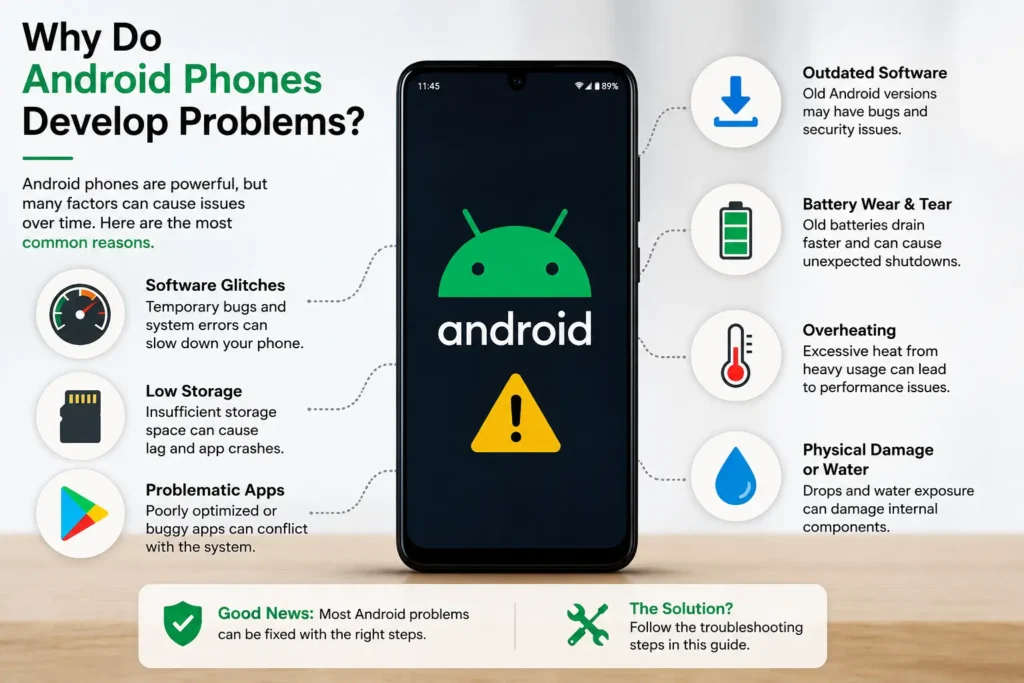
Why Do Android Phones Develop Problems Over Time?
No Android phone stays in exactly the same condition forever.
The day you buy a new phone, everything feels smooth and fast. Apps open instantly, the battery lasts longer, and every feature works exactly as expected. But after a few months of daily use, things often begin to change. The phone feels slower, storage starts filling up, apps become heavier, Android receives new updates, and background processes continue increasing without you even noticing.
That’s when many users start asking the same question:
“Why is my Android phone suddenly acting weird when it was working perfectly before?”
The answer is simpler than most people think.
Your Android phone is constantly managing hundreds of tasks behind the scenes. Every day it installs updates, synchronises photos, downloads files, runs background apps, stores temporary cache files, scans for security threats, connects to Wi-Fi and Bluetooth devices, and handles thousands of small processes that keep everything running smoothly.
Over time, these activities naturally put more pressure on your phone’s software and hardware. Sometimes a single buggy app is enough to create unexpected issues. In other cases, an Android update may introduce temporary bugs, storage may become almost full, or an ageing battery may struggle to deliver stable performance.
The important thing to understand is that not every problem means your phone is damaged.
In fact, many Android issues look much more serious than they really are. A phone that suddenly freezes, overheats, drains battery quickly, or refuses to open apps may only need a simple software fix—not a replacement.
That’s why identifying the real cause is always the first step. Once you know why the problem is happening, finding the right solution becomes much easier—and you avoid wasting time on fixes that don’t apply to your situation.
Learn how Android system updates, security patches, and software improvements help keep your device stable and secure. Google’s official Android documentation explains how updates work and why keeping your device up to date is important for long-term performance. Android Security & System Updates
These Early Signs Can Help You Find the Real Problem Faster
One of the biggest mistakes Android users make is trying random fixes before understanding what’s actually wrong with their phone.
For example, if your battery drains quickly, immediately replacing the battery might seem like the obvious solution. But what if the real culprit is a buggy app running constantly in the background? Similarly, if your phone suddenly becomes slow, performing a factory reset isn’t always the right answer—sometimes all it needs is a little free storage or a software update.
That’s why it’s important to recognise the early warning signs first.
Your phone often gives small clues long before a problem becomes serious. Learning to identify these signs can save you time, protect your data, and help you choose the right troubleshooting method instead of guessing.
The table below will help you match the symptoms you’re seeing with their most likely causes.
Common Android Problems vs Possible Causes vs Recommended Fix
| What You’re Experiencing | Most Likely Cause | Recommended First Fix |
|---|---|---|
| Phone feels unusually slow | Low storage, too many background apps, software glitch | Restart the phone, free up storage, clear unnecessary cache |
| Battery drains much faster than before | Battery ageing, background apps, high brightness | Check battery usage, close power-hungry apps, enable Battery Saver |
| Apps keep crashing | Corrupted app cache, outdated app, Android bug | Clear app cache, update the app, reinstall if necessary |
| Phone gets hot during normal use | Heavy background activity, gaming, charging, poor optimisation | Stop demanding apps, remove the phone case while charging, let it cool naturally |
| Wi-Fi keeps disconnecting | Router issue, incorrect network settings, software bug | Restart Wi-Fi, forget and reconnect to the network, reset network settings |
| Mobile data isn’t working | APN settings, SIM issue, carrier problem | Toggle Airplane Mode, check APN settings, contact your carrier if needed |
| Bluetooth won’t connect | Pairing conflict, outdated software | Remove the device and pair it again, restart Bluetooth |
| Phone won’t charge properly | Dirty charging port, faulty cable, battery issue | Clean the charging port carefully, try another cable and charger |
| Touch screen isn’t responding | Software glitch, screen protector issue, hardware damage | Force restart the phone, remove the screen protector, test in Safe Mode |
| Camera quality suddenly looks poor | Dirty lens, camera app issue | Clean the lens, clear the Camera app cache, restart the device |
| Storage is always full | Large media files, duplicate downloads | Delete unnecessary files, move media to cloud storage or an SD card |
| Phone randomly restarts | Software instability, overheating, battery issue | Update Android, check for overheating, boot into Safe Mode |
Mobile data problems can be particularly confusing because your phone may show that mobile data is switched on while websites, apps, or videos still refuse to load. Before assuming that your SIM or phone has a hardware problem, it’s worth checking settings, network mode, APN configuration, Airplane Mode, and your carrier connection. If this is the issue you’re facing, follow this guide on mobile data on but internet not working on Android for a more detailed troubleshooting process.
7 Common Reasons Your Android Phone Starts Having Problems
When an Android phone begins behaving differently, it’s rarely random. Most problems develop gradually, even though they seem to appear overnight.
You might notice your phone becoming slower every week, your battery lasting a little less each day, or apps crashing more frequently after a recent update. These small warning signs are your phone’s way of telling you that something isn’t working as it should.
Before jumping straight to the fixes, it’s worth understanding the most common reasons behind these issues. Once you recognise the real cause, choosing the right solution becomes much easier.
1. Temporary Software Glitches Can Break Things Without Warning
Have you ever restarted your phone only to find that the touch screen stopped responding, Wi-Fi refused to connect, or an app suddenly kept crashing?
This usually happens because Android is a complex operating system that loads hundreds of services every time the phone starts. If even one important system process fails to load correctly, you may experience unexpected behaviour.
The good news is that temporary software glitches are among the easiest Android problems to fix, and they rarely indicate permanent damage.
2. Your Phone Is Running Out of Storage Without You Realising It
Many people only look at their remaining storage when they can’t take another photo.
In reality, low storage affects much more than your gallery.
When your phone has very little free space left, Android struggles to create temporary files needed for everyday tasks. As a result, apps may freeze, software updates can fail, the camera may stop saving photos, and the entire phone can feel frustratingly slow.
Keeping enough free storage is one of the simplest ways to maintain good performance.
3. Outdated Software Often Creates More Problems Than People Expect
Skipping Android updates might seem harmless, especially if your phone is working fine.
However, every update contains important bug fixes, security improvements, and performance optimisations. Running an outdated version of Android can lead to app compatibility issues, random crashes, connectivity problems, and reduced stability over time.
Installing the latest stable update is often enough to resolve issues that appear after weeks or months of use.
4. A Single Bad App Can Affect Your Entire Phone
Not every problem is caused by Android itself.
Sometimes one poorly optimised app is enough to slow down your entire device. Certain apps continue running in the background, consume excessive RAM, drain battery, overheat the processor, or conflict with other system services.
If your phone started acting strangely soon after installing a new app, there’s a good chance you’ve already found the culprit.
Sometimes an app doesn’t just make the phone slower—it may repeatedly close itself as soon as you open it. This can happen because of corrupted app data, compatibility problems, insufficient storage, outdated software, or a temporary Android glitch. If apps are repeatedly disappearing from the screen or closing without warning, these apps automatically closing on Android fixes can help you identify whether the problem is caused by the app itself or the Android system.
5. Batteries Naturally Wear Out Over Time
If your phone loses 20% battery in a few minutes, becomes unusually warm during simple tasks, or shuts down before reaching 0%, the battery may no longer be performing as it should.
Lithium-ion batteries slowly lose their ability to hold a charge after hundreds of charging cycles. This is a normal part of ageing and affects every smartphone eventually.
Fortunately, not every battery issue means you need a new phone. Sometimes adjusting charging habits or replacing the battery is all that’s needed.
6. Physical Damage Doesn’t Always Show Up Immediately
A phone doesn’t need a shattered display to suffer internal damage.
Even a minor drop can loosen internal connectors, damage the charging port, affect the camera’s image stabilisation, or create touch-screen issues that appear days later. Water exposure can also cause delayed problems, even if the phone initially seems to work normally.
If your issue started after a drop or contact with moisture, hardware damage should always be considered.
7. Small Problems Often Turn Into Bigger Ones When They’re Ignored
One of the most common mistakes Android users make is ignoring early warning signs.
A phone that occasionally overheats, crashes once in a while, or becomes slightly slower isn’t necessarily failing—but these symptoms shouldn’t be dismissed either. Left unchecked, small software conflicts, failing storage, or battery degradation can gradually develop into more serious problems.
Taking action early not only makes troubleshooting easier but can also extend the life of your Android phone and help you avoid unnecessary repair costs.
Before You Start Fixing Anything, Read This First
It’s easy to jump straight into fixing your phone, especially when you’re frustrated. But taking a few minutes to prepare can prevent data loss and save you from making the wrong decision.
Before you begin, charge your phone to at least 50%, connect to a reliable Wi-Fi network if updates are required, and back up important photos, contacts, and documents. If you’re considering advanced fixes such as a factory reset, make sure you know your Google account password so you can sign back in afterwards.
Most importantly, avoid changing multiple settings at the same time. Test one solution, observe the result, and only then move to the next step. This makes it much easier to identify what actually fixed the problem.
Step-by-Step Solutions That Actually Work
If your Android phone has suddenly become slow, apps keep crashing, the battery drains unusually fast, or features like Wi-Fi, Bluetooth, charging, or the touch screen aren’t working properly, it’s tempting to try every fix you find online. Unfortunately, that’s also one of the fastest ways to waste time—or make the problem worse.
The smarter approach is to troubleshoot your phone one step at a time.
The solutions below are arranged from the safest and easiest fixes to more advanced troubleshooting methods. After completing each step, use your phone for a few minutes. If the issue disappears, there’s no need to continue. If the problem remains, simply move on to the next solution.
This method helps you identify the real cause without changing unnecessary settings or risking your personal data.
1. Restart Your Phone to Clear Temporary System Glitches
A simple restart might sound too basic, but it’s surprisingly effective. Android runs hundreds of background processes, and sometimes one of those processes gets stuck or fails to load correctly. That’s when you may notice symptoms such as a frozen screen, lag, random app crashes, missing notifications, or network issues.
Restarting the phone reloads the operating system, refreshes memory, and closes temporary processes that may be causing the problem.
When this fix helps
- Phone suddenly becomes slow
- Apps crash unexpectedly
- Wi-Fi or Bluetooth behaves strangely
- Touch screen becomes temporarily unresponsive
- Phone starts lagging after several days without restarting
How to do it
- Press and hold the Power button.
- Tap Restart.
- If the phone is frozen, press and hold Power (or Power + Volume Down on many devices) until it restarts.
After the phone turns back on, use it normally for a few minutes. If the issue is gone, the problem was most likely a temporary software glitch.
Not every Android problem affects performance or battery life. Sometimes a phone may continue working normally while a specific hardware feature suddenly starts behaving differently. For example, if your phone speaker has become noticeably quieter, checking simple causes such as dust, Bluetooth connections, sound settings, or temporary software glitches can help before assuming the speaker is damaged. If you’re dealing with this specific problem, this guide on why phone speaker sound suddenly became low explains the most common causes and the safest fixes to try at home.
2. Check for Android and Security Updates
Many users ignore software updates because they think updates only add new features. In reality, updates often fix bugs, improve battery life, enhance security, and resolve problems that affect performance or stability.
If your issue started after an older version of Android had been running for months, installing the latest stable update may solve it.
When this fix helps
- Random crashes
- Performance issues
- Battery drain after older software
- Connectivity problems
- System instability
How to do it
- Open Settings.
- Go to System or Software Update (the name varies by brand).
- Check for available updates.
- Install the update and restart your phone.
Make sure your battery has enough charge and you’re connected to a stable Wi-Fi network before installing large updates.
3. Free Up Storage Space
Android needs free storage to create temporary files, install updates, and keep apps running smoothly. When storage is almost full, your phone may become slow, apps may freeze, and even the camera can stop working properly.
Signs your storage may be the problem
- “Storage Almost Full” notifications
- Camera won’t save photos
- Apps take a long time to open
- System feels sluggish
What to do
- Delete unused apps.
- Remove duplicate photos and videos.
- Clear large downloads you no longer need.
- Move important files to cloud storage or an SD card if your phone supports it.
As a general rule, try to keep at least 10–20% of your storage free for smoother performance.
4. Update or Reinstall Problematic Apps
Sometimes the phone itself isn’t the problem—one app is.
A buggy or outdated app can cause frequent crashes, battery drain, overheating, or even make the entire phone feel slow.
Try these steps
- Open the Google Play Store.
- Update all installed apps.
- If only one app is affected, clear its cache first.
- If the issue continues, uninstall and reinstall that app.
If the problem started immediately after installing a new app, temporarily remove it and see whether your phone returns to normal.
5. Boot Into Safe Mode
Safe Mode starts Android with only the essential system apps. Any apps you’ve installed are temporarily disabled.
This makes Safe Mode one of the best ways to determine whether a third-party app is responsible for the issue.
Safe Mode is useful if
- The phone restarts randomly.
- Performance suddenly dropped.
- Battery drain started after installing an app.
- Ads or pop-ups appear unexpectedly.
If your phone works perfectly in Safe Mode, one of your installed apps is almost certainly causing the problem.
6. Reset Network Settings
Problems with Wi-Fi, Bluetooth, or mobile data are often caused by incorrect network settings rather than hardware faults.
Resetting network settings removes saved wireless configurations and allows Android to rebuild them from scratch.
Use this if
- Wi-Fi won’t connect.
- Bluetooth won’t pair.
- Mobile data keeps disconnecting.
After resetting, reconnect to your Wi-Fi network and pair Bluetooth devices again.
7. Factory Reset (Only After Trying Everything Else)
A factory reset removes software conflicts that cannot be fixed through normal troubleshooting. However, it also erases your installed apps, settings, and personal data stored on the phone.
That’s why it should always be considered a last resort—not the first solution.
Before resetting:
- Back up your photos, videos, contacts, and important documents.
- Make sure you know your Google account credentials.
- Confirm that you’ve already tried the earlier troubleshooting steps.
If the problem still exists after a factory reset, it’s very likely that the issue is hardware-related rather than software-related.
8. Get Professional Help If Software Fixes Don’t Work
If you’ve worked through every step above and your Android phone still has the same problem, continuing to experiment with random fixes probably won’t help.
At this stage, the issue may involve a worn-out battery, damaged charging port, faulty display, failing motherboard, or another internal component that requires proper diagnosis.
Visiting an authorised service centre is usually the safest option, especially if your phone is still under warranty.
Rather than replacing the device immediately, ask for a diagnosis first. In many cases, replacing a single component is enough to restore the phone to normal working condition.
If your phone is running out of storage, Google’s official Files app guide explains safe ways to free up space by removing unnecessary files, duplicate media, and large downloads without affecting important data. Free Up Space with Files by Google
Software Problem or Hardware Problem? Here’s How to Tell
One of the hardest parts of troubleshooting is knowing whether the issue is caused by software or damaged hardware.
Software problems often appear suddenly after an update, installing a new app, or changing settings. Hardware problems, on the other hand, are more likely to follow a drop, water exposure, overheating, or normal wear over time.
A useful rule of thumb is this: if the problem disappears after a restart, Safe Mode, or a software update, it was probably software-related. If it continues regardless of what you try—or is accompanied by physical symptoms like screen flickering, charging port damage, or display cracks—it may require professional repair.
Understanding this difference can save you hours of unnecessary troubleshooting.
Problems You Can Fix Yourself vs Problems That Need Professional Repair
Not every Android issue requires a technician. In fact, many everyday problems can be solved safely at home with a little patience.
Connectivity problems can also look more serious than they actually are. Your phone may show a strong Wi-Fi connection while a specific service such as YouTube refuses to load videos, keeps buffering, or shows a blank screen. In that situation, the problem may be related to the app, network connection, cache, or DNS rather than the phone’s hardware. If YouTube is the only service giving you trouble, check these Wi-Fi connected but YouTube not working on phone fixes before resetting your entire network.
Issues such as low storage, app crashes, Wi-Fi problems, battery drain caused by apps, Bluetooth pairing failures, or temporary software glitches are usually fixable through the troubleshooting methods covered in this guide.
However, if your phone has suffered a hard fall, shows signs of water damage, won’t power on at all, has a swollen battery, or the display remains black despite charging, it’s safer to stop troubleshooting and seek professional assistance. Continuing to use a physically damaged device can sometimes make the problem worse.
Built-in Android Tools That Can Help You Diagnose Problems
Before downloading third-party “phone cleaner” apps, remember that Android already includes several useful tools.
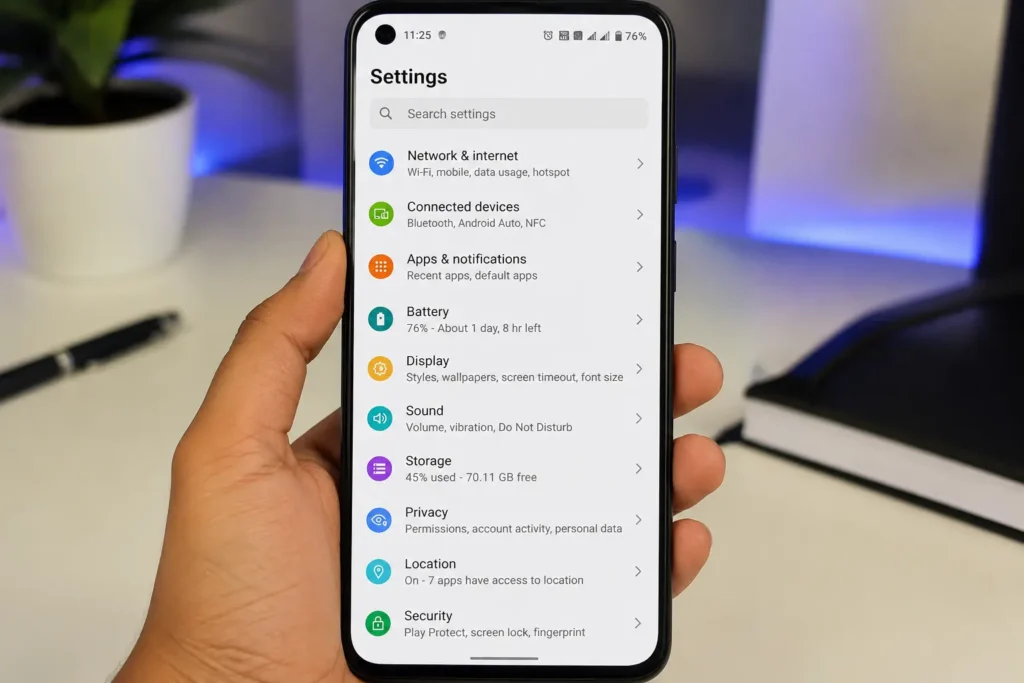
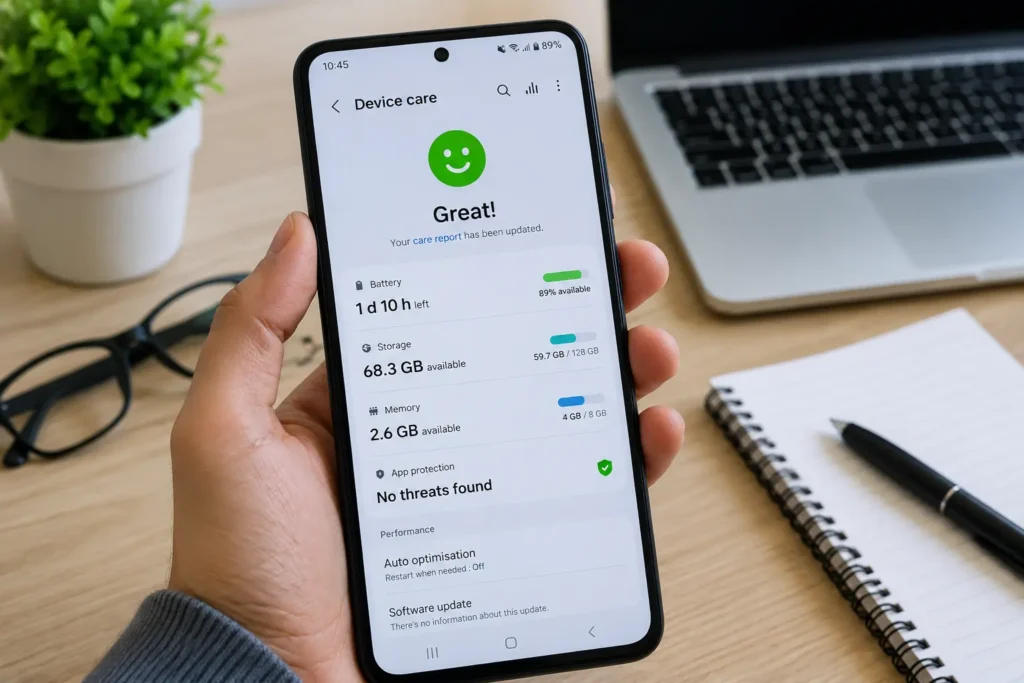
The Battery section in Settings helps identify apps consuming unusual amounts of power. Storage shows what’s using space. Device Care or Device Health Services (available on many brands) can highlight performance issues. Safe Mode helps detect app conflicts, while Files by Google can recommend unnecessary files for removal.
Learning to use these built-in tools is often more reliable than relying on apps that promise unrealistic performance boosts.
A Final Checklist Before You Visit a Repair Centre
Before you decide that your phone needs repair, quickly run through this checklist:
- Restarted the phone?
- Installed the latest Android update?
- Updated all apps?
- Checked available storage?
- Cleared cache where necessary?
- Tested the phone in Safe Mode?
- Reset network settings (if connectivity is the issue)?
- Backed up important data?
- Considered a factory reset only as the final software step?
If you’ve completed every item above and the problem still exists, you’ve already ruled out the most common software causes. That means you’re in a much better position to seek a repair with confidence, knowing you’ve exhausted the safe troubleshooting options.
Common Mistakes That Often Make Android Problems Worse
Many Android problems become worse not because they’re difficult to fix, but because users unknowingly choose the wrong solution first.
Here are some of the most common mistakes worth avoiding:
- Performing a factory reset before trying simpler fixes.
- Installing random “phone cleaner” or “RAM booster” apps that promise unrealistic performance improvements.
- Ignoring Android and app updates for months.
- Continuing to use damaged charging cables or cheap third-party chargers.
- Filling storage until almost no free space remains.
- Downloading apps from unofficial sources.
- Restarting the phone repeatedly without identifying the real cause.
- Ignoring early warning signs such as overheating, unusual battery drain, or frequent crashes.
- Following unverified social media troubleshooting tips without checking whether they’re safe for your device.
Avoiding these mistakes can save both time and unnecessary repair costs.
Simple Habits That Keep Your Android Phone Running Smoothly
The easiest Android problem to fix is the one that never happens.
Developing a few simple maintenance habits can significantly improve your phone’s performance and help it stay reliable for years.
- Install Android security and system updates regularly.
- Update your apps whenever new versions become available.
- Keep enough free storage space at all times.
- Remove apps you no longer use.
- Restart your phone once every few days.
- Avoid exposing your phone to excessive heat or moisture.
- Use high-quality charging accessories whenever possible.
- Back up important photos, contacts, and documents regularly.
- Download apps only from trusted sources like the Google Play Store.
- Review battery usage occasionally to identify apps consuming unusual amounts of power.
Following these simple habits can reduce the chances of encountering many common Android problems in the first place.
For battery care recommendations, charging habits, and ways to improve battery life, Google’s official battery support documentation provides reliable advice that applies to most Android devices. Android Battery Help
When Is It Better to Repair Your Phone—and When Should You Replace It?
Repairing your phone isn’t always the most sensible option—but replacing it isn’t always necessary either.
If your phone is only a few years old and the issue is limited to the battery, charging port, or display, repairing it is often more cost-effective than buying a new device.
The goal isn’t simply to spend less money today—it’s to choose the option that gives you the best value over the next few years.
On the other hand, if the phone no longer receives security updates, struggles to run everyday apps, has multiple hardware failures, or the repair cost approaches the value of a newer model, replacing it may be the better long-term decision.
A Simple Android Maintenance Checklist
Keeping your Android phone healthy doesn’t require technical knowledge. A few regular habits can prevent many of the problems covered in this guide.
Make it a routine to:
- Restart your phone once every week.
- Keep at least 10–20% storage free.
- Install Android and app updates promptly.
- Remove apps you no longer use.
- Review battery usage every few weeks.
- Back up important files regularly.
- Clean the charging port carefully using appropriate methods.
- Avoid exposing your phone to excessive heat or moisture.
- Use trusted chargers and accessories.
Think of this as routine maintenance for your phone—just like servicing a car before problems become expensive.
Frequently Asked Questions
Why is my Android phone suddenly slow even though I didn’t install anything?
If your Android phone has suddenly become slow, the cause isn’t always a recently installed app. In many cases, the problem is linked to low storage space, background processes, outdated system software, or temporary system glitches that build up over time. A simple restart, clearing unnecessary files, updating Android, and checking storage availability often restores normal performance. If the slowdown continues even after trying these steps, it’s worth checking battery health and testing the phone in Safe Mode to rule out app conflicts.
Why is my Android phone battery draining so fast?
Fast battery drain is one of the most searched Android problems, and it isn’t always caused by a bad battery. High screen brightness, apps running continuously in the background, poor network signal, GPS usage, outdated software, and battery ageing can all reduce battery life. Start by checking which apps consume the most power in Settings > Battery, update your apps, reduce unnecessary background activity, and enable Battery Saver when needed.
How do I know if my Android phone has a software problem or a hardware problem?
The easiest way to tell is by looking at how the issue behaves. If the problem disappears after restarting the phone, booting into Safe Mode, or installing a software update, it’s most likely software-related. However, if the issue started after a drop, water exposure, or continues even after a factory reset, there’s a much higher chance that a hardware component is responsible. Identifying the root cause first prevents unnecessary repairs and saves time
Why do Android apps keep crashing?
Apps usually crash because of corrupted cache files, outdated app versions, software compatibility issues, or insufficient available storage. Updating the app, clearing its cache, restarting the phone, and installing the latest Android updates solve the problem in most cases. If only one app keeps crashing while everything else works normally, reinstalling that app is often the fastest solution.
Why is my Android phone overheating even when I’m not gaming?
A phone doesn’t have to be running games to overheat. Continuous background syncing, poor network coverage, high screen brightness, charging while using demanding apps, or a faulty application can all increase device temperature. If your phone feels unusually warm during normal use, check battery usage, close unnecessary apps, remove the case while charging if it traps heat, and avoid direct sunlight for extended periods.
What should I do if my Android phone won’t charge properly?
Start by checking the simplest possibilities first. Inspect the charging cable, power adapter, and charging port for dust or damage. Try another certified charger if available and restart your phone. If charging remains slow or inconsistent after trying different accessories, the charging port or battery may require professional inspection.
Is it safe to factory reset an Android phone?
Yes, a factory reset is completely safe when performed correctly, but it should never be your first troubleshooting step. Since it erases apps, settings, and personal data stored on the device, always create a full backup before resetting. In most situations, simpler fixes such as restarting, updating Android, clearing cache, or testing in Safe Mode should be tried first.
How often should I restart my Android phone?
For most users, restarting the phone once every few days—or at least once a week—is enough. Regular restarts clear temporary system processes, refresh memory, and can prevent minor software glitches from building up over time. It’s a simple maintenance habit that helps keep Android running smoothly.
Can low storage space really make an Android phone slow?
Absolutely. Android needs free storage to create temporary system files, install updates, and manage apps efficiently. When storage is almost full, you’ll often notice slower performance, app crashes, camera issues, and failed software updates. Keeping at least 10–20% of your storage free is a good long-term practice.
When should I repair my Android phone instead of replacing it?
If your phone only has a worn-out battery, damaged charging port, cracked display, or another single hardware issue, repairing it is usually more economical than buying a new device. However, if the phone no longer receives Android updates, has multiple hardware failures, or the repair cost is close to the price of a newer model, replacing it may offer better long-term value.
Why is my Android phone freezing or becoming unresponsive?
If your Android phone keeps freezing, the problem is usually related to insufficient available storage, background apps consuming too much memory, software bugs, or an overloaded system. Start by restarting the device, freeing up storage space, updating Android and your apps, and checking whether the issue disappears in Safe Mode. If the phone continues freezing after trying these fixes, a hardware issue or failing internal storage may be responsible.
How can I make my Android phone faster without losing my data?
The safest way to improve Android performance is by removing unused apps, clearing unnecessary files, updating Android, restarting the phone regularly, and keeping enough free storage available. Unlike a factory reset, these methods don’t erase your personal data and are often enough to restore smooth performance on most Android devices.
How can I keep my Android phone running smoothly for a long time?
Keeping your Android phone in good condition doesn’t require complicated maintenance. Install Android updates regularly, avoid filling your storage completely, use trusted charging accessories, restart the device occasionally, remove apps you no longer need, and protect it from excessive heat or moisture. These simple habits can improve performance, extend battery life, and reduce the chances of unexpected software or hardware problems over time.
If you’re still unable to identify the problem after following this guide, Google’s official Android Help Center includes additional troubleshooting resources covering connectivity, apps, security, storage, and device performance. Google Android Help Center
One Last Thing Before You Go
Android phones have become incredibly reliable over the years, but no device is completely immune to problems. Whether it’s a sudden slowdown, battery drain, charging issue, app crash, or an unresponsive touch screen, the important thing to remember is that most problems have a logical cause—and more importantly, a practical solution.
One thing I’ve consistently noticed while researching Android troubleshooting is that people often make the problem harder than it needs to be. They jump straight to factory resets, install questionable “phone cleaner” apps, or assume the device is permanently damaged. In reality, many issues can be resolved by understanding why they happen before trying to fix them.
That idea shaped this guide.
Instead of collecting random tips from different places, this article follows the same troubleshooting approach used by experienced support teams: start with the simplest and safest fixes, identify the likely cause, and only move to advanced solutions if they’re genuinely necessary. This not only saves time but also reduces the risk of losing important data or spending money on repairs you may not need.
Technology changes, Android updates evolve, and new devices are released every year—but systematic troubleshooting never goes out of date. If this guide helps you solve your problem today, I hope it also gives you the confidence to diagnose future Android issues more effectively.
And if you found it useful, consider bookmarking this page. Whenever your Android phone develops a new problem, you’ll have one trusted guide to return to instead of searching through dozens of different websites.
Keep Exploring More Android Solutions
Solved one Android problem? You may also find the guides below helpful. Each article covers a specific issue with practical, easy-to-follow solutions to help you troubleshoot your phone with confidence.
Phone Touch Screen Not Working After Restart? 9 Fixes That Actually Work
Learn why your phone’s touch screen stops responding after a restart and discover step-by-step fixes that actually work before considering a repair.
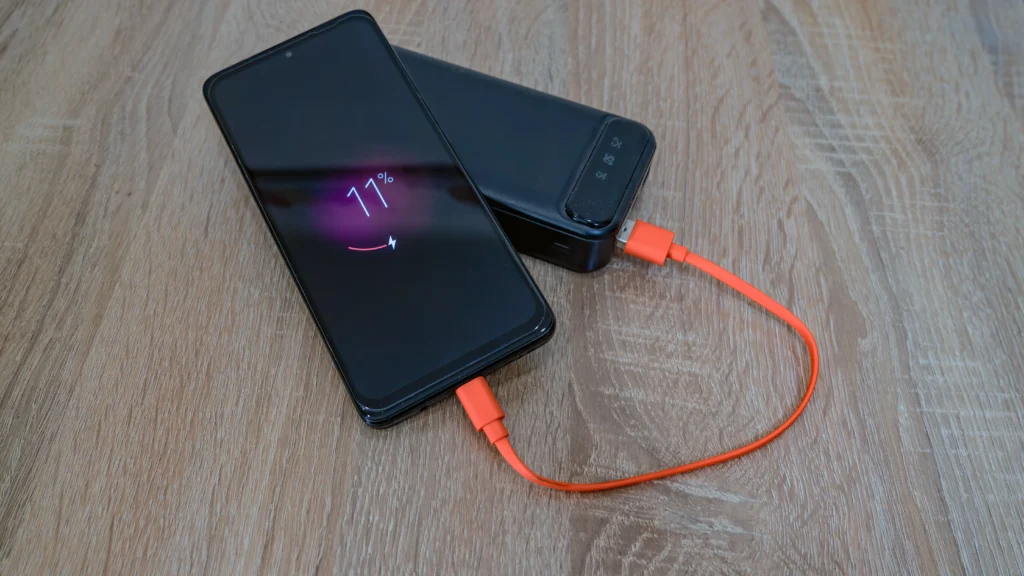
Phone Charging but Battery Percentage Not Increasing? 7 Easy Fixes That Actually Work
Phone shows it’s charging but the battery percentage stays the same? Find the real causes and proven solutions to fix the problem safely.
Phone Battery Draining Fast After Installing New App – 7 Reasons and How to Fix It
Battery life suddenly dropped after installing a new app? Learn what’s causing the drain and how to improve your phone’s battery performance.
Why You Can Trust This Guide
The internet is full of Android “fixes” that promise instant results but often create more confusion than solutions. That’s why this guide takes a different approach.
Instead of recommending risky shortcuts or unnecessary apps, it focuses on well-established troubleshooting practices that Android users commonly use to diagnose software issues before assuming a hardware failure. Each section is organised in a logical order—starting with the safest, simplest fixes and progressing to more advanced options only when they’re genuinely needed.
The goal isn’t just to help you solve today’s problem. It’s to help you understand why Android issues happen in the first place, so you can make better decisions and keep your phone running reliably for longer.
About the Research Behind This Guide
Hi, I’m Shad Ali Tamseel, a technology content researcher and blogger who enjoys turning complicated smartphone problems into practical, easy-to-follow solutions.
Rather than publishing quick articles built around generic tips, my focus is on researching how Android devices actually behave in real-world situations, comparing trusted technical sources, official documentation, and common troubleshooting patterns before putting together a guide.
Every article is written with one goal in mind: help readers understand the problem first, then solve it with safe, practical, and reliable steps—without unnecessary jargon or risky shortcuts.
I believe good tech content shouldn’t leave readers with more questions than answers. If someone finishes reading one of my guides, they should feel confident enough to troubleshoot the issue themselves or know exactly when professional repair is the better option.
As Android continues to evolve, I’ll keep updating my guides to reflect the latest software changes, best practices, and troubleshooting methods, so the information stays accurate and genuinely useful.