

Imagine this. You urgently need internet outside your home.
You turn ON mobile data expecting everything to work normally…
Everything looks normal.
Signal bars are full.
4G, 5G, LTE, or VoLTE icon is visible at the top.
Your SIM card is active.
But something feels wrong.
WhatsApp messages are not sending.
Instagram refuses to refresh.
Google Chrome keeps loading forever.
YouTube videos do not play.
Now the confusion starts.
“If mobile data is ON, then why is internet not working?”
This is one of the most frustrating Android problems because at first glance, everything looks perfectly fine.
The good news?
In most cases, this problem is not serious and can be fixed within a few minutes if you know the real reason behind it.
In this guide, you will learn why mobile data shows connected but internet stops working on Android, what causes it, and the exact fixes that actually solve the problem.
If this issue keeps happening again and again, the problem may not be your SIM card at all. Sometimes Android creates temporary network bugs internally, which stop internet access even when everything looks normal. Google has also explained similar Android connectivity issues in its official troubleshooting documentation here: https://support.google.com/android
Need A Quick Fix? Start Here First
If mobile data is ON but internet is not working on Android, the most common reasons are:
| Problem | Quick Fix |
|---|---|
| Temporary network glitch | Restart phone |
| Airplane mode bug | Turn airplane mode ON/OFF |
| Wrong APN settings | Reset APN |
| SIM card issue | Remove and reinsert SIM |
| Carrier network outage | Contact provider |
| Android software bug | Update system |
| Broken network configuration | Reset network settings |
If restarting the phone does not work, move to the advanced fixes below.
So Why Does This Problem Happen In The First Place?
Many users think mobile data works only by turning the mobile data switch ON.
But Android internet connectivity depends on multiple systems working together in the background.
Your phone needs:
- Stable signal from mobile tower
- Correct APN configuration
- Proper SIM card connection
- Active data plan
- Android software working normally
- Carrier servers functioning properly
- No internal network configuration errors
If even one part fails, your phone may show mobile data enabled but internet will completely stop working.
That is why this problem happens so often.
Sometimes the problem is not limited to mobile data. If your WiFi connection is working but a specific app such as YouTube refuses to load videos, the issue may be related to the app, DNS, or WiFi connection itself. In that situation, WiFi connected but YouTube not working on your phone can help you troubleshoot that separate problem.
Wait… Check These Things Before Changing Any Settings
Before changing settings, quickly confirm these basic things.
Ask yourself:
- Is mobile data actually enabled in settings?
- Is airplane mode completely turned OFF?
- Has my daily or monthly data plan expired?
- Am I in an area with poor network coverage?
Sometimes users spend hours changing settings when the real problem is simply no active data plan.
Always check basics first.
Here Are The Real Reasons Your Mobile Internet Suddenly Stops Working
1. Weak Network Signal Quality
Signal bars do not always mean good internet.
You may have 4 signal bars, but network quality can still be unstable.
This usually happens in basements, villages, elevators, underground parking areas, and buildings with thick walls.
2. Android Failed To Reconnect Properly
Sometimes Android disconnects from the mobile tower internally.
The network icon stays visible, but internet session stops working.
This often happens after switching WiFi to mobile data.
3. Wrong APN Settings
APN means Access Point Name.
It allows your phone to communicate with your SIM provider’s internet servers.
If APN settings become incorrect, internet stops immediately.
This usually happens after software updates or manual APN changes.
4. SIM Card Problem
A damaged or dirty SIM card can interrupt mobile internet connection.
Possible issues include:
- SIM inserted incorrectly
- SIM card physically damaged
- Dust on SIM contacts
- Old SIM card losing connectivity
5. Carrier Network Congestion
If too many users connect to the same mobile tower, internet can become extremely slow or stop completely.
This happens often in crowded areas.
Examples:
- Railway stations
- Stadiums
- Festivals
- Busy city centers
6. Software Bug After Android Update
Sometimes after updating Android, network configuration files become unstable.
As a result, internet stops working even though mobile data remains ON.
7. Data Plan Expired Or Carrier Issue
Your SIM provider may temporarily stop internet access because:
- Daily limit finished
- Monthly plan expired
- Account payment issue
- Temporary network outage
The mobile data icon remains ON but internet will not work.
Now Let’s Fix The Problem (Try These Methods One By One)
Follow these methods one by one.
Fix 1: Restart Your Android Phone
Sometimes Android gets stuck in a temporary network loop after switching between WiFi and mobile data. In many cases, a simple restart fixes the problem instantly.
Steps:
- Hold Power button
- Tap Restart
- Wait for reboot
- Check internet again
Many users fix the problem with this method alone.
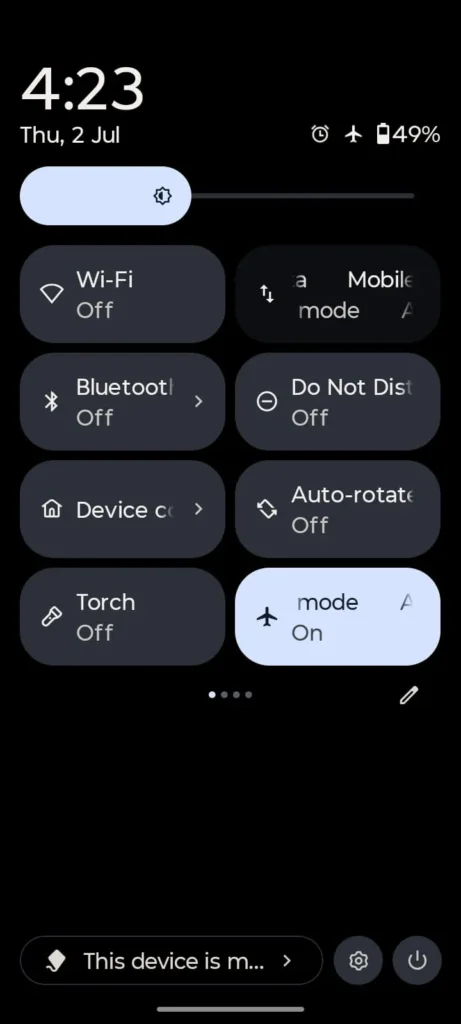
Fix 2: Turn Airplane Mode ON Then OFF
If your phone fails to reconnect properly with the mobile network, toggling airplane mode forces Android to establish a fresh connection again.
Steps:
- Swipe down quick settings
- Turn airplane mode ON
- Wait 30 seconds
- Turn airplane mode OFF
- Check internet again
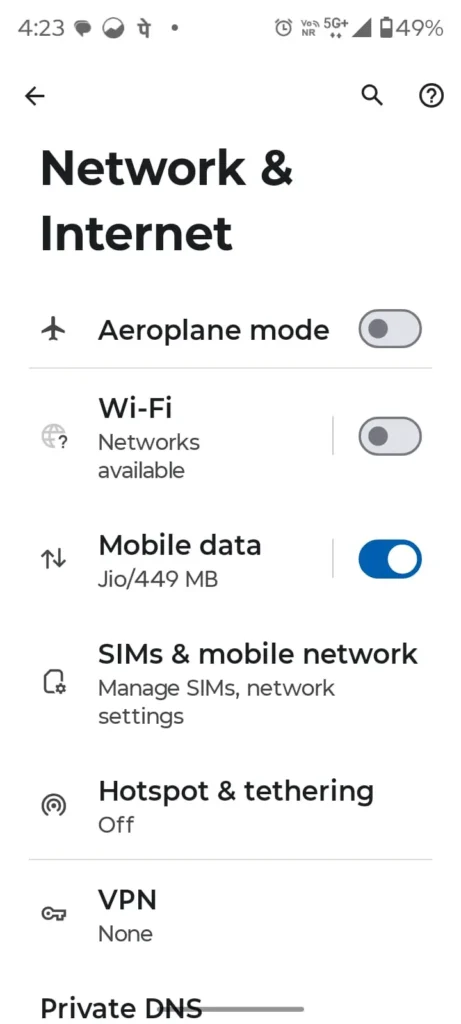
Fix 3: Reset APN Settings
Even one incorrect APN setting can completely block internet access on your phone. Resetting it often brings the connection back immediately.
Steps:
- Open Settings
- Go to Mobile Network
- Open Access Point Names
- Tap Reset To Default
- Restart phone
Fix 4: Remove And Reinsert SIM Card
Sometimes the problem is not software at all. A loose SIM card connection can silently stop mobile internet without showing any warning.
Steps:
- Turn phone OFF
- Remove SIM tray
- Clean SIM gently with dry cloth
- Reinsert SIM properly
- Turn phone ON
Fix 5: Reset Network Settings
Over time, Android can store broken network configurations in the background. A network reset clears those hidden errors completely.
Steps:
- Open Settings
- Go to System
- Open Reset Options
- Tap Reset WiFi Mobile Bluetooth
- Confirm reset
Note: Saved WiFi passwords will be removed.
Fix 6: Update Android Software
If the problem started after a recent software bug or system instability, installing the latest Android update may solve it automatically.
Check for pending updates.
Steps:
Settings → System → Software Update
Install available updates immediately.
Fix 7: Contact SIM Provider
If every phone setting looks correct but internet still refuses to work, there is a high chance the problem is coming directly from your network provider.
Ask customer support:
- Is there a network outage?
- Is my data plan active?
- Is my SIM card properly activated?
Sometimes the issue is completely outside your phone.
Sometimes The Problem Is Not Your Phone At All
In many cases, your phone is completely fine.
The real problem comes from the network provider.
Common signs:
- Calls are working but internet is dead
- LTE icon disappears randomly
- SMS delivery becomes delayed
- Data stops working only at certain times daily
- Multiple people using same carrier face the same issue
If these signs appear, contact your carrier immediately.
Many users think mobile internet problems mean hardware damage, but that is usually not true. In most cases, wrong settings or temporary software glitches are the real reason. Android troubleshooting experts have discussed similar cases here: https://www.androidauthority.com
Mistakes Most People Make Without Realizing It
Turning Mobile Data ON and OFF Repeatedly
Many users keep toggling mobile data again and again.
If APN or SIM configuration is broken, this will do absolutely nothing.
Watching Random YouTube Videos And Changing APN Settings
This is a very common mistake.
Many videos suggest random APN values.
One wrong APN value can completely break your internet connection.
Thinking The SIM Card Is Dead Immediately
Users often assume SIM card has failed.
In reality, Android background network services are usually causing the problem.
Forgetting Battery Saver Mode Is ON
Battery saver silently restricts background network activity.
Many people forget this setting exists.
Network problems are not the only thing that can affect how your phone behaves during internet use. If you also notice that your phone becomes unusually warm while using social media apps, background activity, screen usage, and constant network communication can all increase the workload on your device. If this happens mainly while using Instagram, why your phone gets hot while using Instagram can help you understand the common causes and fixes.
Installing Fake Network Booster Apps
Many Play Store apps claim to boost internet speed.
Most of them do nothing and sometimes create more network problems.
Ignoring VPN Apps Running In Background
Many users forget they have VPN apps running.
Sometimes VPN apps block internet traffic completely and make mobile data look broken.
Different Android Brands Can Have Different Network Problems
Different brands sometimes have different network bugs.
Common examples:
Samsung → Network bug after One UI updates
Xiaomi → Battery optimization blocking data
Realme → Aggressive app management
Vivo → Background data restrictions
Oppo → Power saving mode interference
Motorola → Delayed carrier update configuration
If you use these brands, check brand-specific settings too.
How To Make Sure This Problem Does Not Happen Again
Follow these habits.
- Restart your phone every few days
- Never copy APN settings from random YouTube videos
- Keep Android updated regularly
- Avoid installing fake network booster apps
- Monitor daily mobile data usage
- Remove unused VPN apps
- Keep SIM tray clean every few months
Small habits prevent future internet issues.
If your phone starts behaving differently after installing a new app, do not always assume the problem is caused by your SIM or mobile network. Some apps can continue running in the background and consume battery, mobile data, or system resources even when you are not actively using them. If the problem started after installing an app, your phone battery draining fast after installing a new app can help you check whether that recent installation is responsible.
Frequently Asked Questions
Why is my mobile data on but internet not working on Android Samsung?
Samsung phones sometimes face network bugs after software updates. Restarting or resetting network settings usually solves it.
Why does my Android show 4G but internet is not working?
This usually happens because of APN errors, weak signal quality, carrier outages, or internal software bugs.
Mobile data connected but apps are not loading. Why?
Your phone may connect to the network but fail to establish a proper internet session due to APN or DNS issues.
Mobile data connected but apps are not loading. Why?
Sometimes Android updates modify carrier configuration files and temporarily break internet connectivity.
Can a damaged SIM card stop mobile internet on Android?
Yes. A damaged or dirty SIM card can interrupt communication between your device and mobile tower.
How do I reset mobile network settings on Android?
Go to Settings → System → Reset Options → Reset WiFi Mobile and Bluetooth.
Why is internet not working even though mobile data is ON and signal bars are full?
Signal bars only show connection strength. They do not guarantee that active internet service is working properly.
When Home Fixes Stop Working, Do This
Visit a service center if:
- Phone recently fell in water
- SIM slot is damaged
- Phone is not detecting SIM card
- Motherboard was repaired recently
- Internet problem continues after trying every fix
Hardware damage can also cause internet failure.
Why You Can Trust This Guide
This guide was created after researching real Android mobile network problems reported by users across different smartphone brands, including Samsung, Xiaomi, Vivo, Oppo, Motorola, and Realme devices.
Every troubleshooting method shared here is based on practical mobile issue diagnosis, commonly used Android network fixes, and real-world smartphone problems that users face daily.
The goal of Device Fix Master is simple — explain technical problems in the easiest possible way so users can fix their devices without wasting time or money on unnecessary repairs.
So, What Should You Do Now?
If your Android phone suddenly shows mobile data ON but internet stops working, do not panic immediately or assume your phone is damaged.
Most of the time, the issue comes from simple things like wrong APN settings, temporary Android network glitches, software bugs, SIM card issues, or carrier problems.
The important thing is understanding the real cause instead of randomly changing settings and making the problem worse.
Start with the simple fixes first, move step by step, and in most cases you will solve the problem within minutes.
And if this issue happens again in the future, at least now you know exactly where to start instead of wasting hours searching for random solutions online.
Most users think this problem means SIM damage or phone hardware failure. In reality, the issue is usually much simpler and can often be fixed within a few minutes.