
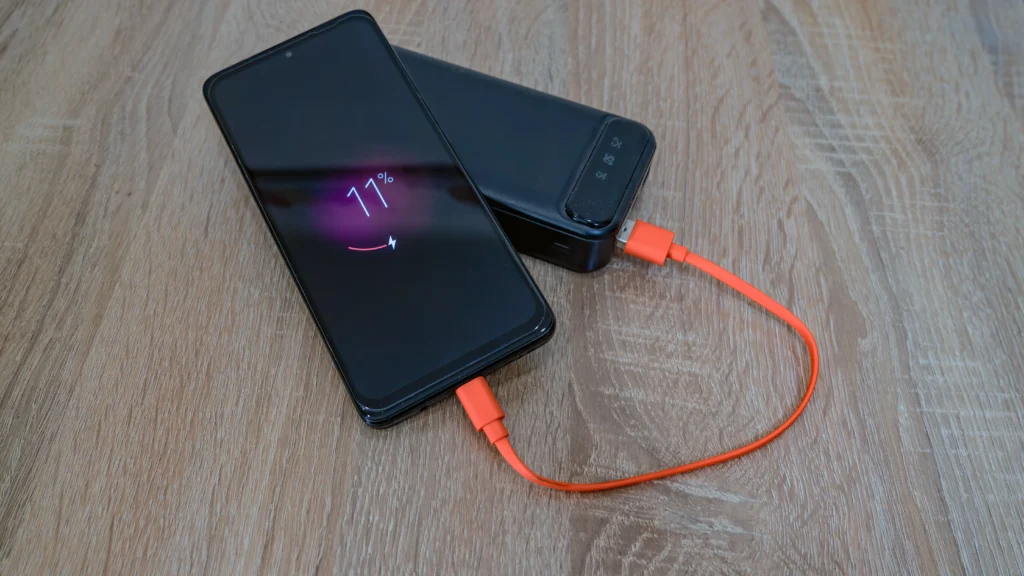
Your Android phone is connected to a charger, and the charging icon appears, but the battery percentage stays at the same number. In some cases, the percentage may even decrease while the phone says it is charging.
This usually means you need to check how much usable power is reaching the phone, how much power the phone is consuming, and whether temperature or battery settings are affecting charging.
A weak or incompatible charger, a damaged cable, heavy phone usage, excessive heat, a charging-port problem, or a worn battery can produce similar symptoms. The charging icon alone does not confirm that the battery is gaining charge normally.
This guide explains how to test the problem safely, interpret the result, and decide whether the issue is related to your charging setup or needs professional diagnosis.
Quick Answer: What to Do First
If your Android phone says it is charging but the battery percentage is not increasing:
- Stop gaming, streaming, navigation, hotspot use, and other demanding activities.
- Connect the phone to a known-working compatible wall charger and cable.
- Turn the screen off and leave the phone idle.
- Check the battery percentage again after 15–30 minutes.
- If the percentage still does not increase, test another compatible cable and charger.
- Let the phone cool if it is unusually warm.
- Check whether a charging-limit feature explains the behaviour.
- Inspect the charging port for visible debris, moisture, or damage without inserting objects.
- If the problem continues with known-good accessories, arrange professional diagnosis.
The result of this test helps narrow down the cause, but it does not prove that the battery or any other component is healthy.
Stop charging immediately if the battery is swollen, the phone is dangerously hot, or you notice smoke, sparks, a burning smell, or liquid damage.
Quick Problem and Solution Guide
| What Happens | What It May Mean | Best Next Step |
|---|---|---|
| Percentage stays unchanged while the phone is idle | Charging setup, settings, battery, or hardware issue | Test another compatible cable and charger |
| Percentage increases when the screen is off | High power consumption may be contributing | Check demanding apps, heat, and charging compatibility |
| Percentage decreases during gaming or video recording | Power consumption may be close to or higher than incoming power | Stop demanding activities and test while idle |
| Percentage stops at 80% or another consistent limit | Battery-protection setting may be active | Check battery settings |
| Charging is interrupted when the cable moves | Unstable connection, cable fault, or port damage | Test another cable without forcing the connector |
| Charging fails with multiple known-good accessories | Phone-side battery or charging hardware issue may be present | Seek professional diagnosis |
Use these results to choose the next test. They are diagnostic clues, not proof that a particular component has failed.
Why Is Your Battery Percentage Stuck Even While Charging?
The charging icon only indicates that the phone has detected a charging connection. It does not guarantee that the battery percentage will increase at the same rate in every situation.
Three common situations can explain the behaviour:
- The percentage increases when the screen is off: Phone activity or heat may have been contributing to high power consumption.
- The percentage remains unchanged while the phone is idle: The charger, cable, port, battery, charging settings, or internal hardware may need further checking.
- The percentage stops at a consistent limit: A battery-protection or charging-limit feature may be controlling the maximum charge.
The most useful first step is to test the phone under consistent conditions before replacing any parts.
How to Find the Real Problem Before Trying Any Fix
Before trying random solutions, it’s important to find out what’s actually causing the problem. This can save you time and help you avoid replacing accessories that are still working properly.
Start by checking whether the charging icon stays on continuously or disconnects when you move the cable. Next, try another charger and charging cable if you have one. If the problem continues, inspect the charging port for dust or lint and clean it carefully.
Then, charge your phone with the screen off for about 20 minutes. If the battery percentage starts increasing, background apps or heavy usage were likely consuming more power than the charger could provide.
One thing we’ve noticed is that this problem is often caused by something very simple, especially on phones that are used every day. Dust inside the charging port, a worn-out charging cable, or a low-quality charger can make it look like the phone is charging when the battery percentage isn’t actually increasing. That’s why it’s always better to check the simple things first before assuming there’s a serious hardware problem.
Finally, restart your phone and check for any available software updates. If none of these steps solve the problem, the issue may be related to the battery or another internal hardware component that requires professional inspection.
How to Fix an Android Phone That Says Charging but the Battery Percentage Is Not Increasing
Follow these fixes in order. After each important test, check whether the battery percentage begins increasing normally.
Fix 1: Test Charging While the Phone Is Idle
Stop gaming, video streaming, navigation, camera recording, hotspot use, and other demanding activities.
Connect the phone to a compatible wall charger, turn the screen off, and leave it undisturbed for 15–30 minutes.
Check the percentage before and after the test.
- If the percentage increases, phone activity or heat may have contributed to the problem.
- If the percentage stays unchanged, continue to the charger and cable tests.
- If the percentage decreases, check the charging accessories, temperature, battery condition, and possible hardware problems.
The amount of charge gained can vary by model, charger, starting battery level, and temperature. The purpose is to compare the phone’s behaviour under controlled conditions, not to expect a fixed percentage increase.
Fix 2: Try a Different Compatible Charging Cable
A damaged cable may allow the charging icon to appear while delivering unreliable or insufficient power.
Disconnect the current cable and try a known-working replacement that supports your phone’s charging requirements.
Keep the charger and wall outlet unchanged during this test. If the battery begins increasing normally, the original cable may be responsible.
If another cable makes no difference, move to the charger test instead of repeatedly reconnecting the same cable.
Fix 3: Test Another Compatible Charger and Wall Outlet
The adapter or power source may not be delivering the power your phone needs.
Use a known-working compatible charger and connect it directly to a reliable wall outlet. If necessary, test another cable as well.
Avoid choosing a replacement based only on its advertised wattage. The phone, charger, cable, and charging standard must be compatible.
If charging returns to normal with the replacement setup, the original accessory or power source may be the cause.
Fix 4: Let the Phone Cool Down and Reduce Power Consumption
If the phone feels noticeably warm, stop demanding activities and allow it to cool naturally.
Keep it out of direct sunlight and avoid charging it under a pillow or in another place where heat can build up.
Once the phone returns to a normal temperature, repeat the screen-off charging test.
If the percentage starts increasing more normally, heat or high power consumption may have contributed to the problem. Repeated excessive heat, however, should not be ignored.
Fix 5: Check the Charging Port and Moisture Warnings
Disconnect the charger and inspect the port under good lighting.
Look for visible dust, lint, moisture, corrosion, a damaged connector, or signs that the cable is no longer fitting securely.
Do not insert metal objects or force tools into the port. If moisture is suspected, keep the charger disconnected and follow the manufacturer’s drying instructions.
If the port is visibly damaged, the cable works only at a certain angle, or several cables disconnect in the same way, professional inspection may be necessary.
Fix 6: Check Battery Protection, Restart the Phone, and Review Updates
Open the battery settings and look for options such as Battery Protection, Charging Limit, Adaptive Charging, or Optimized Charging.
If the phone consistently stops at a set percentage, an intentional charging limit may explain the behaviour. This is different from the percentage unexpectedly remaining stuck at various levels.
If no setting explains the issue, restart the phone and check for available official Android updates. Menu names and charging features vary by manufacturer and software version.
A restart or update may help with a software-related problem, but neither can repair a damaged cable, charging port, battery, or internal charging component.
Fix 7: Check Battery Health and Seek Professional Diagnosis if Needed
If the percentage still does not increase when the phone is idle and connected to known-good compatible charging equipment, the problem may involve the battery or internal charging hardware.
Check whether your manufacturer provides an official battery or device diagnostic. Follow the instructions for your specific model.
A battery that drains unusually quickly, causes unexpected shutdowns, or shows inconsistent percentage readings may need closer assessment.
If charging remains abnormal despite the tests above, arrange a professional inspection rather than buying a replacement battery without a diagnosis.
If the battery appears swollen, the device becomes dangerously hot, or you notice smoke, sparks, a burning smell, or liquid damage, stop charging and seek professional assistance immediately.
If the basic fixes in this guide don’t solve the problem, it’s a good idea to check the official Google Android Help Center. It offers trusted troubleshooting guides for charging, battery, and software-related issues that may vary depending on your Android phone model and Android version.
Common Charging Mistakes to Avoid
- Repeatedly unplugging and reconnecting the charger without testing the accessories.
- Gaming or running demanding apps during a charging test.
- Buying the highest-wattage charger without checking compatibility.
- Inserting metal objects into the charging port.
- Replacing the battery before ruling out basic charging-accessory problems.
- Continuing to charge a phone with a swollen battery, dangerous heat, or signs of liquid damage.
- Performing a factory reset before completing the simpler troubleshooting checks.
How to Prevent This Problem in the Future
How to Prevent This Problem in the Future
Use compatible, good-quality charging accessories and replace damaged cables promptly. Avoid putting unnecessary pressure on the charging connector, keep the phone cool while charging, and respond to moisture or overheating warnings.
If the phone regularly shows inconsistent battery percentages, drains unusually quickly, or shuts down unexpectedly, have its battery condition checked rather than relying on repeated charging tests.
Frequently Asked Questions
Why does my Android phone say charging but the percentage does not increase?
The phone may be receiving insufficient power, consuming power rapidly, experiencing temperature-related charging limits, or having a problem with its battery or charging system. Test it while idle with a compatible charger and cable before assuming the battery is faulty.
Why is my battery percentage decreasing while charging?
The phone may be using power almost as quickly as it receives it. Gaming, navigation, streaming, hotspot use, heat, or a weak charging setup can contribute. Test the phone while idle and cool, then compare the result with another compatible charging setup.
Can a bad charging cable cause the battery percentage to stay the same?
Yes. A damaged or unsuitable cable can cause an unstable connection or limit usable charging power. Testing a known-working compatible replacement cable is a useful first step.
Should I replace the battery if the percentage is stuck?
Not immediately. Test the charger, cable, wall outlet, temperature, and charging port first. Consider battery replacement only when suitable testing or professional diagnosis supports that decision.
Can a software update fix a battery percentage problem?
A restart or official software update may help if software is contributing to the issue. It will not repair damaged charging accessories, a faulty port, a worn battery, or internal charging hardware.
When should I stop troubleshooting at home?
Stop charging if the battery is swollen, the phone becomes dangerously hot, or there are signs of smoke, sparks, burning, or liquid damage. If the phone remains unable to gain charge despite known-good compatible accessories, arrange professional diagnosis.
How This Guide Approaches Charging Problems
This guide separates basic charging checks from situations that may require professional service. The recommended steps begin with charging accessories, phone activity, temperature, and settings before considering battery or internal hardware failure.
Charging behaviour and available settings can vary by manufacturer, model, and Android version. Always follow the manufacturer’s guidance for model-specific diagnostics and safety warnings.
Final Thoughts
When an Android phone says it is charging but the battery percentage is not increasing, start by testing the phone while idle with a known-working compatible charger and cable.
If the percentage increases under those conditions, phone activity, heat, or the original charging setup may have been contributing. If it remains unchanged, check the port and settings, then consider battery or hardware diagnosis.
Do not replace the battery based only on the charging icon or a single test. Use the results to narrow down the cause, and seek professional help when the problem persists or safety warning signs appear.