
About the author
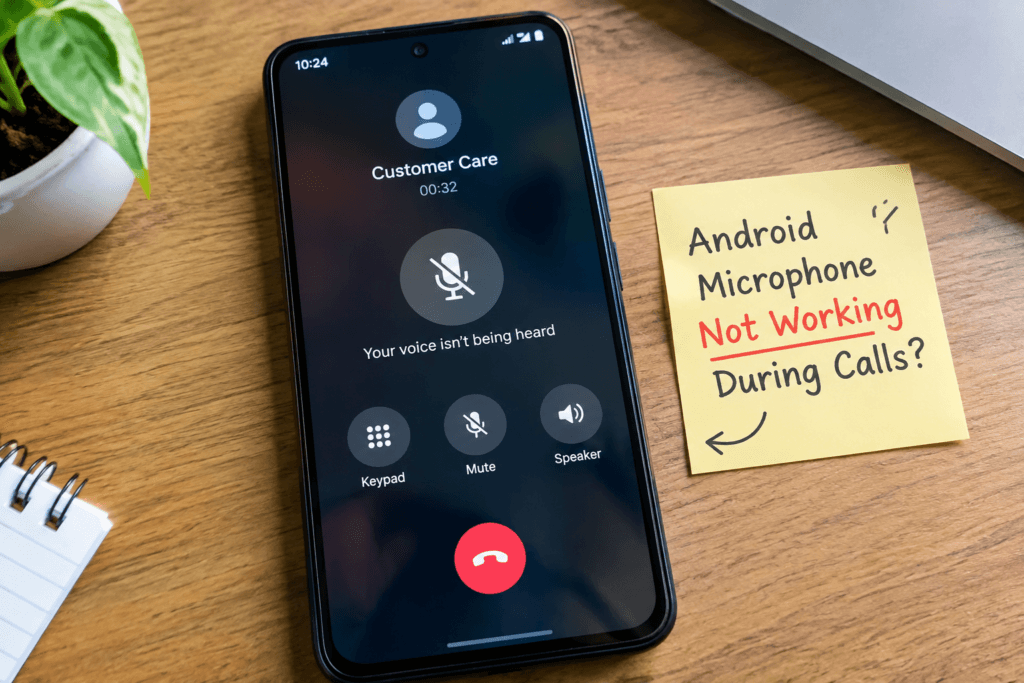
A few days ago, I was on a phone call when the other person suddenly said, “I can’t hear you.” My call was connected, I could hear them clearly, but my voice wasn’t reaching them properly. I checked a few settings and fixed the problem in just a couple of minutes.
So, if you’re dealing with Android microphone not working during calls, don’t assume that your phone’s microphone is damaged just yet. This problem can come from something as simple as microphone access being turned off, a Bluetooth device using another microphone, a blocked mic opening, or a temporary software glitch.
In this guide, I’ll walk you through the most useful checks and fixes in the order I’d actually try them on a phone.
And if you regularly run into different Android issues, you may also find Common Android Phone Problems and How to Fix Them useful as a general troubleshooting reference.
First, Check These Things
Before changing any settings, take a minute to do these quick checks:
- Turn Bluetooth off temporarily.
- Remove your phone case.
- Restart the phone.
- Make sure you haven’t accidentally muted the microphone during the call.
- Open a voice recorder and test your voice.
That last test is especially useful. If your voice records normally, the microphone itself may be fine, and the problem is more likely related to calls, permissions, or audio routing.
If your recording is silent or extremely faint, you may be dealing with a broader microphone problem.
Why Is My Android Microphone Not Working During Calls?
There isn’t always one obvious reason why your phone microphone is not working during calls. The microphone can work perfectly in one situation and fail in another.
The seven most common causes are:
- Microphone access is turned off.
- The Phone app doesn’t have microphone permission.
- Bluetooth is using another microphone.
- Your case or dirt is blocking the microphone opening.
- A temporary software glitch is affecting call audio.
- Another app or feature is interfering with microphone access.
- The microphone hardware may be damaged.
The good news is that most of these are easy to check without resetting your phone or deleting anything.
7 Reasons Your Android Microphone May Not Work During Calls
1. Microphone Access Is Turned Off
Modern Android versions include a system-level microphone control. If microphone access is disabled, apps may not be able to use the microphone even when the hardware is working.
This can happen accidentally after changing privacy settings or using the Quick Settings panel.
2. The Phone App Doesn’t Have Microphone Permission
The Phone app needs microphone access to use your microphone during phone calls. If that permission was denied or changed, you may be able to make and receive calls normally while the other person hears silence.
Google’s Android documentation confirms that microphone permissions control whether an app can record audio, while Google’s Phone app documentation specifically lists microphone access as what the Phone app uses during phone calls.
3. Bluetooth Is Using Another Microphone
This one is easy to overlook.
If your phone is connected to wireless earbuds, a headset, your car, or another Bluetooth accessory, call audio may be routed through that device. You may still hear the other person from the phone, which makes the problem confusing.
4. The Microphone Opening Is Blocked
A tiny amount of dust, lint, or debris can affect the microphone. A thick or badly fitted case can also partially cover the opening.
The microphone may still pick up some sound, but your voice can become unusually quiet or unclear.
5. A Temporary Software Glitch Is Affecting Calls
Sometimes the Android call microphone problem appears suddenly even though nothing obvious has changed.
The Phone app, Android’s audio system, or another background process may temporarily behave incorrectly. A simple restart is often worth trying before moving on to more complicated troubleshooting.
6. Another App or Feature Is Interfering
Apps that use audio, calling, recording, voice commands, or accessibility features can make troubleshooting more complicated.
This doesn’t automatically mean another app is broken. The important clue is whether your microphone problem started after installing, updating, or changing something on the phone.
7. The Microphone Hardware Is Damaged
If the microphone doesn’t work during calls and also fails in voice recordings, videos, or other apps, the problem may be physical.
A recent drop, liquid exposure, or other damage can make hardware failure more likely.
How to Fix Android Microphone Not Working During Calls
Fix 1: Turn On Microphone Access
Start here because it takes less than a minute.
On many newer Android phones, go to:
Settings → Security & privacy → Privacy controls → Microphone access
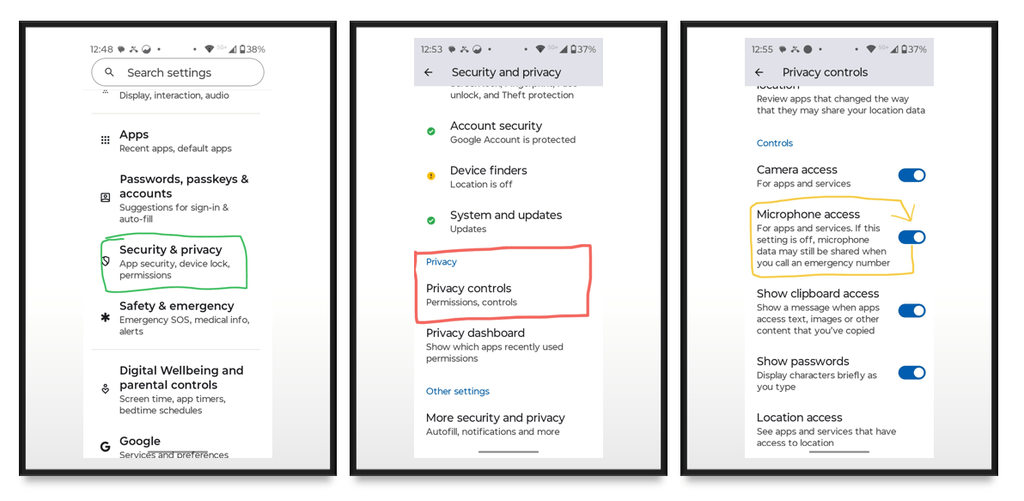
Make sure Microphone access is turned on.
You can also swipe down twice to open Quick Settings and look for a microphone control. On Android 12 and later, Android can show when an app is using the microphone and provides controls for microphone access. The exact menu can look different depending on the phone brand and Android version.
Now make another call.
If the other person can hear you again, you’ve found the cause.
Fix 2: Check Microphone Permission for the Phone App
If microphone access was already enabled, check the Phone app itself.
Go to:
Settings → Apps → Phone → Permissions → Microphone
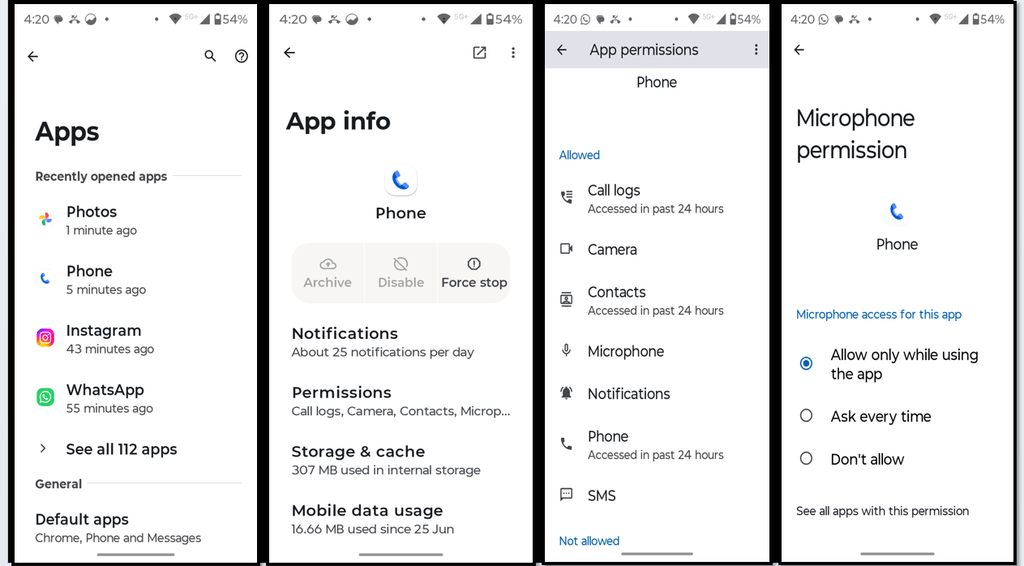
Select Allow when available.
Some phones may show See all apps first, or use a slightly different name for the dialer app.
Android lets you manage individual app permissions from Settings → Apps → App → Permissions. You can also review microphone access through the Privacy settings on supported Android versions.
For a direct reference, you can use Google’s official Android guide to changing app permissions to check the permission settings on your device.
After changing the permission, close the Phone app, make another call, and test your microphone again.
Fix 3: Turn Bluetooth Off and Try Another Call
Now completely turn Bluetooth off.
Don’t just disconnect your earbuds. For this test, turn Bluetooth off from Quick Settings or Settings, then make a normal phone call.
Ask the other person whether they can hear you.
If your microphone suddenly starts working, a connected Bluetooth device was probably involved in the audio routing.
This is particularly useful when your Android mic is not working during calls but everything else on the phone seems normal.
If you also have problems with audio coming from connected Bluetooth accessories, Bluetooth Connected But No Sound on Android covers that separate issue in more detail.
Fix 4: Remove the Case and Check the Microphone
Take off your phone case and inspect the microphone opening.
Look for:
- lint or dust
- dirt around the opening
- a case edge covering the microphone
- anything that may have been stuck over it
Clean the outside gently. Avoid pushing a pin, needle, SIM tool, or any sharp object into the microphone hole.
This matters because the microphone opening is small, and trying to “clean it deeply” can cause more damage than the original blockage.
Now make another call without the case and check whether your voice is clearer.
Fix 5: Restart Your Android Phone
If the phone mic is not working and the problem appeared suddenly, restart the phone before doing anything drastic.
A restart can clear temporary software or audio-routing problems that may have appeared in the Phone app or Android system.
After restarting:
- Keep Bluetooth off.
- Leave the case off for the test.
- Make a normal call.
- Ask the other person whether they can hear you.
If everything works after the restart but stops again later, pay attention to what happens before the microphone fails. That may point toward an app or software issue.
Fix 6: Test the Microphone With Voice Recorder
This is one of the most useful troubleshooting steps in the whole process.
Open your phone’s Voice Recorder app and record yourself speaking normally for about 10 seconds.
Then play the recording.
If your voice sounds clear
Your microphone is probably able to capture sound. That means the problem may be specific to normal calls, app permissions, Bluetooth, or software.
This is the situation where phone microphone works in apps but not during calls, which can make the problem look like hardware failure when it may not be.
If the recording is silent or very faint
Try another recording app or a video recording test.
If the microphone continues to fail everywhere, the problem is no longer limited to phone calls. At that point, hardware or a wider system problem becomes more likely.
Fix 7: Update Android and the Phone App
If nothing above helped, check whether your phone has pending software updates.
Depending on your phone, you may find this under:
Settings → System → Software update
Also open the Play Store and check for updates to the Phone app if your device uses a Play Store-updated dialer.
You don’t need to install random “microphone fixer” apps. Start with the software already provided by your phone manufacturer and Android.
If the microphone problem started immediately after a software update, take note of that timing. A repeated issue after an update may require a later software update or support from the phone manufacturer.
Quick Diagnosis: What Does Your Result Mean?
At this point, your test results can tell you where to look next.
| What you notice | What it usually points to |
|---|---|
| Microphone works in Voice Recorder but not in normal calls | Call settings, permissions, routing, or software |
| Turning Bluetooth off fixes the problem | Bluetooth audio routing |
| Removing the case improves your voice | Blocked microphone opening |
| Microphone fails in recordings and calls | Possible wider system or hardware issue |
| Problem started after a drop or liquid exposure | Possible physical damage |
These are clues, not guaranteed diagnoses. But they can prevent you from wasting time on fixes that don’t match the actual problem.
Common Mistakes to Avoid
Don’t Clean the Microphone With a Pin
A sharp object can damage the microphone opening or internal components. Gentle external cleaning is much safer.
Don’t Factory Reset the Phone First
A factory reset removes your data and settings. It makes little sense to do that before checking permissions, Bluetooth, the case, and microphone recording.
Don’t Ignore Bluetooth
A Bluetooth headset or car system can make the problem look like a phone microphone failure when the audio is actually being routed somewhere else.
Don’t Test Only One Situation
Try a normal call and a voice recording. If possible, also test speakerphone.
Different results give you much better clues than repeating the same call over and over.
Don’t Assume the Microphone Is Broken
If your voice records clearly in another app, that’s an important sign. Keep checking call-related settings before deciding that the hardware has failed.
How to Prevent Microphone Problems During Calls
You don’t need to constantly change settings to prevent this problem.
Keep the microphone openings clean, make sure your case isn’t blocking them, and avoid exposing the phone to unnecessary moisture or physical damage.
Before an important call, especially when using wireless earbuds or a car system, quickly check your Bluetooth connection.
It’s also useful to test the microphone occasionally with a short recording. If the sound suddenly becomes very quiet or distorted, you’ll know there’s a problem before it affects an important call.
Frequently Asked Questions
Why can’t people hear me on Android calls?
Start by checking microphone access and the Phone app’s microphone permission. Then turn Bluetooth off, remove the phone case, restart the phone, and test the microphone with a voice recorder. These checks can help identify whether the issue is settings-related or more widespread.
Why is my Android microphone not working during calls but works on speaker?
If the microphone behaves differently in normal calls and speakerphone, the phone may be using a different audio path or microphone behavior in each mode. Turn Bluetooth off, remove the case, and test both modes again.
Why does my microphone work in apps but not during calls?
When recording apps can capture your voice normally but regular calls cannot, the microphone hardware may still be working. Check the Phone app’s microphone permission, system microphone access, Bluetooth, and available software updates.
How do I turn on microphone permission on Android?
Go to Settings → Apps → Phone → Permissions → Microphone and allow access. Android also provides system-level microphone controls through Privacy settings on supported versions. The exact wording can vary between phone brands and Android versions.
Can Bluetooth cause microphone problems during calls?
Yes. A connected headset, earbuds, car system, or another Bluetooth accessory can affect which microphone is being used during a call. Turn Bluetooth off completely and make another call to see whether the problem disappears.
How do I know if my Android microphone is physically damaged?
Test the microphone with Voice Recorder and another app that records audio. If your voice is missing, extremely faint, or distorted everywhere—not just during phone calls—the microphone may have a hardware problem. A recent drop or liquid exposure makes physical damage more likely.
Final Thoughts
When your Android microphone is not working on calls, the problem isn’t necessarily a damaged microphone.
Start with the simple things: check microphone access, verify the Phone app’s permission, turn off Bluetooth, remove the case, and restart the phone. Then do one important test with Voice Recorder.
That test can tell you a lot. If the microphone works in recordings but not during calls, keep looking at call settings and software. If it fails everywhere, especially after physical or liquid damage, a hardware problem becomes more likely.
You don’t need to jump straight to a factory reset or repair shop. Work through the checks one by one, and you’ll usually have a much clearer idea of what’s actually causing the problem.
For a broader approach to troubleshooting Android issues, you can also keep Beginner Guide to Fixing Everyday Smartphone Problem as a useful reference.