

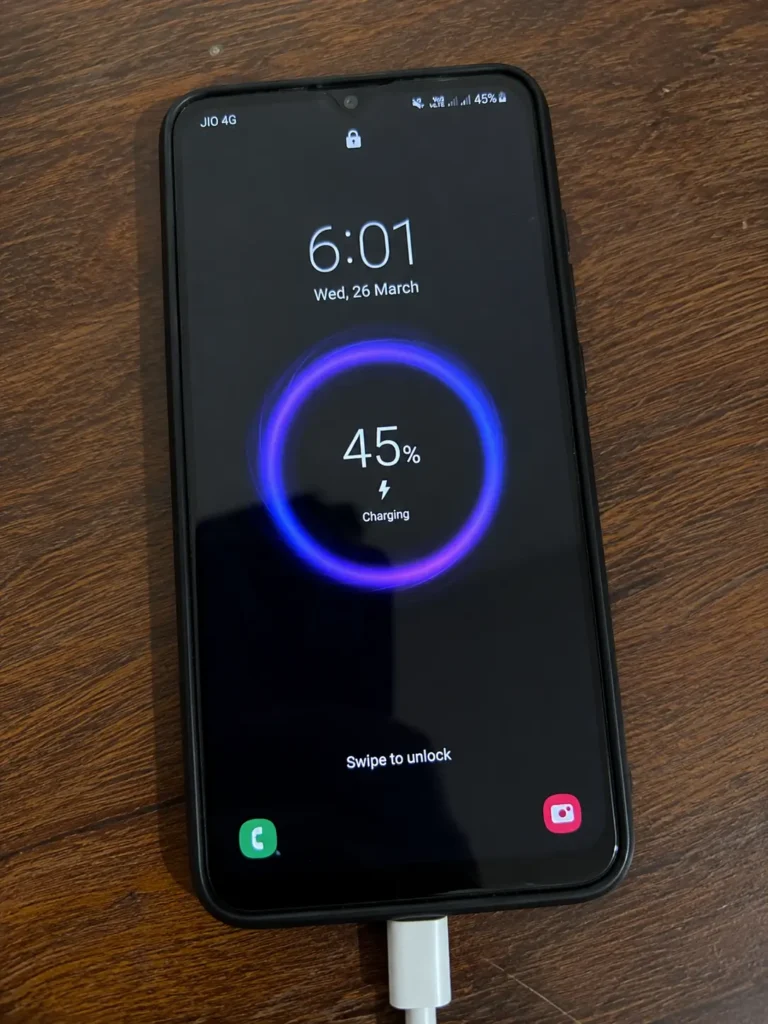
An Android phone can have several charging problems. It may not respond when you connect the charger, keep disconnecting during charging, charge much more slowly than usual, or stop charging at a certain battery percentage.
The cause is not always the battery. A damaged cable, incompatible charger, blocked charging port, excessive heat, moisture, or a temporary software issue can produce similar symptoms.
The best way to troubleshoot the problem is to identify what your phone is doing, test the simplest possible causes first, and check for signs of hardware damage before replacing any parts.
This guide covers general Android charging problems, practical troubleshooting steps, and the warning signs that mean your phone needs professional repair. For slow charging or a battery percentage that does not increase, you will also find links to our dedicated guides for those specific problems.
Quick Answer: What Should You Try First?
If your Android phone is not charging properly, start with these checks:
- Connect the phone to a known-working, compatible charger and cable.
- Try another wall outlet.
- Check whether the charging cable is damaged or the connection is loose.
- Look for visible dust or debris in the charging port.
- Restart the phone and reconnect the charger.
- Let the phone cool down if it feels unusually warm.
- Check for a moisture warning or a battery-protection setting that may be limiting charging.
- Test the phone with another compatible charger and cable before assuming the battery is faulty.
Important: If the battery is swollen, the phone is extremely hot, you notice a burning smell, or the charging port shows signs of burning or liquid damage, stop charging the device and seek professional help.
If the phone charges but the percentage increases unusually slowly, see our guide on Phone Charging Slowly? 9 Reasons & Fixes That Actually Work on Android.
If the phone says it is charging but the battery percentage remains unchanged, see our dedicated guide on Phone Charging but Battery Percentage Not Increasing.
Identify Your Android Charging Problem
Before trying every fix, identify the symptom that best matches your phone.
| What You Notice | Possible Cause | Best First Check |
|---|---|---|
| No charging indicator appears | Charger, cable, port, or phone issue | Test another compatible charger and cable |
| Charging keeps connecting and disconnecting | Unstable connection, damaged cable, or port debris | Check the cable and inspect the port |
| Cable works only at a certain angle | Cable connector or charging port damage | Test another cable without forcing the connection |
| Charging is slower than usual | Charger compatibility, heat, or heavy phone usage | Test with the screen off and a suitable charger |
| Charging stops at 80% or a similar level | Battery protection or charging limit | Check the phone’s battery settings |
| Charging icon appears but percentage does not increase | Low incoming power, high power consumption, or a battery issue | Leave the phone idle and monitor its charging behaviour |
| A moisture warning appears | Possible liquid or moisture in the port | Disconnect the charger and follow the manufacturer’s instructions |
| Nothing works with known-good accessories | Possible battery, port, or internal hardware fault | Arrange professional diagnosis |
These symptoms can have more than one cause. Treat the table as a starting point, not as proof that a particular component has failed.
Before Trying Any Fix: Quick Safety Checklist
Before troubleshooting, take a few seconds to check the phone and accessories.
- Do not continue charging a phone that is unusually hot.
- Do not use a cable with exposed or damaged wires.
- Do not use a charger that is visibly damaged.
- Do not insert metal objects into the charging port.
- Do not force a loose or damaged connector into the port.
- If the phone has been exposed to liquid, disconnect the charger.
- If the battery appears swollen, stop using and charging the phone.
- Back up important data before attempting major software troubleshooting.
The goal is not just to make the phone charge again. It is to fix the problem without creating a bigger one.
15 Fixes for Android Phone Charging Problems
Fix 1: Try a Different Charging Cable
A damaged cable can prevent your phone from charging reliably, even when it looks normal from the outside.
Disconnect the current cable and test another known-working cable that is suitable for your phone and charger.
If charging becomes stable with the replacement cable, the original cable is the likely cause. Replace it with a good-quality cable that supports your phone’s charging requirements.
If the replacement cable makes no difference, continue testing the charger and charging port instead of assuming the cable is responsible.
For additional troubleshooting, you can also follow Google’s official Android charging troubleshooting guide, which covers common checks such as the charging cable, power adapter, outlet, charging port, and what to do when an Android phone will not charge or turn on.
Fix 2: Try a Different Charger or Power Adapter
A charger may power the phone without providing the charging performance the device is designed to support.
Test a known-working adapter that is compatible with your phone. Use the replacement with a suitable cable and plug it directly into a reliable wall outlet.
If charging improves with the replacement adapter, the original charger may be damaged or unsuitable for your phone.
Do not assume that the charger with the highest wattage will always charge your phone fastest. The phone, charger, cable, and supported charging standard must be compatible.
Fix 3: Try a Different Wall Outlet
Sometimes the phone is fine and the problem is simply the power source.
Plug the charger directly into another wall outlet and test again.
If you normally use an extension board, power strip, or other intermediate device, temporarily remove it from the setup and connect the charger directly to a reliable wall outlet.
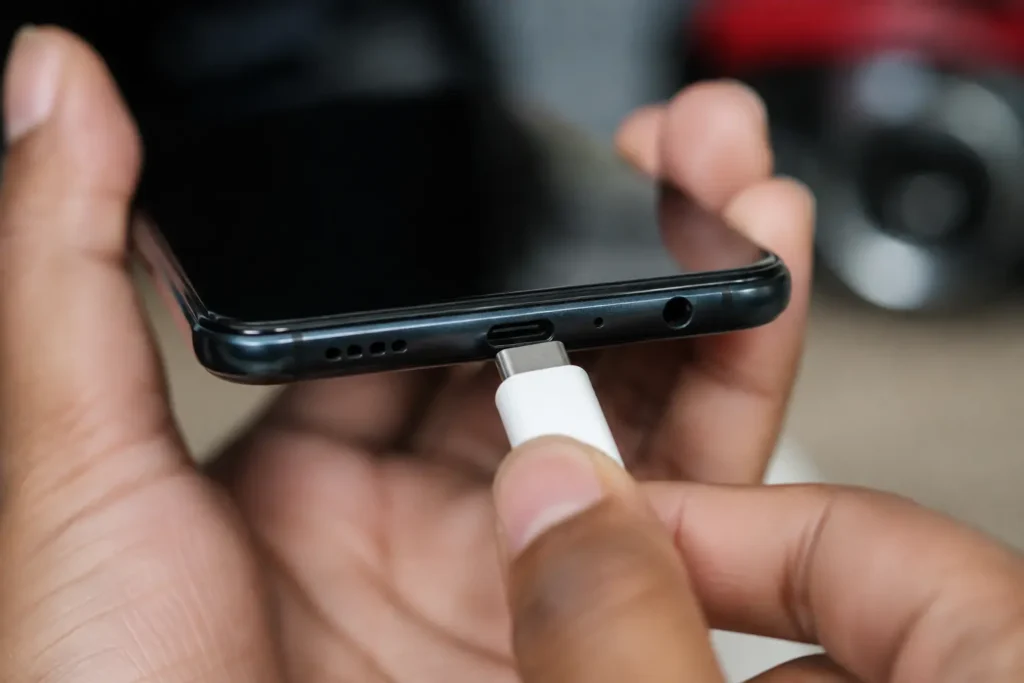
Fix 4: Inspect the Charging Port
Disconnect the charging cable and inspect the port under good lighting. Look for visible lint, dust, moisture, corrosion, or physical damage.
If the port contains debris, follow the phone manufacturer’s cleaning instructions. Do not insert metal objects, scrape the contacts, or force a tool into the connector.
If the cable does not fit securely, charging stops when the phone moves, or you see corrosion or damage, stop forcing the connection. The port may need professional inspection.
If you notice a moisture warning, disconnect the charger and follow the manufacturer’s instructions before attempting to charge again.
Fix 5: Restart Your Android Phone
A restart is simple, but it can clear temporary system problems.
Restart the phone, wait for Android to fully load, and then connect the charger again.
If charging starts working normally after the restart, the issue may have been a temporary software or background-process problem.
Fix 6: Let Your Phone Cool Down
If your phone feels noticeably hot, disconnect it and give it time to cool.
Remove a thick case if it is trapping heat, stop demanding apps such as games or video recording, and keep the phone away from direct sunlight.
Once the device returns to a normal temperature, try charging again.
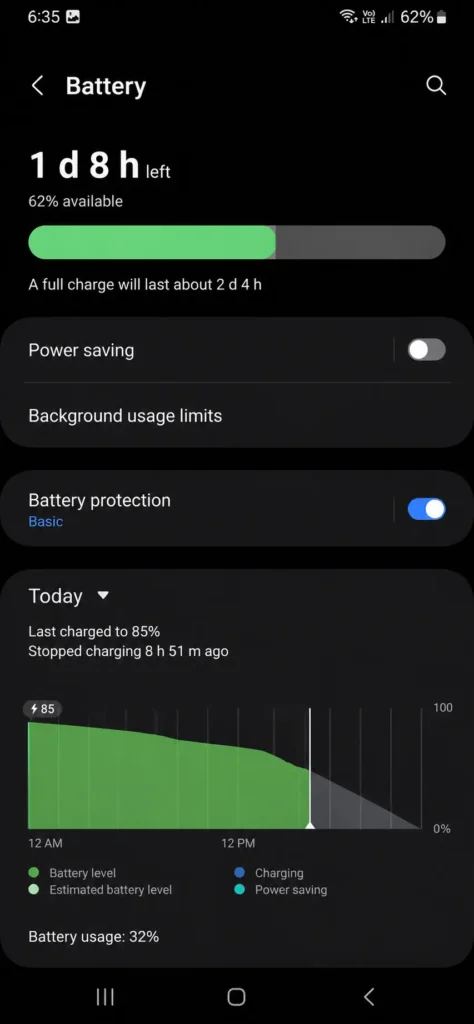
Fix 7: Check Battery Protection and Charging Settings
Some Android phones limit or optimise charging to help protect battery health.
Open your phone’s battery settings and look for options such as Battery Protection, Charging Limit, Adaptive Charging, or Optimized Charging. The names and available features depend on your phone model.
If charging consistently stops at a set percentage, such as 80% or 85%, a charging limit may explain the behaviour.
A battery limit is different from a battery percentage that stays stuck unexpectedly. If your phone continues showing the charging icon without gaining charge, follow our detailed guide on Phone Charging but Battery Percentage Not Increasing.
Do not disable a battery-protection feature permanently without understanding what it does on your device.
Fix 8: Install Pending Android Updates
If the charging problem started after a software change or appeared suddenly without any obvious hardware reason, check for system updates.
Open your phone’s software update section and install available updates if appropriate.
The exact menu name can vary between Samsung, Pixel, OnePlus, Xiaomi, Motorola, and other Android phones.
Fix 9: Test Charging in Safe Mode
Safe Mode can help determine whether a third-party app is interfering with normal phone behavior.
The exact steps for entering Safe Mode vary by manufacturer, so use the method for your specific phone model.
Once in Safe Mode, test charging.
If the problem disappears there, a recently installed or updated app becomes a stronger suspect.
Fix 10: Check for Moisture or Water in the Charging Port
If your phone has recently been exposed to rain, water, humidity, or another liquid source, do not immediately connect the charger again.
Disconnect the cable and allow the phone and port to dry naturally.
Do not use a hair dryer, insert objects into the port, or try to force charging through a moisture warning.
If the phone continues showing moisture-related warnings after it should be dry, professional inspection may be necessary.
Fix 11: Test Wireless Charging if Available
If your Android phone supports wireless charging, this can be a useful diagnostic test.
If wireless charging works normally while wired charging does not, the problem may be related to the USB cable, charger, or charging port.
This does not prove that the port is definitely damaged, but it helps narrow down the possibilities.
Fix 12: Try Charging the Phone While It Is Turned Off
Turn the phone off completely and connect the charger.
If the phone charges normally while powered off but behaves differently when Android is running, software or background activity may be involved.
This is mainly a troubleshooting test rather than a permanent solution.
Fix 13: Check the Charging Port for Physical Damage
Look carefully at the port.
Signs worth paying attention to include:
- A visibly damaged connector
- Corrosion
- Burn marks
- A very loose connection
- A cable that no longer sits securely
If the port appears physically damaged, stop repeatedly inserting and removing the cable.
A damaged port may need professional repair.
Fix 14: Run the Phone’s Available Battery Diagnostics
Before considering a factory reset, check whether your phone provides an official battery or hardware diagnostic.
Depending on the manufacturer, the option may be available in the phone’s support app, device diagnostics, or official troubleshooting tools.
Run the available test and follow the result provided for your specific model. If the diagnostic reports a battery or charging-system problem, arrange an appropriate service check.
A diagnostic tool may not be available on every Android phone, and a normal result does not rule out every possible hardware fault.
Avoid factory-resetting the phone just to troubleshoot a charging problem. A reset erases local data and cannot repair a damaged cable, charging port, battery, or internal charging component.
Fix 15: Get Professional Repair Help
If you have tested different cables, chargers, outlets, and basic software fixes and the phone still will not charge, it may be time for professional help.
This is especially important if:
- The phone has been dropped.
- The charging port is physically damaged.
- The phone has suffered liquid exposure.
- The battery looks swollen.
- The phone becomes extremely hot.
- You notice a burning smell.
- Charging fails with multiple known-good accessories.
At this point, continuing to experiment at home may not be worth the risk. A qualified technician can inspect the charging port, battery, and internal charging components properly.
How to Narrow Down the Cause of a Charging Problem
The result of each test can help you decide what to check next.
| Test Result | What It Suggests |
|---|---|
| Another cable fixes the problem | The original cable may be faulty |
| Another compatible adapter improves charging | The original charger may be damaged or unsuitable |
| Multiple cables disconnect in the same port | The port or its connection needs closer inspection |
| Wired charging fails but supported wireless charging works | The problem may be limited to the wired charging connection |
| Charging works while the phone is off but changes when it is on | Phone activity, heat, or software may be contributing |
| The phone remains unresponsive with known-good accessories | A battery, port, display, or internal hardware problem may need diagnosis |
These tests narrow down the possibilities but do not confirm which internal component has failed.
Replace an accessory only when testing supports that decision. If the phone shows physical damage, persistent charging failure, or a safety warning, professional diagnosis is more appropriate than repeated home troubleshooting.
What to Do If Your Android Phone Charges Slowly
Slow charging means the battery is increasing, but more slowly than expected. This may be caused by an incompatible charger, a damaged cable, heat, heavy phone usage, or the phone’s normal charging behaviour at higher battery levels.
Start by testing a known-working compatible charger and cable. Connect the phone directly to a reliable wall outlet, leave the screen off, and allow it to return to a normal temperature.
If charging remains unusually slow, check whether your phone supports a fast-charging feature and whether the required charger, cable, and settings are compatible with your model.
For the complete troubleshooting process, see Phone Charging Slowly? 9 Reasons & Fixes That Actually Work on Android.
What to Do If Your Android Phone Charges but Keeps Disconnecting
When charging repeatedly starts and stops, check the connection before suspecting the battery.
- Try a different known-working cable and compatible adapter.
- Connect the charger directly to another wall outlet.
- Inspect the port for visible debris, moisture, looseness, or physical damage.
- Stop moving or bending the cable to maintain a connection.
If multiple known-good cables behave the same way, the charging port or another hardware component may need inspection. Do not force the connector into position or continue charging through a damaged port.
What to Do If Your Android Phone Won’t Charge After Dying Completely
A phone with a deeply discharged battery may need some time on a working charger before it shows a charging indicator.
Leave It Connected to a Compatible Charger
Use a known-working compatible wall charger and cable. Leave the phone connected without repeatedly unplugging it to check the screen.
Test Another Charger and Cable
If the phone remains unresponsive, test another compatible cable, adapter, and wall outlet. Inspect the connection for visible damage or moisture.
Try the Manufacturer’s Recommended Restart
If the phone still does not respond, follow the force-restart method for your exact phone model. Button combinations differ between manufacturers.
If the phone remains unresponsive after these checks, or has a swollen battery, liquid damage, or dangerous heat, stop troubleshooting and seek professional assistance.
Common Mistakes That Can Make Charging Problems Worse
When a phone stops charging, it is natural to start trying anything that might work. But some quick fixes can create a bigger problem.
One common mistake is continuing to use a cable that is already damaged or only works when it is bent into a certain position. Another is repeatedly forcing a loose connector into the charging port.
Avoid using pins, needles, or other metal objects to clean the port. They can damage the contacts inside.
It is also a bad idea to keep charging a phone that is becoming unusually hot, has visible liquid damage, or has a swollen battery. In these situations, getting the phone checked is safer than trying more home fixes.
How to Prevent Android Charging Problems in the Future
- Replace damaged or unreliable charging cables instead of continuing to use them.
- Use a charger and cable compatible with your phone’s charging requirements.
- Avoid unnecessary pressure on the charging connector.
- Keep the phone cool while charging and respond promptly to moisture or overheating warnings.
When Should You Stop Troubleshooting and Get Your Phone Repaired?
Basic troubleshooting is useful, but there is a point where continuing to experiment is no longer worth it.
If you have tested known-good charging accessories and the problem remains, especially when there are signs of physical damage, the phone may need professional diagnosis.
Signs of a Damaged Charging Port
Look for signs such as:
- The connector feels unusually loose.
- Charging works only when the cable is held in a certain position.
- Multiple known-good cables have the same problem.
- The port looks bent, damaged, or corroded.
If the port is physically damaged, avoid repeatedly inserting the cable or trying to bend it back into place.
Signs of a Failing Battery
A battery problem may be more likely if you notice several changes together, such as:
- Battery life has become much worse.
- The phone shuts down unexpectedly.
- The battery percentage behaves strangely.
- The phone becomes unusually hot.
- The phone shows signs of battery swelling.
A swollen battery should not be treated as a normal charging issue. Stop using and charging the phone and seek professional help.
Signs of Water Damage
Be more cautious if charging problems appeared after exposure to:
- Rain
- Spilled liquid
- High moisture
- Accidental drops in water
If moisture may still be present, do not connect the charger just to see whether it works. Allow the device to dry properly and follow the manufacturer’s guidance.
Signs of a More Serious Hardware Problem
Professional diagnosis becomes more important when:
- The phone does not respond to several known-good chargers and cables.
- Charging problems started after a major drop.
- There are signs of corrosion or burning.
- The phone becomes extremely hot.
- The device repeatedly shuts down while charging.
At this stage, the problem may involve internal charging components rather than something you can safely fix at home.
Is It Safe to Keep Using a Phone That Has Charging Problems?
It depends on what is causing the problem.
A phone that simply charges more slowly because of a weak cable is very different from a phone that becomes extremely hot or has a swollen battery.
If the phone is working normally apart from slower charging, you can usually continue using it while you troubleshoot the cause.
But stop charging and take the problem seriously if you notice extreme heat, swelling, a burning smell, visible liquid damage, smoke, or other unusual behavior.
Do not keep testing the phone just because it still turns on. Charging involves both electrical power and a lithium-ion battery, so unusual physical signs should be treated as a safety issue rather than an ordinary software problem.
How to Choose the Right Charger and Cable for Your Android Phone
Check the manufacturer’s specifications before buying a replacement charger or cable.
The connector, charging standard, and supported power level must be appropriate for your phone. A charger with a higher wattage rating does not automatically provide faster charging if the phone does not support that charging capability.
Avoid damaged accessories, exposed wires, cracked adapters, or plugs that become unusually hot.
Frequently Asked Questions About Android Phone Charging Problems
Why is my Android phone not charging at all?
A damaged cable, incompatible adapter, blocked or damaged port, software problem, or hardware fault can prevent charging. Start with a known-working compatible charger and cable, then inspect the port and check for warning signs.
Why does my Android phone stop charging at 80%?
Some Android phones have battery-protection or charging-limit features that intentionally stop charging at a set percentage. Check the battery settings for your phone before assuming the battery is faulty.
Can I use a charger with a higher wattage rating?
A higher wattage rating does not guarantee faster charging. Your phone, charger, cable, and charging standard must be compatible. Check the manufacturer’s specifications for the best match.
Is it normal for a phone to feel warm while charging?
Some warmth can be normal, particularly during faster charging. Extreme heat, a burning smell, smoke, or a swollen battery are not normal warning signs. Stop charging and seek professional assistance if these occur.
When should I get my phone repaired?
Professional inspection is appropriate when multiple known-good charging accessories fail, the port is physically damaged, the phone has suffered liquid damage, or charging remains abnormal despite basic checks.
What should I do if the battery percentage does not increase?
Leave the phone idle with a compatible charger connected and monitor the percentage. If it remains unchanged, use our dedicated guide on Phone Charging but Battery Percentage Not Increasing.
About the Author
Shad Ali Tamseel — DeviceFixMaster
I run DeviceFixMaster, where I research common smartphone problems and look for practical solutions that Android users can actually try.
For each guide, I research the problem, compare the available solutions, and organize the useful information in a simple way so readers do not have to search through dozens of pages to find the steps that matter.
My goal is straightforward: find the best practical solutions and put them in front of you without making the troubleshooting process more complicated than it needs to be.
Final Thoughts: What to Do If Your Android Phone Still Won’t Charge
Start with the charging cable, adapter, wall outlet, port condition, and phone temperature before assuming the battery has failed.
The symptom matters. Slow charging needs a different investigation from a phone that does not detect the charger, repeatedly disconnects, or remains stuck at the same battery percentage.
Use the diagnostic table to narrow down the problem, follow the relevant fixes, and stop charging if you notice dangerous heat, a swollen battery, or signs of physical or liquid damage.
If basic checks do not resolve the problem, professional diagnosis is the next sensible step.