
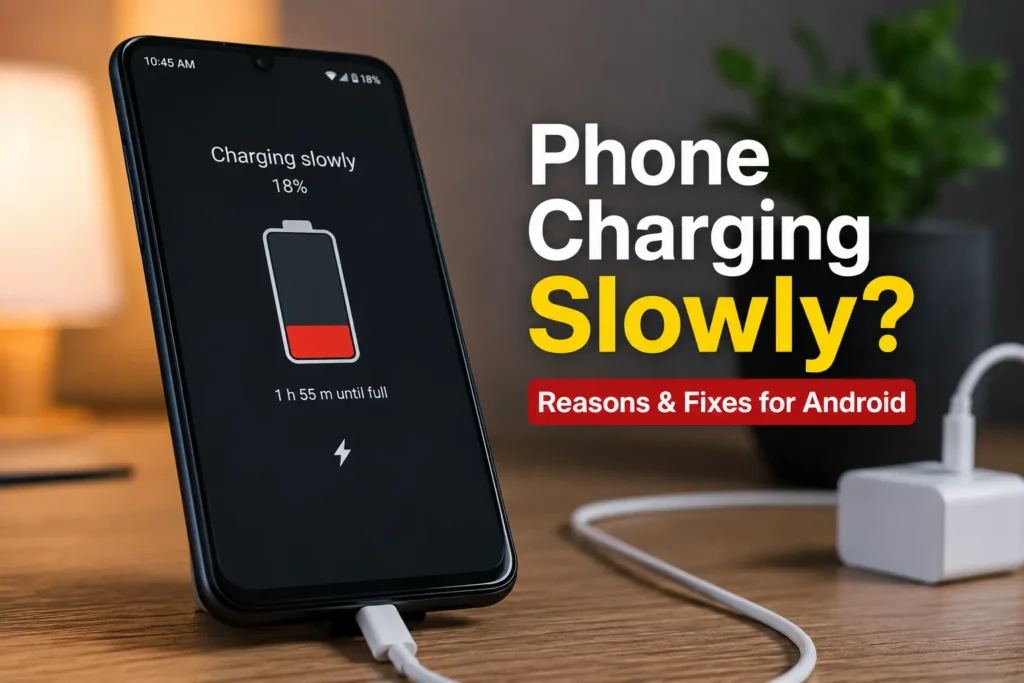
An Android phone may still show the charging icon even when its battery is increasing much more slowly than expected. This can happen because of an incompatible charger, a damaged cable, excessive heat, heavy phone usage, or a charging feature that changes how power is delivered.
Slow charging does not automatically mean the battery is failing. Before buying a new battery or charger, it helps to compare how the phone charges under controlled conditions.
This guide explains the main reasons for slow charging, how to test the charger and cable, what fast-charging settings actually affect, and when the problem may need professional attention.
Quick Answer: Why Is My Android Phone Charging Slowly?
If your Android phone is charging more slowly than usual, start with these checks:
- Use a known-working charger that supports your phone’s charging standard.
- Test another suitable charging cable.
- Connect the charger directly to a reliable wall outlet.
- Turn the screen off and stop demanding activities while charging.
- Let the phone return to a normal temperature if it feels hot.
- Check whether fast charging is supported and enabled on your model.
- Inspect the charging port for visible debris, moisture, or physical damage.
- Check whether battery protection or an intentional charging limit explains the behaviour.
Do not assume that a phone is charging abnormally just because it slows down near a high battery percentage. Charging speed can change as the battery fills up.
If the phone shows the charging icon but its battery percentage stays unchanged, see our separate guide on Phone Charging but Battery Percentage Not Increasing.
For broader problems such as no charging response or repeated disconnection, see Android Phone Charging Problems: 15 Fixes That Actually Work.
Snap-It: The Fastest Way to Find the Problem
Before going through every possible cause, use this quick check.
| What you’re noticing | Most likely cause | What to try first |
|---|---|---|
| Phone charges slowly with one charger | Charger problem | Try another compatible charger |
| Charging improves with another cable | Damaged/weak cable | Replace the cable |
| Cable feels loose in the port | Dust or port damage | Inspect and clean carefully |
| Phone becomes very hot | Temperature protection | Let it cool down |
| Slow charging mainly while using phone | High power consumption | Keep screen off while charging |
| Charging is slow from laptop | Low USB power | Use a wall adapter |
| Phone is old + battery drains quickly | Battery wear | Check battery health |
| Charging slowed after an update | Software/settings issue | Restart and check updates/settings |
| Charging speed drops near 80–100% | Normal charging behavior/protection | Give it time |
This table can often point you in the right direction without making you read the entire article.
Why Is My Android Phone Charging Slowly?
Here’s something that confuses a lot of people: slow charging doesn’t always mean your phone has a charging problem.
Modern Android phones constantly adjust charging speed based on several factors.
For example, your phone may accept high charging power when the battery is low, then gradually reduce that power as the battery percentage rises. This helps manage heat and battery stress.
Temperature also matters.
If your phone becomes too warm while charging, the system may reduce charging power. You might see the charging icon normally, but the battery percentage starts moving much more slowly.
Then there are the obvious suspects—your charger and cable.
A charger can still charge your phone while being too weak to deliver the speed your device is capable of. The same thing can happen with a damaged or low-quality cable.
There’s another easy-to-miss situation: your phone may be charging, but you’re using power almost as quickly as it’s receiving it.
Gaming, watching videos, using GPS, recording video, or running demanding apps while charging can make the percentage crawl upward.
So the real question isn’t simply:
“Is my phone charging?”
It’s:
“Why isn’t my phone receiving or keeping enough power to charge at the speed I expect?”
That’s what we’re going to figure out.
If you’re still unsure whether the problem is related to your charger, cable, or Android device itself, it’s worth checking Google’s official troubleshooting guidance for Android charging problems. It can help you confirm some of the basic checks before moving on to more advanced troubleshooting.
Is Your Phone Really Charging Slowly? Check This Before You Blame the Battery
Before replacing your battery or buying another charger, there’s one thing worth checking: is your phone actually charging slower than it should, or does it only feel slow?
Charging speed isn’t constant from 0% to 100%. Your phone may charge quickly when the battery is low and gradually slow down as the percentage gets higher. Heat, battery protection features, and the phone’s current workload can also change how quickly the percentage moves.
A simple test can tell you much more than watching the battery percentage every few minutes.
Try charging your phone from around 20% with:
- A known-good compatible charger
- A good-quality cable
- A wall outlet
- The screen turned off
- The phone at a normal temperature
Then check how much the battery increases after about 20–30 minutes.
If the phone gains a reasonable amount of charge under these conditions, the battery may not be the problem. Your normal charging setup—such as a weak charger, damaged cable, heat, or heavy phone usage—may be what is slowing things down.
The goal isn’t to make your phone charge at maximum speed all the time. It’s to find out whether its current charging behavior is actually abnormal.
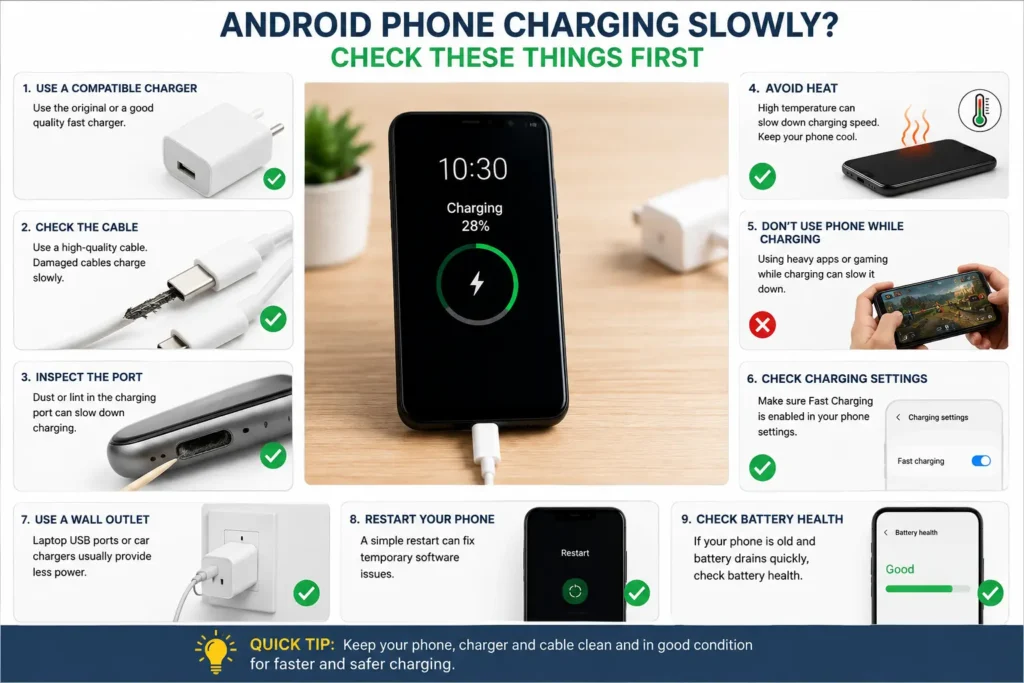
9 Reasons Your Android Phone Is Charging Slowly
You don’t need to test everything at once. Start with the first few reasons because they’re the easiest—and they’re surprisingly common.
1. Your Charger Isn’t Powerful Enough
This is probably the first thing I’d check.
Your phone may support fast charging, but that doesn’t mean every charger can provide it.
For example, if your phone supports 30W or 45W charging and you’re using an old low-power adapter, the phone may charge normally but nowhere near its maximum speed.
The important thing isn’t just the wattage printed on the charger. The charger also needs to support the charging standard your phone expects.
Try this: Use the original charger that came with your phone, or a reputable compatible charger with the correct charging specifications.
2. Your Charging Cable Is the Real Problem
Cables take a lot of abuse.
They get bent, pulled, twisted, stuffed into bags, and used for months or years. Eventually, the cable may still charge the phone but fail to deliver power properly.
This is one reason replacing the cable is such a useful test.
Easy test: Connect your phone with another known-good cable. If charging suddenly becomes faster, you’ve probably found the culprit.
3. Dust or Lint Is Packed Inside the Charging Port
This one is ridiculously easy to overlook.
Your phone spends most of its life in your pocket or bag. Tiny pieces of lint and dust can gradually collect inside the USB-C port.
The cable may still fit, but it might not make proper contact.
You may notice:
- The cable feels loose.
- Charging disconnects when you move the phone.
- The phone charges inconsistently.
- Fast charging doesn’t activate.
Inspect the port with a flashlight. If you see debris, clean it carefully without using sharp metal objects.
If the port itself looks bent or damaged, don’t keep forcing the cable into it.
One thing I wouldn’t skip during troubleshooting is the charging port. It looks like a small detail, but a little dust or pocket lint can sometimes create a surprisingly frustrating charging problem. Before deciding that the phone needs a repair, I prefer to inspect the port with a light and check whether the cable is sitting properly. It’s a quick check, and it can rule out one of the simplest causes of slow or inconsistent charging.
If the cable repeatedly disconnects, only works at a certain angle, or feels loose in the port, treat it as a connection problem rather than simply a slow-charging problem. Our guide on Android Phone Charging Problems explains how to narrow down cable and charging-port issues.
4. Your Phone Is Getting Too Hot
This is one of the most important causes of slow Android charging.
Your phone doesn’t like excessive heat, especially while charging.
If you’re playing a demanding game, using GPS, recording video, or leaving several heavy apps running, the phone can heat up. Charging itself also produces some heat.
When the temperature rises too much, the phone can reduce charging power.
That’s why your phone may charge quickly when you’re not using it but become painfully slow when you’re gaming.
Try this: Stop heavy apps, turn the screen off, remove a thick case temporarily, and let the phone cool down.
Don’t put a hot phone in a refrigerator or freezer. That’s not a shortcut—it’s another problem waiting to happen.
If you use a Samsung Galaxy phone, Samsung’s official support resources are also useful for checking charging, temperature, and battery-related behavior. Their guidance can be especially helpful when your Galaxy phone is charging slowly or showing unusual charging behavior.
5. Fast Charging Is Disabled
Sometimes nothing is wrong with the hardware at all.
A fast-charging option may have been turned off in your phone’s settings.
Depending on the manufacturer, you might see settings such as:
- Fast charging
- Super fast charging
- Rapid charging
- Boost charging
- Fast wireless charging
Look under your phone’s Battery or Charging settings.
The exact option varies between Samsung, Google Pixel, OnePlus, Xiaomi, Motorola, Oppo, Vivo, Realme, and other Android devices.
6. You’re Using the Phone While Charging
Here’s a simple experiment.
Charge your phone while playing a game for 20 minutes.
Then try the same thing with the screen off and the phone sitting idle.
You’ll often notice a difference.
When the phone is doing heavy work, part of the incoming power is being used immediately. If the phone also becomes hot, charging can slow down further.
So if you’re trying to get a quick battery boost before leaving home, put the phone down for a few minutes.
Sometimes the fastest charging trick isn’t a better charger. It’s simply not using the phone.
7. The USB Power Source Is Too Weak
Not all USB ports provide the same amount of power.
A laptop USB port, old power bank, car USB port, or cheap multi-port adapter may charge your phone much more slowly than a proper wall charger.
This can make people think their phone has suddenly developed a battery problem.
Try this: Plug the charger directly into a suitable wall outlet and compare the charging speed.
If the phone suddenly charges much faster, the original power source was the limitation.
8. Battery Protection Features Are Slowing Charging
Here’s a lesser-known reason.
Some Android phones include battery protection or charging optimisation features designed to reduce battery wear.
Depending on the device, the phone may intentionally control how and when the battery charges, particularly when it stays plugged in for long periods.
This can sometimes make users think:
“My charger is connected, so why isn’t the battery percentage moving normally?”
Check your battery settings for features such as:
- Battery protection
- Adaptive charging
- Optimised charging
- Charging limit
- Protect battery
These features aren’t necessarily bad. In fact, they’re designed to help battery longevity.
So don’t automatically turn them off just because charging behaves differently.
9. Your Battery May Be Getting Old
If you’ve tried different chargers and cables, checked the port, reduced heat, and ruled out the obvious causes, then the battery deserves attention.
Lithium-ion batteries naturally lose capacity over time.
An aging battery may not only charge differently—it may also:
- Drain faster than before.
- Get warm more easily.
- Shut down unexpectedly.
- Show inconsistent battery percentages.
- Take longer to reach a high charge level.
If your phone is several years old and these symptoms are happening together, a battery health check makes sense.
Slow Charging or Normal Charging? Here’s How to Tell
Not every slow-looking charge is a sign that something is broken.
One of the easiest mistakes is judging charging speed only by looking at the percentage. For example, your phone might move quickly from 20% to 50%, then appear much slower later. That doesn’t automatically mean the charger suddenly stopped working.
Use the pattern below to get a better idea of what’s happening:
| What you notice | What it could mean | What to check |
|---|---|---|
| Charges quickly below 50%, then slows down | Often normal charging behavior | Monitor the higher percentages |
| Slow from the moment you plug it in | Charger, cable, or power source | Try another charger and cable |
| Becomes slower when the phone gets hot | Temperature-related charging reduction | Let the phone cool down |
| Charges faster when the screen is off | Heavy usage is consuming power | Stop demanding apps |
| Only one cable charges slowly | Cable problem | Replace the cable |
| Charging is slow from a laptop but faster from the wall | Low USB power | Use a suitable wall adapter |
| Slow charging + rapid battery drain | Possible battery wear | Check battery health |
This gives you an important clue: a phone that charges slowly under every condition deserves more attention than one that only charges slowly when it’s hot or being heavily used.
How to Fix an Android Phone That Is Charging Slowly
Use this test to identify whether the charging setup, phone activity, or temperature may be causing the slowdown.
Step 1: Establish a Baseline
Note the current battery percentage. Connect the phone to a known-working compatible charger and cable, using a reliable wall outlet.
Step 2: Stop Demanding Activities
Turn the screen off and avoid gaming, navigation, video recording, hotspot use, or other demanding tasks while testing.
Step 3: Check the Temperature
If the phone feels noticeably hot, disconnect it if necessary and let it cool naturally. Do not place it in a refrigerator or use artificial cooling methods.
Step 4: Observe the Charging Pattern
After about 20–30 minutes, check the battery percentage.
If charging is noticeably better while the phone is idle and cool, heat or power consumption may have been contributing.
Step 5: Test the Charger and Cable Separately
If charging is still slow, test another compatible cable. Then test a different compatible charger if needed. Changing one component at a time makes the result easier to interpret.
Step 6: Check Charging Settings
If the phone supports fast charging, confirm that the required charging feature and compatible accessories are available. Menu names differ by manufacturer.
Step 7: Check Battery Health if Necessary
If charging remains consistently slow with suitable accessories, a cool phone, and minimal usage, check official battery diagnostics if available. Professional assessment may be needed if the phone also drains quickly or shuts down unexpectedly.
The percentage gained during a 20–30 minute test varies by phone, charger, starting battery level, temperature, and charging technology. Use the test to compare conditions rather than expecting a fixed increase.
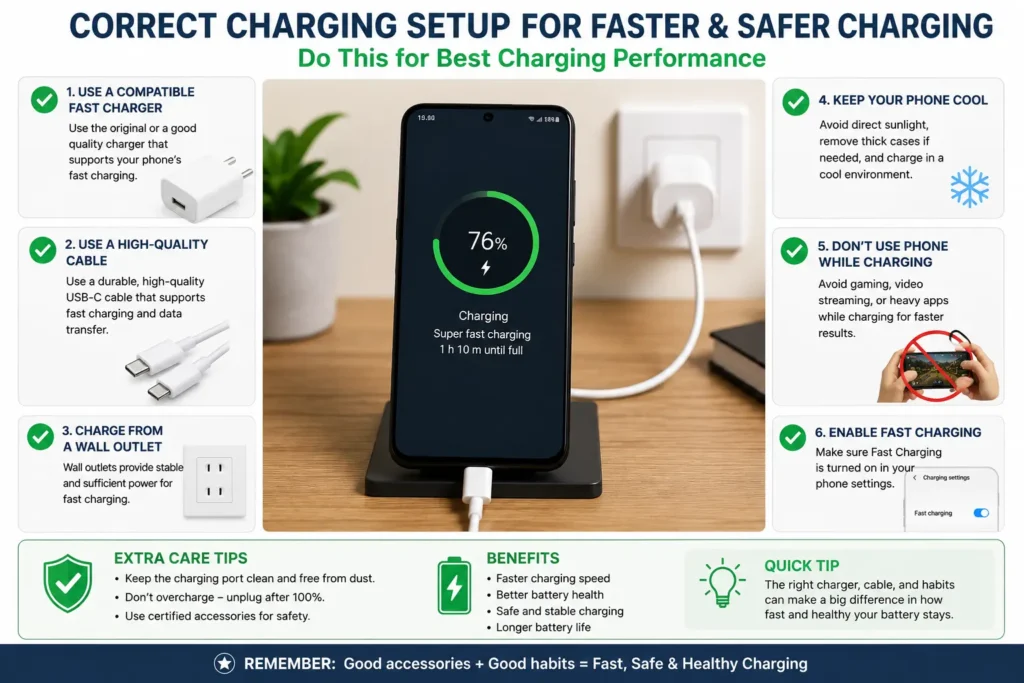
Common Mistakes That Can Make Charging Slower
Avoid these simple mistakes:
- Using an old charger: It may work, but not provide enough power.
- Ignoring the cable: A damaged cable can limit charging even when the adapter is good.
- Gaming while charging: More heat + more power consumption = slower charging.
- Using a laptop USB port: It may provide much less power than a wall charger.
- Cleaning the port with metal: You can damage the charging contacts.
- Charging a wet phone: Moisture can cause charging problems and hardware damage.
- Replacing the battery too quickly: Test the charger, cable, port, and temperature first.
Charging problems aren’t the only Android issues that can appear unexpectedly. If you’re troubleshooting another hardware or software problem on your phone, you may also find my guide on Phone Touch Screen Not Working After Restart useful, especially if the display turns on but the touch response doesn’t.
How to Prevent Slow Charging Problems
You don’t need a complicated battery-care routine.
A few simple habits go a long way:
- Use a good-quality compatible charger and cable.
- Keep the charging port clean and dry.
- Avoid heavy gaming while charging.
- Don’t regularly charge the phone in extreme heat.
And one more thing: don’t obsess over making every charge as fast as possible.
Fast charging is useful when you’re in a hurry. But good charging habits and temperature control are more important for keeping the battery healthy over the long term.
When Should You Replace the Charger, Cable, or Battery?
You don’t need to replace everything just because charging has become slower.
Use this simple rule:
Replace the cable if another cable noticeably improves charging or your current cable is damaged, loose, or unreliable.
Replace the charger if your adapter doesn’t provide enough power for your phone or another compatible adapter charges the phone significantly faster.
Check the charging port if the cable feels loose, charging repeatedly disconnects, or the port contains visible debris or damage.
Check the battery if the phone is older and slow charging is happening together with rapid battery drain, unexpected shutdowns, or unusual heat.
And if you’ve tested the charger, cable, power source, temperature, and charging port and the phone is still charging unusually slowly, that’s when professional diagnosis starts making more sense.
When Slow Charging Actually Means You Need Professional Help
Most charging problems can be narrowed down at home.
But there are situations where it’s better to stop experimenting.
Get the phone checked if:
- The charging port is physically damaged.
- The cable only works at a certain angle.
- The phone repeatedly disconnects while charging.
- The phone becomes unusually hot.
- You notice swelling around the battery.
- The phone has suffered liquid damage.
- Several known-good chargers and cables produce the same slow result.
- Battery life has become extremely poor along with slow charging.
If you notice a swollen battery, stop using and charging the phone and seek professional service.
Frequently Asked Questions
Why is my Android phone charging so slowly?
An Android phone can charge slowly because of a weak charger, damaged cable, dirty charging port, excessive heat, heavy background activity, disabled fast charging, or an aging battery. Start by testing a different compatible charger and cable before assuming the battery is damaged.
Why is my phone charging slowly even with a fast charger?
A fast charger doesn’t automatically guarantee maximum charging speed. Your phone and cable must support the required charging standard, and high temperature can also reduce charging power. Check the cable, charging settings, and phone temperature if your Android phone is charging slowly with a fast charger.
Why is my Android phone charging slowly but the battery is still good?
If your battery health seems normal but charging has become slow, the charger, USB-C cable, charging port, power source, or temperature may be responsible. Try charging from a wall outlet with another compatible cable and charger to narrow down the problem.
How do I fix slow charging on an Android phone?
Start by using a compatible fast charger and a good-quality cable. Then check the charging port for dust, stop heavy apps while charging, let the phone cool down, and make sure fast charging is enabled. If none of these help, check the battery and charging hardware.
Why is my phone charging slowly while I’m using it?
Your phone is consuming power while you’re using it, especially during gaming, video streaming, GPS navigation, or other demanding tasks. If power consumption is high and the phone gets warm, charging may become significantly slower.
Why is my Android phone charging slowly after an update?
A software update can sometimes change battery, charging, or power-management behavior. Restart your phone first, check charging settings, and install any available follow-up updates. If the problem started immediately after an update and continues, monitor whether it happens with different chargers and cables too.
Why does my phone charge fast at first but slow down later?
This is often normal. Android phones can reduce charging power as the battery gets closer to a high charge level. Temperature and battery-protection features can also affect charging speed. So a phone charging quickly at a low percentage and slowing down later doesn’t automatically indicate a battery problem.
Final Thoughts: Don’t Blame the Battery Too Quickly
When an Android phone suddenly starts charging slowly, the natural reaction is to think:
This is also why I prefer troubleshooting the simple things first. Replacing a battery sounds like the obvious solution when charging becomes slow, but it can be an unnecessary expense if the real problem is a cable, charger, charging port, or excessive heat. A few basic checks can often tell you whether you’re dealing with a charging setup problem or something that actually needs professional attention.
“My battery is finished.”
But that’s often not where I’d start.
I’ve found that the smarter approach is to work backwards from the simplest possibilities. Test the charger. Swap the cable. Check the USB-C port. Let the phone cool down. Stop heavy apps. Check fast-charging settings. Then look at the battery.
That order matters because it can save you both time and money.
And there’s another important point: don’t judge your phone’s charging performance only by the number on the screen. Charging speed naturally changes as the battery fills, and modern Android phones may deliberately slow charging when temperatures rise or battery-protection features are active.
If your phone used to charge quickly and has suddenly become much slower, something has changed. Your job isn’t to guess what it is—it’s to isolate the change.
Start with the charger and cable. Those two tests take only a few minutes.
If nothing changes, move to the port, temperature, charging settings, power source, and finally the battery itself.
In many cases, that’s all it takes to turn a frustrating “Why is my Android phone charging so slowly?” problem into a simple fix.
And if you’ve gone through all of these checks and your phone is still charging painfully slowly, that’s when professional diagnosis makes more sense than buying another charger—or replacing a battery that may not have been the real problem in the first place.
If your phone is charging slowly but the percentage is increasing, the checks in this guide are the right starting point. If the percentage stays at the same number or drops even while the charging icon appears, the problem needs a different diagnosis. See our guide on Phone Charging but Battery Percentage Not Increasing for the dedicated troubleshooting steps.
About the Author
Written by Shad Ali Tamseel
I research and write practical guides about common Android and smartphone problems. When I work on a troubleshooting article, I don’t simply collect fixes from different websites and list them together. I research the problem, compare the available solutions, and focus on the fixes that are practical and worth trying in real-world situations.
For this guide, I researched the common causes of slow Android charging and the troubleshooting steps users can try before assuming that the battery or phone hardware has failed. I aim to keep these guides simple, practical, and easy to follow—even if you’re not technically experienced.
My goal is straightforward: help you understand what’s actually causing the problem and find a sensible fix without wasting money on unnecessary repairs or replacements.