
You restart your Android phone, expecting everything to work normally. Instead, you’re greeted with a screen that simply refuses to respond. The display turns on, notifications appear, and everything looks fine—but no matter how many times you tap or swipe, the touch screen doesn’t react.
If this is exactly what’s happening with your phone, don’t panic just yet.
A touch screen that stops working after a restart doesn’t always mean the display is damaged. In fact, this issue is often caused by a temporary software glitch, a failed system update, a frozen touch driver, or even something as simple as a faulty screen protector. Many Android users face this problem unexpectedly, and in most cases, it can be fixed without replacing the screen.
The challenge is knowing where to start. Randomly pressing buttons, restarting the phone again and again, or installing unknown “touch repair” apps usually makes things more confusing instead of solving the problem.
That’s why this guide takes a different approach.
Instead of asking you to try random fixes, we’ll first help you understand why your phone touch screen stopped working after a restart, then we’ll walk through the most common reasons behind the issue, followed by step-by-step solutions that actually make sense. By the end of this guide, you’ll have a much clearer idea of whether you’re dealing with a simple software problem or a hardware issue that needs professional repair.
Why Is My Phone Touch Screen Not Working After Restart?
If your phone touch screen is not working after restart, the problem is usually caused by a temporary software glitch, a buggy Android update, a frozen touch driver, a faulty screen protector, moisture, or hardware damage. In most cases, you can fix the issue by force restarting the phone, removing the screen protector, booting into Safe Mode, clearing the cache partition, or updating the software. If none of these methods work, the problem is likely related to the touch digitiser or another hardware component that requires professional repair.
Quick Answer:
- Force restart your phone.
- Remove the screen protector.
- Check for water or physical damage.
- Boot into Safe Mode.
- Clear the cache partition.
- Update Android software.
- Factory reset only as a last resort.
- Visit a service centre if the touch screen still doesn’t respond.
Why Does Your Phone Touch Screen Stop Working After a Restart?
Every time you restart your Android phone, the operating system loads everything from scratch. It reconnects the display, starts background services, launches apps, and activates the touch screen driver that allows your screen to recognise every tap and swipe.
Most of the time, this process happens within a few seconds without any problems. However, if Android fails to load one of these essential components correctly, the display may turn on normally while the touch screen stops responding completely.
Sometimes the problem isn’t limited to the touch screen itself. A problematic app running in the background can interfere with Android’s normal system processes, especially if the issue started after installing or updating an app. If you’re also noticing apps freezing, crashing, or closing unexpectedly, you may want to check our guide on apps automatically closing on Android phones for additional troubleshooting steps.
This is why many users get confused. They can clearly see the lock screen, incoming calls, or notifications, but they can’t interact with anything.
The reason isn’t always the same. Sometimes a recent software update introduces unexpected bugs. In other cases, a third-party app conflicts with the system during startup. Water damage, a cracked screen protector, low system resources, or even internal hardware damage can also cause the same symptom.
One important thing to remember is that a non-working touch screen doesn’t automatically mean the display is damaged. The screen and the touch digitiser are two different components. Your display can continue showing everything perfectly while the touch layer underneath fails to detect your finger.
That’s exactly why identifying the real cause before attempting any repair can save both your time and money.
Before moving to the solutions, let’s look at the most common reasons behind this problem. You may recognise your own situation before you even start troubleshooting.
Is It a Software Problem or a Hardware Issue? Here’s How to Tell
Before you try every solution you find online, it’s worth spending a minute identifying what type of problem you’re dealing with. One of the biggest mistakes people make is assuming that every unresponsive touch screen means the display has failed.
In reality, that’s not always true.
If your phone’s display looks perfectly normal but doesn’t respond to touch, the issue could simply be a software glitch, a buggy Android update, or a temporary problem with the touch driver. On the other hand, if the phone was recently dropped, exposed to water, or the display shows visible damage, there’s a much higher chance that the problem is hardware-related.
The signs below can help you narrow down the possible cause before moving on to the troubleshooting steps. While they won’t confirm the exact issue, they’ll give you a much better idea of where to start and can even save you from trying unnecessary fixes.
| What You Notice | What It Usually Means |
|---|---|
| Display turns on, but touch doesn’t work anywhere | Most likely a software glitch or frozen touch driver |
| Touch stopped working immediately after a software update | Possible Android update bug |
| Only part of the screen responds | Touch digitiser or display damage |
| Phone was dropped before the problem started | Internal hardware issue may be responsible |
| Screen was exposed to water or heavy moisture | Moisture may be affecting touch response |
| Touch works in Safe Mode | A third-party app is likely causing the problem |
| Display has flickering, coloured lines, or black spots | Physical screen or display connector damage |
Once you’ve identified the symptoms that match your phone, continue with the solutions below in the same order. Starting with the most likely cause makes troubleshooting faster and avoids unnecessary steps.
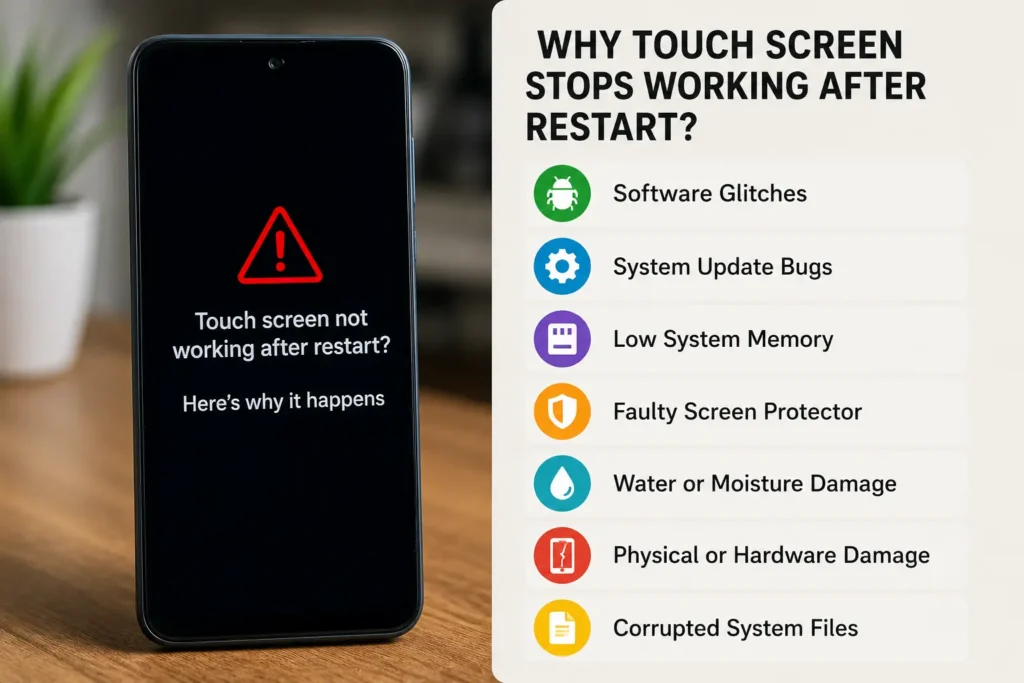
7 Common Reasons Your Phone Touch Screen Stops Responding
Every phone behaves differently, but most touch screen problems after a restart usually fall into one of the following categories.
1. A Temporary Software Glitch
This is one of the most common reasons.
Sometimes Android simply fails to initialise the touch driver correctly during startup. As a result, the phone boots normally, but the touch screen remains frozen.
You may be facing this issue if:
- The display looks perfectly normal.
- There are no screen cracks.
- The problem appeared suddenly after restarting the phone.
The good news is that software glitches are often temporary and are usually the easiest to fix.
2. A Buggy System Update
Did the problem start immediately after installing a software update?
If yes, there’s a good chance the latest Android update introduced a temporary compatibility bug. While updates are designed to improve performance and security, they can occasionally affect hardware functions like touch response on certain devices.
If your touch screen stopped working only after updating the phone, this should be one of the first things you consider.
3. A Problematic Third-Party App
Not every touch screen issue is caused by Android itself.
Some apps continue running in the background even after a restart. If one of them conflicts with system services, it can interfere with normal touch functionality.
This is especially common if you recently installed launcher apps, screen overlays, optimisation tools, or apps downloaded from unknown sources.
4. A Damaged or Poor-Quality Screen Protector
This reason is often overlooked.
A cracked, thick, or low-quality tempered glass protector can reduce touch sensitivity. In some cases, trapped dust or moisture between the screen and the protector can make the display appear completely unresponsive.
If you installed a new screen protector shortly before the issue started, remove it and test the phone again before trying advanced solutions.
5. Water or Moisture Inside the Display
Modern smartphones are more water-resistant than before, but that doesn’t make them waterproof.
Even a small amount of moisture can confuse the touch digitiser, causing ghost touches or making the screen stop responding altogether.
If your phone was exposed to rain, spilled water, or high humidity before the restart, moisture could be the real culprit.
6. Physical Hardware Damage
Sometimes the restart is only a coincidence.
If your phone was dropped recently, the impact may have loosened the display connector or damaged the touch digitiser. The restart simply exposed the existing hardware problem.
Look for signs like screen flickering, display lines, cracked glass, or partial touch response.
It’s also worth paying attention to whether your phone has been getting unusually hot before the touch problem appeared. Excessive heat can affect overall phone performance and may cause temporary glitches, especially when demanding apps are running for long periods. If you’ve noticed your phone becoming unusually warm while using Instagram, our guide on why your phone gets hot while using Instagram covers the common causes and what you can do about them.
7. Corrupted System Files
If the phone shut down unexpectedly during an update or experienced software corruption, Android may fail to load important system files responsible for touch functionality.
Although this isn’t the most common cause, it usually requires more advanced troubleshooting, such as clearing the system cache or performing a factory reset.
Touch Screen Problem vs Possible Cause vs Best Solution
| Problem You Notice | Most Likely Cause | Recommended Solution |
|---|---|---|
| Screen turns on but touch doesn’t work | Temporary software glitch | Force restart the phone |
| Touch stopped after Android update | Update bug | Install latest patch or clear cache |
| Touch works only sometimes | Faulty screen protector | Remove and test without it |
| Phone was dropped recently | Hardware damage | Visit a service centre |
| Screen became unresponsive after water exposure | Moisture inside the phone | Dry the device completely |
| Touch works in Safe Mode | Third-party app conflict | Remove recently installed apps |
| Display is normal but touch is completely dead | Touch digitiser issue | Professional diagnosis and repair |
How to Fix a Phone Touch Screen That Isn’t Working After a Restart
Now that you have a better idea of what might be causing the problem, it’s time to fix it.
Don’t jump straight to a factory reset or assume the screen needs replacing. Start with the easiest solutions first. Many users manage to restore their touch screen within just a few minutes.
Work through these methods in order.
Solution 1: Perform a Force Restart
A normal restart doesn’t always clear temporary system errors. A force restart completely refreshes the phone’s memory and reloads essential services.
Hold the Power button for around 20 seconds. On many Android phones, you may need to press Power + Volume Down together.
Once the phone restarts, check whether the touch screen responds normally.
Solution 2: Remove the Screen Protector
Before trying any complicated fix, remove the tempered glass or screen protector.
It only takes a minute, and you’d be surprised how many touch issues are caused by poor-quality accessories rather than the phone itself.
Clean the display with a microfiber cloth and test it again.
Solution 3: Charge the Phone Properly
If your battery is extremely low or behaving abnormally, Android may fail to load certain background services correctly.
Connect the original charger and leave the phone charging for at least 30 minutes before testing the touch screen again.
If your phone is also showing unusual charging behaviour, such as staying at the same battery percentage even while connected to a charger, the touch problem may not be the only issue you’re dealing with. In that situation, it may help to first troubleshoot why your phone is charging but the battery percentage is not increasing, especially if the battery level is extremely low.
Solution 4: Boot into Safe Mode
If the touch screen works in Safe Mode, you’ve almost certainly found the problem.
Safe Mode temporarily disables all third-party apps, allowing you to check whether one of them is causing the issue.
If the screen starts working, uninstall recently installed apps one by one until the problem disappears.
Solution 5: Check for Water or Moisture
Think back for a moment.
Did your phone come into contact with water, sweat, or heavy rain before this problem started?
If yes, switch the phone off, remove the case, and allow it to dry naturally for several hours.
Avoid using direct heat, as it can damage internal components.
Solution 6: Clear the Cache Using Recovery Mode
Temporary system files sometimes become corrupted after updates or unexpected shutdowns.
If your device supports it, boot into Recovery Mode and clear the cache partition.
This won’t erase your personal data, but it can resolve many software-related startup issues.
Solution 7: Use a USB OTG Mouse
If the display works but touch doesn’t, a USB mouse can become your best friend.
Connect a USB mouse using an OTG adapter.
This allows you to unlock the phone, back up important files, install updates, or prepare the device before visiting a repair centre.
Solution 8: Factory Reset (Only If Necessary)
If you’ve tried every software fix and the touch screen still doesn’t respond, a factory reset may be your final software troubleshooting step.
However, remember that this will erase all your personal data.
Only proceed if you’ve already created a backup or have no other software options left.
Solution 9: Visit an Authorised Service Centre
If none of the methods above solve the problem, there’s a strong possibility that the issue is hardware-related.
Instead of wasting more time on random internet fixes, have the phone inspected by a qualified technician. A proper diagnosis can quickly determine whether the touch digitiser, display connector, or another internal component needs repair.
Even the best troubleshooting guide cannot replace official information released by your phone manufacturer. If your device recently received a software update or you’re looking for model-specific recovery steps, it’s always a good idea to check the official Android Help documentation before attempting advanced troubleshooting. Following verified instructions reduces the risk of making the problem worse and ensures you’re using methods recommended by Android itself.
Mistakes That Can Make the Problem Worse
When the touch screen suddenly stops working, most people react emotionally rather than logically. They keep pressing the screen repeatedly, restart the phone over and over again, or download random “touch repair” apps hoping for a quick fix.
Unfortunately, these actions rarely solve the real problem. In some situations, they can even make troubleshooting more difficult or put important data at risk.
To avoid unnecessary frustration, stay away from these common mistakes:
- Restarting the phone again and again without checking the actual cause.
- Installing unknown apps that promise to “repair” the touch screen.
- Pressing the display too hard, which may damage the screen further.
- Ignoring signs of water damage and continuing to use the phone.
- Performing a factory reset before backing up important data.
- Opening the phone yourself without the proper tools or experience.
A calm, step-by-step approach almost always gives better results than rushing into random fixes.
How to Prevent Touch Screen Problems in the Future
Although not every touch screen issue can be prevented, many of them develop because of poor maintenance, outdated software, accidental drops, or low-quality accessories.
A few simple habits can significantly reduce the chances of facing the same problem again and also improve your phone’s overall performance.
Here are some practical tips worth following:
- Keep your Android phone updated with the latest stable software.
- Install apps only from trusted sources like the Google Play Store.
- Use a high-quality tempered glass protector that doesn’t affect touch sensitivity.
- Avoid exposing your phone to water, excessive heat, or high humidity.
- Restart your phone occasionally to refresh background processes.
- Keep enough free storage so Android can run smoothly.
- Use a protective case to reduce damage from accidental drops.
- Back up your important data regularly so you’re prepared for unexpected problems.
Small habits today can save you from expensive repairs tomorrow.
If you suspect the problem is related to a recent Android update or a known software bug, checking the Android Security & System Updates page can help you understand how updates are delivered and why installing the latest patches is important. Keeping your phone updated is one of the simplest ways to prevent software-related touch screen issues in the future.
Frequently Asked Questions
Why is my Android phone touch screen not working after restarting the device?
If your Android phone touch screen stops working after a restart, it’s usually caused by a temporary software glitch, a failed system update, a frozen touch driver, or a hardware issue. Start by force restarting the phone, removing any screen protector, and checking whether the problem began after installing a recent update. If the display works but touch doesn’t, the issue may be software-related and can often be fixed without replacing the screen.
How do I fix a phone touch screen that is not responding after a restart?
Begin with the simplest fixes first. Force restart the phone, charge it for at least 30 minutes, remove the screen protector, and try booting into Safe Mode. If the touch screen still doesn’t respond, clear the cache partition through Recovery Mode. A factory reset should only be considered after backing up your important data.
Can a software update cause the phone touch screen to stop working?
Yes. Although Android updates are designed to improve performance and security, they can occasionally introduce bugs that affect touch response on certain devices. If the issue started immediately after updating your phone, wait for a newer software patch or try clearing the system cache before considering more advanced troubleshooting.
Why is my phone screen showing everything but not responding to touch?
This usually means the display is working correctly, but the touch digitiser isn’t detecting your finger. The problem may be caused by software corruption, a damaged touch layer, water exposure, or internal hardware damage. Checking whether the issue persists in Safe Mode can help identify whether software or hardware is responsible.
Will a factory reset fix a touch screen that is not working after restart?
A factory reset can resolve the issue if it’s caused by corrupted system files or software problems. However, if the touch screen has stopped working because of physical damage or a faulty touch digitiser, resetting the phone won’t solve the problem. Always back up your data before performing a factory reset.
How can I tell if my phone has a hardware touch screen problem?
If your phone was recently dropped, exposed to water, or shows signs such as flickering, display lines, or partial touch response, there’s a higher chance of hardware damage. If none of the software troubleshooting methods work, it’s best to have the phone inspected by a qualified technician.
Should I replace the screen if the touch screen stopped working after a restart?
Not immediately. Many touch screen issues after a restart are software-related and can be fixed without replacing the display. Screen replacement should only be considered after you’ve tried all recommended software solutions and confirmed that the problem is caused by hardware failure.
Final Thoughts
A phone touch screen not working after a restart can feel like a serious problem, especially when you can’t even unlock your device. The good news is that this issue isn’t always caused by a damaged display. In many situations, the real reason turns out to be something much simpler, such as a software glitch, a buggy update, a faulty screen protector, or temporary system corruption.
The most important thing is not to panic or jump straight to expensive repairs. Start with the basic troubleshooting methods, move through each solution patiently, and only consider advanced options if the simpler fixes don’t work.
Hopefully, one of the methods in this guide helped bring your touch screen back to life. And if the problem still remains, at least you’ll have a much better understanding of what’s causing it, making it easier to explain the issue to a technician and avoid unnecessary repair costs.
A little patience and the right troubleshooting steps can often save both your phone and your money.
Why You Can Trust This Guide
Reliable tech advice should do more than list random fixes—it should help you understand why a problem happens and which solution makes sense for your situation. That’s the approach followed throughout this website.
Every guide is created with a focus on practical troubleshooting, clear explanations, and real-world usability. Instead of recommending unnecessary apps or risky shortcuts, the goal is to provide solutions that are easy to follow, technically accurate, and suitable for everyday Android users.
This website regularly publishes in-depth articles covering Android problems, smartphone troubleshooting, software updates, mobile apps, and other technology topics. Each guide is reviewed to keep the information relevant, user-friendly, and aligned with the latest Android practices, so readers can make informed decisions with confidence.
Whether you’re trying to fix a phone issue, understand a new Android feature, or solve an everyday tech problem, you’ll find practical, step-by-step resources designed to save time and help you get your device working again.