
Author Bio
Android Phone Rings But Incoming Call Screen Is Not Showing
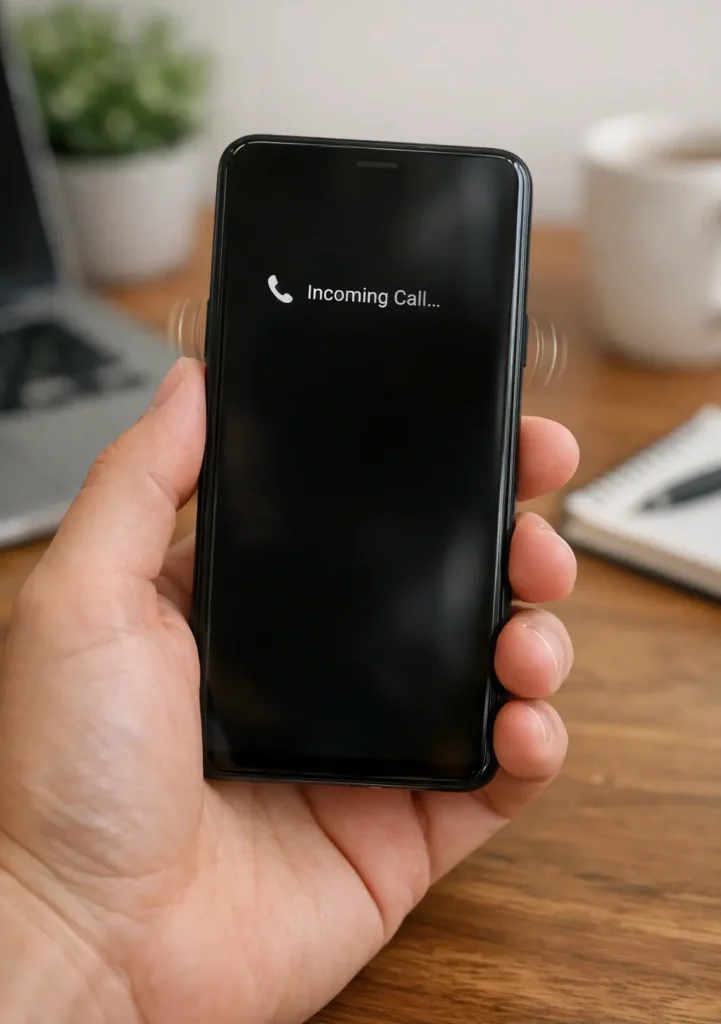
Your phone is ringing. You can hear the ringtone, maybe feel it vibrating in your hand, but when you look at the screen, there is no incoming call.
No caller name. No phone number. No Answer button. No Decline button.
You wait for the screen to appear, but nothing happens.
This is one of those Android problems that feels more serious than it often is. And because the phone is still ringing, it can be especially confusing. You may start wondering whether the SIM card is failing, the network is dropping calls, or the display itself has stopped responding.
But there is an important clue here: your phone is ringing.
That means the device is detecting an incoming call. The problem may be happening later in the process, where Android and the Phone app are supposed to show the caller and let you answer.
In many cases, the cause is something much simpler: a Phone app notification setting, lock-screen restriction, Do Not Disturb mode, a changed default dialer, another call-related app, or a temporary software problem.
I have broken the troubleshooting into a practical order so you do not have to change ten random settings and hope one of them works. Start with the checks that match your exact symptom, then move deeper only when necessary.
If you are dealing with more than just missing incoming calls, our guide on Common Android Phone Problems and How to Fix Them covers other everyday Android issues and the practical steps you can try before going for more drastic solutions.
Quick Answer: Why Is My Android Phone Ringing but Not Showing the Incoming Call Screen?
An Android phone can ring without showing the normal incoming call screen when the Phone app’s notifications or lock-screen behavior are restricted, Do Not Disturb or another Mode is filtering interruptions, a different dialer is handling calls, or the Phone app is experiencing a temporary software problem.
The fastest things to check are Phone app notifications, lock-screen notifications, Do Not Disturb, and the default Phone app. If those are already correct, move on to battery restrictions, app conflicts, cache, and software updates.
First, Test the Problem Before Changing Anything
Before you start changing settings, make one test call to your Android phone from another phone.
Watch what happens in each situation.
Test 1: Call While the Phone Is Locked
Does the phone ring but fail to show the caller on the lock screen?
If yes, lock-screen or notification visibility should be one of your first suspects.
Test 2: Call While the Phone Is Unlocked
Unlock the phone and have someone call again.
If the incoming call screen appears when the phone is unlocked but not when it is locked, that is a very useful clue.
Test 3: Call While Another App Is Open
Open an app such as Chrome, YouTube, Instagram, or another normal app and have someone call you.
If the incoming call interface fails mainly while you are using another app, pay particular attention to the Phone app’s notification and full-screen call behavior.
This small test can narrow down the problem much faster than changing settings at random.
7 Reasons Your Android Phone Rings but the Incoming Call Screen Does Not Appear
1. Phone App Notifications Are Disabled or Restricted
Your Phone app has notification settings that control how call-related alerts are presented.
If notifications for the Phone app have been disabled, made silent, or restricted, the phone may not present the incoming call as expected.
On Android, notification behavior can be configured per app, and notification categories may also have their own settings. Google notes that notification settings can vary by device and Android version.
This is one of the first places to check because it directly affects how the Phone app communicates an incoming call to you.
2. Lock-Screen Notifications Are Hiding the Call
If the phone rings normally but you cannot see who is calling until after you unlock the device, the lock screen becomes the obvious place to investigate.
Android lets you control what notifications can appear on the lock screen, including whether sensitive notification content is visible.
On some phones, the incoming-call notification settings are also available inside the Phone app’s own notification controls.
3. Full-Screen Call Behavior Is Not Working Correctly
Incoming calls are treated as a special type of high-priority notification because you need to be able to respond immediately.
Android’s documentation specifically identifies incoming phone calls as a use case for full-screen notification behavior. On Android 14 and later, access to full-screen intents is more tightly controlled for apps, and users can control this access.
That matters when the phone rings but the normal call interface does not come to the front.
4. Do Not Disturb or Another Mode Is Filtering the Call
Do Not Disturb is not simply a volume setting. Android Modes can control which people, calls, apps, and other interruptions are allowed through.
A scheduled Bedtime mode, Driving mode, or custom mode can also affect notification behavior depending on how it has been configured.
If this problem appears only at certain times or under certain conditions, check Modes before blaming the Phone app.
5. A Different Dialer or Calling App Has Become the Default
Android can have more than one app capable of handling phone calls.
If you installed a third-party dialer or another call-management app and the problem began afterward, check which app is currently set as the default Phone app.
Google’s Phone app documentation also requires the app to be set as the default phone application for it to act as the device’s default calling app.
6. A Third-Party Call or Caller-ID App Is Interfering
Caller-ID apps, spam-blocking apps, call-recording tools, and third-party dialers can interact with the calling experience.
That does not mean these apps are automatically bad. The important clue is timing.
If your incoming call screen worked normally until you installed or updated a call-related app, temporarily disabling that app is a much better test than changing unrelated Android settings.
7. The Phone App Has a Temporary Software Problem
Sometimes everything looks correct and the Phone app simply stops behaving properly.
A temporary app glitch, a problematic update, or corrupted temporary data can affect how an app behaves without completely stopping it from receiving calls.
That is why restarting the Phone app, clearing its cache, and installing pending updates are useful later steps.
How to Fix an Android Phone That Rings but Does Not Show the Incoming Call Screen
You do not need to perform every fix blindly.
Go from the top, test the phone after each important change, and stop once the incoming call screen is working normally again.
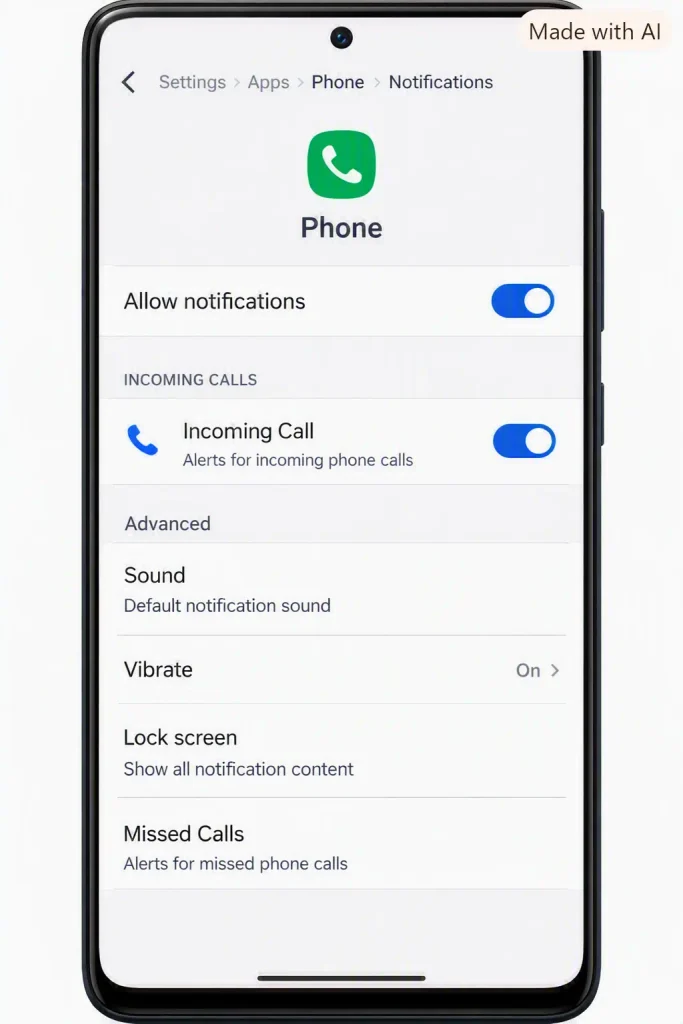
Fix 1: Check Phone App Notifications First
Open:
Settings → Apps → Phone → Notifications
Make sure notifications are allowed.
If your phone shows separate notification categories, look for anything related to:
- Incoming calls
- Calls
- Phone
- Call notifications
Make sure the relevant category is enabled.
If you see options such as Alerting, Pop on screen, or a similar display option, check those as well.
The wording can be different on Samsung, Pixel, OnePlus, Xiaomi, Motorola, OPPO, Vivo, and other Android phones, so do not worry if your menu does not look identical.
Android lets you control notification behavior for individual apps, including whether notifications appear on the lock screen and which notification categories are enabled. You can check Google’s official guide on how to control notifications on Android to understand these settings and see how they may vary by device.
Test the phone now
Have someone call you again.
If the full incoming call interface has returned, there is no reason to continue.
Fix 2: Check Lock-Screen Notification Visibility
If the call screen is missing mainly when your phone is locked, check the lock-screen notification settings.
Open Settings and search for:
Lock screen notifications
Make sure notifications are allowed to appear on the lock screen.
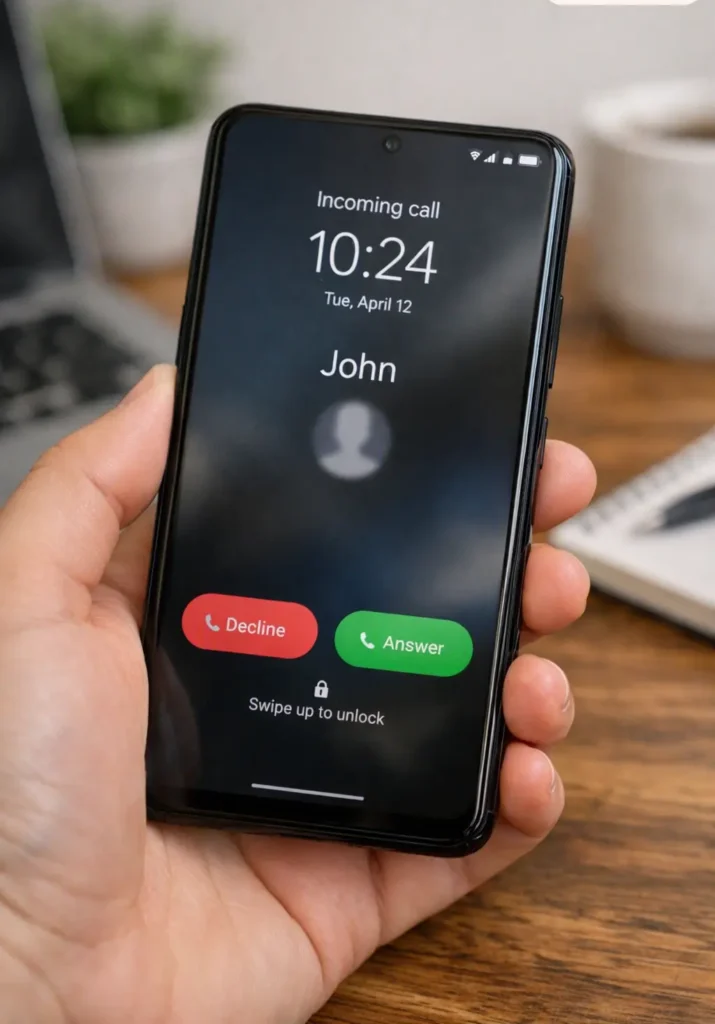
Depending on your device, you may see choices related to:
- Show notifications
- Show alerting notifications
- Show sensitive content
- Notification visibility
Google’s Android notification settings include controls for lock-screen notifications and sensitive content, although manufacturers can change the exact menu names.
After changing the setting, lock your phone and make another test call.
Fix 3: Check Full-Screen Notification Access for the Phone App
If your phone clearly receives the call but the call interface refuses to appear over the current screen, check whether your device offers a full-screen notification setting for the Phone app.
Search Settings for:
Full-screen notifications
or
Full-screen alerts
or
Full-screen intent
The location and wording depend on Android and your phone manufacturer.
This is particularly relevant on newer Android versions because full-screen notification access is subject to additional controls. Android’s own documentation says incoming calls are an intended use case for full-screen notification behavior.
If your phone does not provide a separate setting with one of these names, do not worry. Some manufacturers manage incoming calls through their own system interface.
Fix 4: Turn Off Do Not Disturb and Check Modes
Temporarily turn off Do Not Disturb from Quick Settings.
Then make another test call.
If the incoming call screen suddenly appears, you have found a strong clue.
Now check the actual Mode settings instead of leaving everything disabled permanently.
On current Android versions, you can find Modes and Do Not Disturb controls in Settings, where you can choose which people, apps, and interruptions are allowed.
Also check whether an automatic schedule is turning a mode on at night, while driving, or at another specific time.
A useful clue
If your phone has this problem only during certain hours, a scheduled Mode is much more likely than a broken display.
Fix 5: Make Sure the Correct Phone App Is the Default
Open:
Settings → Apps → Default apps → Phone app
The wording may differ, but you are looking for the default app used for phone calls.
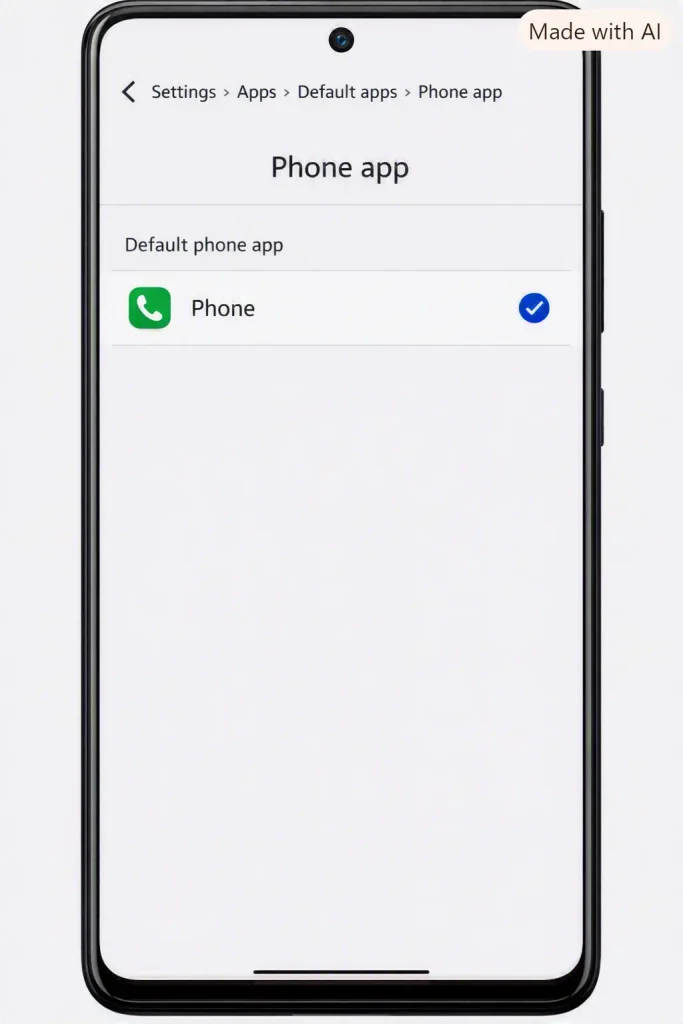
Select the built-in Phone app or the Phone app you normally use.
This is especially important if you recently installed:
- another dialer
- a caller-ID app
- a call manager
- a replacement Phone app
Google’s Phone app guidance also notes that the Phone app needs to be set as the default phone application to function as the default calling app.
Now test another call.
Fix 6: Temporarily Disable Third-Party Calling Apps
Think about what changed before this problem started.
Did you install a new caller-ID app?
Did you install a spam blocker?
Did you switch dialers?
Did you install a call recorder?
Did an app receive a major update?
If the answer is yes, temporarily disable the most likely app and test again.
You are not trying to prove that the app is “bad.” You are checking whether it is interfering with how incoming calls are presented.
On Pixel devices, for example, Google documents that some third-party call-related apps can affect Call Screen behavior, which is another reason to test third-party calling tools when troubleshooting call-related problems.
Fix 7: Remove Aggressive Battery Restrictions From the Phone App
If the problem is random rather than constant, check the Phone app’s battery settings.
Open:
Settings → Apps → Phone → Battery
Look for an option such as:
- Unrestricted
- Allow background usage
- Allow background activity
- Don’t optimize
Use the least restrictive option available for the Phone app if your device is heavily limiting it.
Do not change battery settings for every app on your phone. The goal is to test whether your device’s background management is affecting the Phone app.
This is particularly worth checking on phones that aggressively suspend apps to save battery.
Fix 8: Force Stop the Phone App
A temporary Phone app process can sometimes get stuck.
Open:
Settings → Apps → Phone
Tap:
Force stop
Confirm it.
Then open the Phone app again and make another test call.
This does not factory reset the phone or remove the Phone app. It simply stops its current process so Android can start it again.
If the Phone app is also closing unexpectedly or refusing to stay open, the problem may be broader than the incoming-call screen itself. In that case, our guide on Why Do Apps Keep Closing on Android? 9 Fixes can help you troubleshoot the app-side problem as well.
Fix 9: Clear the Phone App Cache
If the problem continues, clear the Phone app’s temporary cache.
Go to:
Settings → Apps → Phone → Storage & cache → Clear cache
Your menu may say Storage instead.
Make sure you choose Clear cache, not Clear storage or Clear data unless you specifically know what that option does on your phone.
Android treats clearing temporary cache separately from clearing an app’s stored data.
After clearing the cache, restart the phone and test an incoming call again.
Fix 10: Update the Phone App and Android
If none of the earlier fixes worked, check for updates.
First, open Google Play Store and check whether your Phone app has an update available.
Then check:
Settings → System → Software update
or your phone manufacturer’s equivalent.
This is especially important if the problem started immediately after an Android update or a Phone app update.
A newer version may already contain a fix for the behavior you are seeing.
What to Do Based on Your Exact Symptom
Sometimes the fastest way to solve this problem is not to try everything. It is to match the symptom to the most likely cause.
The Phone Rings but Shows Nothing While Locked
Start with:
Phone app notifications → lock-screen notifications → full-screen call behavior
If it works after unlocking, this path should be your priority.
The Phone Rings but the Call Screen Does Not Appear While Using Another App
Start with:
Phone app notifications → full-screen call behavior → third-party apps
Pay special attention to apps that manage calls, caller ID, spam, recording, or screen overlays.
If the problem is not limited to incoming calls and your screen also becomes unresponsive after a restart or during normal use, see Phone Touch Screen Not Working After Restart? 9 Fixes That Actually Work for troubleshooting steps focused specifically on touch and display responsiveness.
The Phone Rings but You Only See a Missed Call Later
Start with:
Phone notifications → Do Not Disturb/Modes → lock-screen settings
If Android is only showing you the result after the call ends, notification filtering becomes more important.
The Problem Started After Installing a Dialer or Caller-ID App
Do not start clearing random caches.
First check:
Settings → Apps → Default apps → Phone app
Then temporarily disable the new app and test another incoming call.
The Problem Happens Only at Certain Times
Check Do Not Disturb and Modes first.
Android supports automatic schedules and custom notification filters, so a problem that appears at the same time every day is a strong reason to inspect those settings.
Common Mistakes Users Make
Changing Ringtone Volume When the Phone Is Already Ringing
If you can already hear the ringtone, volume is not the first thing to investigate.
The useful question is not:
“Why isn’t my phone ringing?”
It is:
“Why is Android receiving the call but not showing me the call interface?”
That distinction saves time.
Immediately Blaming the SIM Card
A SIM or network problem can certainly cause calling issues, but a phone that consistently rings is giving you a different clue.
Do not replace the SIM just because the incoming-call screen is missing.
First troubleshoot the Phone app and notification behavior.
Turning Off Every Android Notification
You do not need to destroy your notification settings to fix one missing call screen.
Change the Phone app’s settings first.
Clearing Phone App Data Too Early
Cache and stored app data are not the same thing.
Start with Clear cache rather than jumping straight to a more aggressive reset.
Installing Another Dialer to “Fix” the Problem
That can make troubleshooting harder because you now have another app involved in handling calls.
Find the original cause before adding another variable.
Factory Resetting the Phone as the First Solution
A factory reset is a last resort, not a normal first step for this problem.
There are several less destructive checks that should come first.
How to Prevent the Incoming Call Screen From Disappearing Again
Once everything is working, you do not need to constantly change settings.
A few simple habits can help:
Keep the Phone app and Android updated.
Avoid switching between multiple dialers unless you actually need one.
Review Do Not Disturb and Modes after creating schedules or changing notification filters.
Be cautious with aggressive battery-saving tools that restrict important apps.
And whenever you install a new caller-ID, spam-blocking, dialer, or call-recording app, make sure you know which app is now handling calls.
The biggest prevention tip is simple: remember what changed before the problem started.
If the call screen worked yesterday and disappeared immediately after installing a new calling app, that timeline is more useful than trying twenty unrelated fixes.
When You Should Get Professional Help
Most cases can be handled through Android settings and normal app troubleshooting.
But you should consider contacting the phone manufacturer when the problem continues even after you have checked the Phone app, notifications, lock-screen behavior, Do Not Disturb, default apps, battery restrictions, cache, and updates.
Professional help becomes more important when you also notice other symptoms, such as:
- the screen does not wake properly for other notifications
- the Phone app repeatedly crashes
- the display becomes unresponsive
- calls fail even when the Phone app is open
- the problem continues across different callers and after software updates
- the issue began immediately after a major system failure or firmware problem
If calls themselves are failing, dropping, or never reaching the phone, that is a different situation and may require your carrier to investigate the network or account.
Frequently Asked Questions
Why does my Android phone ring but not show the incoming call screen?
The Phone app may be receiving the call while its notification, lock-screen, or call-display behavior is restricted. Check Phone notifications, lock-screen settings, Do Not Disturb, and the default Phone app first.
Why can I hear the ringtone but cannot see who is calling?
The ringtone and the visual call interface do not necessarily fail for the same reason. If the phone is ringing, focus first on Phone app notifications, lock-screen visibility, and call-display settings.
Why does the incoming call screen appear only after I unlock my phone?
This usually points toward lock-screen notification visibility or related call-display behavior. Check the Phone app’s notification settings and your lock-screen notification settings.
Can Do Not Disturb hide an incoming call?
Do Not Disturb and Android Modes can control which calls and other interruptions are allowed through, depending on their configured filters. Check the mode’s People and notification settings rather than assuming the phone is broken.
Why are incoming calls not showing while I am using another app?
Check Phone app notifications and full-screen call behavior first. If the problem started after installing another app that manages calls, caller ID, spam filtering, or recording, temporarily disable that app and test again.
Will clearing the Phone app cache delete my call history?
Clearing temporary cache is different from clearing the app’s stored data. For this problem, start with Clear cache rather than Clear storage or Clear data.
What should I do if my phone still rings but never shows the call screen?
Check the problem in this order: Phone notifications, lock-screen visibility, full-screen call behavior, Do Not Disturb/Modes, default Phone app, third-party calling apps, battery restrictions, Phone app restart/cache, and software updates. If the issue continues after all of these, contact the device manufacturer.
Final Thoughts
An Android phone that rings without showing the incoming call screen can make you think something major has gone wrong.
But the ringtone itself gives you an important clue.
The phone is detecting the incoming call. The problem is more likely with how that call is being presented on the screen.
That is why you should not start by changing your SIM card, replacing the phone, or performing a factory reset.
Start with the Phone app’s notifications. Then check the lock screen, Do Not Disturb and other Modes, the default Phone app, and any third-party apps that manage calls. If those are fine, move to battery restrictions, restarting the Phone app, clearing its cache, and installing pending updates.
And pay attention to when the problem happens.
If it happens only while the phone is locked, investigate the lock screen. If it happens only while another app is open, look at call-display behavior. If it started after installing a dialer or caller-ID app, investigate that change first.
That approach is much faster than changing everything at once—and it gives you a much better chance of fixing the real cause instead of temporarily hiding the symptom.