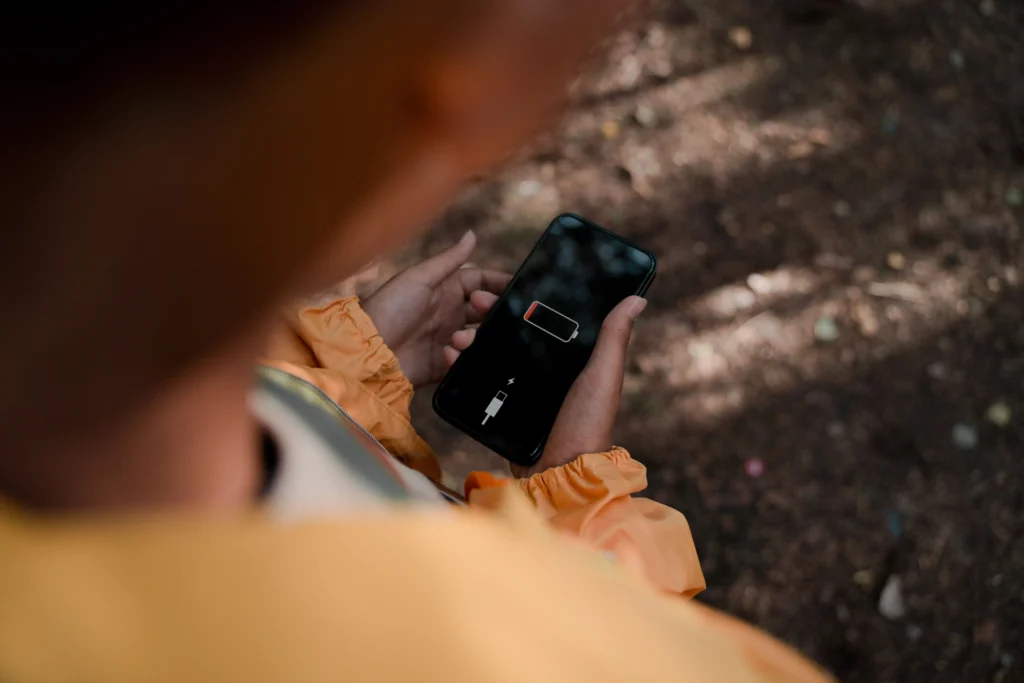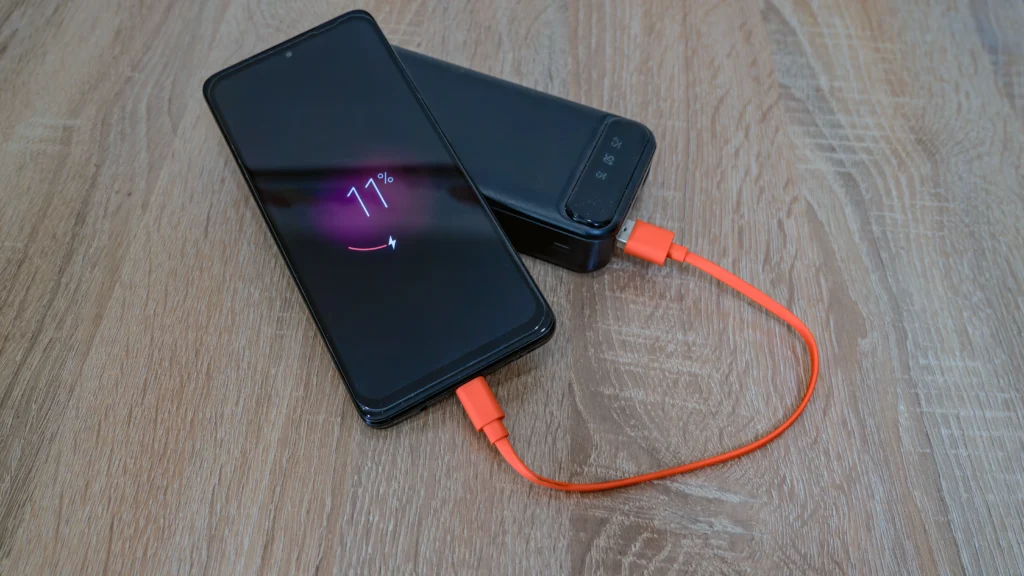
Have you noticed your phone battery draining fast after installing a new app and wondered what suddenly went wrong?
You install an app expecting it to improve your experience, but sometimes the opposite happens. Within a few hours, your battery starts dropping faster than usual, your phone feels warmer, and even normal tasks begin consuming more power.
This problem is surprisingly common among Android users, especially when a newly installed app keeps running hidden background activities without the user realizing it.
Before you assume your battery is damaged, it is important to understand what is actually happening behind the scenes.
Why Is My Phone Battery Draining Fast After Installing a New App?
If your phone battery is draining fast after installing a new app, the app may be running hidden background processes, constantly syncing data, using location services, showing aggressive ads, or consuming too much CPU power.
In most cases, the problem starts when a newly installed app keeps working even when you are not actively using it.
The fastest way to fix this issue is to check battery usage, identify the app causing the problem, restrict background activity, and remove unnecessary permissions before the battery drain becomes worse.
Why Does Your Phone Battery Draining Fast After Installing a New App?
Every app installed on your phone needs system resources to work properly. Some apps use more battery than others because they continue running in the background even when you are not actively using them.
Certain apps constantly access internet, location services, notifications, camera, microphone, storage, or system processes. All these activities consume power.
If an app is poorly optimized, contains bugs, or uses aggressive background activity, your battery can start draining much faster than normal.
Apps That Commonly Cause Battery Drain Problems
Not every app affects battery life in the same way.
Some apps naturally use more battery because they constantly stay active in the background or need multiple phone permissions to work properly.
For example, apps like Facebook and Instagram regularly check notifications, refresh content, and keep syncing data even when you are not actively using them.
Navigation apps such as Google Maps continuously access GPS location, which is one of the biggest reasons for fast battery drain.
Apps like Snapchat use camera features, background syncing, and internet together, which increases battery usage significantly.
Even gaming apps, video editing apps, and live wallpaper apps can force your phone processor to work harder than normal, causing faster battery drain and sometimes phone heating.
That is why battery problems often begin immediately after installing a heavy or poorly optimized app.
7 Possible Reasons Why Battery Drains Fast After Installing a New App
1. The App Is Running Constantly in Background
Some apps do not stop working when you close them. They continue running background processes.
For example:
- Social media apps checking notifications continuously
- Messaging apps syncing data every few seconds
- Cloud storage apps uploading files automatically
This constant activity consumes battery throughout the day.
2. The App Is Using Location Services Continuously
Apps like maps, delivery apps, ride booking apps, and weather apps often use GPS in the background.
GPS is one of the biggest battery-consuming features on Android devices.
If location permission is set to Allow all the time, battery drain becomes much faster.
Examples:
- Google Maps
- Food delivery apps
- Ride sharing apps
- Fitness tracking apps
3. Poorly Optimized or Buggy App
Not all apps are well developed.
Sometimes an app contains software bugs that force the processor to work harder than necessary.
This causes:
- Faster battery drain
- Phone overheating
- Random lagging
- Higher CPU usage
This problem is common with newly released apps or apps from unknown developers.
Sometimes battery drain and phone heating happen together, especially when an app keeps using the processor in the background. If you notice that your phone becomes noticeably warm while using a specific social media app, it is worth checking the app-specific reasons behind that heating. why your phone gets hot while using Instagram can help you identify some of the common causes and what you can check.
4. Too Many Notifications and Constant Syncing
Some apps continuously refresh data from servers.
Examples include:
- Email apps
- Social media apps
- News apps
- Crypto tracking apps
- Stock market apps
Every refresh process consumes battery.
The more frequently the app syncs, the faster your battery drains.
Background activity is not the only reason an app may use mobile data. Sometimes an app appears to be working normally, but the phone itself has a network connection problem that prevents apps from accessing the internet properly. If you are facing that situation, mobile data is on but the internet is not working on Android may help you troubleshoot the connection separately.
5. The App Is Showing Ads in Background
Many free apps use aggressive advertising systems.
Some apps continuously load advertisements in the background, even when you are not using them.
This requires:
- Internet connection
- CPU processing
- RAM usage
As a result, battery consumption increases significantly.
6. Malware or Unsafe App Installed
Sometimes battery drain happens because the app itself is unsafe.
Fake apps downloaded outside trusted app stores may contain harmful code that keeps running silently.
Possible signs:
- Battery draining unusually fast
- Phone heating while idle
- Random ads appearing
- Data usage increasing unexpectedly
- Phone becoming slow
This is a serious issue.
7. High Resource Usage App
Some apps naturally use more power because they require heavy processing.
Examples:
- Video editing apps
- Gaming apps
- Camera apps
- AI apps
- Live wallpaper apps
- Video calling apps
Heavy apps push CPU and GPU usage higher, which reduces battery life faster.
Troubleshooting Guide
| Problem | Possible Cause | What To Do |
|---|---|---|
| Battery draining overnight | Background sync | Restrict background activity |
| Phone heating | High CPU usage | Force stop app |
| Battery dropping fast while idle | Hidden background process | Check battery usage |
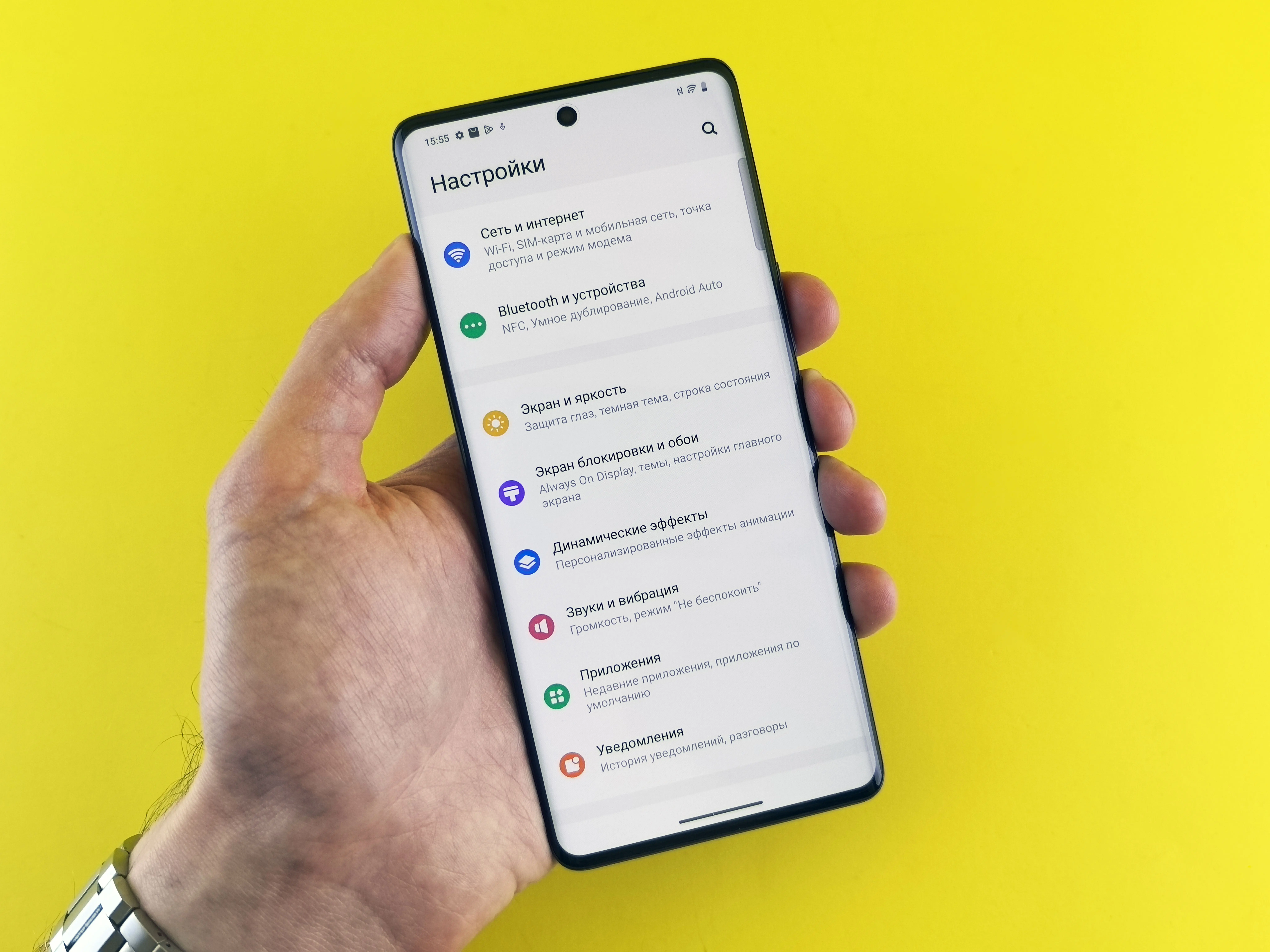
Step-by-Step Solutions to Fix Battery Drain Problem
Solution 1: Check Which App Is Using Battery
Open:
Settings → Battery → Battery Usage
Look for apps consuming unusually high battery percentage.
If the new app is at the top, you found the problem.
Battery problems do not always mean that an app is responsible. If you are also noticing that the phone shows the charging symbol but the battery percentage stays the same or increases very slowly, the cause may be related to the charger, cable, charging port, or battery itself. In that situation, phone is charging but the battery percentage is not increasing is a separate issue worth checking before assuming the battery is simply draining too quickly.
Solution 2: Force Stop the App
If the app keeps running continuously:
Go to:
Settings → Apps → Select App → Force Stop
This immediately stops background activity.
Check whether battery drain improves.
Solution 3: Restrict Background Battery Usage
Android allows restricting battery usage for apps.
Steps:
Settings → Apps → Select App → Battery → Restricted
This prevents unnecessary background activity.
Solution 4: Remove Unnecessary Permissions
Check what permissions the app is using.
Go to:
Settings → Apps → Permissions
Disable permissions you do not need.
Especially:
- Location
- Camera
- Microphone
- Background data
Solution 5: Update the App
Sometimes developers release bug fixes quickly.
Open:
Google Play Store
Then update the app to the latest version.
New updates often improve battery efficiency.
Solution 6: Restart Your Phone
Restarting clears temporary background processes.
Simple restart can solve temporary battery drain caused by stuck app activity.
Hold power button and restart device.
Solution 7: Uninstall the App
If battery drain started immediately after installing one app, remove it.
Steps:
Long press app → Uninstall
Use your phone normally for several hours and monitor battery performance.
If battery life improves, that app was causing the issue.
Find Out Which App Is Secretly Draining Your Battery
Before uninstalling any app, first check whether the new app is actually responsible for the problem.
Android phones already provide built-in battery usage data that shows exactly which apps are consuming the most power.
You can also check Google’s official battery management documentation here: Android Help Center
This makes it easier to identify whether the battery drain is caused by one specific app or by general phone settings.
Small Permission Settings That Can Cause Big Battery Problems
Many apps request permissions that are not always necessary for their main function.
For example, a simple photo editing app usually does not need constant location access or unrestricted background activity.
If you are unsure how Android app permissions work, Google explains it clearly here: Google Play Help Center
Checking permissions regularly can prevent unnecessary battery usage.
One Android Setting Most Users Never Check
Android includes built-in battery optimization settings that automatically limit apps running excessively in the background.
However, many users never check these settings and continue allowing power-hungry apps to run freely.
If you want to understand how Android handles battery optimization internally, this official developer guide explains the process in more detail: Android Developers Battery Optimization Guide
Common Mistakes Users Make That Make Battery Drain Even Worse
When battery starts draining fast, many users unknowingly make small mistakes that actually make the problem worse instead of fixing it.
Ignoring Battery Usage Data
Most people never check which app is actually consuming battery.
Android phones already provide battery usage statistics inside settings, but many users completely ignore it and keep guessing instead of checking the real cause.
Giving Every Permission Without Checking
Many apps ask for unnecessary permissions during installation.
Sometimes users allow location access, microphone access, camera access, and background activity permissions without checking whether the app truly needs them.
The result is simple — the app keeps running more processes and consumes extra battery all day.
Downloading Apps From Untrusted Sources
Apps installed outside trusted app stores sometimes contain hidden background services, excessive ads, or even harmful code that silently keeps running.
This can drain battery continuously without the user realizing what is happening.
Closing Apps Again and Again Manually
Many users keep clearing apps repeatedly thinking it saves battery.
In reality, some Android phones use extra processing power every time an app is forced to reopen again and again.
This can sometimes increase battery usage instead of reducing it.
Ignoring Phone Temperature
If the phone becomes warm immediately after installing a new app, many users ignore it.
Phone heating is often an early warning sign that an app is consuming too many system resources in the background.
How To Prevent Battery Drain Problems In The Future
Fixing battery drain is important, but preventing the problem before it happens is even better.
Here are a few habits that can save you from facing the same issue again.
Check App Reviews Before Installing
Before installing any app, quickly read recent reviews on the app store.
If many users are reporting battery drain, overheating, or performance issues, it is better to avoid installing that app.
Be Careful With App Permissions
Not every app needs access to everything.
For example, a simple calculator app usually does not need location access or microphone permission.
Always review permissions before allowing full access.
Avoid Installing Too Many Background Apps
Some apps continuously run even when you are not using them.
Weather apps, VPN apps, launcher apps, live wallpapers, and widget apps often stay active in the background all day.
Installing too many of these apps increases battery consumption over time.
Remove Apps You No Longer Use
Many people install apps once and forget about them.
Unused apps can still refresh data, send notifications, and consume battery in the background.
If you are not using an app, remove it.
Monitor Battery Usage Every Week
Make it a habit to check battery settings regularly.
This helps you quickly identify which app is suddenly consuming more power before the problem becomes serious.
Keep Your Phone Updated
Sometimes battery drain happens because app developers release bug fixes later.
Keeping apps updated helps improve compatibility and reduces unexpected battery issues.
Frequently Asked Questions
Why is my phone battery draining fast after downloading an app?
Some apps keep running in background and continuously use internet, CPU, and battery.
Can a bad app damage phone battery?
Usually no permanent damage, but long-term overheating can reduce battery health.
How do I know which app is draining my battery?
Open Settings → Battery → Battery Usage and check battery percentage used by each app.
Should I uninstall an app if battery drain starts immediately?
Yes. If the issue started after installing one app, uninstalling helps confirm the cause.
Can apps drain battery even when not opened?
Yes. Many apps run background services even after you close them.
Why is my phone heating after installing a new app?
The app may be using CPU, GPS, or background syncing continuously.
Can uninstalling an app immediately stop battery drain?
Yes. If a newly installed app is the direct cause, uninstalling it can stop excessive background activity and improve battery life quickly.
Why We Focus On Solving Real Smartphone Problems
Smartphones are part of everyday life, which is why even small problems like fast battery drain can become frustrating very quickly.
Our goal is simple — to break down common Android problems in a way that is easy to understand and actually useful for real users.
Instead of repeating generic advice, we focus on practical troubleshooting methods, real device behavior, and solutions that people can apply immediately without technical knowledge.
From battery problems to app issues, overheating, software bugs, and device performance, we regularly publish guides designed to help users understand how their phones actually work.
Before You Blame Your Battery, Read This
If your phone battery started draining fast after installing a new app, the problem usually is not the battery itself.
In most cases, a recently installed app is silently consuming extra power through background activity, constant syncing, unnecessary permissions, or poor optimization.
The smartest thing you can do is identify the app early, monitor battery usage, and remove the real cause before it starts affecting your phone’s long-term performance.
Sometimes solving battery drain is not about changing the battery — it is simply about understanding which app is using more power than it should.
Many of the problems discussed in our guides are based on real issues Android users frequently experience during everyday phone usage.