
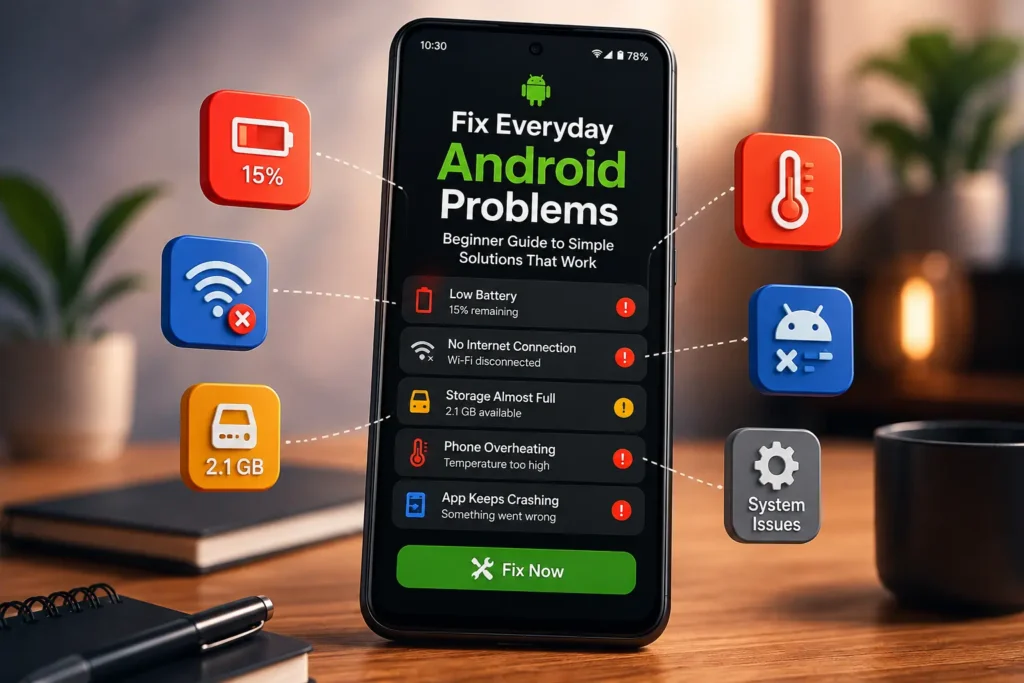
Your Android Phone Has a Problem—Here’s Where to Start
If your Android phone has suddenly become slow, starts draining battery faster than usual, gets unusually hot, charges slowly, keeps crashing apps, or refuses to connect properly to Wi-Fi or mobile data, don’t jump straight to a factory reset or repair shop.
Start by finding out what changed before the problem appeared.
Restart the phone, check how much storage is available, install pending Android and app updates, and look at battery or app usage to see whether something is running unusually in the background. If the problem started after installing an app, changing a setting, or updating Android, that detail can be an important clue.
Also pay attention to the symptoms. A phone that is slow because its storage is nearly full needs a very different fix from a phone that is slow because of a problematic app. Likewise, slow charging may come from the cable or charging port, while overheating may be related to background activity, heavy usage, poor signal, or a battery issue.
The safest approach is simple: identify the problem first, try the least invasive fix, and test the phone before moving to a more advanced solution.
And if your phone has been dropped, exposed to water, has a swollen battery, a damaged charging port, or another obvious hardware problem, don’t keep trying random software fixes. That’s the point where professional diagnosis makes more sense.
This guide will help you work through the most common Android smartphone problems step by step—whether you’re using a Samsung Galaxy, Xiaomi, Redmi, POCO, OnePlus, Vivo, OPPO, Realme, Motorola, Google Pixel, iQOO, Nothing Phone, or another Android device.
Your Android phone doesn’t usually become a problem overnight for no reason.
Maybe yesterday you were using it normally, and today the battery is disappearing before the day is over. An app that opened instantly now takes forever to load. The phone feels unusually hot while you’re doing something as simple as scrolling. Your charger suddenly seems painfully slow. Or Wi-Fi keeps disconnecting even though every other device in the house is working fine.
And that’s usually when the same thought comes to mind:
“What happened to my phone?”
The frustrating part is that the symptom rarely tells you the whole story.
A slow phone doesn’t automatically mean the hardware is getting old. Fast battery drain doesn’t always mean you need a new battery. An app that keeps crashing may have nothing to do with the phone itself. And a charging problem can sometimes be caused by something as simple as a damaged cable or debris in the charging port.
That’s what makes everyday smartphone troubleshooting so confusing for beginners.
Over time, while working through common Android problems, one thing becomes clear: the first fix you try isn’t nearly as important as correctly identifying the problem you’re dealing with. If you start with the wrong diagnosis, you can spend an hour changing settings, installing unnecessary apps, or even resetting your phone without ever addressing the real cause.
This guide takes a different approach.
Instead of giving you a random collection of Android tips, we’ll look at the problem the way you should actually troubleshoot it: what you’re seeing, what may be causing it, what you can safely check yourself, and when it’s better to stop troubleshooting.
And this isn’t limited to one Android brand.
Whether your daily driver is a Samsung Galaxy, Xiaomi, Redmi, POCO, OnePlus, Vivo, OPPO, Realme, Motorola, Google Pixel, iQOO, Nothing Phone, or another Android device, the menus may look slightly different, but many of the underlying problems are remarkably similar.
You’ll learn how to troubleshoot everyday issues such as Android battery drain, slow phone performance, overheating, charging problems, app crashes, Wi-Fi and mobile data issues, storage problems, and common Android settings errors—without turning every small problem into a major repair.
The goal isn’t to make you a smartphone technician.
It’s to give you a practical way to think when something goes wrong:
Identify the symptom. Find the likely cause. Try the safest fix first. Test the result. Then move forward only if you need to.
That approach can save you time, protect your data, and sometimes save you from spending money on a repair or replacement you never actually needed.
Why Android Problems Happen in the First Place
The strange thing about smartphone problems is that they often look more complicated than they really are.
Your phone may suddenly feel slow, but the real issue could be storage. An app may keep crashing because of corrupted temporary data. Battery life may drop sharply because one background app is working harder than it should. And sometimes the problem has nothing to do with software at all.
That’s why troubleshooting based only on the symptom can lead you in the wrong direction.
An Android phone is constantly doing things in the background. It manages apps, notifications, system services, network connections, storage, security processes, location services, and hardware components—all while you’re using the device.
When one part of that system stops behaving normally, the effect can show up somewhere completely different.
Here are the most common reasons everyday Android problems appear.
Temporary Software Glitches
Android runs many processes at the same time, and occasionally one of them can become stuck or behave unexpectedly.
You might notice an app freezing, the phone becoming temporarily slow, touch response becoming inconsistent, or a feature refusing to work.
A simple restart can sometimes clear these temporary glitches. But if the same problem keeps returning, it becomes important to look for the underlying cause instead of repeatedly restarting the phone.
Outdated Android or Apps
Your phone’s operating system and installed apps are constantly changing.
An outdated app may not work properly with a newer Android version, while an Android bug can sometimes affect apps or system features until a later update addresses it.
That’s why checking for Android updates, Google Play system updates, and app updates is an important part of troubleshooting—not just something you do when a new feature appears.
Problematic Third-Party Apps
Not every app behaves perfectly on every phone.
A recently installed or updated app may use excessive background resources, interfere with another service, drain the battery, increase heat, or cause repeated crashes.
This is particularly useful to remember when a problem appears soon after installing or updating an app.
The timing itself can be a clue.
Low Storage
Storage problems are easy to overlook because users often think of storage as nothing more than a place for photos and apps.
In reality, Android and individual apps also need working space for temporary files and normal operations.
When your phone is running extremely low on storage, you may start noticing slow performance, failed downloads, app crashes, or problems installing updates.
Before blaming the processor or battery, check how much storage is actually available.
Background Activity
Your phone doesn’t stop working just because the screen is off.
Apps and system services may continue syncing data, checking for notifications, using location services, or performing other background tasks.
Most of this activity is normal. The problem starts when something consumes far more resources than expected.
This can show up as unexpected battery drain, overheating, or reduced performance.
Checking battery and app usage can help reveal whether a particular app or service deserves attention.
Network and Connectivity Problems
Sometimes the phone isn’t the real problem.
A weak mobile signal, overloaded Wi-Fi network, router issue, network configuration, or temporary carrier problem can make your phone appear unreliable.
For example, if Wi-Fi keeps disconnecting, the first question shouldn’t always be “What’s wrong with my phone?”
A better question is:
“Is the problem happening only on this phone, or are other devices experiencing it too?”
That simple comparison can immediately narrow down the possibilities.
Physical Damage or Moisture
Software troubleshooting has limits.
If your phone was dropped, bent, exposed to water, or developed a problem immediately after physical damage, there’s a possibility that an internal component has been affected.
A damaged display, charging port, battery, or internal connection won’t necessarily respond to software fixes.
In these situations, repeatedly changing settings can waste time and may delay the right solution.
Battery or Other Hardware Problems
Some symptoms point more strongly toward hardware.
A battery that has become swollen, a charging port that is physically damaged, a display that remains unresponsive, or a phone that repeatedly shuts down despite normal software troubleshooting may require professional inspection.
The important point is that not every Android problem should be solved with a software trick.
Good troubleshooting means knowing where software fixes are useful—and where they simply aren’t.
The Symptom Isn’t Always the Cause
This is one of the most useful things to remember when troubleshooting an Android phone.
Battery drain is a symptom. An app running excessively in the background could be the cause.
Phone lag is a symptom. Extremely low storage could be the cause.
Slow charging is a symptom. A damaged cable or charging port could be the cause.
Once you start separating the symptom from the possible cause, everyday Android problems become much easier to approach.
And that’s exactly what we’ll do in the next sections: instead of guessing, we’ll narrow down the problem first and then choose the fix that actually makes sense.
Before You Change Anything, Look for These Clues
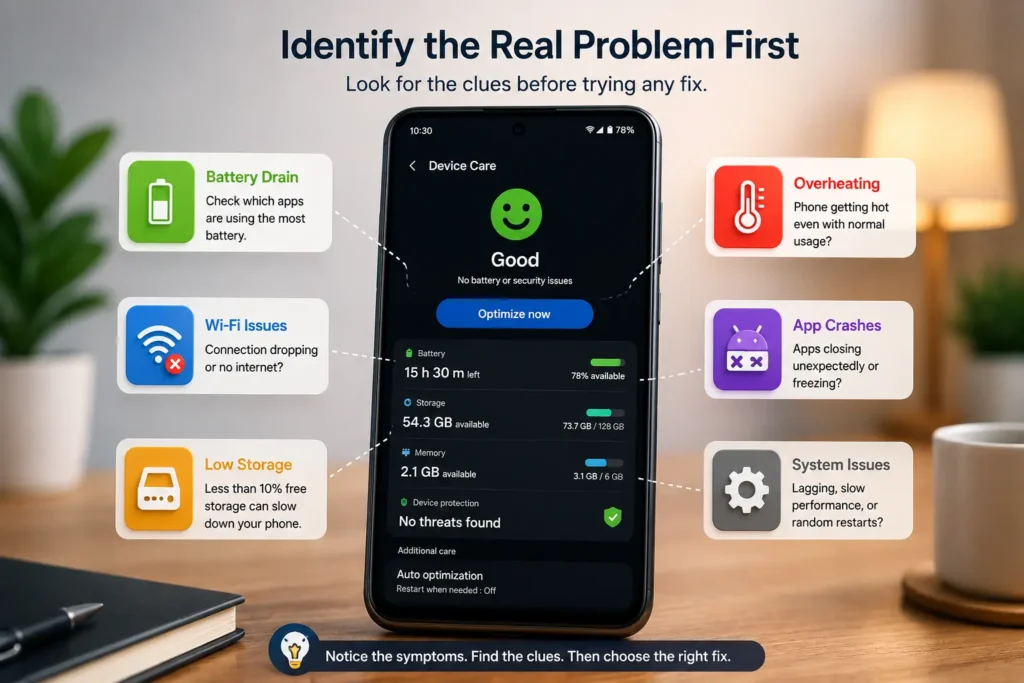
Before you start changing settings, deleting apps, or searching for complicated fixes, take a moment to look at what your phone is actually doing.
This matters because the same symptom can have completely different causes.
For example, a phone that suddenly becomes slow could be dealing with very low storage, a badly behaving app, a pending software update, or a temporary system glitch. A charging problem could come from the cable, charging port, temperature, battery, or software. Treating all of these situations the same way can lead you toward fixes that don’t address the real problem.
A better approach is to use the symptoms as clues.
| What You’re Noticing | What It Could Point To | What to Check First |
|---|---|---|
| Battery is draining much faster than usual | Background activity, app problem, battery wear | Battery usage |
| Phone feels slow or keeps lagging | Low storage, app activity, software issue | Available storage and recent changes |
| Phone gets unusually hot | Heavy usage, background process, weak signal, battery issue | Battery and app usage |
| One app keeps crashing | App bug, outdated app, corrupted temporary data | Update the app and clear its cache |
| Phone charges very slowly | Cable, charger, port, temperature, battery | Cable, adapter, and charging port |
| Wi-Fi keeps disconnecting | Router, signal, network settings, phone issue | Check another device on the same network |
| Touch stops responding | Temporary software issue or display/digitizer problem | Restart and check for physical damage |
| Problem started after an update | Software compatibility or update-related issue | System and app updates |
| Problem started after a drop or water exposure | Possible hardware damage | Stop experimenting with software fixes |
Look at When the Problem Started
One of the most useful clues is timing.
Did the problem begin after an Android update? After installing an app? After changing a setting? After the phone was dropped? Or did it simply appear without any obvious change?
Write down what happened just before the problem appeared.
That small detail can sometimes narrow down the cause much faster than trying ten different fixes.
Check Whether the Problem Is Limited
Another useful question is:
Does the problem affect one app, one feature, or the entire phone?
If YouTube keeps crashing but other apps work normally, the problem may be specific to YouTube or its data. If every app is slow and the entire interface feels sluggish, you should look at broader issues such as storage, system performance, or background activity.
The same idea applies to connectivity. If your phone can’t connect to one Wi-Fi network but works normally on another, the phone may not be the problem.
Look for Physical Warning Signs
Software problems usually deserve software troubleshooting. Physical problems need a different approach.
If the phone has a cracked display, damaged charging port, swollen battery, signs of liquid exposure, or a problem that started immediately after a serious drop, don’t assume another setting change will fix it.
The goal isn’t to find a fix as quickly as possible. It’s to find the right fix without making the situation worse.
Once you know what changed, where the problem appears, and whether there are physical warning signs, you can move on to the safest troubleshooting steps.
5 Things to Check Before Trying a Fix
It’s tempting to start fixing an Android problem the moment something goes wrong.
But troubleshooting becomes much easier when you pause for a minute and collect a few clues first.
Before you restart repeatedly, clear app data, change system settings, or consider a factory reset, check these five things.
1. When Did the Problem Start?
Try to remember the first time you noticed the problem.
Was it this morning? Right after an Android update? After installing an app? After charging the phone? Or after the phone was dropped?
The timing matters because a recent change can give you a strong lead.
2. What Changed Before It Happened?
Think beyond obvious changes.
Maybe you installed a new app, updated several apps, changed a battery setting, connected a new Bluetooth device, switched networks, or downloaded something from an unfamiliar source.
You don’t need to remember every single thing. Just identify anything unusual that happened shortly before the problem appeared.
3. Does It Affect One App or the Whole Phone?
This is one of the quickest ways to narrow down the problem.
If only one app is affected, start with that app.
If the entire phone is freezing, overheating, lagging, or behaving strangely, look for a system-level cause instead.
This simple distinction can save you from changing settings that had nothing to do with the problem.
4. Is There Any Physical Damage?
Look at the phone before assuming the problem is software-related.
Check for a cracked screen, signs of liquid exposure, a damaged charging port, unusual battery swelling, or damage from a recent drop.
If you notice a serious physical issue—especially a damaged or swollen battery—don’t keep experimenting with troubleshooting steps. Safety comes before getting the phone working again.
5. Is Your Important Data Backed Up?
This is easy to ignore when the phone is still usable.
But if the problem gets worse and you eventually need an advanced repair, reset, or service, having your photos, contacts, documents, and other important data backed up can make a stressful situation much easier to handle.
A few minutes of checking now can prevent a lot of unnecessary troubleshooting later.
Once you’ve gone through these five questions, you’ll have a much clearer picture of what you’re dealing with. From here, you can start with the simplest troubleshooting steps instead of blindly trying every fix you find online.
A Simple Android Troubleshooting Checklist
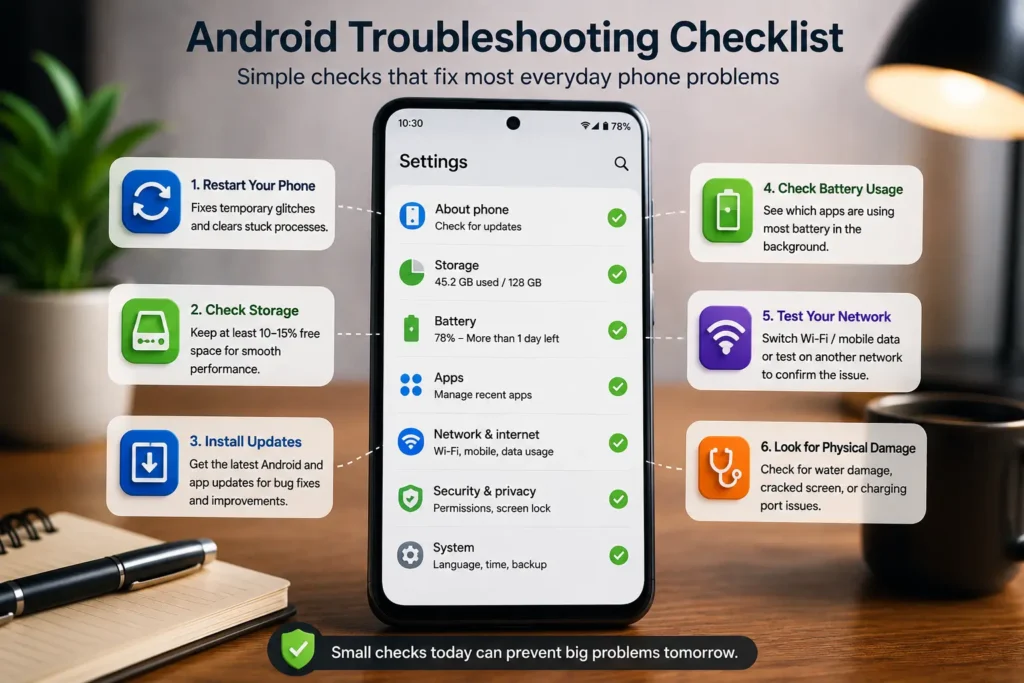
When an Android phone starts behaving strangely, you don’t need to try every solution you can find on the internet.
In most everyday situations, it’s better to work through a small number of sensible checks in the right order. Start with the least disruptive steps, see what changes, and only move to a more advanced fix if the problem is still there.
Use this checklist as your starting point.
1. Restart the Phone
A normal restart is still one of the first things worth trying when the problem appears suddenly.
It can clear temporary glitches and restart system processes that may not be behaving correctly.
If the issue disappears after the restart and doesn’t return, you may have been dealing with a temporary software problem.
2. Check Available Storage
Open your phone’s storage settings and see how much space is actually available.
If storage is almost full, free up unnecessary downloads, large videos, unused apps, or other files you no longer need.
Don’t start deleting important files just to make space. Check which categories are consuming storage first.
3. Install Pending Updates
Check for available Android system updates, Google Play system updates, and updates for your installed apps.
Updates can include bug fixes, compatibility improvements, and security fixes, so running an outdated version can sometimes make an existing problem harder to diagnose.
4. Check Battery and App Usage
If your phone is draining battery quickly, getting hot, or becoming unusually slow, check which apps or services are using the most resources.
A single app showing unusually high usage can be an important clue.
Don’t assume the app is definitely faulty just because it appears near the top of the list. Use the information as a starting point for further troubleshooting.
5. Think About Recently Installed or Updated Apps
If the problem appeared shortly after installing or updating an app, temporarily removing that app can help you test whether it is involved.
This is especially useful when you’re dealing with repeated crashes, battery drain, overheating, pop-ups, or unusual background activity.
6. Test the Network Separately
If the problem involves Wi-Fi or mobile data, check whether other devices can connect normally.
Try another Wi-Fi network if possible. If the phone works normally elsewhere, the original network or router may be part of the problem.
Separating the phone from the network this way can save you from changing phone settings unnecessarily.
7. Check for Physical Damage
If a problem started after a fall, water exposure, or another physical incident, don’t ignore that timing.
A damaged display, charging port, battery, or internal component may require professional inspection rather than another software adjustment.
8. Try Safe Mode When an App May Be Responsible
If your phone works normally in Safe Mode but starts acting strangely during normal use, a third-party app becomes a stronger suspect.
Safe Mode isn’t a universal solution, but it can be a useful diagnostic step when you suspect an installed app is causing the problem.
The exact method for entering Safe Mode can vary between Android brands and models, so use the instructions specific to your device.
9. Back Up Before Advanced Troubleshooting
If basic checks haven’t solved the problem and you’re considering a reset or another major change, back up important data first.
This is particularly important before any step that can remove personal information from the device.
10. Know When to Stop
Not every problem should be solved at home.
If the phone has a swollen battery, serious water damage, a badly damaged charging port, persistent hardware symptoms, or repeated shutdowns that basic troubleshooting cannot explain, it’s time to consider professional help.
Good troubleshooting isn’t about trying the largest number of fixes. It’s about trying the right checks in the right order.
If one step solves the problem, stop there. You don’t need to keep changing settings just because another troubleshooting tip exists.
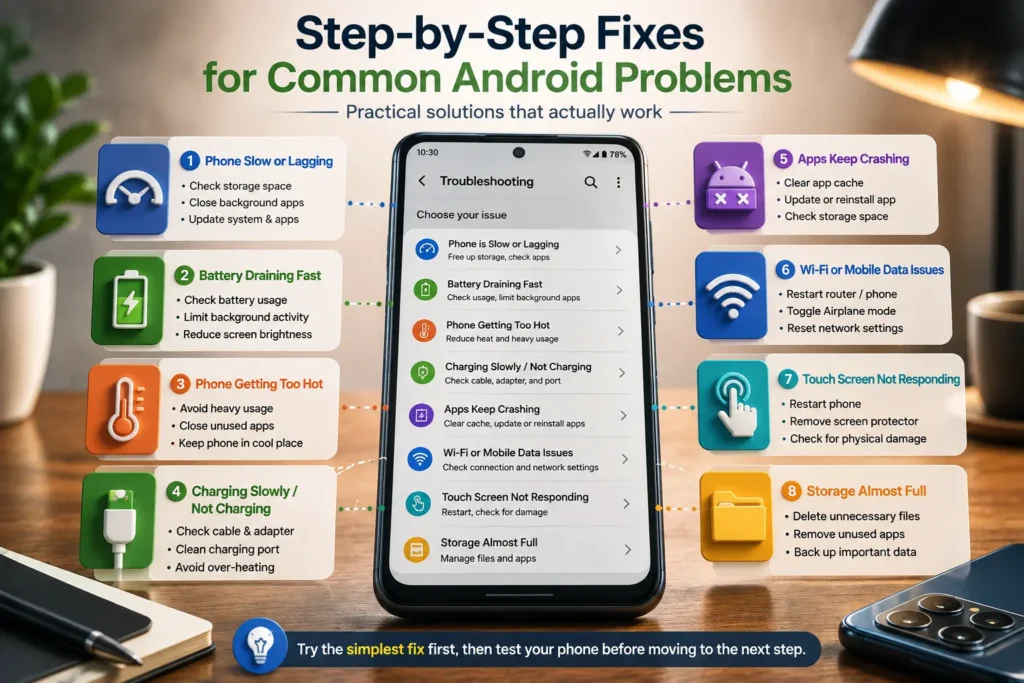
Step-by-Step Fixes for Common Android Problems
Once you’ve gone through the basic checks, it’s time to work on the problem itself.
The important thing is not to treat every Android issue the same way. A phone that is overheating needs a different approach from a phone that won’t charge, and an app that keeps crashing doesn’t necessarily mean there’s something wrong with the entire device.
Start with the section that matches what you’re actually experiencing. Try the simplest relevant fix first, then test the phone before moving on.
Android Phone Is Running Slow or Lagging
If your phone has gradually become slower, start by checking available storage. A phone that’s running very low on space can struggle with everyday tasks, especially when apps and the system don’t have enough room for normal temporary operations.
Next, check whether a particular app is using an unusual amount of battery or background activity. If the slowdown started after installing an app, that timing is worth investigating too.
Also check for Android and app updates. If everything is up to date and the phone still feels slow, restart it and test again before making more advanced changes.
Best first steps: Check storage → review app usage → install updates → restart → test again.
If your Android phone has become noticeably slower, storage is one of the first things worth checking. Google recommends checking available storage when an Android device is slow or freezing, and notes that phones can start experiencing problems when less than 10% of storage remains free. You can also review recent app activity and install pending updates before moving to more advanced troubleshooting. Google’s official Android guide for speeding up a slow phone explains these checks in more detail.
Android Battery Is Draining Too Fast
Sudden battery drain is often easier to understand when you look at what changed.
Open your battery usage settings and look for apps or services that are consuming noticeably more power than expected. High screen brightness, location services, background activity, poor network reception, and demanding apps can all contribute to faster battery loss.
If the drain began after installing or updating an app, temporarily removing that app can help you determine whether it is involved.
If the phone becomes unusually hot at the same time as the battery drains quickly, pay closer attention. Persistent heat combined with unusual battery behavior can point to a deeper issue.
Best first steps: Check battery usage → review recent apps → reduce unnecessary background activity → update apps → monitor the phone.
Android Phone Is Getting Too Hot
A warm phone isn’t automatically a sign of damage. Gaming, video recording, navigation, charging, and other demanding tasks can naturally produce heat.
The concern is when the phone becomes unusually hot during light use, while sitting idle, or repeatedly heats up without an obvious reason.
Start by checking battery and app usage. Close or remove an app that is clearly behaving unusually, and avoid heavy use while the phone is already hot.
If the phone becomes extremely hot, shows battery swelling, or develops other physical symptoms, stop using it and seek professional help rather than continuing with software troubleshooting.
Best first steps: Stop heavy tasks → check battery/app usage → let the phone cool → investigate recent changes → seek help if the heat is abnormal or persistent.
Android Phone Is Charging Slowly or Not Charging
Charging problems can come from several places, so don’t immediately assume the battery has failed.
Start with the charging cable and adapter. If possible, test with another known-good compatible setup. Then inspect the charging port for visible debris or damage. Avoid using sharp objects that could damage the port.
Also consider temperature. Some phones reduce or pause charging when the device becomes too hot or too cold.
If the phone charges normally with another cable or adapter, you’ve already narrowed down the problem. If different compatible charging accessories produce the same result, or the port appears damaged, professional inspection may be the safer next step.
Best first steps: Check cable → check adapter → inspect the port → check phone temperature → test again.
Android Apps Keep Crashing
If only one app is crashing, don’t start troubleshooting the entire phone.
First, make sure the app is updated. Then restart the phone and try again. If the problem continues, clearing the app’s cache may help with temporary or corrupted data.
If the app started crashing immediately after an update, compatibility or an app-specific bug may be involved. If several unrelated apps are crashing, however, the problem may be broader and worth investigating at the system level.
Best first steps: Update the app → restart → clear cache → check Android updates → investigate further if multiple apps are affected.
If one or more apps keep closing unexpectedly, the problem may be caused by an outdated app, corrupted temporary data, low storage, or a conflict with another app. Before assuming that your phone itself is faulty, it’s worth checking the app and the changes that happened before the crashes started. If the problem is happening repeatedly, Apps Automatically Closing on Android? 7 Easy Fixes That Actually Work can help you work through the more specific causes and fixes step by step.
Android Wi-Fi or Mobile Data Keeps Disconnecting
Before changing network settings, find out whether the problem is limited to your phone.
Connect another device to the same Wi-Fi network. If that device also has connection problems, your phone may not be responsible.
If other devices work normally, restart your phone and router, move closer to the Wi-Fi source, and test the connection again. For mobile data problems, check signal strength and make sure mobile data is enabled for the correct SIM.
If the connection works normally on another network but not your usual one, that comparison is an important clue.
Best first steps: Test another device → restart the phone/router → check signal → test another network → only then consider resetting network settings.
If your Wi-Fi is connected but a specific app or service such as YouTube still refuses to load properly, the problem may be different from a general Wi-Fi disconnection. In that situation, WiFi Connected But YouTube Not Working on Phone? 7 Easy Fixes That Actually Work covers the more specific causes and troubleshooting steps.
When an Android phone keeps losing its internet connection, it’s worth checking whether the problem is coming from the phone, the Wi-Fi network, or the connection itself. Google recommends basic checks such as restarting the device, switching between Wi-Fi and mobile data, checking signal strength, and testing the connection again. If you need more detailed instructions, Google’s official Android internet troubleshooting guide walks through the recommended checks.
Android Touch Screen Is Not Responding
If the display turns on but touch stops responding, first determine whether the problem appeared after a restart, update, drop, or water exposure.
A temporary software glitch can sometimes affect touch input, so a restart is a reasonable first step. Remove a screen protector temporarily if you suspect it is interfering with touch response.
However, if only part of the screen responds, the display is physically damaged, or the problem started after a drop or liquid exposure, hardware becomes a stronger possibility.
Best first steps: Restart → remove the screen protector temporarily → check for physical damage → test again → seek professional diagnosis if the touch problem persists.
Android Storage Is Almost Full
When storage is nearly full, don’t randomly delete files.
Open the storage section in Settings and see what’s actually taking up space. Large videos, downloads, offline media, messaging attachments, and unused apps can often account for much more storage than expected.
Remove files you no longer need, but make sure important photos, documents, and other personal data are backed up before deleting them.
Best first steps: Check storage breakdown → remove unnecessary large files → review downloads and unused apps → back up important data.
The pattern is the same across these problems: don’t guess, and don’t change five things at once.
Find the symptom, narrow down the likely cause, try the least disruptive fix, and then see what changed. That gives you a much better chance of fixing the problem without creating another one.
When Basic Fixes Don’t Work
Sometimes the obvious steps don’t solve the problem.
You’ve restarted the phone. Storage isn’t full. Apps are updated. Nothing obvious has changed—and the problem is still there.
That’s when it’s worth moving from basic troubleshooting to more targeted checks. But this is also where you need to be careful. Advanced troubleshooting should help you narrow down the cause, not encourage you to change random settings until something happens to work.
Try Safe Mode If an App Might Be Responsible
If your phone behaves normally in Safe Mode but the problem returns during normal use, a third-party app becomes a stronger suspect.
This can be particularly useful for problems such as unusual battery drain, repeated crashes, pop-ups, overheating, or unexplained slowdowns.
The steps for entering Safe Mode vary between Android brands and models, so use the method intended for your specific device.
Clear an App’s Cache When One App Is Misbehaving
If one particular app is slow, crashing, or behaving strangely, clearing its cache can be a reasonable next step.
Cache contains temporary data, so clearing it is different from immediately deleting all of the app’s data.
If clearing the cache doesn’t help, check whether the app has an update available or whether the problem started after a recent update.
Check Google Play System and Android Updates
Don’t look only for a major Android version update.
Your phone may also have Google Play system updates or app updates available. Keeping these components current can remove bugs and compatibility problems that aren’t obvious from the phone’s main software version alone.
Review App Permissions and Background Activity
If an app suddenly starts using unusual battery, location, mobile data, or other resources, review what access it has and whether it actually needs those permissions.
Don’t disable permissions blindly. Instead, look for permissions that don’t make sense for what the app is supposed to do.
Reset Network Settings When Connectivity Is the Problem
If Wi-Fi, Bluetooth, or mobile connectivity continues to behave incorrectly after simpler checks, a network settings reset can sometimes help.
Be aware that this can remove saved network information, so you’ll need to reconnect to Wi-Fi networks and potentially pair Bluetooth devices again.
Consider a Factory Reset Only as a Last Resort
A factory reset is not a universal fix.
It can help when a persistent software problem remains after other troubleshooting has failed, but it also removes personal data and settings from the device.
Before considering it, make sure your important information is backed up and that you’ve ruled out obvious hardware problems.
If basic troubleshooting hasn’t worked, the goal should be diagnosis—not increasingly aggressive fixes.
If the problem continues despite targeted troubleshooting, that’s a good point to consider professional help.
A factory reset should never be treated as the first solution to an everyday Android problem. It removes data from the phone, so it’s important to back up anything you need and make sure you know the Google Account credentials used on the device before proceeding. Google also recommends trying other troubleshooting steps first. If you eventually decide that a reset is necessary, Google’s official Android factory reset guide explains what to check before you begin.
What NOT to Do When Fixing an Android Phone
Troubleshooting advice often focuses on what you should do. But knowing what not to do can be just as important.
A rushed fix can turn a small software problem into lost data, damaged hardware, or an unnecessary repair.
Don’t Factory Reset the Phone Too Quickly
A factory reset sounds like a clean solution because it gives you a fresh start.
But it also removes personal data and settings. If the actual problem is a damaged charging port, failing battery, broken display, or another hardware fault, resetting the phone won’t repair it.
Use a factory reset only after reasonable troubleshooting and a proper backup.
Don’t Install Random “Cleaner” or “Booster” Apps
If your phone is slow, it can be tempting to install an app promising to clean everything with one tap.
Be selective.
You usually don’t need a third-party app to perform basic storage management or troubleshoot everyday Android problems. Adding another app can also introduce more background activity, notifications, or permissions that you didn’t need in the first place.
Don’t Try Five Fixes at the Same Time
If you clear an app’s data, uninstall another app, change network settings, update Android, and reset the phone all at once, you lose the ability to tell which change mattered.
Make one meaningful change, test the result, and then decide what to do next.
Don’t Ignore Physical Damage
A phone that started malfunctioning after a serious drop or liquid exposure deserves a different approach from a phone that simply became slow after an update.
Physical symptoms should not be dismissed just because a software fix sounds easier.
Don’t Use Sharp Objects to Clean the Charging Port
If you suspect debris in the charging port, be careful.
Metal pins, needles, or other sharp objects can damage delicate contacts inside the port. If the port needs cleaning and you’re not comfortable doing it safely, professional cleaning is a better option.
Don’t Keep Using a Phone That Is Abnormally Hot
Normal warmth during demanding tasks is different from extreme or persistent heat.
If the phone becomes unusually hot, especially alongside battery swelling, a strange smell, shutdowns, or visible damage, stop using it and seek professional assistance.
Don’t Follow Instructions for a Different Phone Model Without Checking
Android isn’t identical across every manufacturer.
Samsung, Xiaomi, OnePlus, Vivo, OPPO, Realme, Motorola, Pixel, iQOO, and other brands can use different menus and recovery procedures.
A setting that exists on one phone may be named differently—or may not exist at all—on another.
The safest troubleshooting advice is the advice that matches your phone, your symptoms, and what changed before the problem started.
When Is It a Software Problem vs. a Hardware Problem?
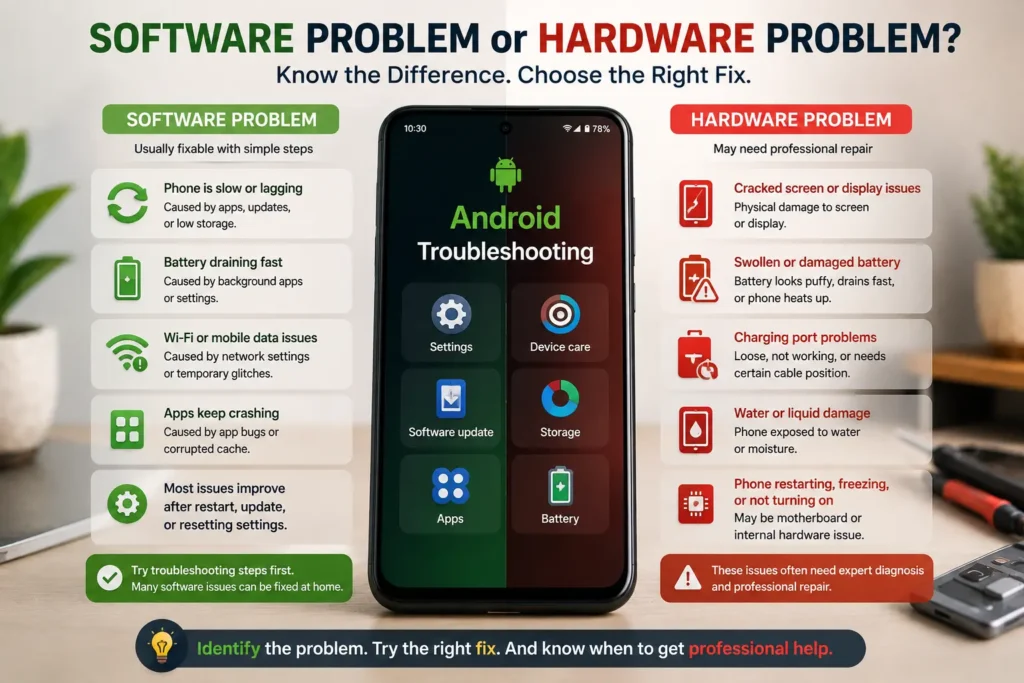
One of the most useful troubleshooting skills is knowing when to stop looking for a software fix.
Many Android problems can be caused by software, but not every problem can be solved by changing a setting or installing an update. The clues are usually in how the problem started and what else is happening with the phone.
| What You’re Seeing | More Likely Software | More Likely Hardware |
|---|---|---|
| Problem started after an Android or app update | ✓ | |
| Problem started after installing an app | ✓ | |
| Only one app is affected | ✓ | |
| Restart temporarily fixes the problem | ✓ | |
| Phone was recently dropped | ✓ | |
| Phone was exposed to water or moisture | ✓ | |
| Screen is physically cracked or damaged | ✓ | |
| Charging port is loose or damaged | ✓ | |
| Battery is swollen or physically damaged | ✓ | |
| Touch works only on part of the screen | ✓ | |
| Phone repeatedly shuts down despite normal software troubleshooting | Possible | ✓ |
| Factory reset does not resolve the underlying symptom | Possible | More likely |
Signs That Point Toward a Software Problem
Software becomes a stronger suspect when the problem appears after an update, app installation, settings change, or other digital change.
Problems that affect one app, disappear after a restart, or behave differently in Safe Mode can also point toward software.
That doesn’t prove the diagnosis, but it gives you a sensible place to start.
Signs That Point Toward Hardware
Hardware becomes more likely when there’s a clear physical event or physical symptom.
A cracked display, damaged charging port, water exposure, swollen battery, persistent touch failure, or a problem that began immediately after a serious drop should not be treated like an ordinary software glitch.
In these situations, repeated resets and software changes are unlikely to repair the damaged component.
What If You Still Can’t Tell?
You don’t always have to identify the exact faulty component yourself.
Your job at the troubleshooting stage is simply to narrow down the possibilities.
Ask:
What changed?
Does the problem affect one part of the phone or the whole device?
Can I reproduce it consistently?
Is there any physical damage?
Did a safe troubleshooting step change the behavior?
If the answers point toward software, continue with the appropriate software troubleshooting steps.
If they point toward hardware—or you’re seeing warning signs such as a swollen battery, liquid damage, severe overheating, or a damaged charging port—stop experimenting and consider professional diagnosis.
Good troubleshooting isn’t about proving that you can fix everything yourself. It’s about knowing what you can safely handle and when the problem has moved beyond that point.
When Should You Get Professional Help?
Most everyday Android problems can be checked at home. A restart, storage cleanup, app update, network check, or a few simple settings changes can often solve a temporary software problem.
But troubleshooting has a limit.
If you’ve already tried the reasonable steps and the same problem keeps coming back, it’s worth asking whether you’re dealing with something that software cannot fix. Continuing to change settings when the actual problem is physical won’t make the phone better—and in some situations, it can make things more complicated.
Your Phone Was Dropped or Exposed to Water
If a problem appeared immediately after a drop, impact, or liquid exposure, take that timing seriously.
A damaged display, charging port, internal connector, speaker, microphone, or battery may not show obvious external damage. If the phone starts behaving strangely after physical damage, professional inspection is safer than repeatedly trying software fixes.
The Battery Looks Swollen or the Phone Gets Extremely Hot
A little warmth during gaming, charging, navigation, or heavy app usage can be normal.
A phone that becomes abnormally hot, repeatedly overheats during light use, or develops a swollen battery is a different situation. Don’t keep charging or using a device that appears physically damaged. Battery-related problems should be handled with appropriate care rather than treated like an ordinary performance issue.
The Charging Port Is Damaged
If the charging cable feels unusually loose, charging only works when the cable is held at a particular angle, or the port has visible physical damage, the problem may be with the hardware.
Trying different chargers is a useful test. But if multiple known-good accessories behave the same way, stop forcing the cable into the port and consider getting it inspected.
The Touch Screen or Display Has a Persistent Problem
If the screen is cracked, has visible lines or black spots, or only part of the touch screen responds, hardware becomes a stronger possibility.
A temporary software glitch can sometimes affect touch response, but a persistent problem—especially after a drop or water exposure—needs a different approach.
If your problem is specifically related to touch becoming unresponsive after a restart, you can also follow Phone Touch Screen Not Working After Restart? 9 Fixes That Actually Work for more targeted troubleshooting.
If the problem is specifically related to touch becoming unresponsive after a restart, you can also follow Phone Touch Screen Not Working After Restart? 9 Fixes That Actually Work for more targeted troubleshooting.
The Phone Keeps Restarting or Shutting Down
One unexpected restart doesn’t necessarily mean your phone is failing.
But repeated shutdowns, boot loops, or random restarts that continue after basic troubleshooting deserve more attention. Software can cause these symptoms, but hardware, battery, overheating, or other component-level problems can also be involved.
If you’ve ruled out obvious software causes and the behavior continues, professional diagnosis can save you from repeatedly resetting the phone without knowing what is actually wrong.
You’ve Tried the Reasonable Software Fixes and Nothing Changes
This is perhaps the most important point.
If you’ve checked storage, installed updates, investigated recently installed apps, restarted the phone, tested the network, and followed the appropriate troubleshooting steps—but the same issue remains—don’t assume that you simply haven’t found the “magic” setting yet.
Sometimes the correct next step is a diagnosis, not another fix.
Getting professional help doesn’t mean you’ve failed to troubleshoot the phone. It means you’ve reached the point where guessing is less useful than finding out what is actually happening.
And if your phone is still usable, back up your important photos, contacts, documents, and other data before handing it over for repair whenever possible.
How to Prevent Common Android Problems
You can’t prevent every Android problem.
Apps can have bugs, updates can occasionally introduce unexpected behavior, batteries naturally wear down, and hardware can fail without warning. But a few good habits can reduce the number of problems you have to deal with—and make troubleshooting much easier when something does go wrong.
Keep Android and Your Apps Updated
Updates aren’t only about getting new features.
They can also include bug fixes, compatibility improvements, security updates, and performance changes. Keeping Android and your regularly used apps reasonably up to date removes one common source of avoidable problems.
You don’t need to install every update blindly the second it appears, but you also shouldn’t ignore important updates indefinitely.
Don’t Let Storage Stay Almost Full
Your phone needs available space for more than photos and apps.
When storage gets extremely low, you may start running into performance issues, failed downloads, app problems, or difficulties installing updates.
Make it a habit to occasionally check what’s using your storage. Large videos, downloads, offline content, and unused apps are often worth reviewing.
Be Careful About What You Install
Not every Android problem starts with the operating system.
A poorly designed, outdated, or unnecessarily resource-heavy app can cause battery drain, overheating, crashes, pop-ups, or unusual background activity.
Stick to apps you actually need, keep them updated, and pay attention when a new problem appears shortly after installing something.
If your battery suddenly started draining after installing an app, for example, Phone Battery Draining Fast After Installing New App – 7 Reasons and How to Fix It can help you investigate that specific situation.
Pay Attention to Battery Behavior
Don’t ignore changes that appear suddenly.
If your phone normally lasts all day and suddenly starts losing a large percentage of battery within a few hours, look at battery usage rather than immediately assuming the battery itself has failed.
Likewise, unusual heat, sudden shutdowns, or major changes in charging behavior are worth investigating early.
Keep the Charging Port and Accessories in Good Condition
Charging problems aren’t always caused by the battery.
A damaged cable, unreliable adapter, or dirty or damaged charging port can create inconsistent charging behavior. Avoid bending cables aggressively, pulling them out by force, or using sharp objects inside the charging port.
If you notice a charging problem, test the accessories before assuming the phone needs a battery replacement.
For a specific situation where the phone shows that it is charging but the percentage doesn’t increase, see Phone Charging but Battery Percentage Not Increasing? 7 Easy Fixes That Actually Work.
Protect the Phone From Physical Damage
A good case and screen protector can’t prevent every accident, but they can reduce the impact of everyday drops and scratches.
More importantly, don’t ignore a problem simply because the phone still turns on after an accident. A device can continue working while an internal component has already been affected.
Restart the Phone When Something Behaves Strangely
You don’t need to restart your phone constantly.
But if an Android feature suddenly freezes, an app behaves strangely, or the system becomes temporarily sluggish, a restart is a reasonable first troubleshooting step.
If the same problem keeps returning after every restart, however, treat that as a clue rather than a reason to keep restarting.
Keep Your Important Data Backed Up
Prevention isn’t only about preventing the problem itself.
It’s also about preventing a phone problem from becoming a data-loss problem.
Keep important photos, contacts, documents, and other irreplaceable information backed up. If the phone eventually needs a factory reset or repair, you’ll have much more freedom to troubleshoot without worrying about losing everything.
Know Your Phone’s Normal Behavior
This is an underrated habit.
If you know how long your battery normally lasts, how quickly the phone usually charges, how much storage you normally have available, and how the device behaves under normal use, unusual changes become much easier to notice.
You don’t need to monitor your phone every day.
Just pay attention when something suddenly feels different.
That’s often the first useful clue that a problem is developing.
More Android Troubleshooting Guides
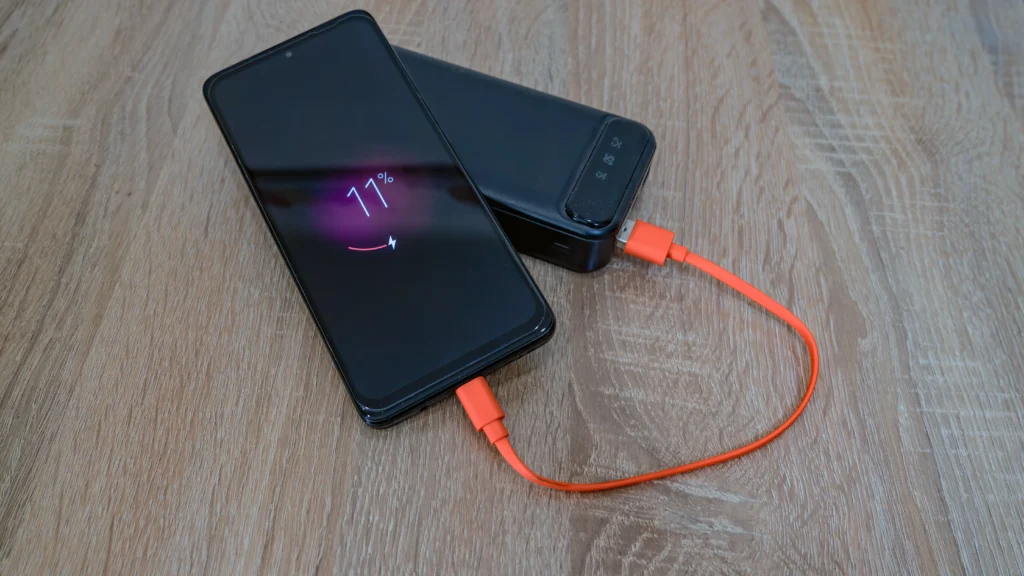
Phone Charging but Battery Percentage Not Increasing
Agar aapke Android phone mein charging ke time battery percentage badhne ke bajay wahi rehta hai, to problem cable, charger, charging port, temperature ya battery se related ho sakti hai. Is situation ko samajhne aur step-by-step troubleshooting ke liye ye guide dekhein
Phone Touch Screen Not Working After Restart
Agar Android phone restart hone ke baad touch properly respond nahi kar raha, ya screen ka koi part touch ko recognize nahi kar raha, to problem temporary software glitch se lekar display-related issue tak ho sakti hai. Is specific problem ke possible causes aur fixes ke liye ye guide dekhein:
Apps Automatically Closing on Android? 7 Easy Fixes That Actually Work
Agar phone mein apps baar-baar automatically close ho rahe hain ya bina warning ke crash ho jaate hain, to low storage, outdated apps, corrupted cache ya software-related issue iska reason ho sakta hai. Is problem ko detail mein troubleshoot karne ke liye ye guide dekhein:
Frequently Asked Questions About Common Android Problems
Why is my Android phone suddenly slow even though I haven’t installed anything new?
A phone can become slow even when you haven’t recently installed an app. Low available storage, pending system or app updates, background activity, or a temporary software problem can all affect performance.
Start by checking how much storage is available and whether Android or your apps have pending updates. Then look at battery and app usage to see whether something is consuming unusually high resources.
If the problem appeared suddenly rather than gradually, think about what changed around that time. A system update, app update, unusual background activity, or even a network-related issue can sometimes explain the change.
Why is my Android phone battery draining so fast all of a sudden?
Sudden battery drain is often connected to something that recently changed.
Start by opening your phone’s battery usage screen and checking which apps or services are consuming the most power. A recently updated app, high screen brightness, location services, background activity, poor network reception, or heavy usage can all increase battery consumption.
If one app suddenly appears much higher than usual, investigate that app before changing several battery settings at once. If the phone is also becoming unusually hot, pay closer attention because excessive heat can make battery drain worse.
Why is my Android phone getting hot when I’m not using it?
A phone that becomes warm during gaming, video recording, navigation, or charging can be normal. The situation is different if the device becomes noticeably hot while sitting idle or doing very little.
Check battery and app usage to see whether something is running heavily in the background. Also think about whether the problem started after an app or system update.
If the phone becomes extremely hot, repeatedly overheats, shuts down, or shows signs of battery swelling or physical damage, stop using it and seek professional assistance instead of continuing with software fixes.
Why is my Android phone charging slowly with the original charger?
Using the original charger doesn’t automatically rule out every charging problem.
The cable can become damaged, the charging port can collect debris or become damaged, and the phone may reduce charging speed when its temperature is too high. Try another known-good compatible cable and adapter if available, and check whether the phone charges differently.
If multiple compatible chargers produce the same result, or the charging port feels loose or physically damaged, the problem may need professional inspection.
Why do my Android apps keep crashing after an update?
If an app started crashing immediately after an update, the update itself may be involved. Compatibility problems, bugs, or corrupted temporary data can sometimes cause an app to behave unexpectedly.
Start by checking whether another update is available for the app. Restart the phone and, if appropriate, clear the app’s cache.
If only one app is affected, focus your troubleshooting there. If several unrelated apps suddenly begin crashing, look at the Android system, available storage, and recent system changes instead.
How do I fix an Android phone that keeps freezing and becoming unresponsive?
Start with a normal restart. If the phone freezes repeatedly, check available storage and install pending Android and app updates.
If you suspect a third-party app, Safe Mode can help. Safe Mode temporarily disables downloaded apps, so if the problem disappears there, a recently installed or updated app becomes a stronger suspect. Google also recommends checking storage, updates, apps, and Safe Mode when troubleshooting a phone that freezes or stops responding.
If the phone continues freezing despite these checks, especially if there are signs of physical damage, professional diagnosis may be more appropriate.
Why is my Android storage full when I don’t have many apps installed?
Apps are only one part of your phone’s storage.
Photos, videos, downloads, offline media, messaging attachments, cached files, and other data can take up a large amount of space. Open the storage section in Settings and look at the breakdown before deleting anything.
Instead of randomly removing files, start with the category using the most space. Back up important photos and documents before deleting them.
How much free storage should I keep on an Android phone?
There isn’t one perfect amount that applies identically to every Android phone, but you should avoid letting storage become almost completely full.
Google currently says an Android phone can start experiencing problems when less than 10% of its storage is free.
So if your phone is nearly full, freeing up unnecessary files and apps is a sensible troubleshooting step—especially if you’re also experiencing lag, app crashes, or problems installing updates.
Why does my Android phone keep disconnecting from Wi-Fi?
First find out whether the problem is limited to your phone.
Connect another device to the same Wi-Fi network. If that device also disconnects, the router or internet connection may be responsible. If other devices work normally, restart your phone, check the Wi-Fi signal, and test the phone on another network if possible.
This comparison is useful because it helps separate a phone problem from a network problem. Google also recommends checking the connection, switching between Wi-Fi and mobile data, and testing signal strength when troubleshooting Android internet problems.
Why is my Android phone lagging after a software update?
Don’t assume the update permanently damaged your phone.
After a major update, the system and apps may need time to settle, and an app that isn’t fully compatible with the updated software can sometimes cause problems. Restart the phone, check for additional Android and app updates, and make sure you have enough free storage.
If the lag continues, pay attention to whether the entire phone is slow or only certain apps. That distinction can help identify whether you’re dealing with a system-wide issue or an app-specific problem.
Can a bad app cause Android battery drain and overheating?
Yes, a poorly behaving app can contribute to both problems.
An app that continues running heavily in the background can consume more battery and generate additional heat. If the symptoms appeared shortly after installing or updating an app, that timing is worth investigating.
Check battery usage to see whether a particular app is consuming unusually high power. You can then update, restrict, or remove the app as appropriate and monitor whether the phone returns to normal.
Should I factory reset my Android phone if it is very slow?
A factory reset should usually be a last resort, not the first thing you try.
Before resetting, check storage, updates, recently installed apps, and other common software causes. A reset can remove persistent software problems, but it also erases data from the phone.
Google specifically recommends trying other troubleshooting steps first and backing up your phone before performing a factory reset.
Also remember that a factory reset won’t repair physical problems such as a damaged charging port, broken display, or swollen battery.
How do I know if my Android phone has a software problem or a hardware problem?
Look at what happened immediately before the problem appeared.
If the issue started after an update, app installation, or settings change, software is a reasonable place to begin. If the phone was dropped, exposed to water, developed a swollen battery, or has visible physical damage, hardware becomes a stronger possibility.
You can also look at the scope of the problem. One app crashing points toward a different cause than the entire phone repeatedly shutting down or the touch screen working only in certain areas.
You don’t need to identify the exact damaged component yourself. The goal is to determine whether continued software troubleshooting makes sense.
Can restarting an Android phone really fix common smartphone problems?
Yes, a restart can fix some temporary problems, although it isn’t a cure for every issue.
Restarting can clear temporary software glitches and restart processes that may have become stuck. That’s why it is commonly recommended as an early troubleshooting step for freezing, connectivity, and performance problems.
If the problem disappears after restarting but repeatedly comes back, don’t keep restarting indefinitely. Treat the repeated problem as a clue and investigate what may be causing it.
When should I stop troubleshooting my Android phone myself?
You should stop DIY troubleshooting when the problem points toward a safety or hardware issue rather than an ordinary software problem.
Examples include a swollen battery, serious water damage, a badly damaged charging port, a broken display, severe or persistent overheating, repeated shutdowns, or a phone that won’t respond despite appropriate basic troubleshooting.
At that point, more software fixes are unlikely to solve the physical problem. A professional diagnosis can help determine whether the device needs repair, a component replacement, or another solution.
Knowing when to stop is part of good troubleshooting too. The goal isn’t to fix every phone problem yourself; it’s to solve what you safely can and recognize when the problem needs a different kind of help.
Final Thoughts
Everyday Android problems can be frustrating, especially when the phone was working perfectly a few hours ago and suddenly starts behaving differently.
But you don’t need to become a smartphone technician to troubleshoot most common problems.
What matters is knowing how to approach the problem.
Start with the symptom instead of guessing the cause. Think about what changed before the problem appeared. Check storage, updates, app activity, battery usage, network behavior, and physical damage where relevant. Then try the simplest fix that actually matches the symptoms.
If an app is crashing, investigate the app before changing the entire phone. If the battery is draining, find out what’s using the power. If charging is slow, test the cable and adapter before blaming the battery. And if a problem started after a drop or water exposure, don’t waste time treating obvious hardware symptoms like a software glitch.
Most importantly, don’t let a simple problem push you into an unnecessary factory reset, random cleaner app, or complicated setting change.
Good Android troubleshooting isn’t about trying the most fixes. It’s about making the right checks in the right order.
And sometimes the right answer is that you shouldn’t keep troubleshooting on your own. A swollen battery, serious physical damage, persistent overheating, damaged charging port, or repeated hardware-related failure deserves professional attention.
The better you understand your phone’s normal behavior, the easier it becomes to notice when something is wrong—and the faster you can decide what to do next.
Whether you’re using Samsung, Xiaomi, Redmi, POCO, OnePlus, Vivo, OPPO, Realme, Motorola, Pixel, iQOO, Nothing, or another Android phone, the basic troubleshooting mindset remains the same:
Notice the symptom. Find the clue. Try the safest relevant fix. Test the result. And know when to stop.
That’s a much better way to fix everyday Android problems than simply trying random solutions until something works.
About the Author
DeviceFixMaster
DeviceFixMaster focuses on practical Android troubleshooting and everyday smartphone problems that users can realistically encounter in normal use.
The goal behind these guides is simple: explain the problem clearly, identify the most likely causes, and provide troubleshooting steps that readers can understand and follow without unnecessary technical jargon.
Each guide is written with a practical, user-first approach—starting with safer and simpler checks before moving toward more advanced troubleshooting. When a problem may require professional repair or could involve hardware damage, the guide makes that distinction clear rather than recommending unnecessary fixes.
The aim is not to make every phone problem sound complicated. It’s to help Android users understand what is happening, what they can safely try, and when it’s better to get professional help.