
You update your Android phone expecting things to improve. Instead, one or more apps suddenly start crashing.
Maybe Instagram closes the moment you open it. YouTube freezes and disappears. WhatsApp crashes when you open a chat. Or an app shows a message such as “keeps stopping” every time you try to use it.
The timing makes the problem even more confusing because everything was working normally before the update.
An Android update can expose compatibility problems, but the update itself is not always the real cause. The app may need its own update, temporary files may no longer be behaving properly, storage may be nearly full, or a system component may need updating as well.
The good news is that you usually do not need to factory reset your phone just because apps started crashing after an update. Google’s own Android troubleshooting guidance recommends starting with basic steps such as restarting, checking updates, troubleshooting the affected app, and identifying whether a downloaded app is responsible.
This guide takes a more practical approach. Instead of throwing a long list of random fixes at you, it helps you identify what kind of crash you are dealing with and then choose the fix that actually fits it.

Quick Answer: Why Are Android Apps Crashing After an Update?
If Android apps keep crashing after an update, the most likely causes are an app that has not yet caught up with the new Android version, outdated app components, corrupted temporary data, very low storage, or a software bug introduced by the update.
Start by restarting the phone and updating both the affected app and Android. If the problem continues, check the Google Play system update, clear the app’s cache, check storage and permissions, and use Safe Mode if several apps are affected. As a final app-level step, clear the app’s data or reinstall it.
You should not factory reset the phone just because one app is crashing. A reset is a much bigger step and is better reserved for persistent system-wide problems after other troubleshooting has failed.
Before You Start: Find Out What Is Actually Crashing
Before changing settings, answer one simple question:
Is one app crashing, or are multiple apps crashing?
That distinction can save you a lot of time.
If only one app is affected, concentrate on that app first.
If several unrelated apps started crashing after the same Android update, look at system updates, storage, background components, and recently installed apps.
If even Settings, Phone, or other built-in Android functions are crashing, stop treating it like a normal single-app problem. You may be dealing with a broader system issue.
A simple example
Suppose Instagram crashes every time you open it, but Chrome, YouTube, WhatsApp, and Settings all work normally.
That points more strongly toward Instagram itself.
Now imagine Instagram, WhatsApp, Google Maps, and another unrelated app all started crashing after the Android update.
That is a very different situation. Reinstalling four apps one by one may waste time when the real problem is somewhere in the system.
If the app closes as soon as you open it, this can be a slightly different troubleshooting pattern. In this situation, it is useful to specifically check the cache, app data, compatibility, and installation. For this, you can also check our detailed guide Apps Closing as Soon as I Open Them on Android, where this type of startup crash is explained and troubleshooted step by step.
Android Apps Crashing After an Update: Quick Comparison Table
| What you’re seeing | Most likely area to investigate | Best first move |
|---|---|---|
| One app crashes immediately | App compatibility or app data | Update the app |
| One app crashes after loading | Cache, data, or app bug | Clear cache |
| Several unrelated apps crash | Android or system component | Check system and Google Play updates |
| Apps crash only after a recent update | Compatibility or software bug | Install any follow-up updates |
| Apps crash when opening certain features | Permissions, app data, or feature-specific bug | Check permissions and app data |
| Apps crash with very low storage | Storage pressure | Free up internal storage |
| Apps stop crashing in Safe Mode | Third-party app conflict | Remove recently installed apps |
| App still crashes after reinstalling | App-specific bug or Android compatibility issue | Check developer/manufacturer support |
This table is only a starting point. The sections below explain how to confirm the likely cause instead of guessing.
Why Do Apps Start Crashing After an Update?
An app may start crashing after an Android or app update because its code, saved data, or supporting system components no longer work properly together. However, the timing alone does not prove that the update is responsible.
7 Possible Reasons Android Apps Keep Crashing After an Update
1. The App Is Not Compatible With the New Android Version
A major Android update can change how certain system functions work. If an app has not been updated to support those changes, it may freeze, fail to load, or close unexpectedly.
2. The Latest App Update Contains a Bug
Sometimes the app itself receives a faulty update. The new version may introduce a crash that was not present in the previous version. In this case, reinstalling the same faulty release may not solve the problem.
3. An Android Update Introduced a Software Bug
A system update can occasionally affect app stability on particular devices or Android versions. If the crashes begin immediately after an Android update, check whether the manufacturer has released a follow-up software update.
4. A Required System Component Needs Updating
Some apps rely on Google Play services and other Android components. If a required component is outdated or affected by a software issue, certain apps may stop working properly even when their own versions are current.
5. Old Cache or App Data Conflicts With the Updated Version
After an update, an app may encounter problems with temporary files or previously saved data. Clearing the app cache is a reasonable first test. Clearing app data should be considered only if simpler steps fail and you understand what information may be removed.
6. The Phone Has Very Little Free Storage
Updates may need extra space to install or rebuild app files. If storage is nearly full, apps may have difficulty working correctly. Check the available storage before assuming that the update itself is defective.
7. Several Apps Are Affected by a Broader Problem
If multiple unrelated apps start crashing after the same Android update, investigate system updates, available storage, and possible conflicts with recently updated third-party apps. A problem affecting several apps is different from a bug limited to one application.
The 7 Fixes, In the Order I Would Actually Try Them
The order matters.
You should not jump straight to deleting app data or factory resetting the phone when a simple restart or pending update could solve the issue.
Fix 1: Restart the Phone and Force Stop the Crashing App
Start with a clean app session.
A restart closes running processes and reloads Android. Google also recommends restarting as an early troubleshooting step for apps that crash, refuse to open, or stop responding.
If the problem continues after restarting, force stop the affected app before testing it again.
Restart the phone
- Press and hold the Power button.
- Tap Restart.
- Wait until the phone completely starts again.
- Open the affected app.
Force stop the app
- Open Settings.
- Go to Apps.
- Select the crashing app.
- Tap Force stop.
- Confirm if Android asks.
- Open the app again.
Force stopping is useful when the app process itself has become stuck.
If the same app immediately crashes again, move on instead of repeatedly force-stopping it.
Fix 2: Update the App and Check for an Android Update
This is one of the most important post-update checks.
Your phone can be updated while an individual app is still running an older version.
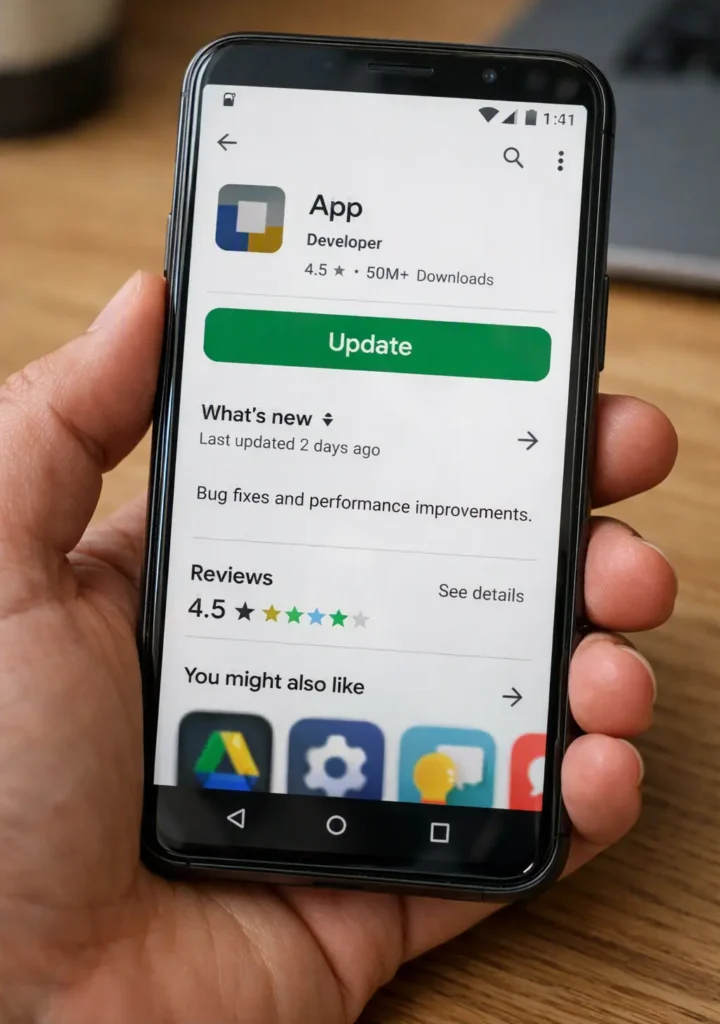
Update the app
- Open the Google Play Store.
- Search for the affected app.
- Open its page.
- Tap Update if one is available.
- Wait for the installation to finish.
- Test the app again.
You can also open your Play Store profile and check for pending app updates.
Check Android for another update
Go to your phone’s software-update section and check again.
On many devices, it is under:
Settings → System → Software update
The exact location varies by manufacturer.
A follow-up update may contain a compatibility or stability fix. Google also notes that update locations and schedules vary across device manufacturers and carriers.
Why both updates matter
Think of it as two sides of the same problem.
Android changes.
The app needs to understand those changes.
If either side is outdated, compatibility problems are more likely.
Google’s official troubleshooting guidance also recommends that when an Android app crashes or does not work properly, you should first check for phone and app updates and, if necessary, troubleshoot the app by force stopping it, clearing its cache or data, or reinstalling it. The Google Play Help official troubleshooting guide explains these steps in detail.
Fix 3: Check the Google Play System Update and Core App Updates
This is an easy step to miss.
Many people check the Android version and the app version but never look at the separate Google Play system update status.
Android provides a separate place to check this information, although the exact menu differs between devices.
Check Google Play system update
Depending on your phone, look under something similar to:
Settings → Security & privacy → System & updates → Google Play system update
On some devices, it may be found under:
Settings → About phone → Android version
If an update is available, install it and restart the phone.
Also check important Google apps
Open the Play Store and look for updates for Google apps and other system-related components that have pending updates.
You do not need to download random “repair” applications. Use the official update mechanisms already provided by Android and Google Play.
Why this step is different from a normal app update
The affected application and the Android operating system are only part of the environment.
Google Play system updates exist separately from the main Android version, so checking both gives you a more complete picture of the phone’s software state.
Fix 4: Clear the App Cache
After an update, old temporary files can sometimes interfere with an app’s startup. Clearing the cache is a simple way to test whether those files are contributing to the crash.
- Open Settings.
- Go to Apps and select the affected app.
- Open Storage or Storage & cache.
- Tap Clear cache.
- Reopen the app and test it again.
Clearing the cache normally does not remove your account or saved app data. If the app still crashes, move to the next check instead of repeating the same step.
Fix 5: Check Free Storage and App Compatibility
Before trying more complicated fixes, make sure your phone has enough free storage.
- Open Settings and check Storage.
- If storage is nearly full, remove unnecessary files or unused apps.
- Open the affected app’s Google Play Store listing and check whether an update is available.
- If the problem started after a major Android update, check whether the app supports your current Android version.
If the app crashes only when you use a particular feature, such as the camera or file upload, check the permission required for that feature.
If the app is already updated and still crashes, the latest version may contain a bug that requires a fix from its developer.
Fix 6: Use Safe Mode to Find Out Whether Another App Is Causing the Problem
This is one of the most useful diagnostic steps when multiple apps are crashing.
Safe Mode temporarily disables downloaded apps. If the crashing problem disappears in Safe Mode, a downloaded application is likely contributing to the problem. Google recommends this method for identifying apps that cause crashing, freezing, or other device problems.
How Safe Mode helps
Imagine that WhatsApp, Instagram, and another app are all crashing.
You could reinstall all three.
Or you could first ask a better question:
Does the phone remain stable when third-party apps are disabled?
If the answer is yes, you have narrowed the problem down significantly.
How to use Safe Mode
The exact method depends on the phone manufacturer, so the button combination can differ.
Once the phone is in Safe Mode, test the phone normally.
Open built-in apps and observe whether the crashing continues.
If the problem disappears, recently installed or updated third-party apps become the main suspects.
Start removing the most recently installed or updated apps one at a time, restarting normally after each removal, until you identify the one causing the problem. Google recommends this approach when Safe Mode makes the problem disappear.
Important limitation
Safe Mode is not a magic repair mode.
It is mainly a diagnostic tool.
Its value comes from answering one question:
Does the problem still happen when downloaded apps are disabled?
That answer can tell you whether to keep looking at third-party apps or move your attention back to Android itself.
If multiple apps are crashing, Safe Mode can be a useful diagnostic step because it temporarily disables downloaded apps. Google’s official Android guidance also recommends Safe Mode for identifying third-party apps, especially when there are phone-wide crashes or instability. The Android Help official troubleshooting guide explains Safe Mode, storage, updates, and further troubleshooting steps in detail.
Fix 7: Clear App Data or Reinstall the App
If the same app continues crashing after an update, clearing its data or reinstalling it may help when the problem involves damaged local files.
Option A: Clear app data
Go to Settings → Apps → select the affected app → Storage → Clear data or Clear storage.
This resets the app and may sign you out or remove locally stored information. Back up important app data first and make sure you know your login details.
Option B: Reinstall the app
If clearing the data does not help, uninstall the app and reinstall its latest version from the Google Play Store.
If it still crashes while other apps work normally, the latest release may contain a bug or may not fully support your Android version. Reinstalling cannot fix a bug that is still present in the same release.
A Special Case: What If a Built-In Google App Started Crashing After Its Own Update?
There is an important difference between a normal third-party app and a pre-installed system or Google app.
Some pre-installed apps cannot simply be treated like ordinary Play Store apps.
For certain Google or system apps, Android may provide an Uninstall updates option instead of allowing a complete uninstall. Android Authority notes this as a troubleshooting option for pre-installed apps, where available.
If you clearly know that a pre-installed app became unstable immediately after its own update, check the app’s information page for an available update rollback option.
Do not use this casually on unrelated system components.
The goal is to test whether the newly installed version is the source of the problem.
What If Only One App Keeps Crashing After the Update?
If other apps work normally but one app keeps crashing, focus on that app instead of troubleshooting the entire phone.
First, check whether another app update is available and whether the app supports your current Android version. Then try clearing its cache. If the problem continues, consider clearing its data or reinstalling it after protecting any important local information.
If the app still crashes after these steps, check the developer’s support information for known problems with the latest release.
What If Apps Started Crashing Immediately After the Update?
The timing of the crash is an important clue, but it does not prove that the update is the cause.
Check three things:
- Which update came first? Was it an Android system update or an update to the affected app?
- How many apps are affected? One app usually points toward an app-specific problem, while several unrelated apps may indicate a broader software issue.
- Is a follow-up update available? Check the Play Store and your phone’s software-update settings for a newer version that may address a known bug.
If the problem began immediately after an update, avoid repeatedly reinstalling the same app or resetting the entire phone without first checking compatibility and available software fixes.
What Not to Do After an Update-Related Crash
When an app starts crashing after an update, avoid making several major changes at once. Otherwise, it becomes difficult to identify which change helped.
Keep these precautions in mind:
- Do not assume the update is definitely responsible. Check app compatibility and available follow-up updates first.
- Try clearing the cache before clearing app data.
- Do not install random RAM cleaners or phone-repair apps to fix a software compatibility problem.
- Do not factory-reset the phone because one app keeps crashing.
- Before clearing important app data, reinstalling an app with local files, or considering a factory reset, protect any information that may not be backed up.
If several apps and Android system functions remain unstable after normal troubleshooting, back up your data and seek appropriate support before considering a factory reset.
When to Contact the App Developer or Phone Manufacturer
Contact the app developer if only one app continues crashing after you have checked for updates, confirmed compatibility, cleared the cache, and tried reinstalling it.
You can find the developer’s support details on the app’s Google Play Store listing. Include your phone model, Android version, app version, when the crashes started, and the troubleshooting steps you have already tried.
Contact your phone manufacturer if several unrelated apps keep crashing and the problem continues after checking system updates, storage, and Safe Mode. This is especially important if Settings or other built-in Android functions also become unstable.
How to Prevent Similar App Problems After Future Updates
You cannot prevent every software bug, but you can make post-update problems less likely and easier to recover from.
Keep apps updated
After a major Android update, check the Play Store for pending application updates.
Keep enough free storage
Do not wait until the phone is completely full.
Google specifically identifies very low free storage as a possible source of device problems.
Keep track of what changed
If you notice that five apps became unstable immediately after a system update, that timeline is valuable information.
Do not install five unrelated cleaner apps afterward and destroy the evidence.
Back up important information
This becomes especially important before major troubleshooting steps such as clearing important app data or performing a factory reset.
Install software from trusted sources
Google recommends using Play Protect and being cautious with apps from outside Google Play.
A phone that only uses trusted software is easier to troubleshoot than one filled with modified APKs and unknown utilities.
Final Conclusion
Android apps that start crashing after an update may be affected by an app-version bug, Android compatibility problems, outdated system components, or other software issues.
If only one app is affected, check its latest version and compatibility first. If several unrelated apps start crashing together, investigate Android updates, storage, and possible system-level or third-party app conflicts.
If the issue continues after basic troubleshooting, contact the app developer or phone manufacturer with your device and software details. Do not assume that a factory reset is necessary simply because the problem began after an update.