
Author Bio
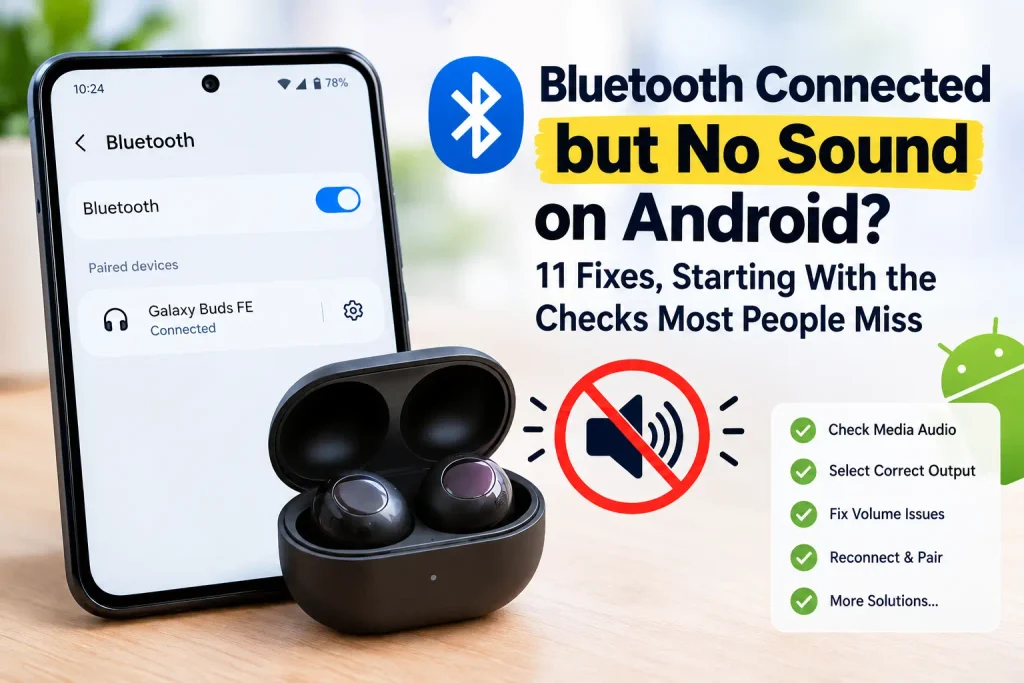
There is a particular kind of Bluetooth problem that is more frustrating than a device that simply refuses to connect.
Your earbuds say Connected.
Your speaker is paired.
The video is playing normally.
And yet… there is no sound.
Sometimes the sound stays on the phone speaker. Sometimes the Bluetooth device is completely silent. And one of the most confusing versions of this problem is when phone calls work perfectly, but YouTube, music, or videos have no audio.
That does not always mean your Bluetooth is broken.
Android can connect to a Bluetooth accessory while media audio is disabled, sent to a different output, or stuck in the wrong audio path. Google’s own troubleshooting guidance specifically recommends checking volume, other connected devices, and the Media audio setting when Bluetooth is connected but music cannot be heard.
So instead of jumping straight into a reset, it makes more sense to find out where the sound is actually going.
This guide starts with the fastest checks, then moves into deeper fixes only when they are needed.
Bluetooth Is Connected but There Is No Sound? Do This First
Before changing advanced settings, check these five things:
- Turn up the media volume on your phone.
- Check the volume on the Bluetooth earbuds, headphones, speaker, or car system.
- Open the Bluetooth settings for the connected device and make sure Media audio is enabled.
- Check the current media output and make sure your Bluetooth device is selected.
- Disconnect other Bluetooth devices you are not using.
Google specifically recommends checking both volume levels, other paired devices, and the Media audio option for Bluetooth music problems.
If the sound comes back after one of these checks, there is no reason to keep changing other settings.
If it does not, use the symptoms below to narrow the problem down.
A Quick Way to Understand What Is Actually Wrong
Not every “Bluetooth connected, no sound” problem has the same cause.
| What you are experiencing | What to check first |
|---|---|
| Calls work, but music does not | Media audio |
| Sound comes from phone speaker | Audio output selection |
| Only one Bluetooth device has no sound | Accessory or pairing issue |
| Every Bluetooth device is silent | Phone-side Bluetooth/audio issue |
| YouTube is silent but another app works | App-specific problem |
| Car calls work but music does not | Car Bluetooth audio support/input |
This is one of the most useful ways to troubleshoot the problem because it prevents you from treating every Bluetooth issue as if it were identical.
Bluetooth audio is just one of many Android problems that can have more than one possible cause. For help with other everyday phone issues, see our guide on Common Android Phone Problems and How to Fix Them.
For example, if your earbuds work perfectly during calls but not during music playback, the Bluetooth connection is clearly doing at least part of its job. Android supports different Bluetooth profiles for different functions, including A2DP for high-quality media streaming and HFP/HSP-related functions for headset communication.
That is why the calls work, music doesn’t symptom deserves special attention.
Why Does Bluetooth Connect but Have No Sound on Android?
The word Connected can be misleading.
It confirms that the phone and Bluetooth accessory have established a connection, but it does not automatically tell you that your current media playback is going to that accessory.
The sound can be affected by several things:
- Media audio may be disabled.
- Android may still be using the phone speaker.
- Another Bluetooth device may be handling playback.
- The Bluetooth audio session may be stuck.
- The accessory may have its own volume or connection problem.
- A software or firmware issue may be interfering with media playback.
Google’s current Android guidance also points users toward checking the media-audio setting and other paired devices rather than assuming the Bluetooth connection itself has completely failed.
For a broader Android-side troubleshooting checklist, Google also covers Bluetooth connection, volume, paired devices, Media audio, and pairing problems in its official Android Bluetooth troubleshooting guide.
7 Reasons Bluetooth Is Connected but No Sound Is Playing
1. Media Audio Is Turned Off
This is easy to miss because the device can still appear connected.
On many Android phones, Bluetooth settings include separate options for things such as calls and media. If Media audio is disabled, the phone may stay connected without sending music or video sound to the accessory.
2. The Wrong Audio Output Is Selected
Your Bluetooth earbuds can be connected while Android continues to use This phone or another available audio device for playback.
This is especially easy to miss if you regularly switch between earbuds, speakers, a car, a smartwatch, or other Bluetooth accessories.
3. One of the Volume Controls Is Too Low
The phone has its own media volume, but the Bluetooth accessory may also have a separate volume control.
So increasing the phone volume does not always solve the problem.
4. The Bluetooth Media Connection Has Stuck
The connection can look normal in Settings while the actual audio stream fails to start properly.
This is more likely to feel random because the device may have worked normally a few minutes earlier.
5. Another Device Is Receiving the Audio
If several Bluetooth devices are connected or recently active, Android may be using a different device than the one you are looking at.
Google specifically recommends checking other paired devices when Bluetooth music cannot be heard.
6. The Bluetooth Accessory Is the Real Problem
If your phone works with another Bluetooth speaker or pair of headphones, but one particular accessory remains silent, the accessory becomes a much stronger suspect.
7. A Software or Firmware Issue Is Affecting Bluetooth Audio
Your Android phone and Bluetooth accessory are separate systems, and both can receive software or firmware updates.
There are also current user reports of cases where toggling Media audio restored playback after Android updates, but community reports should be treated as individual reports rather than proof of a widespread Android bug.
How to Fix Bluetooth Connected but No Sound on Android
Start at the top and stop as soon as the sound returns.
Fix 1: Make Sure Media Volume Is Actually Up
Start here because it takes a few seconds.
Play a song or video and then press the volume-up button on your phone.
Make sure you are changing media volume, not ringtone or notification volume.
Then check the Bluetooth device itself.
If you are using:
- earbuds or headphones, use their buttons or touch controls;
- a Bluetooth speaker, turn up the speaker volume;
- a car, raise the car’s media volume.
On Pixel phones, the volume panel can also show the current connected audio device and related media controls.
If everything is already loud enough and there is still silence, move on.
Fix 2: Turn On Media Audio for Your Bluetooth Device
This is the first setting I would check when the device says Connected but music is silent.
On many Android phones, the path is similar to:
Settings → Connected devices → Bluetooth → Your device → Settings
Look for Media audio and make sure it is turned on.
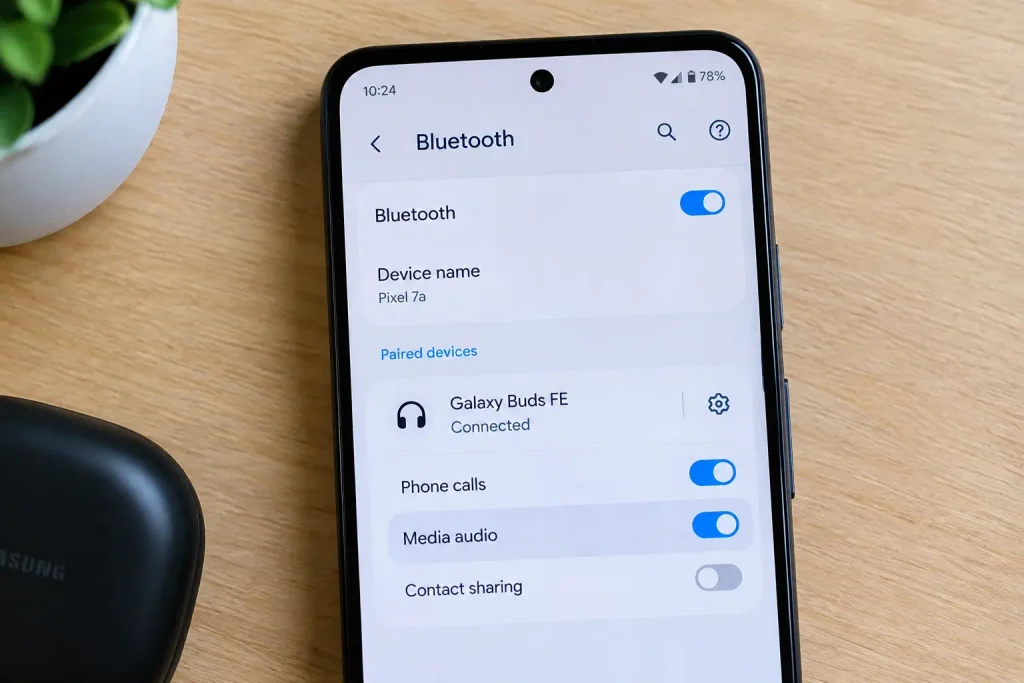
Depending on the phone brand and Android version, the wording or location may be slightly different.
Google’s current Android instructions specifically recommend checking this option for Bluetooth music problems.
One detail many users miss
Some phones show separate controls for phone calls and media.
So if:
Phone calls = working
Music/videos = silent
do not assume Bluetooth is completely broken.
Check the Media audio setting before doing anything more drastic.
Fix 3: Select the Bluetooth Device as the Current Audio Output
This is one of the most overlooked fixes.
Start playing something, then open your phone’s media controls.
Look for the current output device.
If it says something like This phone, Phone speaker, or another connected device, tap it and select your Bluetooth earbuds, headphones, or speaker.
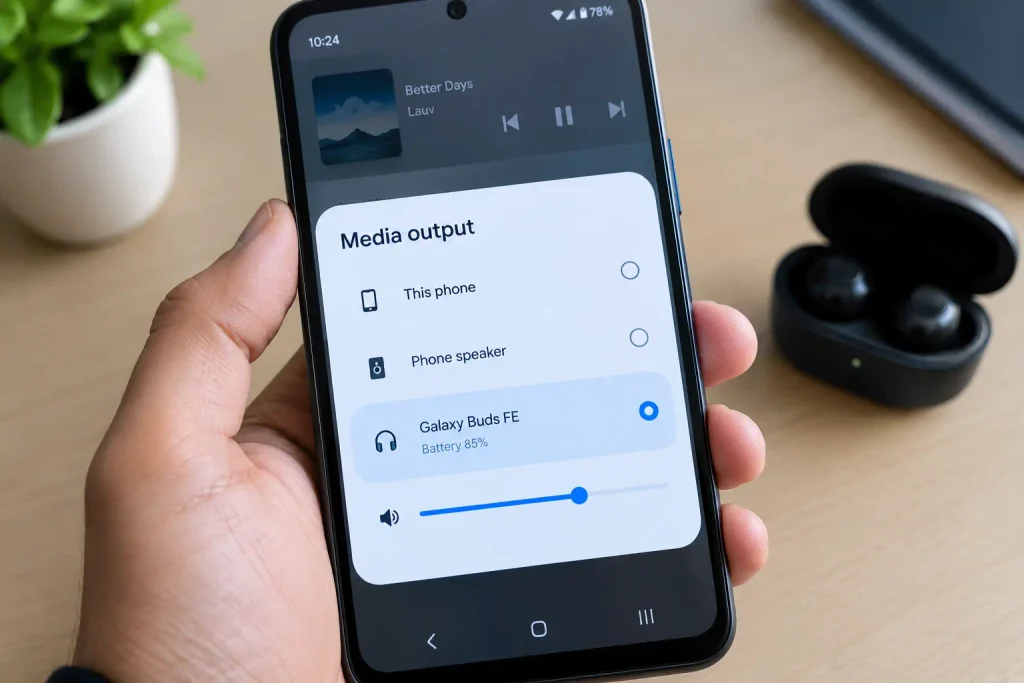
On Pixel phones, Google currently lets you change the destination from the media panel by tapping the name of the audio accessory.
This gives you an important clue:
If the sound immediately moves to your Bluetooth device after selecting it, your Bluetooth connection probably was not the main problem. Android was simply using the wrong output.
Fix 4: Disconnect Other Bluetooth Devices Temporarily
For this test, keep things simple.
Disconnect your:
- smartwatch,
- car system,
- second pair of earbuds,
- Bluetooth speaker,
- laptop,
- tablet,
- or any other Bluetooth audio device you are not using.
Then leave only the problem device connected.
Now play the same song or video again.
Google specifically advises checking whether another paired device is playing the music.
Why this test is useful
You are not just “cleaning up Bluetooth.”
You are removing extra possible audio destinations.
If the sound works after disconnecting the other devices, you have learned something useful about the problem instead of simply trying another random fix.
Fix 5: Disconnect and Reconnect the Bluetooth Device
Open Bluetooth settings and disconnect the accessory.
Wait a few seconds.
Then reconnect it and start playback again.
Do not rely only on a video that was already playing before the reconnect. Stop the media, reconnect the accessory, and then start playback again.
That gives Android a fresh audio session to work with.
If the problem comes back repeatedly, continue to the next step.
Fix 6: Restart Both the Phone and Bluetooth Device
A restart is more useful than it sounds because it clears temporary states that may not disappear after a simple disconnect.
Restart your Android phone.
Then restart the Bluetooth accessory as well.
For earbuds, placing them back in their charging case and closing it can be enough to force a fresh connection cycle. For speakers or car systems, use the normal power or restart procedure provided by the manufacturer.
After both devices restart, reconnect them and test two different sources.
For example:
YouTube → then another audio app
or
streaming audio → then a saved video on the phone
This matters because it helps separate a system-wide Bluetooth problem from an app-specific one.
Fix 7: Forget the Bluetooth Device and Pair It Again
If reconnecting does not help, rebuild the pairing from scratch.
Go to the Bluetooth settings for your accessory and choose Forget, Unpair, or the equivalent option.
Then:
- Put the Bluetooth accessory into pairing mode.
- Open Bluetooth settings on the phone.
- Search for nearby devices.
- Select the accessory.
- Complete the pairing process.
- Check Media audio again.
- Play a test video or song.
This removes the old pairing relationship and creates a new one.
One important point: after forgetting the device, you will have to pair it again.
Fix 8: Test the Same Bluetooth Device With Another Phone
This is where troubleshooting becomes much more useful.
Instead of changing another setting, change the device being tested.
Connect the same earbuds or speaker to another phone.
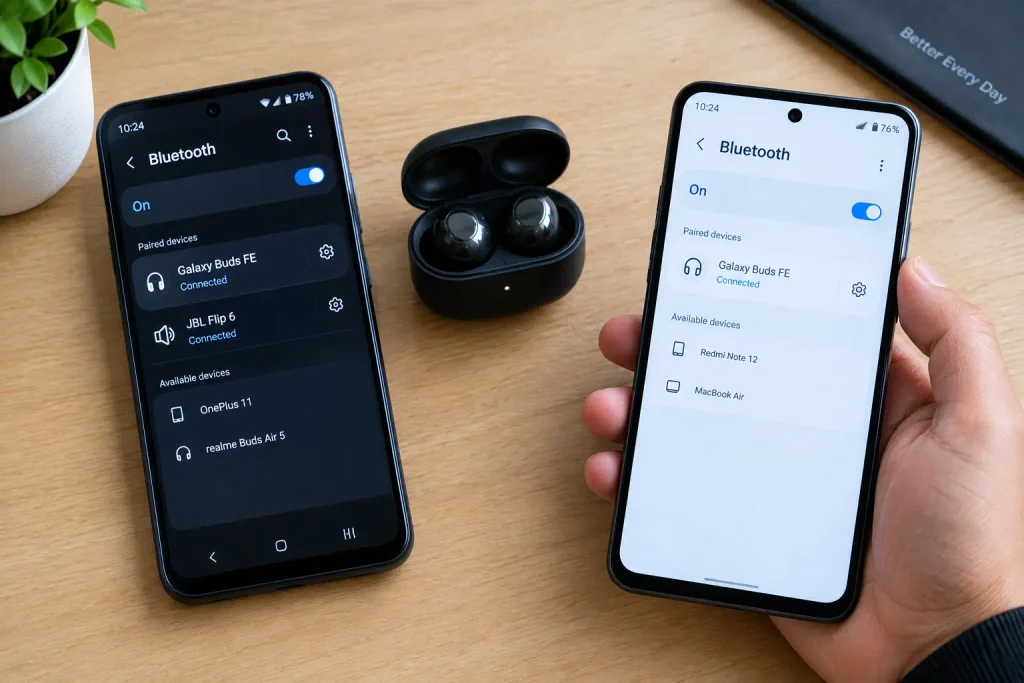
Then look at the result.
If it works on the other phone
The accessory is probably functioning, so focus on the Android phone where the problem occurs.
If it is also silent on the other phone
The accessory itself becomes the stronger suspect.
You can reverse the test as well.
Connect a different known-working Bluetooth speaker or pair of headphones to your Android phone.
Why this test is so valuable
It answers the most important diagnostic question:
Does the problem follow the phone, or does it follow the Bluetooth accessory?
That is much more useful than repeatedly switching Bluetooth off and on.
Fix 9: Check for Android and Bluetooth Accessory Updates
Check your phone for available system updates.
Also check whether the Bluetooth accessory has a companion app with a firmware-update option.
This can apply to:
- wireless earbuds,
- headphones,
- speakers,
- smart audio devices,
- and some car systems.
Google notes that software versions and Android system components can matter when diagnosing device behavior, while manufacturers may separately manage firmware for their own accessories.
Do not assume that a device being able to pair means its software is necessarily current.
Fix 10: Reset Wi-Fi, Mobile and Bluetooth Settings
Use this only after the simpler troubleshooting steps have failed.
On many Android phones, the option is found under something similar to:
Settings → System → Reset options → Reset Wi-Fi, mobile & Bluetooth
The exact menu can differ by manufacturer.
This is not the same as a factory reset.
It is intended to clear saved network and Bluetooth connection information rather than wipe the entire phone.
After using it, you may need to reconnect:
- Wi-Fi networks,
- Bluetooth accessories,
- and other saved connections.
Once the reset is complete, pair your Bluetooth device again and test the audio.
Fix 11: Check the Bluetooth Accessory, Range, and Physical Condition
At this point, it makes sense to look beyond phone settings.
Check whether:
- the accessory has enough battery;
- the device is within a reasonable Bluetooth range;
- one earbud works while the other is silent;
- the speaker openings are blocked by dirt;
- the accessory has been dropped;
- there is visible physical damage;
- or the device has been exposed to liquid.
Samsung’s current troubleshooting guidance also recommends checking Bluetooth range and the physical condition of the accessory when investigating sound problems.
If the accessory has the same problem when connected to another phone, stop blaming Android and investigate the accessory itself.
Bluetooth Connected but No Sound? Match the Fix to Your Symptom
Sometimes the fastest route is not “Fix 1, Fix 2, Fix 3.”
It is recognizing the exact symptom you have.
Calls Work but Music Does Not
This is one of the most important clues.
If calls work through your Bluetooth earbuds or car, but music and videos are silent, check Media audio first.
Android handles Bluetooth communication and media streaming through different profiles, so working calls do not automatically prove that the media-audio path is working.
That makes this symptom different from a total Bluetooth failure.
Sound Comes From the Phone Speaker Instead
Do not immediately forget the Bluetooth device.
First open the media controls and look at the selected output.
If the phone itself is selected, switch the output to your Bluetooth accessory. Pixel’s current instructions explicitly provide an output-selection control in the media panel.
If the Bluetooth connection is working but your phone speaker itself sounds unusually quiet, that is a separate issue worth checking. See our guide on Why Phone Speaker Sound Suddenly Became Low for the common causes and practical fixes.
Bluetooth Headphones Work in One App but Not Another
This is another useful clue.
Try another audio source.
For example, if YouTube is silent but a downloaded video plays normally through the earbuds, the Bluetooth connection may not be the real problem.
In that situation, focus on the specific app rather than resetting the entire Bluetooth system.
Bluetooth Speaker Is Connected but Silent
Check the speaker’s own volume before touching advanced Android settings.
Then:
- confirm the speaker is the selected output;
- disconnect other Bluetooth devices;
- reconnect the speaker;
- test it with another phone.
If the speaker fails the same test on another phone, the problem is probably not Android.
Car Bluetooth Works for Calls but Not Music
Cars deserve a separate check because Bluetooth support is not always identical across vehicles.
Google specifically notes that not all cars can play music over Bluetooth, even though Bluetooth calling may be supported. The vehicle’s manual is the best way to confirm what its Bluetooth system supports.
Also check the car’s active audio source.
Your phone can be connected for calls while the car is still using FM radio, USB, or another input for media.
Common Mistakes That Waste Time
Repeatedly Turning Bluetooth Off and On
It is worth trying once.
It is not a complete troubleshooting strategy.
If the device keeps reconnecting without sound, check the output and Media audio settings instead.
Checking Only the Phone Volume
The accessory may have its own volume control.
Always check both sides.
Assuming “Connected” Means “Ready for Media”
This is probably the biggest misunderstanding behind this particular problem.
A Bluetooth connection can exist while media playback is being routed somewhere else or the media function is disabled.
Resetting Everything Too Early
A factory reset is far too aggressive for a problem that may be caused by one audio setting.
Work through the simpler checks first.
Changing Developer Options Randomly
Advanced Bluetooth settings can be useful in very specific situations, but changing codecs or developer options without knowing exactly what they do can make troubleshooting less clear.
For a normal no-sound problem, stick to the standard Android Bluetooth and audio controls first.
How to Prevent Bluetooth Audio Problems on Android
You cannot prevent every Bluetooth glitch, but a few habits make these problems much easier to avoid and diagnose.
Keep Android and Accessories Updated
Install available system updates and check the companion app for your earbuds, headphones, or speaker.
Remove Old Bluetooth Devices You No Longer Use
You do not need to keep every accessory you have ever paired with the phone.
Removing old devices also makes troubleshooting easier because there are fewer possible connections to inspect.
Keep Your Main Audio Device Charged
A low battery can create strange accessory behavior that looks like a Bluetooth problem.
Keep an Eye on the Active Audio Output
When switching between earbuds, speakers, a car, and the phone speaker, quickly check which device Android is using for media.
That small habit can save a lot of troubleshooting time later.
When Testing, Use Only One Bluetooth Audio Device
If something goes wrong, disconnect the others temporarily.
It gives you a clean test instead of a situation with several possible audio destinations.
When Is It Time to Suspect Hardware?
There comes a point where changing settings stops being useful.
A hardware or accessory problem becomes more likely when:
- the same Bluetooth accessory has no sound on more than one phone;
- several known-working Bluetooth accessories fail on the same Android phone;
- one earbud consistently stops producing sound;
- the accessory has visible damage;
- the device has been exposed to liquid;
- or the issue continues after fresh pairing, updates, and Bluetooth/network reset steps.
Samsung also recommends checking the accessory’s physical condition and testing another Bluetooth device when troubleshooting persistent sound problems.
The cross-test is especially important.
If one speaker fails on every phone, look at the speaker.
If several working Bluetooth accessories fail on one phone, look at the phone.
That distinction can save you from replacing perfectly good hardware.
Frequently Asked Questions
Why is my Bluetooth connected but there is no sound on Android?
The device may be connected while Media audio is disabled or Android is using a different audio output. Check media volume, the Media audio setting, and the current playback destination first.
Why do my Bluetooth headphones connect but no music plays?
Check that Media audio is enabled for the headphones. Then verify that the headphones are selected as the current media output and disconnect other Bluetooth devices temporarily.
Why do Bluetooth calls work but music does not?
Calls and media can use different Bluetooth functions. If calls work but music is silent, the Media audio setting and media output are the first things to check.
How do I turn on Media audio on Android?
On many Android phones, open Settings → Connected devices → Bluetooth, select the connected accessory, and turn on Media audio. The exact wording may vary by phone and Android version.
Why is sound coming from my phone instead of Bluetooth headphones?
Android may still have the phone selected as the current media output. Open the media controls while something is playing and choose your Bluetooth headphones or speaker.
Why is my Bluetooth speaker connected but not playing sound?
Check both the phone and speaker volume, confirm that the speaker is the active output, and test the speaker with another phone. This helps separate a phone-side problem from an accessory problem.
Should I forget my Bluetooth device and pair it again?
Yes. If normal disconnecting and reconnecting do not help, forgetting the device and pairing it again can create a fresh connection. You will need to pair the accessory again afterward.
Can an Android update cause Bluetooth audio problems?
A software update can coincide with Bluetooth problems on individual devices, but a few user reports do not establish that a particular Android release has a widespread bug. Check for newer updates and work through the standard Bluetooth troubleshooting steps first.
What if no Bluetooth device produces sound on my Android phone?
Test a different known-working Bluetooth accessory. If several Bluetooth devices fail on the same phone, focus on the phone’s Bluetooth/audio settings, software updates, and reset options. If the problem continues, contact the phone manufacturer.
Does every car support music over Bluetooth?
No. Some cars support Bluetooth calling but not Bluetooth music playback. Check the vehicle manual and make sure the car’s audio source is set to Bluetooth when supported.
Final Thoughts
A Bluetooth device showing Connected can make this problem look more serious than it actually is.
But that single word does not tell you the whole story.
The more useful question is:
Is Android actually sending your media audio to the Bluetooth device?
That is why the best place to start is not a factory reset or a pile of advanced Bluetooth settings. Check the media volume, confirm Media audio is enabled, look at the active audio output, and temporarily remove other Bluetooth devices from the equation.
If calls work but music does not, pay particular attention to the media-audio path. If the sound stays on the phone speaker, check the output selection. And if one accessory fails while another works, test the accessory before assuming the phone is at fault.
A good Bluetooth troubleshooting process should not just give you a long list of things to try.
It should help you figure out which side of the connection is actually causing the problem.
Once you know that, the right fix is usually much easier to find.