
Author Bio
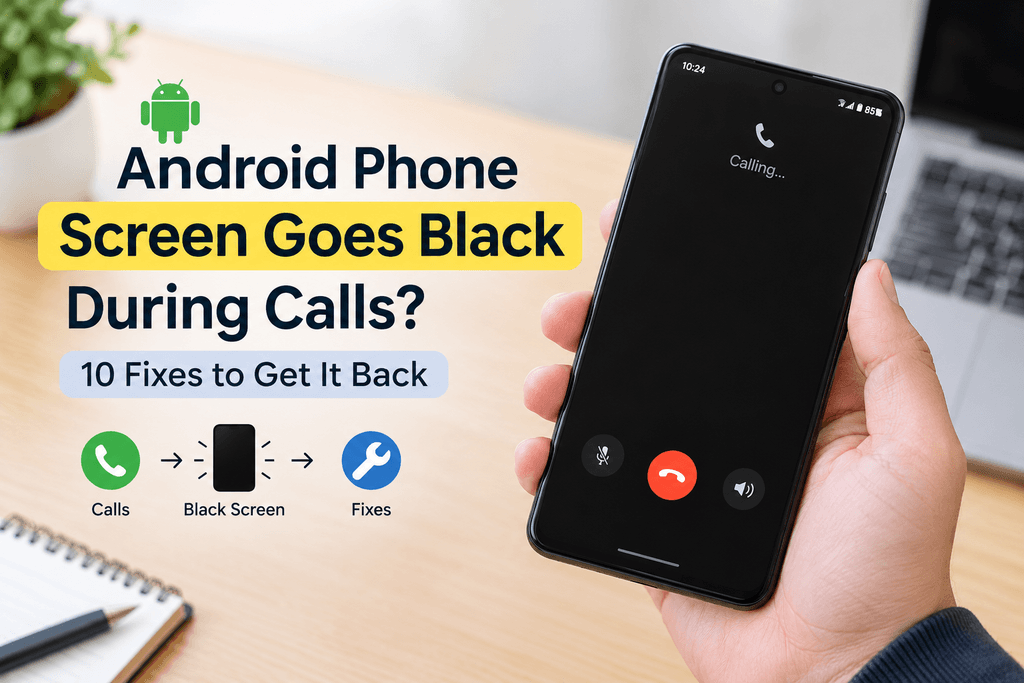
Your Android phone rings, you answer the call, and everything seems normal for a moment. Then the screen goes black.
You can still hear the other person, but you cannot see the call controls. You cannot easily switch to speaker, open the keypad, mute the call, or even find the button to end the call.
This problem is easy to misunderstand because a black screen during a phone call is actually normal in one situation: when the phone is close to your face. Android phones use proximity detection to turn the display off near your ear so your cheek does not accidentally press anything. The real problem is when the screen stays black after you move the phone away.
And there is another reason this issue can be frustrating: not every black call screen is caused by a broken proximity sensor.
A screen protector, phone case, dirt near the sensor, a Phone app glitch, a third-party app, or a software problem can produce very similar symptoms. Recent Google Pixel community reports even describe cases where the proximity sensor appeared to work correctly while the incoming-call interface was still mostly black.
So before assuming that your display or sensor has failed, it is worth identifying what kind of black-screen problem you actually have.
This guide walks through that process step by step.
Quick Answer
If your Android phone screen stays black during calls, first move the phone away from your face and press the Power button once. If the screen does not return, clean the area around the top sensor/earpiece and temporarily remove your case and screen protector.
Next, restart the phone and update Android and the Phone app. If the problem continues, clear the Phone app cache and test the phone in Safe Mode. If the screen works normally in Safe Mode, a downloaded app may be interfering with the calling experience.
If the problem remains after these checks, especially after a drop, liquid exposure, or screen replacement, investigate the proximity sensor or other hardware through your manufacturer’s diagnostic tools or an authorized service center.
First, Find Out What Kind of Problem You Have
Before trying ten different fixes, do these quick checks.
Test 1: Move the phone away from your face
Make a normal call and hold the phone near your ear. The display should normally turn off.
Now move the phone away.
If the screen comes back, the proximity system is probably doing what it should.
If it remains black, continue.
Test 2: Press the Power button once
During the call, press the Power button once.
If the display returns, the phone may be experiencing a wake-up or call-interface problem rather than a completely dead screen.
Test 3: Check the rest of the phone
After the call ends, open another app.
If YouTube, Settings, the home screen, and other parts of Android work normally, that is an important clue. A display that works everywhere except during phone calls points toward a call-related problem rather than automatically meaning the screen panel is damaged.
If your main problem is that the incoming call interface does not appear properly in the first place, see our guide on Android Phone Rings But Incoming Call Screen Is Not Showing for a related set of troubleshooting steps.
Test 4: Think about what changed recently
Ask yourself:
- Did I install a new screen protector?
- Did I change the phone case?
- Was the phone repaired recently?
- Did the problem start after an Android or app update?
- Did I install a call-recording, screen-filter, or customization app?
The answer can save you a lot of unnecessary troubleshooting.
Why Does an Android Phone Screen Go Black During Calls?
The main reason is the proximity-sensing system.
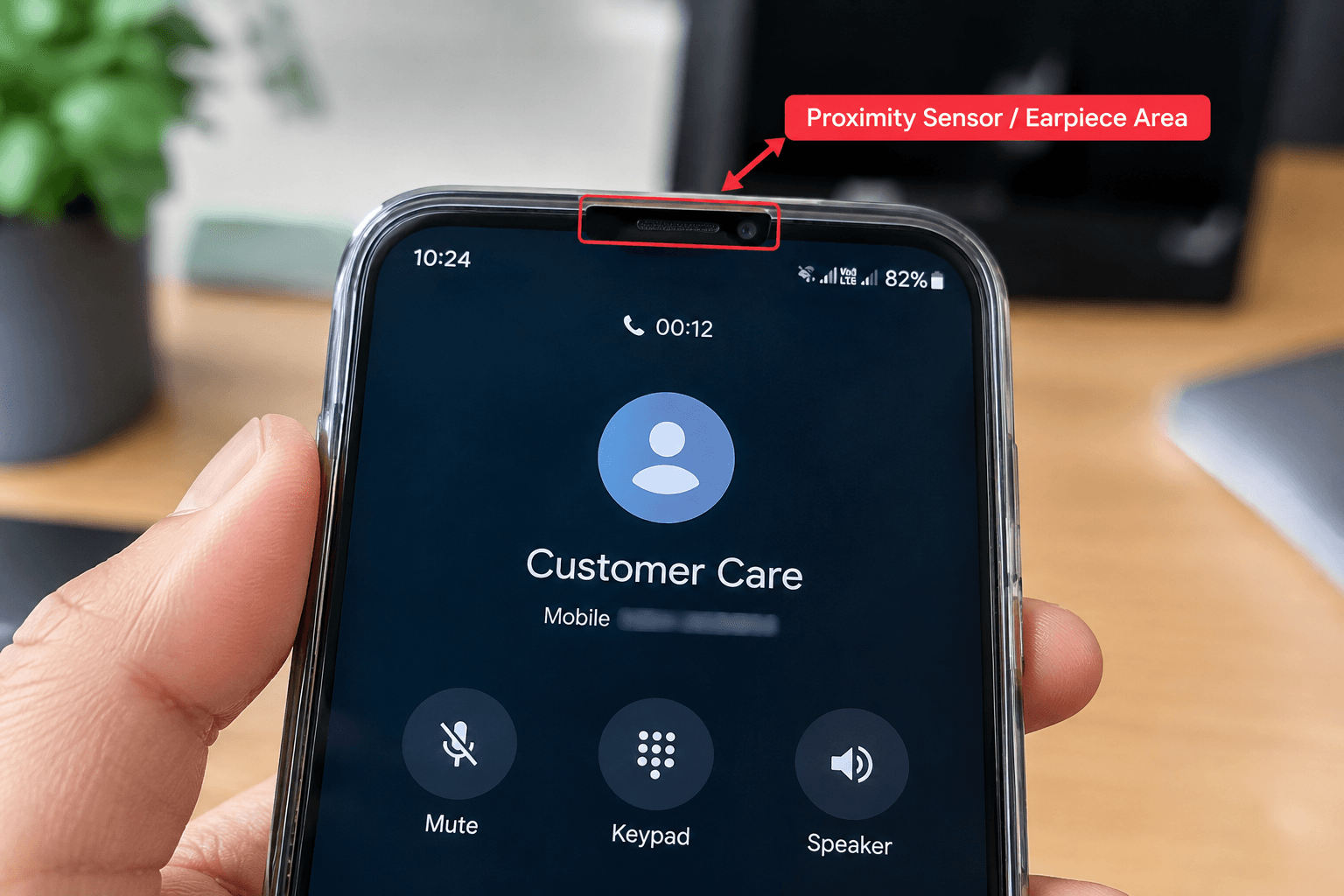
During a traditional phone call, the phone detects when the device is close to your face and turns the display off. This prevents accidental touches while the phone is against your cheek and also avoids keeping the display unnecessarily active. Xiaomi’s documentation describes this behavior and notes that the screen should automatically light up again after the phone is moved away from the face.
The important part is that Android phones do not all use exactly the same proximity hardware or sensing method.
Some phones use a conventional proximity sensor near the top of the phone, while certain newer models use other approaches for distance detection. Xiaomi, for example, documents devices that use a virtual distance-sensing method involving the touch screen and other phone sensors.
That is why a fix that works on one Android model may not exist on another.
The exact way proximity detection behaves can vary between phone brands and models, so it is also worth checking the manufacturer’s troubleshooting guidance for your device. Samsung’s guide to fixing screen problems during calls explains what to check when the display does not turn on or off normally during a call, including accessories, cleaning, and software-related checks.
7 Possible Reasons Your Android Phone Screen Stays Black During Calls
1. The Proximity Sensor Thinks Your Face Is Still There
This is one of the first things to investigate.
If something is blocking or confusing the sensor, the phone may continue behaving as though it is next to your ear.
Dirt, fingerprints, facial oil, or an obstruction around the sensor can contribute to incorrect detection. Xiaomi recommends cleaning the area around the proximity sensor when the screen remains black during calls.
Typical sign: the display goes black as soon as the call starts and does not wake when you move the phone away.
2. Your Screen Protector Is Interfering With Proximity Detection
A screen protector can look completely harmless while causing a very specific call problem.
This is particularly worth checking if the issue appeared soon after installing new tempered glass or film.
Some protectors can cover the sensing area or interfere with the phone’s ability to detect your face correctly. Xiaomi specifically recommends removing unofficial films or tempered glass when they interfere with proximity sensing.
This is why temporarily removing the protector is a much better test than immediately replacing the phone’s sensor.
3. The Case or Dirt Around the Top of the Phone Is Causing the Problem
A thick or poorly fitted case can cover the sensor area or sit very close to it.
Dust and smudges around the earpiece and upper display can also interfere with sensing.
In some models, even unusual physical conditions around the top of the phone can affect proximity detection. Xiaomi has documented model-specific cases involving hair, accessories, and how quickly the phone is brought toward the face.
So don’t assume the sensor itself is damaged until you’ve tested the phone without external obstructions.
4. The Phone App Has a Glitch
This is an important possibility because the call interface can fail even when the rest of Android works normally.
A recent Google Pixel community report described an incoming call where the display was black except for a small portion of the interface, while the user reported that the proximity sensor tested fine. Another Google Phone app report described the caller information and answer/decline controls disappearing while parts of the interface remained usable.
That means “black during calls” does not automatically equal “broken proximity sensor.”
5. A Recent Android or Phone App Change Is Causing a Software Problem
Sometimes the timing of the problem gives you an important clue.
If the black screen started immediately after an Android update or Phone app update, check for newer updates before doing anything drastic.
There have been community reports of call-interface problems appearing around Phone app or system changes. These reports do not prove that an update is the cause on every device, but they do show why software troubleshooting belongs in the process.
6. A Third-Party App Is Interfering With Calls
Some downloaded apps can interfere with Android’s normal behavior.
This is particularly worth considering if you recently installed an app that:
- records calls,
- places overlays on the screen,
- changes screen colors,
- adds gesture controls,
- modifies accessibility behavior,
- or heavily customizes the phone interface.
Google recommends using Safe Mode to determine whether a downloaded app is responsible for certain Android problems. If the issue disappears in Safe Mode, an installed app becomes a strong suspect.
7. There Is a Proximity Sensor, Display, or Other Hardware Problem
Hardware becomes more likely when simple external and software checks do not change anything.
Pay particular attention if the problem started after:
- a drop,
- water or liquid exposure,
- a screen replacement,
- another repair,
- or visible physical damage.
A damaged sensor or misaligned display assembly will not be repaired by clearing an app cache or installing another update.
10 Ways to Fix an Android Phone Screen That Stays Black During Calls
Fix 1: Move the Phone Away From Your Face
Start here because it immediately tells you whether the normal proximity behavior is involved.
Make or answer a call and move the phone away from your face.
Keep the upper portion of the phone uncovered and wait for the screen to respond.
If nothing happens, press the Power button once.
If the display returns, make a few more calls to see whether the behavior repeats.
Fix 2: Clean the Area Around the Sensor
Turn off the screen and gently wipe the upper part of the phone with a clean, dry microfiber cloth.
For this step, you only need a soft, lint-free cloth rather than a harsh cleaner or abrasive material. A soft microfiber cloth for cleaning phone screens can be useful for removing fingerprints and smudges from the sensor area before you test another call.
Focus on the area around:
- the earpiece,
- front-facing sensors,
- and the top edge of the display.
Do not push pins or other sharp objects into the earpiece, and do not pour liquid onto the phone.
Xiaomi specifically recommends wiping around the proximity-sensor area to reduce interference from facial oil and dirt.
After cleaning, make another test call.
Fix 3: Test the Phone Without the Case or Screen Protector
This is one of the most useful tests because it eliminates two external variables at once.
First remove the case and make a call.
If the screen is still black, temporarily remove the screen protector and test again.
If the problem disappears, do not assume that the phone itself is faulty. The protector may be badly aligned or simply incompatible with the phone’s sensing system.
Xiaomi recommends removing protective film or tempered glass when it interferes with proximity detection.
Fix 4: Restart the Phone
Restart the device normally and then make another call.
A restart is especially worth trying when:
- the issue appeared suddenly,
- the Phone app has become slow,
- the problem is intermittent,
- or the problem started after using several apps.
It is a simple step, but it can separate a temporary software glitch from a problem that consistently survives a fresh reboot.
Fix 5: Update Android and the Phone App
Check for system updates through your phone’s Settings app.
The menu may look like:
Settings → System → Software Update
On Samsung, Xiaomi, OnePlus, Motorola, Pixel, and other devices, the wording can differ.
Then open the Play Store and check for updates to the Phone app and other pending applications.
Google’s Phone app help recommends using the latest Phone app version for supported calling features.
If the problem appeared recently, this step is particularly important.
Fix 6: Clear the Phone App Cache
Temporary app data can occasionally cause unexpected behavior.
On many Android phones, the path is similar to:
Settings → Apps → Phone → Storage & cache → Clear cache
The exact wording will depend on your device.
Start with Clear cache.
Do not jump straight to Clear storage or Clear data, because those options are more disruptive and may reset app-specific information or preferences.
After clearing the cache, restart the phone and test another call.
Fix 7: Force Stop the Phone App
If the Phone app seems stuck, you can also try forcing it to close.
Go to:
Settings → Apps → Phone → Force stop
Then reopen the Phone app and make another call.
Android’s troubleshooting guidance includes force stopping problematic apps as part of general app troubleshooting, although the exact menu can vary between phones.
This is particularly useful when the call screen becomes unresponsive rather than the entire phone becoming unusable.
Fix 8: Test the Phone in Safe Mode
This is one of the most valuable diagnostic steps in the entire process.
Safe Mode temporarily disables downloaded apps. Google recommends it as a way to determine whether an installed app is causing problems.
The exact method for entering Safe Mode differs between manufacturers, so use the instructions for your particular phone.
Once Safe Mode is active, make several test calls.
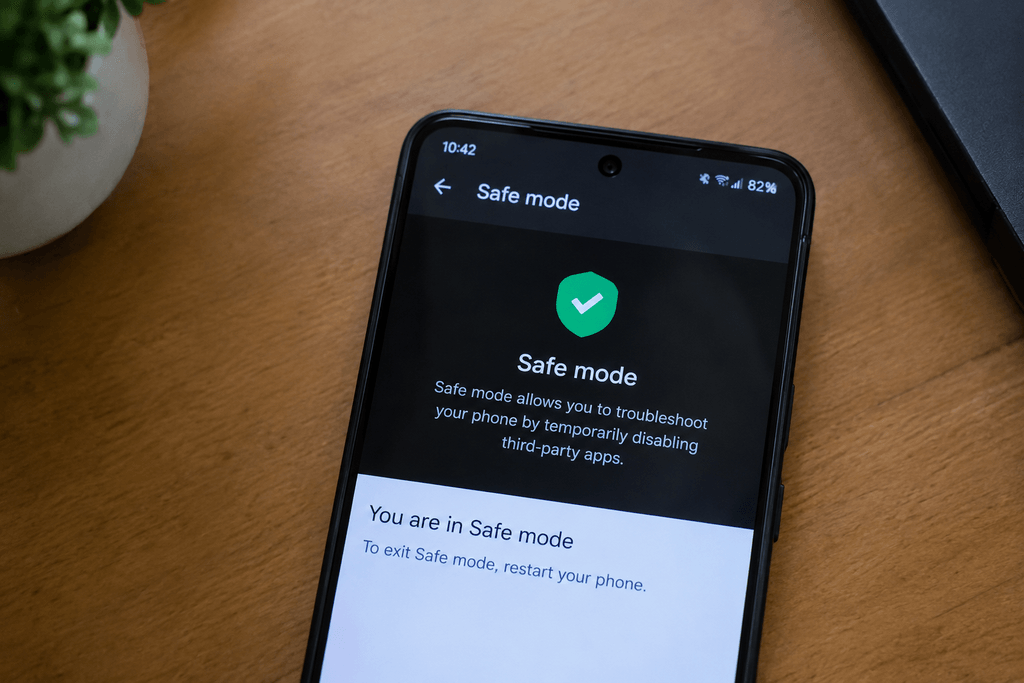
If the screen works normally in Safe Mode
A downloaded app is now a strong suspect.
Start with recently installed or updated apps, especially anything related to:
- calls,
- recording,
- screen overlays,
- accessibility,
- gestures,
- display filters,
- or customization.
Remove likely suspects one at a time rather than uninstalling everything at once.
If the screen is still black in Safe Mode
A downloaded app becomes less likely.
That points you back toward the sensor, Phone app, Android system, or hardware.
Fix 9: Check Whether the Problem Is Only With the Phone App
This is a useful test that is often skipped.
Ask yourself whether:
Regular phone calls → black screen
while
Other calling features/apps → behave normally
The result does not prove the Phone app is faulty, but it can help narrow the problem.
There are Google community reports where users experienced a black or incomplete Phone app interface even though the rest of the device remained usable.
Treat another calling app as a comparison tool rather than a permanent solution.
Fix 10: Run a Proximity Sensor or Hardware Diagnostic Test
Some manufacturers provide built-in hardware diagnostics.
For example, Xiaomi documents a hardware-detection mode that can test the proximity sensor and, on supported devices, perform calibration.
Do not assume that a Xiaomi diagnostic code will work on Samsung, Pixel, Motorola, OnePlus, or another Android brand.
Instead, search your manufacturer’s official support documentation for:
proximity sensor test + your phone model
or
hardware diagnostics + your phone model
This is a better approach because it keeps the test specific to your device.
What the Results Tell You
This is where troubleshooting becomes much easier.
| What you notice | What it may point toward |
|---|---|
| Screen turns black near your face and comes back when moved away | Normal proximity behavior |
| Screen stays black until you remove the protector | Protector/sensor interference |
| Screen works after removing the case | Case obstruction |
| Restart temporarily fixes it | Software or app glitch |
| Problem disappears in Safe Mode | Third-party app likely involved |
| Other apps work but Phone app stays black | Phone app/system issue becomes more likely |
| Problem started after screen replacement | Possible sensor/display alignment or hardware issue |
| Hardware diagnostic reports a sensor problem | Hardware inspection may be needed |
This table is not a diagnosis by itself. It is simply a way to decide what to investigate next.
Should You Factory Reset Your Android Phone?
A factory reset should be near the end of your troubleshooting process, not the beginning.
It can help with serious software problems, but it cannot physically repair a damaged proximity sensor or display component.
Before considering a reset, back up important information such as photos, contacts, messages, documents, and other data you cannot afford to lose.
Google warns that a factory data reset removes the data stored on the phone, so backup should happen before the reset.
If the problem started after physical damage, a factory reset should not be your first reaction.
Common Mistakes Users Make
Assuming Every Black Call Screen Means a Broken Display
If the phone works normally everywhere else, there may be no reason to immediately blame the display panel.
Blaming the Proximity Sensor Without Testing It
The sensor is an important suspect, but the Phone app and third-party apps can create similar symptoms.
Ignoring the Screen Protector
A newly installed protector is one of the easiest things to test, so don’t overlook it.
Using Sharp Objects to Clean the Sensor
Aggressive cleaning can create a bigger problem. Use a soft, dry cloth instead.
Clearing Everything Instead of Starting With Cache
Clearing app storage is more disruptive than clearing temporary cache files. Start with the least destructive option.
Factory Resetting Too Soon
A reset takes much more effort and may erase personal data. Basic tests should come first.
Following a Fix Made for a Different Phone Brand
Android is not completely identical across manufacturers. Sensor hardware, Phone apps, settings, and diagnostic menus can vary significantly.
How to Prevent the Problem From Coming Back
Keep the area around the top of the phone clean, especially around the earpiece and sensor area.
When applying a new screen protector, make sure it is correctly aligned and does not cover the phone’s sensing area.
Use a case that fits properly instead of one that presses against or covers the upper part of the display.
Keep Android and important system apps updated, and pay attention to apps that were installed shortly before a problem began.
It is also useful to remember what changed immediately before the issue started. A new protector, case, app, system update, or screen repair can provide a much stronger clue than simply knowing that the problem exists.
Frequently Asked Questions
Why does my Android phone screen go black during calls?
The screen normally turns off when the phone detects that it is close to your face. This prevents accidental touches during a call. The problem is when it remains black after you move the phone away.
Why won’t my screen turn back on after I move the phone away from my face?
The proximity-sensing system may still think the phone is close to your face. Clean the top sensor area, remove the case and screen protector temporarily, and restart the phone.
Can a screen protector make the screen stay black during calls?
Yes. On some devices, an unsuitable or poorly aligned screen protector can interfere with proximity detection. Temporarily removing it is a simple way to test the theory.
Can a phone case block the proximity sensor?
Yes. A case that sits over the sensor area can interfere with detection. Remove the case and make a test call before assuming that the sensor is damaged.
Why is my call connected but the call screen is black?
That can happen when proximity detection incorrectly keeps the display off, but it can also point toward a Phone app or software problem. Community reports show that black or incomplete call interfaces can occur even when the rest of the phone continues working.
How can I test the proximity sensor?
Start with a simple call test: hold the phone near your face and then move it away to see how the display responds. Some manufacturers also provide hardware diagnostics for their devices. Xiaomi, for example, documents a proximity-sensor test for supported models.
Can a third-party app cause the screen to go black during calls?
It is possible. Google recommends Safe Mode as a way to determine whether downloaded apps are causing Android problems. If the issue disappears in Safe Mode, recently installed or updated apps deserve attention.
Should I disable the proximity sensor?
There is no universal Android setting that lets you simply disable it during calls. The Google Phone app community has specifically reported that the Phone app does not provide a general option to disable the proximity sensor. Device-specific behavior can vary by manufacturer.
Why does my phone work normally except during calls?
That pattern is useful. If the screen and other apps work normally, the problem may be specific to proximity detection, the Phone app, or software associated with calling rather than a complete display failure.
Will a factory reset fix a black screen during calls?
It may help with a serious software problem, but it cannot repair damaged hardware. A factory reset should be considered only after simpler troubleshooting has failed, and your data should be backed up first.
When should I take my phone for repair?
Consider professional inspection when the problem continues after removing the case and screen protector, restarting the phone, updating software, testing Safe Mode, and checking available diagnostics. It is especially important after a drop, liquid exposure, or screen replacement.
Final Conclusion
An Android phone screen staying black during a call can look like a serious display failure, but that is not always what is happening.
The first thing to check is the phone’s proximity behavior. Move the phone away from your face, clean the sensor area, and test it without the case or screen protector. These simple checks can eliminate several common causes without changing anything important on the phone.
If the problem remains, move deeper into software troubleshooting. Restart the phone, update Android and the Phone app, clear the Phone app cache, and use Safe Mode to check whether another app is interfering.
The most useful clue is often how the problem behaves. A phone that works normally outside calls is telling you something different from a phone whose entire display is failing. Likewise, a problem that starts immediately after a new screen protector or repair deserves a different approach from one that appears after a software update.
And that is why you should not jump straight to a factory reset or repair shop.
Work through the problem in order, identify which test changes the behavior, and use that result to decide what to investigate next. In many cases, that makes a confusing black screen during calls much easier to understand—and much easier to fix.