
Author Bio
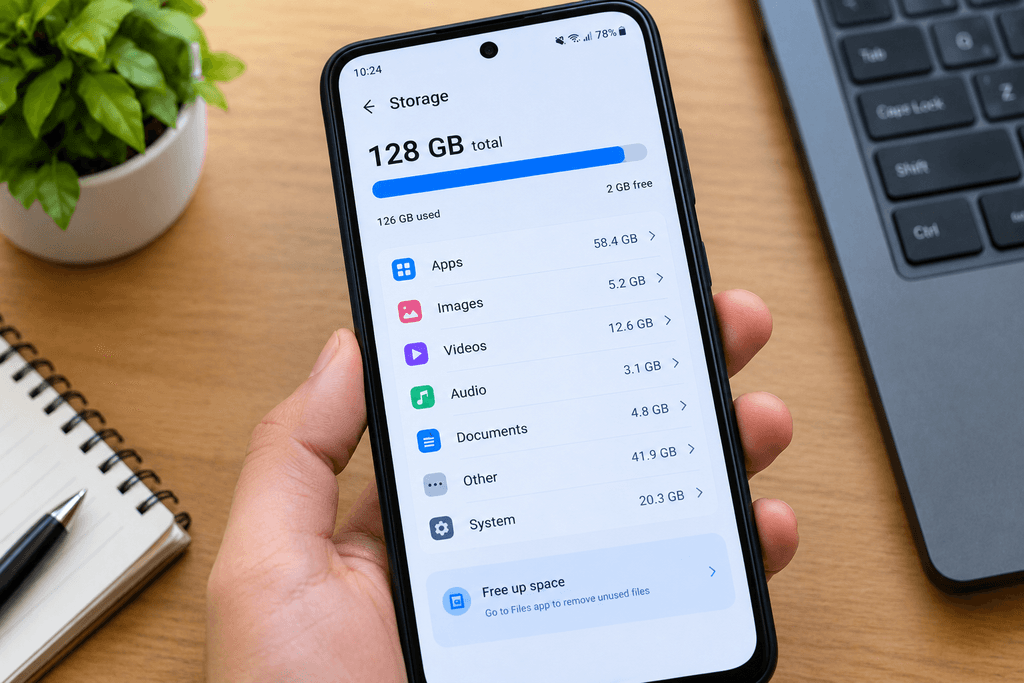
A phone can have an almost empty Gallery and still show storage full. That is what makes this problem so confusing.
While researching this issue, one thing stood out to me: people often delete photos, remove a few apps, check the File Manager, and still can’t explain where all the storage has gone. The problem isn’t always a visible file sitting somewhere waiting to be deleted.
Android can use storage for app data, cached files, downloads, offline content, deleted items, and system-related data. In some cases, the storage reading itself may also need troubleshooting.
So instead of telling you to start deleting random folders, this guide takes a more useful approach: first find what is using the space, then clean the right thing.
Quick Answer
If your Android phone says storage is full but nothing is there, go to Settings → Storage and check which category is using the most space. Then inspect large apps, downloads, offline content, trash, and cached data.
If the storage numbers still don’t make sense after cleaning those areas, restart the phone, install pending updates, check any SD card, and look for an app or software issue.
The exact Storage menu can vary by manufacturer and Android version, but Google’s current Android guidance starts with checking storage usage from Settings → Storage before freeing up space.
Why Does Android Say Storage Is Full When Nothing Is There?
The first thing to understand is simple:
The files you can see are not the same thing as all the storage your phone is using.
Your Gallery mainly shows photos and videos. Your File Manager may show documents and folders you can access. But apps and Android itself can also store data that doesn’t appear in those places.
For example, a messaging app may have downloaded hundreds of videos. A streaming app may keep offline content. An app may have accumulated temporary data. Deleted photos may still be sitting in a trash folder.
That’s why a phone can look surprisingly empty while its internal storage is almost full.
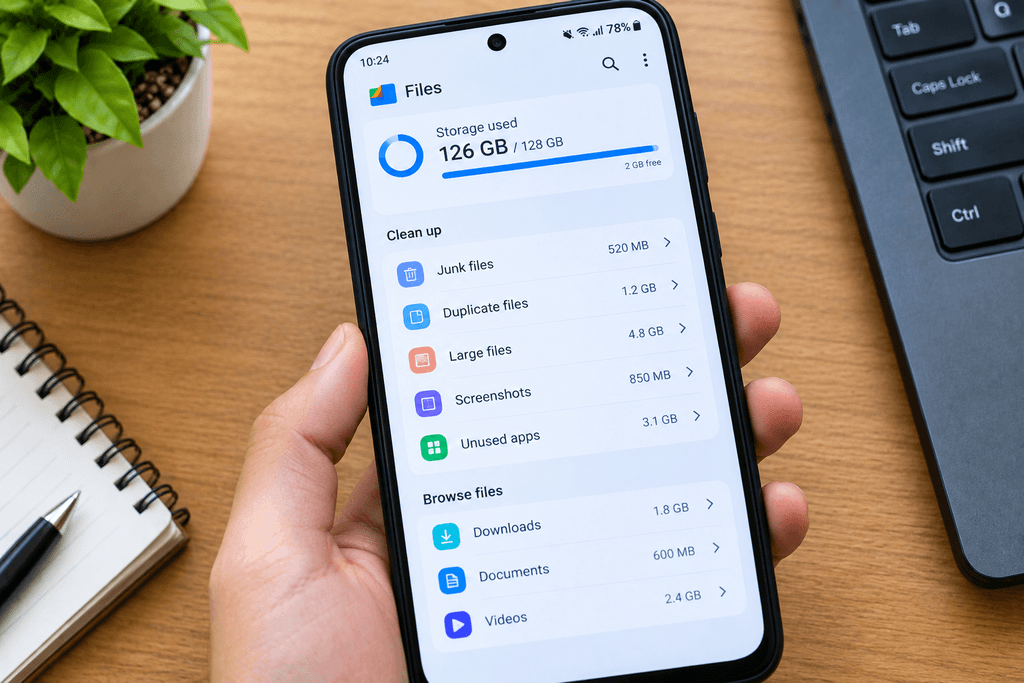
Before trying any cleanup method, open:
Settings → Storage
Then look at the categories shown there. Google recommends using this storage breakdown to identify what’s consuming space, while noting that the exact steps and options can vary by device.
A simple way to think about the problem
Imagine your phone has 128 GB of storage.
You may see only 10 GB of photos and videos. But another 30 GB could be sitting in apps, 15 GB in downloads or offline content, 10 GB in other data, and additional space being used by the Android system.
Your Gallery may look empty.
Your phone still isn’t empty.
That difference is usually where this problem begins.
7 Possible Reasons Your Android Storage Is Full But Nothing Is There
1. Apps Are Using Much More Storage Than You Realize
An app’s basic installation size isn’t necessarily the amount of space it will use forever.
Apps can store:
- Downloaded media
- Offline content
- Databases
- Temporary files
- User-created files
- Other app data
This can become especially noticeable with messaging, social media, video, music, and browser apps.
For example, an app might have started at 500 MB but gradually accumulated several gigabytes of local data.
That’s why checking only how many apps you have installed isn’t enough. You need to look at which apps are actually consuming storage.
Go to:
Settings → Apps → See all apps
Then check the storage usage of the largest apps.
Don’t delete anything yet. At this stage, you’re only trying to identify the source.
2. Cached and Temporary Files Have Accumulated
Apps frequently create temporary files while you use them.
These files can help apps load content faster, but they can also build up over time. Files by Google, for example, has tools for finding junk files and other unnecessary data that can be reviewed and removed.
The important part is that cached data isn’t always something you’ll notice while browsing your normal folders.
So you might not see a huge folder in your File Manager even though temporary app data is contributing to your storage usage.
3. Downloads and Offline Content Are Taking Up Space
This is one of the easiest things to overlook.
Your phone may have large files stored outside your main Gallery, including:
- Browser downloads
- Downloaded videos
- Offline music
- Saved documents
- Screen recordings
- Messaging media
- Offline maps
- Content saved by other apps
Google’s Android storage guidance specifically recommends reviewing downloaded files and removing downloads you no longer need.
A few large videos can consume more storage than hundreds of small photos, so don’t judge the problem by the number of files alone.
4. Deleted Files May Still Be in Trash
There is another reason deleted files can seem to have disappeared without actually freeing all the expected space.
Some apps keep deleted items in a Trash, Bin, or Recently Deleted section for a period of time.
Google Photos, for example, keeps deleted photos and videos in the trash for 30 days before permanent deletion under its current policy.
Other gallery and file-management apps can have their own deleted-items folders.
So if you recently removed a lot of media but storage barely changed, check the relevant trash folders before assuming Android has failed to remove the files.
5. System or “Other” Storage Is Larger Than Expected
Some of your phone’s storage belongs to Android itself and to data managed by the operating system and apps.
Depending on the device, you may see categories called:
- System
- Other
- System files
- Other apps
- Similar manufacturer-specific categories
The exact way Android reports these categories can differ across devices and Android versions.
One important point here is that “Other” does not automatically mean useless junk.
Some of that storage may be required for the system or apps to work correctly. That’s why randomly deleting unfamiliar folders isn’t a good solution.
Instead, look for the parts of the storage breakdown that you can safely identify and manage.
6. A Software Problem Is Making the Storage Reading Look Wrong
Sometimes the number shown by the phone doesn’t seem to match what you can actually find.
For example, you might delete several gigabytes of files and see little or no change in the available storage. Or the phone may suddenly report that it is nearly full even though nothing major has changed.
A software issue, incomplete operation, app problem, or unusual storage behavior can sometimes be involved.
This is why restarting the phone and installing pending updates is worth doing before moving into more serious troubleshooting. Google’s Android troubleshooting guidance recommends checking for system and app updates as part of troubleshooting device problems.
7. An SD Card or Storage Problem Is Causing Unusual Behavior
If your Android phone has a microSD card, include it in your troubleshooting.
A problem with removable storage can cause unusual file behavior, especially when files become unreadable, disappear, or fail to save correctly.
This is not the first thing you should suspect. Start with the normal storage breakdown, apps, downloads, and temporary data.
But if the phone continues behaving strangely and you use an SD card, it deserves a closer look.
Before You Delete Anything, Check This
There is one Android setting that causes unnecessary trouble during storage cleanup:
Clear storage is not the same as Clear cache.
For an app, you may see options such as:
- Clear cache — removes temporary data.
- Clear storage — permanently deletes the app’s stored data.
Google specifically distinguishes the two and warns that clearing an app’s storage permanently deletes its app data.
So don’t open every large app and start pressing Clear storage.
You could recover space, but you may also remove locally stored information that you actually wanted to keep.
How to Fix “Android Phone Says Storage Full But Nothing Is There”
Fix 1: Start With the Storage Breakdown
Don’t begin by deleting random files.
First, check exactly what Android thinks is using your storage.
Go to:
Settings → Storage
Then:
- Check the amount of used and available space.
- Look at the largest storage categories.
- Open any category that gives you more details.
- Identify which area seems unusually large.
- Use that information to decide what to clean next.
For example, if Apps is using most of your storage, searching through your photo folders probably won’t solve the problem.
For a clearer overview of Android’s built-in storage tools, you can also check Google’s guide to freeing up storage on Android, which explains how to check storage usage and manage files, apps, and other data from your phone.
If Downloads is unusually large, you know where to look.
If the numbers don’t seem to make sense at all, that points toward a different type of troubleshooting.
This one step can save you from doing unnecessary cleanup.
Fix 2: Remove Large Downloads and Offline Content
Once you’ve identified downloads as a likely source, inspect them carefully.
Start with:
File Manager → Downloads
Then check apps that allow offline downloads.
Look for:
- Old videos
- Large documents
- Downloaded movies
- Offline music
- Old installers
- Screen recordings
- Files you downloaded once and forgot about
You don’t have to delete everything.
Remove only the files you no longer need.
Google also recommends copying important files to a computer before deleting them when necessary.
If a file is important but you rarely need it on the phone, moving it to a computer or another storage location can be a better option than deleting it permanently.
If your phone supports USB-C and OTG, a small flash drive can also be useful for moving large photos, videos, and documents off the phone without deleting them permanently. A USB-C flash drive for Android phones such as the SanDisk Ultra Dual Drive Go can make this process more convenient when you need to free up space quickly.
Fix 3: Clear Cache From Apps That Are Actually Large
If the Storage section points toward apps, check which ones are consuming the most space.
A typical path is:
Settings → Apps → [App Name] → Storage or Storage & cache → Clear cache
The exact menu can vary by manufacturer.
You don’t need to clear the cache of every app.
Focus on apps with unusually high storage usage, especially ones that handle large amounts of online content.
Clearing cache removes temporary data. Google notes that an app may take slightly longer to load the next time because some temporary information has to be created again.
And again, don’t confuse Clear cache with Clear storage.
Fix 4: Empty Trash or Recently Deleted Folders
If you’ve already deleted a lot of photos, videos, or files, check whether those items are still being retained in a trash folder.
Check places such as:
Google Photos → Collections → Trash
Also look for Trash or Recently Deleted in your phone’s Gallery or File Manager.
In Google Photos, deleted photos and videos currently remain in the trash for 30 days before permanent deletion, unless you permanently remove them sooner.
Before emptying the trash, look through it once.
You don’t want to permanently delete a photo that you later realize you needed.
Fix 5: Use a File Manager to Find Large, Duplicate, or Unnecessary Files
When the normal Gallery isn’t telling you enough, a proper file manager can give you a better view of the device.
Files by Google provides options for browsing files and identifying items such as duplicate files, junk files, screenshots, unused apps, and other recommended cleanup targets.
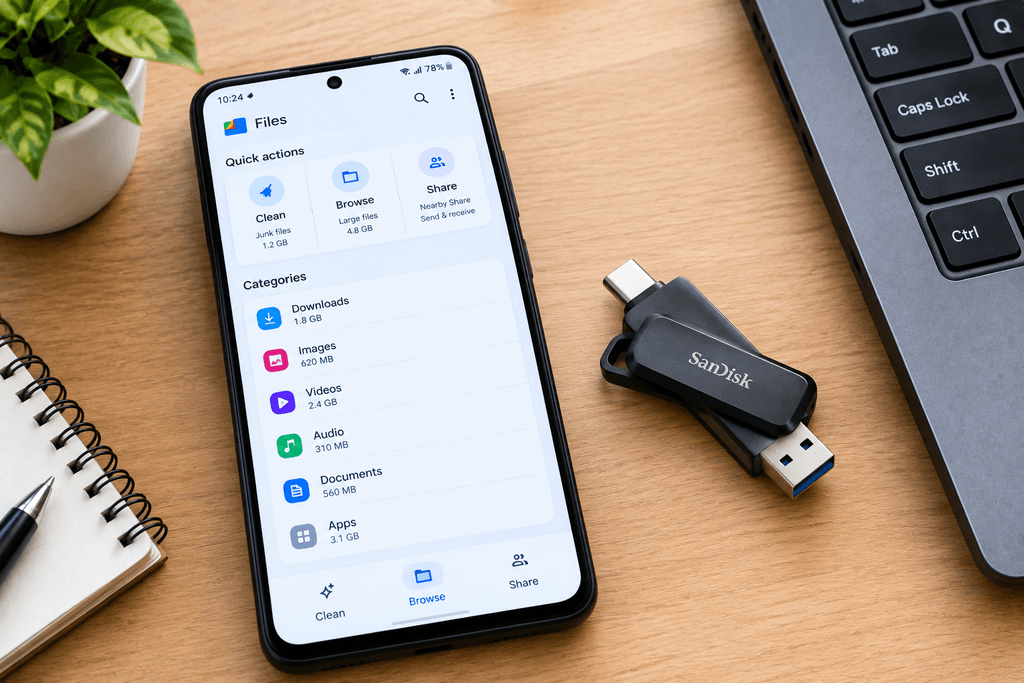
This is useful because storage isn’t limited to photos.
You can inspect:
- Downloads
- Documents
- Videos
- Archives
- Screenshots
- Large files
- Duplicate files
Be careful with unfamiliar system and app folders.
Don’t delete a folder just because its name looks strange or because it appears large.
Modern Android versions also restrict access to some app-specific storage locations, so advice like “delete everything inside Android/data” is not a universal or safe fix.
The safer approach is to remove files you can identify and no longer need.
Fix 6: Restart the Phone and Install Pending Updates
If the storage number still looks unusual after cleanup, restart your phone.
Then check for system updates.
Depending on your phone, the option may be under something like:
Settings → System → Software update
Also open the Play Store and check for app updates.
The exact menu names vary between manufacturers.
This step matters because a storage issue can sometimes be connected to an app or software problem rather than a simple lack of visible files.
After restarting, open Settings → Storage again.
Compare the number with what you saw before.
If the available space suddenly changes or the storage breakdown looks more normal, the problem may have been related to how the system was reporting or handling the data.
Fix 7: Check the SD Card or Look for a Problematic App
If none of the earlier fixes explain the missing storage, it’s time to look at the less obvious causes.
Check Your SD Card
If you use a microSD card, safely eject it when your phone allows you to do so.
Then restart the phone and check the storage information again.
If the strange behavior changes significantly with the SD card removed, investigate the card separately.
Do not remove an SD card while files are actively being written to it.
Think About Recently Installed Apps
Ask yourself:
When did this storage problem actually begin?
If your storage suddenly started filling up after installing or updating an app, inspect that app’s storage usage.
Very low free storage can sometimes be accompanied by other app-related problems as well. If apps are also closing unexpectedly, you can check our guide on Why Do Apps Keep Closing on Android? 9 Fixes for separate troubleshooting steps.
This is especially worth checking for apps that download or generate lots of content.
Try Safe Mode on Supported Phones
Some Android phones support Safe Mode, which temporarily disables downloaded apps.
Google notes that Safe Mode can help determine whether a downloaded app is causing a problem, although the steps to enter Safe Mode depend on the device.
If the phone behaves differently in Safe Mode, a recently installed or downloaded app becomes a stronger suspect.
Back Up Important Data
If the problem keeps returning, back up your important data before taking more drastic steps.
At this point, the issue may be more than ordinary storage cleanup.
Should You Factory Reset Your Android Phone?
A factory reset can make sense in some persistent software problems, but it should not be the first thing you try when your phone says storage is full.
Before considering a reset, work through the less destructive options:
- Check the Storage breakdown.
- Review large apps.
- Remove unnecessary downloads.
- Check trash folders.
- Clear appropriate caches.
- Restart the phone.
- Install pending updates.
- Check the SD card if you use one.
- Look for a recently installed app that may be causing the issue.
- Back up your important data.
A factory reset removes the data from the device, so make sure your important photos, contacts, documents, and other necessary information are backed up first.
Google also notes that backup and restore support varies by the type of data and by individual apps, so don’t assume every app’s local data will automatically return after a reset.
If the phone still shows abnormal storage behavior after a properly performed reset, especially alongside file corruption, disappearing files, or repeated storage errors, professional diagnosis may be appropriate.
Common Mistakes Users Make
Checking Only the Gallery
A nearly empty Gallery doesn’t prove that the phone has lots of free storage.
Downloads, app data, documents, offline media, and other files can exist outside it.
Clearing App Storage Without Knowing What It Does
Clear storage can remove an app’s stored data. It isn’t simply a stronger version of Clear cache.
Deleting Random System Folders
An unfamiliar folder isn’t automatically a useless folder.
Deleting the wrong files can cause more problems than it solves.
Forgetting About Offline Downloads
Streaming and other apps can store large amounts of content locally.
Check inside the apps you use heavily, not just your normal Downloads folder.
Assuming “Other” Means Junk
Broad storage categories can contain legitimate system and app data.
Don’t try to force the number down by deleting files you don’t understand.
Factory Resetting Too Early
A factory reset can erase your data without addressing the actual source if the problem is caused by a particular app, SD card, or another underlying issue.
How to Prevent Android Storage From Filling Up Again
Once you’ve recovered your missing space, the goal is to avoid ending up in the same situation again.
Review Large Files Occasionally
Open your storage settings every few weeks and check what has grown.
You don’t have to perform a complete cleanup every time. A quick look can help you catch a storage-heavy app or a folder of old videos before it becomes a problem.
Remove Offline Content You No Longer Use
Downloaded movies, music, maps, and other offline files are useful when you need them.
Once you don’t need them anymore, remove them.
Keep Messaging Media Under Control
Photos and videos shared through messaging apps can quietly add up over time.
Review large conversations and media folders occasionally.
Clean Up Duplicates and Junk Files
Files by Google includes tools for identifying duplicate files, junk files, screenshots, unused apps, and other cleanup suggestions.
Review those suggestions instead of deleting files blindly.
Back Up Photos Before Removing Local Copies
If your photos are safely backed up, Google Photos can offer a Free up space on this device option that removes eligible local copies from the phone. Google specifically says to make sure photos are backed up before using this feature because it deletes those copies from the device.
Don’t Let Storage Stay Completely Full
Keeping some free space available is better than repeatedly running the phone at the absolute limit.
Google notes that Android devices can begin experiencing problems when less than 10% of storage remains free.
Turn On Storage Notifications
Files by Google can notify you when storage is almost full and can also alert you about large files, duplicate files, junk files, and other cleanup opportunities.
Frequently Asked Questions
Why does my Android phone say storage is full when I barely have any files?
Because visible files are only part of your phone’s storage usage. Apps, app data, cached data, downloads, offline content, trash, and system-related data can also take up space. Start by checking Settings → Storage to see which category is actually consuming the space.
Why is my Android storage showing so much “Other” or “System” data?
Android groups some system-managed and app-related data into broad storage categories. The way those categories are displayed can vary by manufacturer and Android version. Not everything listed under those categories is safe or necessary to remove.
Can cached data make my Android storage look full?
It can contribute to high storage usage. Apps create temporary data as you use them, and some of that data can accumulate. Android provides a Clear cache option for supported apps, which removes temporary data.
Why is my phone storage full when my Gallery is empty?
Your Gallery doesn’t represent all the data stored on the phone. Downloads, documents, app data, offline media, messaging files, trash, and other storage categories can all exist outside the Gallery.
Where can I find hidden files taking up storage on Android?
Start with Settings → Storage, then use a trusted file manager to review Downloads, large files, documents, duplicates, and other accessible folders. Avoid deleting unfamiliar system or app folders simply because they appear large.
Will clearing cache delete my photos?
Clearing an app’s cache removes temporary data. It is different from Clear storage, which can permanently delete that app’s stored data.
Should I factory reset my phone if storage is still full?
Not immediately. First investigate apps, downloads, cached data, trash, system storage, software updates, and any SD card. Back up important information before considering a factory reset.
Can an SD card cause Android storage problems?
It can contribute to unusual storage behavior if the phone is having difficulty reading or writing the card. If you use an SD card and the problem keeps returning, safely testing the phone without the card can help narrow down the cause.
Final Conclusion
When an Android phone says storage is full but nothing is there, the frustrating part is that the phone may not actually be lying. You may simply be looking in the wrong place.
This was the main thing I wanted to clear up while researching this problem. A phone can look almost empty from the outside while a surprising amount of space is being used by apps, cached data, downloads, offline content, deleted files, or system-managed storage.
That’s why the best first step is not deleting random folders.
Open Settings → Storage and find out where the space is going. Once you know the biggest category, the solution becomes much more straightforward.
And if the numbers still don’t add up after you’ve checked the obvious places, don’t keep deleting things blindly. Storage problems can sometimes appear alongside other everyday Android issues. If you’re dealing with more than just low storage, our guide to Common Android Phone Problems and How to Fix Them covers several common problems and practical ways to troubleshoot them.
Restart the phone, update Android and your apps, check any SD card, investigate recently installed apps, and back up your important data before moving to more drastic troubleshooting.
The goal isn’t simply to make the storage number smaller.
It’s to find out where the space went—and recover it without deleting something you actually need.