
Author Bio
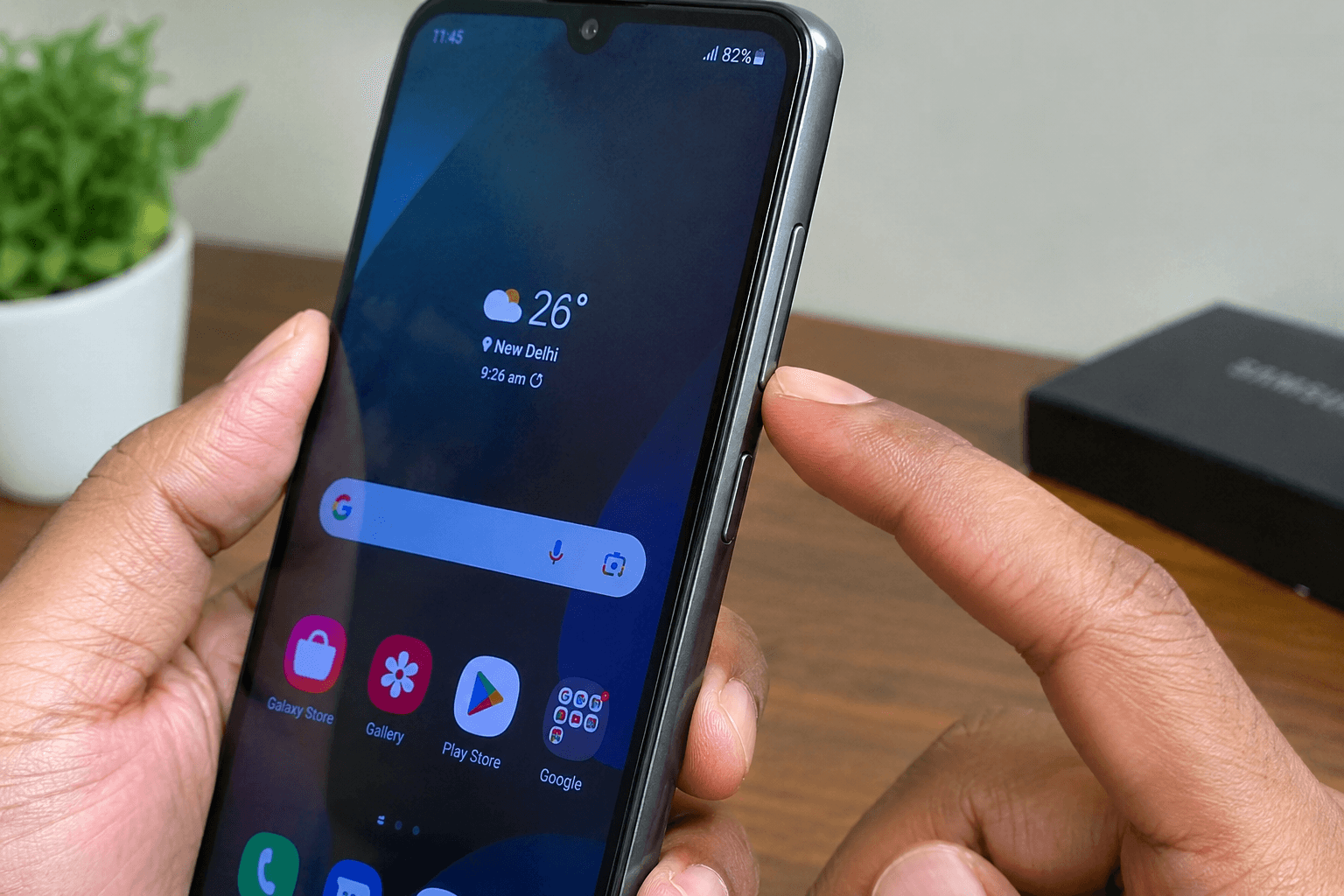
A volume button can stop working so suddenly that you may think the phone has developed a hardware problem overnight.
I was looking into this issue because it sounds simple at first: you press Volume Up, nothing happens, so you assume the button is broken. But while researching it more closely, I found that the same symptom can come from very different causes. A tight phone case, dirt around the rocker, a software glitch, an accessibility setting, a recently installed app, or actual button damage can all look almost identical at first.
That is why I would not start with a factory reset or repair shop.
First, find out whether Android is failing to respond to the button or the button itself is physically damaged. Once you make that distinction, the right fix becomes much easier to find.
Quick Answer: Android Volume Buttons Not Working?
Start with these checks in this order:
- Remove the phone case.
- Press both volume buttons and check how they feel.
- Look for dirt, dust, or anything stuck around the keys.
- Restart the phone.
- Check Accessibility settings, especially if you recently changed them.
- Test the phone in Safe Mode.
- Install any pending system update.
If the buttons still do nothing after these checks, a physical hardware problem becomes more likely. ASUS’s current support guide follows a similar troubleshooting path, including removing the case, checking for debris or damage, restarting, updating Android, testing recent apps/Safe Mode, and resetting settings before considering a factory reset.
Why Are My Android Volume Buttons Not Working?
Here are seven common reasons, starting with the easiest ones to rule out.
1. Your Phone Case Is Pressing Against the Buttons
A case may look fine but still sit too tightly around the volume rocker.
This is especially worth checking if you recently changed your case.
Try this: Remove the case completely and test Volume Up and Volume Down.
If both buttons start working normally, the phone itself may be fine. ASUS specifically recommends removing the case when troubleshooting this problem.
2. Dust or Debris Is Blocking the Button
Pocket lint and dust can collect around physical buttons and affect how they move.
Check whether the button:
- feels stiff,
- does not spring back normally,
- looks pushed inward, or
- works only when pressed from a certain angle.
Clean the outside gently with a soft, dry cloth. Do not push a needle, pin, or other sharp object into the button gap. Carlcare also warns against using sharp objects around the volume key.
3. Android Has Temporarily Glitched
Sometimes the key itself is fine, but Android simply stops responding properly.
This can happen after a software change, an app problem, or a temporary system glitch.
Try this: Restart the phone and test both keys again.
It is a basic step, but it is also one of the first troubleshooting actions recommended by ASUS.
4. An Accessibility Setting Is Interfering
This is one of the less obvious possibilities.
Check:
Settings → Accessibility
Look for features such as:
- Switch Access
- TalkBack
- Accessibility Menu
- Other accessibility services you recently enabled
There are older Android Central reports from Pixel users who found that turning off Switch Access restored their volume buttons. In the same discussion, users also connected the issue with TalkBack-related changes. These are device-specific community reports, not proof that the same cause affects every Android phone, but they make Accessibility worth checking.
5. A Recently Installed App Is Causing a Conflict
Think about what changed just before the problem started.
Did you install an app that controls sound, accessibility, automation, overlays, or system functions?
If other apps also started crashing or behaving strangely around the same time, the problem may be bigger than the volume buttons alone. Our guide on Android Apps Keep Crashing After Update? 7 Fixes explains how to check whether a recent software change is causing those app problems too.
If yes, the app may be worth testing.
The easiest way to check is Safe Mode, which temporarily disables third-party apps. ASUS recommends this method specifically to determine whether an installed app is causing the problem.
6. A System Update or Software Issue Changed Something
If the buttons stopped working shortly after an Android update, that timing is useful—but it does not automatically mean the update damaged your phone.
Check for another pending system update and restart the phone afterward.
Go to:
Settings → System → System update
The exact menu can differ between Samsung, Pixel, Xiaomi, OnePlus, Motorola, and other Android phones. ASUS currently recommends checking for the latest system software as part of its troubleshooting process.
7. The Volume Button Is Physically Damaged
Hardware becomes more likely when the button:
- feels loose or stuck,
- looks damaged,
- stopped working after a drop,
- was exposed to moisture, or
- remains completely dead even in Safe Mode.
In that situation, software fixes may not bring the button back because the actual problem is inside the phone. Carlcare also recommends professional service when physical damage is involved or basic troubleshooting does not solve the issue.
Step-by-Step Fixes
Fix 1: Test the Phone Without Its Case
Remove the case completely, then press both volume buttons several times.
Don’t just press them once.
You are checking two things:
Does the button physically move normally?
Does the volume panel appear on the screen?
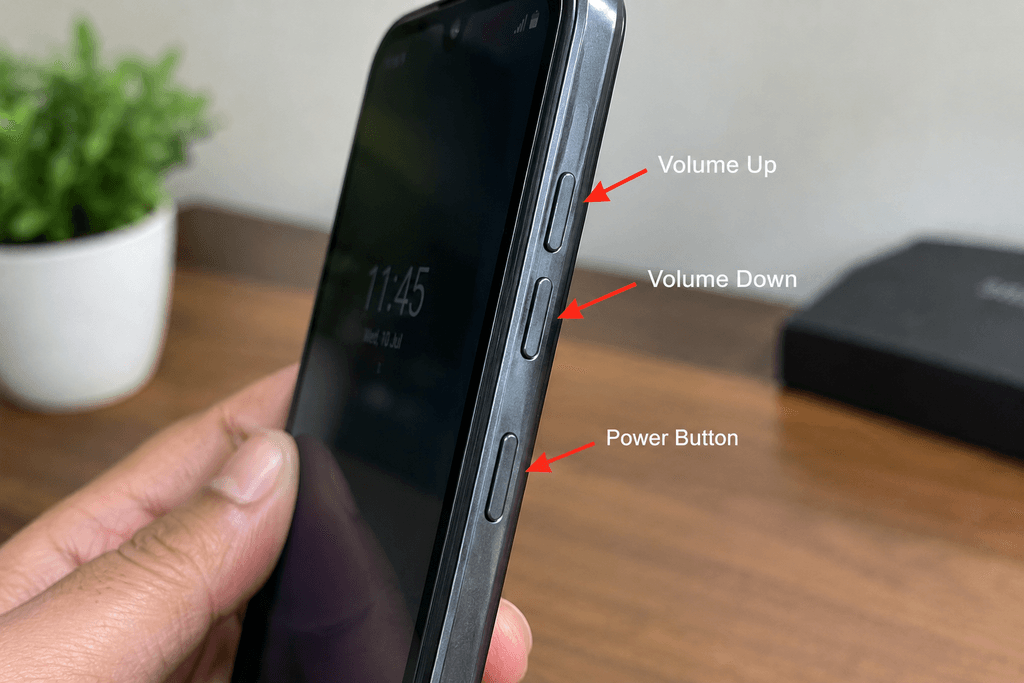
If everything works without the case, replace or reposition the case.
Fix 2: Restart and Test Again
Restart the phone normally.
After it boots back up, immediately test:
Volume Up → Volume Down → Volume Up → Volume Down
If the keys suddenly work again, the issue was likely temporary software behavior.
Fix 3: Check Accessibility Before Doing Anything Extreme
Open:
Settings → Accessibility
Review recently changed features first.
You do not need to turn off every accessibility service blindly. Focus on something you recently enabled or updated.
If turning off a recently changed feature restores the buttons, you have a much stronger clue about the cause.
Fix 4: Use Safe Mode to Find a Problematic App
Enter Safe Mode using your phone’s supported method. On many Android devices, you can do this by opening the power menu, pressing and holding Power off, and choosing the Safe Mode option. The exact process varies by manufacturer.
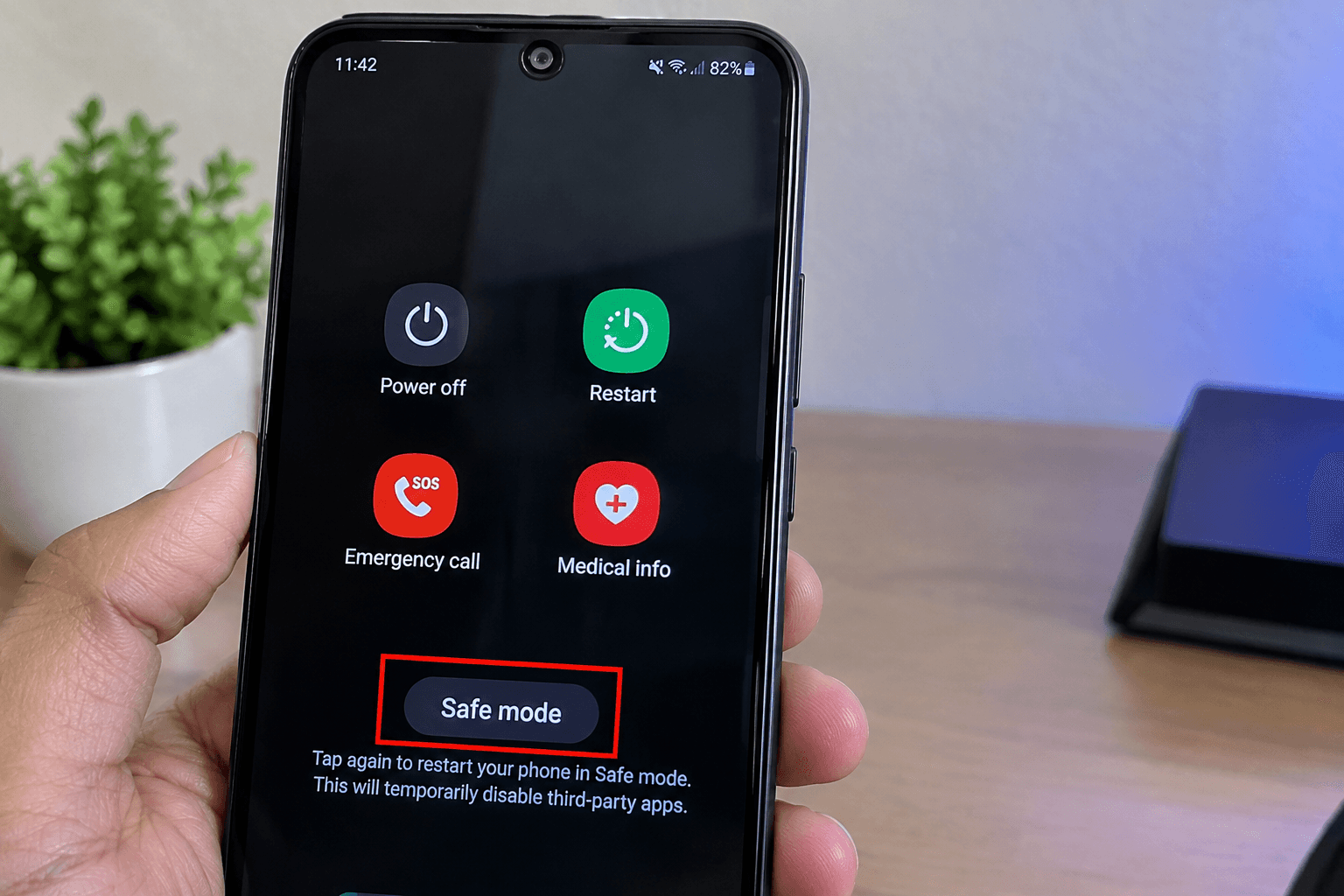
Now test the volume keys.
Buttons work in Safe Mode
A third-party app is more likely to be involved.
Think about apps installed or updated shortly before the problem appeared, then remove the most suspicious one and test again.
Buttons still don’t work in Safe Mode
An ordinary third-party app is less likely to be the cause.
Continue with the software and hardware checks.
Fix 5: Update Android
Check:
Settings → System → System update
Install any available update, restart the phone, and test the buttons.
Don’t treat an update as a guaranteed fix. It is simply another important software check before assuming the hardware has failed.
Fix 6: Reset Settings Instead of the Whole Phone
If your phone supports it, look for:
Settings → System → Reset options → Reset all settings
This is very different from a factory reset.
On ASUS devices, resetting all settings does not delete personal data, although settings such as Wi-Fi, Bluetooth, and app preferences are reset. Other manufacturers may use different wording or behavior, so always read the confirmation screen first.
Fix 7: Use On-Screen Volume Controls If the Button Is Broken
Even when the physical key has failed, you may still be able to control volume.
Check:
Settings → Accessibility → Accessibility Menu
Depending on your Android version, you may also be able to change volume directly through Sound settings or other built-in controls.
Google’s official Android Accessibility Menu guide explains how to use the on-screen menu to make your phone’s volume louder or quieter when the physical volume buttons aren’t responding. The exact steps can vary depending on your Android version and device.
Carlcare also recommends software-based alternatives such as Accessibility Menu when physical volume keys are unusable.
This won’t repair the button, but it can keep the phone usable until you decide whether it needs servicing.
If your volume buttons are working but the sound from your phone’s speaker has suddenly become much lower, you’re likely dealing with a different problem. In that case, our guide on Phone Speaker Sound Suddenly Became Low covers the checks specifically focused on low speaker volume.
Common Mistakes to Avoid
Pressing a stuck button harder
More force won’t fix a damaged mechanism and may make things worse.
Cleaning with a needle or pin
Sharp objects can damage the button area.
Factory resetting too early
A factory reset is a major step for a problem that may only be caused by a case, setting, app, or temporary glitch.
Assuming it’s hardware immediately
If the buttons still work in Safe Mode, software deserves more attention.
Installing random “volume fix” apps
An app can provide alternative controls, but it cannot physically repair a broken button.
When Should You Get the Phone Repaired?
A repair check makes more sense when the button is physically damaged, stuck, loose, affected by a drop or liquid, or remains completely unresponsive after the software checks.
One useful clue is how the button feels.
If the key suddenly feels different from the other button, that tells you more than simply seeing that the volume bar is not appearing.
If the phone is still under warranty, check the manufacturer’s authorized support options before opening the device or using an unofficial repair service.
Prevention Tips
Keep the area around the volume rocker clean and use a properly fitted case.
Don’t force a stiff button, and pay attention to what changed just before the problem appeared. A new case, app, update, or accessibility setting can give you an important clue.
And if the phone has been dropped or exposed to moisture, don’t ignore that detail. It can point toward a hardware problem much faster than repeated software resets.
Frequently Asked Questions
Why are my Android volume buttons not working?
The cause can be a case, debris, software glitch, accessibility setting, app conflict, system issue, or physical damage. Start with the simplest checks before assuming the button is broken.
Why does the volume button click but do nothing?
The button may still move physically even though Android is not receiving the input correctly. Restart the phone, check Accessibility settings, and test Safe Mode.
Can a phone case stop the volume buttons from working?
Yes. A tight or poorly aligned case can interfere with the volume rocker. Remove it completely and test the buttons.
Can Accessibility settings affect the volume buttons?
They can in some device-specific situations. Older Pixel community reports specifically describe Switch Access being associated with volume-key problems.
How do I know if an app is causing the problem?
Test the phone in Safe Mode. If the buttons work there but fail normally, a third-party app becomes a stronger suspect.
Can I change the volume without physical buttons?
Yes. Depending on your phone, you can use Sound settings or built-in accessibility controls such as Accessibility Menu.
Should I factory reset my phone?
Not as your first step. Try the simpler fixes first. A factory reset can erase apps, settings, and personal information, so back up your data before considering it.
When is a repair necessary?
If the button is physically damaged, stuck, loose, affected by a drop or liquid, or still completely unresponsive after Safe Mode and other software checks, professional inspection is appropriate.
Final Conclusion
When I first looked at Android volume buttons not working, the obvious answer seemed to be “the button is broken.” After digging into the troubleshooting paths and the less obvious reports around accessibility and software conflicts, the problem turned out to be much less straightforward.
That is the main thing I would keep in mind here: don’t repair or reset the phone before you know which side of the problem you’re dealing with.
Remove the case. Check the button. Restart the phone. Look at Accessibility settings. Test Safe Mode. Only then move toward settings reset or repair.
And if your button really is physically damaged, you don’t necessarily have to stop using the phone immediately. Built-in on-screen controls can give you a temporary way to manage the volume while you decide what to do next.