
Author Bio
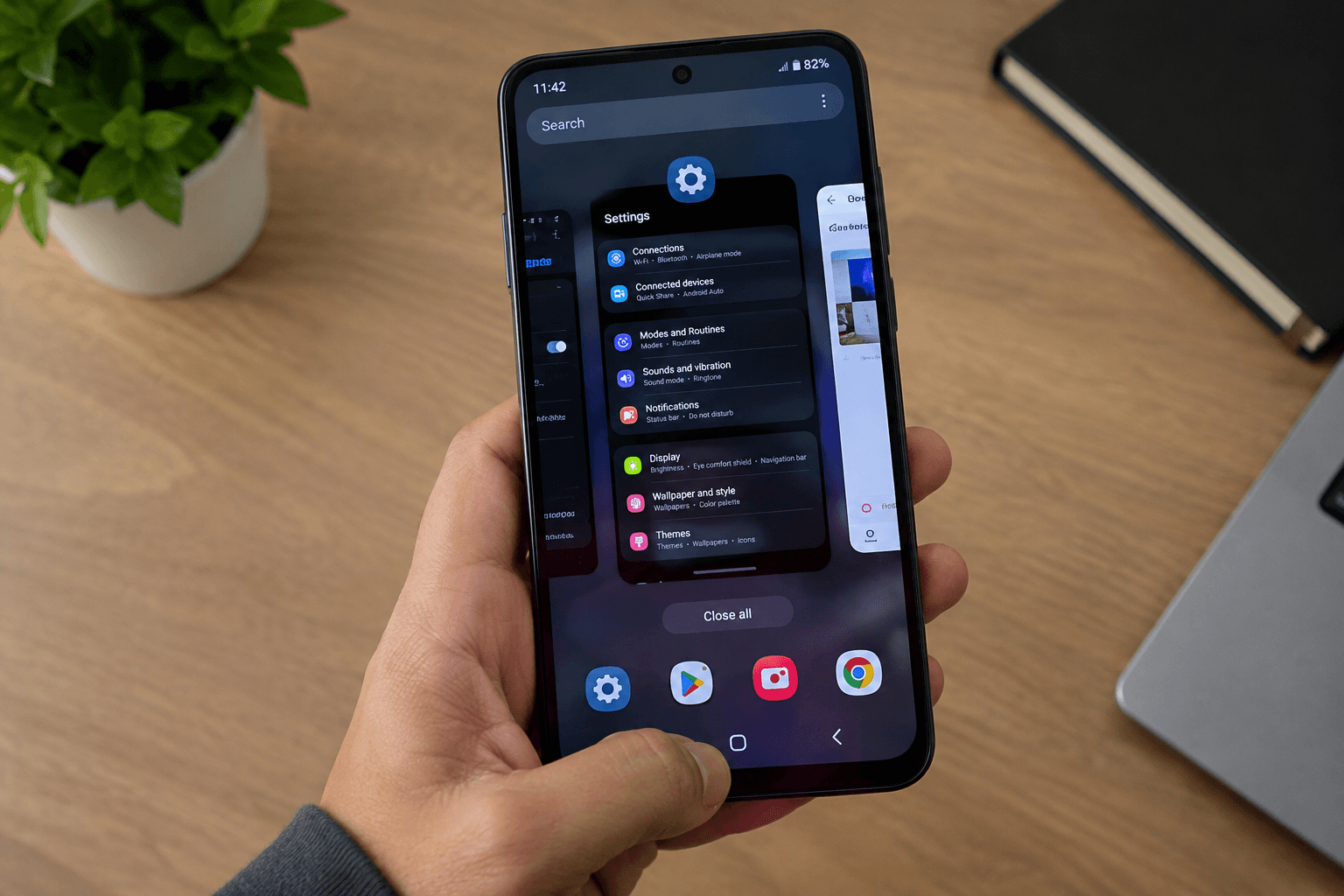
The Recent Apps button is one of those Android controls you normally use without even thinking about it. Tap it, find the app you were just using, and move on. But when the Recent Apps button is not working on Android, switching between apps suddenly becomes much harder.
You may tap the button and nothing happens. The button may appear to respond visually but fail to open the app switcher. On a phone using gesture navigation, you may have the opposite problem: the swipe-up-and-hold gesture no longer brings up your recent apps.
While researching this issue, I found that the problem is often misunderstood. It is tempting to assume the button itself is broken, but Recent Apps depends on Android’s navigation system, launcher, system interface, and sometimes third-party services. That means the real cause can be somewhere else entirely.
The good part is that you do not need to jump straight to a factory reset. A few targeted checks can usually tell you whether the problem is a navigation setting, software glitch, launcher issue, third-party app conflict, or something more serious.
Before You Try Any Fix, Check These 3 Things
Before changing settings, take a few seconds to observe how the phone is behaving.
Does the Home button still work?
If Home works but Recents does not, that gives us a different starting point than a phone where every navigation control has stopped responding.
Does Back still work?
The same applies to the Back control. If Home and Back work normally while only Recents is affected, a complete touchscreen failure becomes less likely.
Can you open Recent Apps with a gesture?
If your phone supports gesture navigation, swipe up from the bottom of the screen and hold briefly.
Google documents this as the standard way to open recent apps with gesture navigation, while three-button navigation uses a dedicated Recents button. The exact navigation settings can vary between manufacturers.
These three checks take less than a minute, but they can tell you whether you should focus on navigation settings or look for a wider system problem.
Why Is the Recent Apps Button Not Working on Android?
There is no single reason why Recent Apps stops responding. Android phones use different navigation systems, launchers, and manufacturer interfaces, so the same symptom can come from different places.
1. A temporary system glitch
A background Android process or part of the system interface may temporarily stop responding. This can leave the rest of the phone usable while one navigation function behaves incorrectly.
2. Your navigation mode is different from what you expect
If the phone is using gesture navigation instead of three-button navigation, the traditional Recents button will not work because it is no longer the active navigation method.
3. The launcher has become unstable
The launcher handles the Home screen and interacts with parts of the Android user interface. A launcher problem can therefore affect app switching behavior.
4. A recent update changed the behavior
If the problem appeared shortly after an Android or app update, the timing matters. An update is not automatically the cause, but it is an important clue when troubleshooting.
5. Another app is interfering with navigation
Apps that modify gestures, buttons, floating controls, accessibility behavior, or system interactions can sometimes interfere with navigation.
6. Temporary app data is causing trouble
A launcher or related system component may have unstable temporary data. Clearing the correct cache can help in some cases, while clearing data unnecessarily can create a different problem.
7. The problem is actually related to touch input
If you notice that the bottom area of the screen also misses taps, or Home and Back are unreliable, the Recent Apps button may only be one symptom of a broader touch problem.
7 Ways to Fix the Recent Apps Button on Android
1. Restart Your Android Phone
Start with a normal restart.
This is not just a generic “try turning it off and on” suggestion. A restart reloads the Android interface and stops temporary background processes that may have become stuck.
Steps
- Press and hold the Power button.
- Select Restart.
- Wait until Android has fully loaded.
- Open any app.
- Return to the Home screen and test Recent Apps.
After the restart, test the button several times instead of pressing it once and assuming the issue is gone.
There is another useful clue to watch for here.
If Recent Apps works immediately after restarting but stops responding again later, the restart itself may not be the solution. It may simply be clearing whatever is causing the problem temporarily. In that situation, pay attention to what happens before the issue returns, especially newly opened apps or recently changed settings.
2. Check and Switch Your Navigation Mode
This is one of the most important checks because it can completely change how Recent Apps is accessed.
On Android, you may be using:
- 3-button navigation, which provides dedicated Back, Home, and Recents buttons
- Gesture navigation, where Recent Apps is opened with a swipe-up-and-hold gesture
On supported devices, Android’s navigation settings can usually be found through the System or Gestures settings, although the exact path depends on the manufacturer.
Try switching temporarily to 3-button navigation if your phone offers it.
Then test the Recents button.
If it works in button mode but the gesture does not, the Recent Apps feature itself may still be functioning correctly. The problem is more likely related to the gesture configuration or navigation behavior.
This is a very useful distinction because it prevents you from treating a navigation-setting problem like a hardware failure.
If you are not sure which navigation method your phone is currently using, Google’s official Android navigation guide explains how gesture navigation and 3-button navigation work, along with where these settings are generally found. This can be especially useful if the Recent Apps button seems to have disappeared rather than simply stopped responding.
3. Switch Back to the Default Launcher
If you have installed a third-party launcher, temporarily switch to the launcher that came with your phone.
The purpose is not to say that third-party launchers are unreliable. The purpose is to remove one possible source of conflict.
Look under your phone’s Default apps, Home app, or Default launcher settings and select the manufacturer’s launcher.
Now test Recent Apps again.
What the result tells you
If Recent Apps starts working, the launcher or one of its customizations may be involved.
If nothing changes, you have ruled out one important possibility and can move on.
This is a better troubleshooting method than immediately uninstalling the launcher. You are changing one variable at a time, which makes the eventual cause much easier to identify.
If you notice that the whole phone has become slow or is freezing along with the navigation issue, the problem may be broader than the launcher. In that case, Android Phone Keeps Freezing and Lagging? 10 Fixes is a more relevant next step.
4. Check for System and App Updates
If Recent Apps stopped working after a recent software change, check for available updates before doing anything drastic.
Go to your phone’s Software update section and install an available Android update when appropriate. Then open the Play Store and check for pending app updates.
Google’s Android troubleshooting guidance also recommends checking for app updates and using Safe Mode when investigating software-related problems.
The important part is not simply “update everything and hope it works.”
Think about timing.
Did the problem begin after installing a launcher? Updating an app? Changing navigation settings? Installing a customization tool?
That timeline can be much more useful than trying random fixes.
Also avoid installing a separate “Android navigation fixer” or “phone repair” app. You already have enough information on the phone to troubleshoot this problem without adding another unknown application to the equation.
5. Check Apps That Modify Navigation, Gestures, or Accessibility
If the previous steps did not help, start looking at apps that can interact with the Android interface.
These may include:
- Gesture customization apps
- Button remapping tools
- Floating shortcut apps
- Automation utilities
- Custom navigation tools
- Apps using accessibility services
This is especially worth checking if the problem started after you installed one of these tools.
Open your installed apps and think about what changed around the time the issue appeared.
Do not disable ten services at once.
Choose the most likely recent addition, temporarily disable it, and test Recent Apps. If nothing changes, move to the next one.
This one-by-one approach may take a little longer, but it gives you a meaningful result. If the problem disappears after disabling a specific service, you have a much clearer explanation than simply knowing that “something in the phone was wrong.”
This is also why blindly resetting accessibility settings is not a good first move. Some users rely on accessibility services for important features, so disabling them all without knowing what each service does can create unnecessary problems.
6. Clear the Launcher Cache Carefully
If the launcher seems unstable, clearing its cache is a reasonable next step.
The exact menu depends on the phone, but it will usually be somewhere around:
Settings > Apps > See all apps > Your launcher > Storage & cache
Look for Clear cache.
The important word here is cache.
Clearing cache removes temporary files. Clearing an app’s storage or data is more extensive and can reset stored information or preferences.
That distinction matters because you do not want to reset your Home screen setup unnecessarily just because the Recent Apps button is not responding.
After clearing the cache, restart the phone and test Recent Apps again.
If other applications are also unexpectedly closing or crashing, do not automatically blame the navigation system. You may be dealing with a broader app problem. In that situation, Why Do Apps Keep Closing on Android? 9 Fixes can help you troubleshoot those symptoms separately.
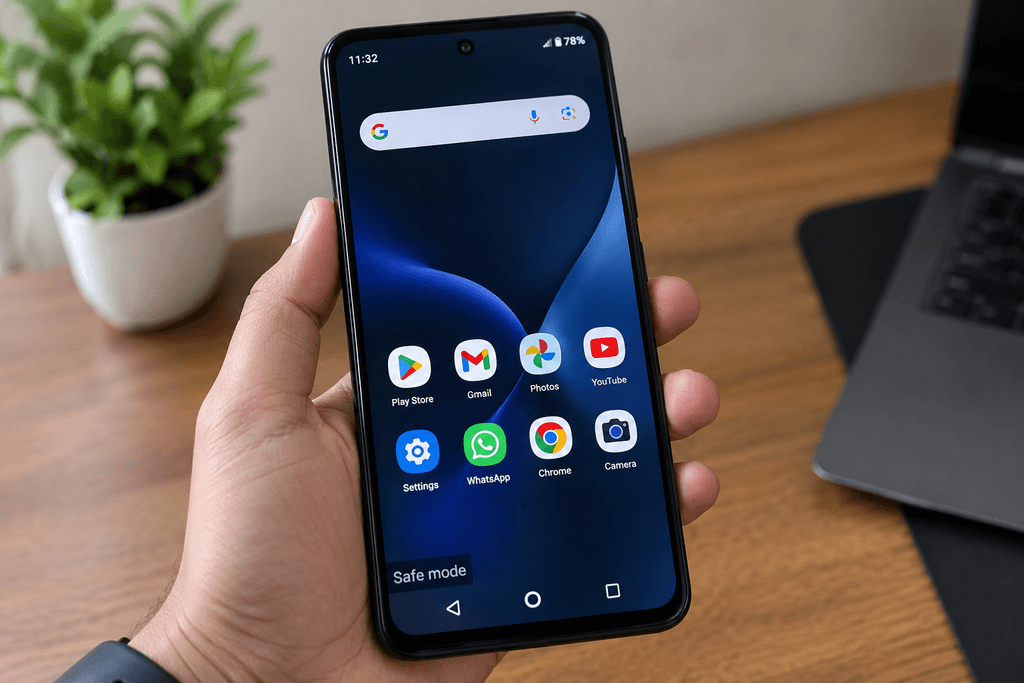
7. Test the Phone in Safe Mode
When the problem survives the earlier checks, Safe Mode becomes one of the most useful diagnostic steps.
Safe Mode temporarily disables downloaded apps. Google recommends using it to determine whether a third-party application is responsible for problems such as freezing, crashing, or unusual device behavior.
The exact method for entering Safe Mode differs between manufacturers, so use the instructions for your specific phone.
Once you are in Safe Mode, test Recent Apps.
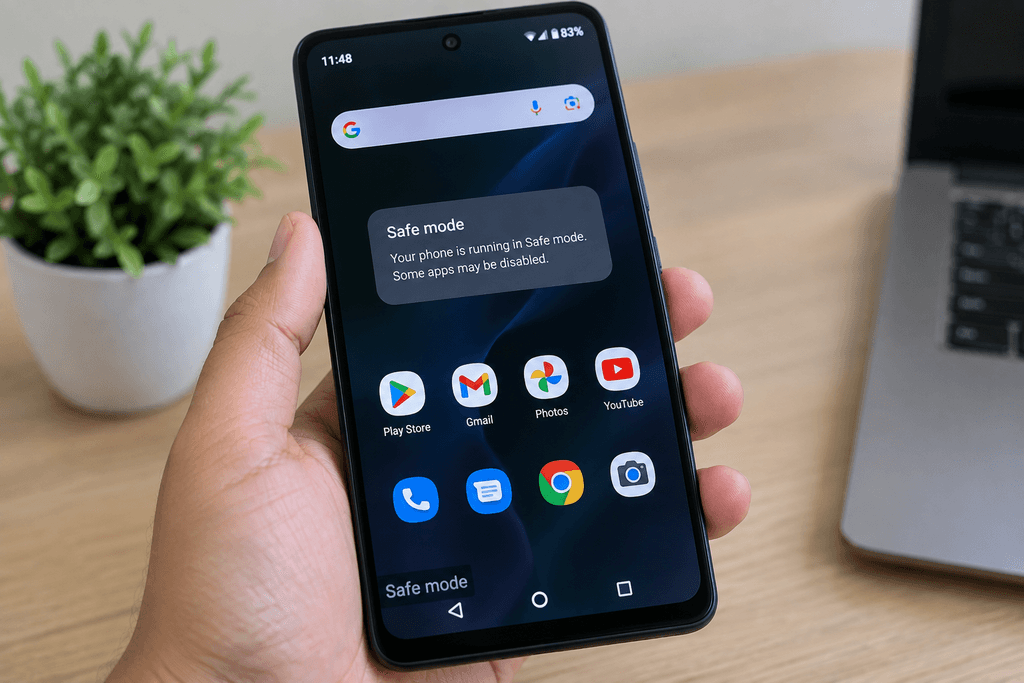
If Recent Apps works in Safe Mode
That strongly points toward a downloaded app or service.
Restart the phone normally and begin checking recently installed or recently changed apps. Remove or disable them one at a time and test after each change.
This is much more useful than uninstalling random applications.
If Recent Apps still does not work
A third-party app becomes less likely to be the cause.
Now look more closely at the navigation mode, launcher, system software, and touchscreen behavior.
If the bottom of the display is also failing to register taps, the issue may not be limited to Recent Apps. In that situation, Phone Touch Screen Not Working After Restart is the more relevant troubleshooting guide.
And this is where you should resist the urge to jump immediately to a factory reset. A reset is a major step; diagnosis should come first.
Common Mistakes Users Make
Assuming the Recent Apps button is physically broken
A button that stops responding can look like a hardware failure, but software should be ruled out first—especially when Home and Back continue working normally.
Changing several things at the same time
If you switch launchers, change navigation mode, clear app data, disable services, and uninstall apps together, you may fix the problem without ever discovering its actual cause.
Installing another “fix” app
A navigation problem does not require another random utility running in the background. More software can mean more variables.
Clearing app data without understanding the option
Cache and data are different. A deeper reset may change settings or stored information that you never intended to touch.
Factory resetting too soon
A factory reset is not a normal first-line fix for one malfunctioning navigation control. It removes personal data and installed apps, so it should only come much later—and only after a proper backup.
How to Prevent the Recent Apps Button From Stopping Again
You cannot completely prevent every Android software problem, but you can reduce the chances of creating unnecessary conflicts.
Keep Android and commonly used apps updated. Periodically review accessibility services and special permissions, especially for apps you no longer use.
Be careful with apps that modify gestures, navigation buttons, floating controls, or the system interface. These tools can be useful, but they also add another layer between your normal actions and the Android interface.
Most importantly, remember what changed before the problem appeared.
A new launcher, update, customization app, or accessibility service can provide a valuable clue if the same problem returns. Troubleshooting becomes much easier when you treat those changes as evidence instead of ignoring them.
Frequently Asked Questions
Why is my Recent Apps button not working on Android?
The cause can be a temporary software glitch, changed navigation settings, a launcher problem, a third-party app conflict, or a touchscreen issue. Check whether Home and Back still work and whether the Recent Apps gesture works.
How do I get the Recent Apps button back on Android?
Check your navigation settings and switch to 3-button navigation if your phone supports it. With gesture navigation, Android normally uses a swipe-up-and-hold gesture instead of a dedicated Recents button.
Why does swipe up not show my recent apps?
With gesture navigation, swipe up from the bottom, hold briefly, and then release. If that does not work, check the selected navigation mode and restart the phone before moving to more advanced troubleshooting.
Can a third-party launcher affect Recent Apps?
A launcher can be worth investigating when the problem began after changing launchers or their settings. Temporarily switching back to the phone’s default launcher is a practical way to test that possibility.
Why does Recent Apps work after restarting but stop later?
That pattern suggests the restart may only be clearing the problem temporarily. Pay attention to apps or services that become active before the issue returns, particularly navigation, accessibility, overlay, or customization tools.
Does Safe Mode help identify the cause?
Yes. Safe Mode temporarily turns off downloaded apps. If Recent Apps works there but fails during normal use, a third-party app becomes much more likely to be involved.
Do I need to factory reset my phone?
Not as a first step. Test navigation settings, the launcher, updates, third-party conflicts, and Safe Mode first. A factory reset is much more disruptive and should only be considered after backing up important data.
Final Conclusion
When the Recent Apps button is not working on Android, the visible problem is simple, but the underlying cause may not be. The feature can be affected by navigation settings, a temporary system glitch, launcher behavior, third-party services, or a wider touchscreen problem.
That is why the most useful approach is not to start with the most aggressive fix. Start by checking what still works. Restart the phone, confirm the navigation mode, test the default launcher, check for updates, investigate apps that modify the interface, and use Safe Mode when you need to separate Android itself from downloaded apps.
While researching this issue, the biggest pattern I found was that the symptom alone does not tell you the cause. What matters is how the phone behaves around that symptom. Once you pay attention to those differences, troubleshooting becomes much more precise—and you are far less likely to reset the phone unnecessarily.