
About the Author
Why Is YouTube Not Working on WiFi Even Though You Have Internet?
You’re connected to WiFi, the signal looks strong, and other apps may be working normally. But when you open YouTube, videos keep loading, the screen stays black, or nothing plays.
This can be confusing because your phone clearly shows a WiFi connection. In some cases, YouTube may work normally on mobile data but stop working as soon as you switch back to WiFi.
The good news is that this does not automatically mean your phone is damaged. The problem can come from your WiFi connection, router, YouTube app, network settings, VPN or Private DNS. In this guide, we’ll help you identify where the problem is and walk through the fixes step by step, starting with the simplest checks.
Quick Answer
If YouTube is not working even though your phone is connected to WiFi, the first thing to check is whether the WiFi connection actually has working internet access. A WiFi icon only shows that your phone is connected to the network; it does not always mean the internet connection is working properly.
If other websites work but YouTube does not, the problem may be specific to the YouTube app or its connection to the network. A temporary app glitch, corrupted cache, outdated app version, VPN or Private DNS settings can sometimes cause playback problems.
Start with the simplest checks: test another website, try YouTube on mobile data, open YouTube in Chrome, restart your phone and router, then clear the YouTube cache and update the app. If YouTube works on mobile data but not on WiFi, pay closer attention to your router, WiFi settings, VPN, Private DNS and saved network configuration.
Before You Start Fixing the Problem
Before changing settings on your phone, take a minute to find out where the problem is coming from. These quick checks can help you avoid trying fixes that have nothing to do with the actual cause.
Check if Other Websites Are Working
Open Chrome and visit a few different websites.
If several websites also fail to load, the problem may be with your internet connection rather than YouTube. In that case, focus on the WiFi connection or router before changing YouTube settings.
If websites load normally but YouTube does not, continue with the checks below.
Try YouTube on Mobile Data
Turn off WiFi for a moment and switch to mobile data. Then open YouTube and play the same video again.
If YouTube works on mobile data but not on WiFi, your phone and YouTube app are likely working, while the problem may be related to the WiFi network, router, DNS, VPN or another network setting.
If mobile data is also not working on your Android phone, the problem may be unrelated to WiFi. In that case, see our guide on mobile data on but internet not working on Android.
Try YouTube in Chrome
Open Chrome on your Android phone and go to youtube.com. Try playing the same video there.
If YouTube works in Chrome but the YouTube app does not, the problem is more likely related to the app itself. Try force stopping YouTube, clearing its cache and updating the app.
If YouTube also fails in Chrome while connected to the same WiFi, the problem may be related to the WiFi connection, router, DNS or network configuration.
Restart Your WiFi Router Once
Turn off your router, wait about 30 seconds, turn it back on and wait for the internet connection to return. Then test YouTube again.
Once these quick checks are done, you’ll have a better idea of whether the problem is coming from YouTube, your phone or the WiFi network.
Quick Problem Diagnosis
| What You Notice | What It May Point To | Best First Thing to Try |
|---|---|---|
| YouTube does not work on WiFi or mobile data | YouTube app or phone issue | Force stop and reopen YouTube |
| YouTube works on mobile data but not WiFi | WiFi, router, DNS or VPN issue | Restart router and test another network |
| YouTube app does not work but YouTube works in Chrome | App-specific problem | Clear cache and update YouTube |
| Other websites also fail on the same WiFi | Internet or router problem | Restart router and check the connection |
| YouTube fails on every device using the same WiFi | Router, ISP or network restriction | Test another network and check the router |
| Only your Android phone has the problem | Phone or app configuration | Forget WiFi and troubleshoot the app |
| YouTube app freezes or closes | Temporary app issue | Force stop YouTube and reopen it |
Why Does YouTube Stop Working Even When WiFi Is Connected?
Your phone can be connected to a WiFi router without having a properly working internet connection. The WiFi icon mainly tells you that your phone has a connection to the network; it does not guarantee that the router has a stable connection to the internet. That’s why websites and YouTube may stop loading even though the WiFi icon still appears normally.
There are also cases where the internet works for other apps but YouTube still fails. This can happen because of a temporary YouTube app problem, corrupted cache files, an outdated app, VPN or Private DNS settings, router restrictions, or a problem with the saved WiFi configuration. When YouTube works on mobile data but not on WiFi, the WiFi network becomes especially important to investigate.
The easiest way to solve the problem is to first find out where the connection is failing. Test another website, try YouTube on mobile data, and open YouTube in Chrome. If you are still unsure whether the problem is with YouTube or your phone, you can also check the official YouTube Help Center, which covers common playback problems, app issues and troubleshooting steps.
7 Possible Reasons Why YouTube Is Not Working on WiFi
Every YouTube problem does not have the same cause. Instead of trying random settings, use the symptoms below to narrow down the problem before moving to the detailed fixes.
1. Your WiFi Is Connected, But the Internet Isn’t Working
Short Explanation
Your phone may be connected to the WiFi router, but the router may not have a working internet connection.
Why It Happens
Your ISP may be having a temporary issue, the router may have lost its internet connection, or the connection may be unstable.
Common Signs
- YouTube keeps loading without starting.
- Videos do not play.
- Other websites are also slow or unavailable.
- Other apps lose their internet connection.
Quick Fix
Open a few websites in Chrome. If they also fail, restart the router and check the internet connection before troubleshooting YouTube.
2. The YouTube App Has a Temporary Glitch
Short Explanation
Sometimes the internet is working correctly, but the YouTube app becomes stuck, freezes or stops responding.
Why It Happens
A temporary software glitch, background process or incomplete app operation can prevent YouTube from loading videos correctly.
Common Signs
- YouTube stays on a loading screen.
- The app shows a black screen.
- Videos refuse to play.
- YouTube becomes slow or unresponsive.
Quick Fix
Force stop YouTube, reopen it and test the same video again. If the problem continues, restart your Android phone.
3. YouTube Cache Files Are Corrupted
Short Explanation
YouTube stores temporary files to help the app load content faster. Sometimes those files can become outdated or corrupted and cause playback or loading problems.
Why It Happens
Old temporary files may conflict with newer app files or Android system changes.
Common Signs
- Videos keep buffering.
- The YouTube home page loads incorrectly.
- Recommendations do not refresh properly.
- Playback errors appear unexpectedly.
Quick Fix
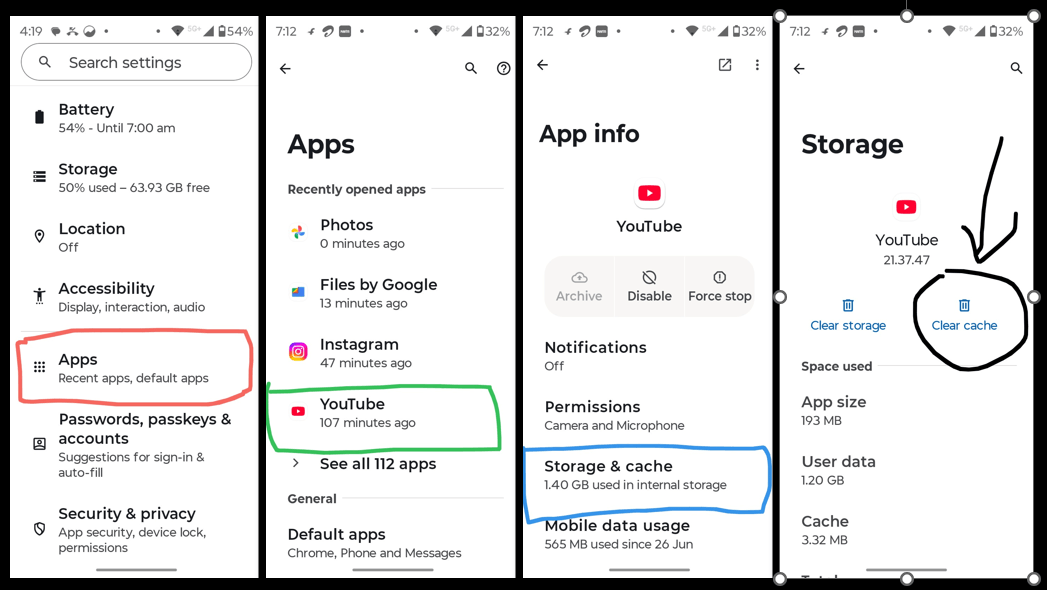
Go to Settings > Apps > YouTube > Storage > Clear Cache, then reopen YouTube.
4. A VPN or Private DNS Is Interfering With the Connection
Short Explanation
A VPN or custom Private DNS can change how your phone connects to online services. In some situations, that can interfere with YouTube.
Why It Happens
The VPN server, DNS provider or network configuration may not be connecting properly with YouTube or Google services.
Common Signs
- YouTube works on mobile data but not WiFi.
- Videos never start loading.
- Other Google services may also behave unexpectedly.
Quick Fix
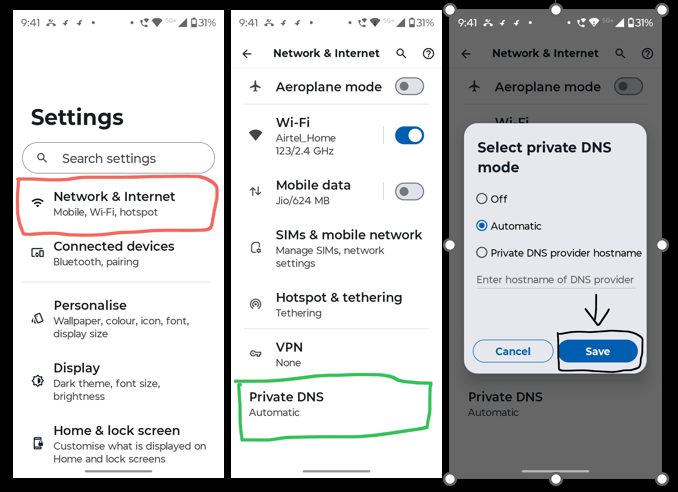
Temporarily disconnect your VPN. Then check Settings > Network & Internet > Private DNS and switch it back to Automatic if a custom provider is configured.
5. The YouTube App Is Outdated
Short Explanation
An outdated version of YouTube may cause compatibility or playback problems, especially after Android or app updates.
Why It Happens
Newer versions can contain bug fixes and compatibility improvements that older versions do not have.
Common Signs
- YouTube starts having problems after an Android update.
- Certain videos fail to play.
- The app shows unexpected errors.
- The app behaves differently after a software change.
Quick Fix
Open the Google Play Store, search for YouTube, and install the latest available update.
6. Your Saved WiFi Configuration Has a Problem
Short Explanation
Sometimes the phone remembers a WiFi network but the saved network configuration is no longer working correctly.
Why It Happens
A changed router configuration, network settings or connection problem can leave the saved WiFi profile in a state that causes connection issues.
Common Signs
- YouTube works on another WiFi network.
- YouTube works on mobile data.
- Other devices may connect differently to the same router.
- Reconnecting to WiFi sometimes temporarily fixes the problem.
Quick Fix
Forget the current WiFi network, then connect to it again using the correct password.
7. The WiFi Network Is Restricting YouTube
Short Explanation
Some networks may restrict video services or specific websites through router settings, filters or parental controls.
Why It Happens
Schools, offices, public networks or home routers can use restrictions that affect certain services.
Common Signs
- YouTube fails only on one WiFi network.
- YouTube works normally on mobile data.
- Other devices on the same network may show the same problem.
- Other streaming services may also be restricted.
Quick Fix
Try another WiFi network or mobile data. If YouTube works there, the original network is the main thing to investigate.
Step-by-Step Solutions to Fix YouTube Not Working on WiFi
Now that you know the possible causes, work through these fixes one at a time. Test YouTube after each step so you can identify which solution actually fixes the problem.
Step 1: Force Stop YouTube and Restart Your Phone
Why This Works
A temporary app or system glitch can prevent YouTube from responding correctly. Closing the app completely and restarting the phone can refresh those temporary processes.
Steps
- Open Settings.
- Tap Apps or Apps & notifications.
- Select YouTube.
- Tap Force Stop.
- Open YouTube again.
- Play a video.
If YouTube still does not work, restart your Android phone and test again.
Step 2: Restart Your WiFi Router
Why This Works
A router can sometimes develop a temporary connection problem even while your phone remains connected to WiFi.
Steps
- Turn off your WiFi router.
- Wait about 30 seconds.
- Turn the router back on.
- Wait until the internet connection becomes available again.
- Connect your phone to WiFi.
- Open YouTube and test a video.
Step 3: Check Whether Your WiFi Actually Has Internet
Why This Works
A WiFi connection does not always mean the internet connection behind it is working.
Steps
- Open Chrome.
- Visit a few different websites.
- Check whether they load normally.
- If possible, connect another phone or device to the same WiFi.
- Test YouTube on that device.
If several devices cannot access websites or YouTube on the same WiFi, the problem is more likely related to the router, ISP or network.
If other devices work normally but your phone does not, continue with the phone-specific fixes below.
Step 4: Clear YouTube Cache
Why This Works
Clearing the cache removes temporary YouTube files that may be outdated or corrupted.
Steps
- Open Settings.
- Tap Apps.
- Select YouTube.
- Tap Storage or Storage & cache.
- Tap Clear Cache.
- Reopen YouTube.
- Test a video.
Before You Clear App Data
Do not confuse Clear Cache with Clear Storage or Clear Data. They are different options.
Clear Cache removes temporary files. Clear Storage or Clear Data resets more of the app’s stored information. Start with Clear Cache before using the more disruptive option.
Step 5: Update the YouTube App
Why This Works
An outdated app may have compatibility or playback problems that have already been fixed in a newer version.
Steps
- Open the Google Play Store.
- Search for YouTube.
- Tap Update if an update is available.
- Wait for the update to finish.
- Reopen YouTube.
- Test the same video again.
Also make sure your Android software is reasonably up to date, especially if the YouTube app cannot be updated because of an older Android version.
Step 6: Turn Off VPN or Private DNS
Why This Works
VPN or custom DNS settings can affect how your phone connects to online services.
Steps
- Disconnect any VPN you are currently using.
- Open Settings.
- Go to Network & Internet.
- Tap Private DNS.
- Select Automatic.
- Reconnect to WiFi if necessary.
- Open YouTube and test a video.
The exact location of Private DNS can vary between Android versions and phone brands.
Step 7: Forget the WiFi Network or Reset Network Settings
If the previous fixes did not work, the saved network configuration may need to be refreshed.
First, Forget and Reconnect to WiFi
- Open Settings.
- Go to Network & Internet or WiFi.
- Tap your connected WiFi network.
- Choose Forget.
- Select the same WiFi network again.
- Enter the WiFi password.
- Reopen YouTube and test a video.
If That Still Does Not Work
You can try resetting network settings as a last resort.
The exact option name varies by Android device, but it may appear under:
Settings > System > Reset Options
Look for an option such as:
Reset WiFi, Mobile & Bluetooth
Important Before You Reset Network Settings
A network reset is different from a factory reset. It does not erase your personal photos, videos or apps, but it can remove saved WiFi networks and passwords and reset Bluetooth or other network-related settings. You may need to reconnect your devices and networks afterward.
Use this step only after the simpler troubleshooting methods above have failed.
Common Mistakes Users Make
When YouTube suddenly stops working, it is easy to start changing random settings. That can make troubleshooting harder because you may not know which change actually affected the problem.
Here are some common mistakes to avoid:
- Assuming that the WiFi icon automatically means the internet is working.
- Clearing YouTube data before trying a simple cache clear.
- Reinstalling or resetting the app before checking for an available update.
- Ignoring VPN, Private DNS or router restrictions.
- Trying several fixes at the same time instead of testing one change at a time.
A quick diagnosis usually makes the troubleshooting process simpler.
How to Reduce the Chances of This Problem Happening Again
You cannot prevent every YouTube or WiFi problem, but a few habits can make troubleshooting easier and reduce common causes.
- Keep YouTube updated through the Google Play Store.
- Install Android software and security updates when they are available.
- Be careful with unknown VPN, DNS and network-management apps.
- If YouTube suddenly stops working, first test another website or switch temporarily to mobile data.
- If YouTube repeatedly fails only on one WiFi network, investigate the router or network instead of repeatedly changing phone settings.
Frequently Asked Questions (FAQ)
Why is YouTube not working on my Android phone even though WiFi is connected?
Your phone can be connected to a WiFi router without having a properly working internet connection. If other websites also fail, check the router and internet connection first. If other websites work normally but YouTube does not, the problem may be related to the YouTube app, cache, VPN, Private DNS or another network setting.
Why does YouTube work on mobile data but not on WiFi?
When YouTube works on mobile data but not on WiFi, the problem is more likely related to the WiFi network, router, DNS, VPN or saved WiFi configuration. Test another WiFi network if possible. If YouTube works there, the original WiFi connection is the main area to troubleshoot.
Why do other apps work on WiFi but YouTube does not?
Other apps working does not always mean every service will connect normally. YouTube can still be affected by an app-specific problem, corrupted cache, VPN, Private DNS, outdated app or network-specific restriction. Try YouTube in Chrome and then troubleshoot the YouTube app.
How do I fix YouTube videos not loading on Android over WiFi?
Start by checking whether other websites work. Then try YouTube on mobile data and in Chrome. Restart the router, force stop YouTube, clear the app cache, update YouTube and temporarily disable VPN or custom Private DNS. If the problem continues, forget the WiFi network and reconnect. A network reset can be used as a final troubleshooting step.
Does clearing YouTube cache fix buffering issues?
Clearing the YouTube cache can help when temporary app files are outdated or corrupted. It is different from clearing app data or storage. Start with Settings > Apps > YouTube > Storage > Clear Cache, then reopen YouTube and test the video again.
Can Private DNS or a VPN stop YouTube from working on WiFi?
A VPN or custom Private DNS can affect how your phone connects to online services. If YouTube works on mobile data but fails on WiFi, temporarily disconnect your VPN and set Private DNS to Automatic, then test YouTube again.
Why does YouTube say “No Internet Connection” even when WiFi is connected?
The WiFi connection may still be active between your phone and router even when the router has lost internet access. It can also be caused by DNS, VPN, app or network configuration problems. Test another website first. If several websites also fail, focus on the WiFi or router connection. If other websites work, continue troubleshooting YouTube itself.
Final Conclusion
If YouTube is not working on your Android phone even though WiFi is connected, do not assume that your phone is damaged. The problem can come from the internet connection, router, YouTube app, cache, VPN, Private DNS or WiFi configuration.
The best approach is to identify where the problem is happening before changing settings. Check another website, try YouTube on mobile data, open YouTube in Chrome and test another device on the same WiFi if possible.
Then work through the fixes one at a time: force stop YouTube, restart your phone and router, clear the YouTube cache, update the app, disable VPN or custom Private DNS, and finally forget the WiFi network or reset network settings if necessary.
Once you know whether the problem is coming from YouTube, your phone or the WiFi network, you can usually avoid unnecessary changes and focus on the fix that actually matches the problem.
YouTube problems are only one type of issue Android users can run into. If you are dealing with other phone problems and want to troubleshoot them without jumping between unrelated fixes, common Android phone problems and how to fix them brings together practical solutions for several everyday Android issues in one place.