
About the Author
DeviceFixMaster Editorial Team
We create practical Android troubleshooting guides focused on everyday phone problems such as overheating, battery drain, charging issues, app crashes, connectivity problems, and performance slowdowns.
Our guides are written around the actual symptoms users experience, with step-by-step checks designed to help you identify the likely cause before moving to more complicated solutions.
The goal is simple: give you clear, practical troubleshooting steps without unnecessary technical jargon or random fixes.
Phone Gets Hot and Slow at the Same Time
A phone that gets hot and slow at the same time can be confusing. You may start with a perfectly normal phone, open a few apps, and then notice that it is getting warmer. A little later, scrolling feels less smooth, apps take longer to open, and games start lagging.
These two symptoms can actually be connected.
When an Android phone gets too hot, it can lower performance to bring the temperature back down. Google says a Pixel may reduce CPU performance, slow charging, limit connectivity, and reduce other functions when it gets too hot.
So the solution is not simply to “make the phone faster.” First, you need to find out what is making it hot.
This guide focuses on that part. Instead of giving you a long list of random tweaks, it walks through the most common causes and shows you what to check, what to change, and how to tell whether the fix actually worked.
Quick Answer
If your Android phone gets hot and slow together, start by stopping any heavy activity and letting it cool down. Then check Battery usage for an app using unusual power, check whether storage is nearly full, and think about whether the problem happens mainly while charging, using mobile data, or running a particular app.
If the phone is still hot during light use or while sitting idle, use Safe Mode to rule out downloaded apps. If it continues overheating after that, especially with rapid battery drain, charging problems, shutdowns, or physical battery damage, the problem may need professional attention.
Why Does Heat Make Your Phone Slow?
Your phone’s processor creates heat whenever it is working hard. Under normal conditions, the phone manages that heat without affecting what you are doing.
When the temperature rises too far, however, the device can protect itself by reducing performance.
That is why the pattern can look like this:
Heavy activity → more heat → temperature rises → performance is reduced → phone starts lagging.
Google confirms that Pixel phones can reduce CPU performance and charging speed when they become too hot.
For a better understanding of what happens when a phone becomes too hot, you can also check Google’s guide on phone overheating, which explains how temperature can affect performance, charging, connectivity, and other phone functions.
This also gives you an important clue.
If your phone is fast again after it cools down, but becomes slow every time it gets hot, the heat is probably part of the problem rather than just a side effect.
7 Reasons Your Android Phone Gets Hot and Slow
1. A Demanding App or Task Is Pushing the Phone Too Hard
Start with what you were doing when the problem appeared.
Gaming, recording video, long video calls, navigation, streaming, large downloads, and hotspot use can keep several parts of the phone busy at once. Google lists these types of activities among common situations in which a phone can become warm.
A demanding game is an obvious example, but it does not have to be a game. A long video call can use the camera, display, processor, microphone, and network connection together.
Social media can create a similar situation, especially when you spend a long time scrolling, watching videos, or uploading content. If the heating seems to happen mainly while using Instagram, our guide on why your phone gets hot while using Instagram explains the most common causes and what you can check before blaming the battery.
How to check
Let the phone cool completely.
Then use it for simple tasks such as messaging or browsing.
If it feels normal at first and only becomes hot and slow after a demanding activity, you have already narrowed the problem down considerably.
You may simply be pushing the device harder than its cooling system can comfortably handle for long periods.
2. One App Is Doing Too Much in the Background
A phone can become hot even when you are not actively using a demanding app.
A downloaded app may continue syncing, uploading, checking your location, processing files, or repeatedly trying to connect to a server in the background.
If the heating and battery drain both started shortly after installing one particular app, that timing is worth paying attention to. You can also follow our guide on phone battery draining fast after installing a new app to check whether a recently installed app is using more power in the background than it should.
Check Battery usage
On many Android phones:
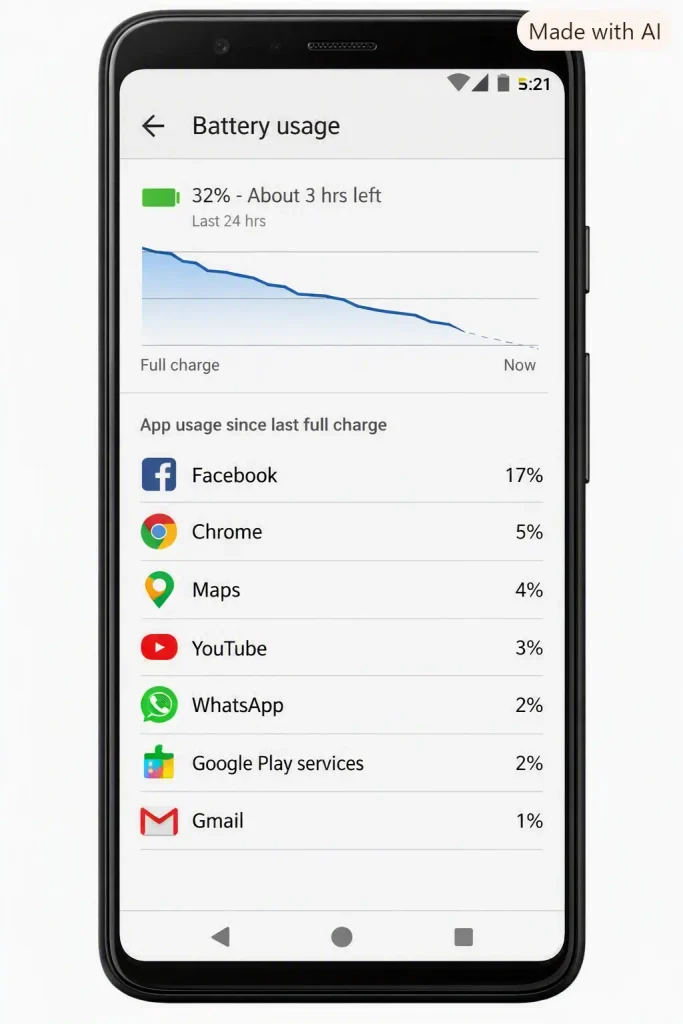
- Open Settings.
- Tap Battery.
- Tap Battery usage or a similar option.
- Look at the apps using the most battery.
- Compare that usage with how much you actually used each app.
The exact menu can vary by Samsung, Pixel, OnePlus, Xiaomi, Motorola, and other phones.
What you are looking for is a mismatch.
For example, if you barely used an app but it has consumed a large amount of battery, it is worth investigating.
Update the app first. If the problem continues, try clearing its cache or temporarily uninstalling it and then use the phone normally.
3. Your Storage Is Almost Full
Low storage is an easy problem to overlook because it does not immediately sound like a heating issue.
But when very little storage is available, an Android phone can start having performance problems. Google recommends checking available storage when an Android device is slow and says issues can begin when less than 10% of storage is free.
Check your storage
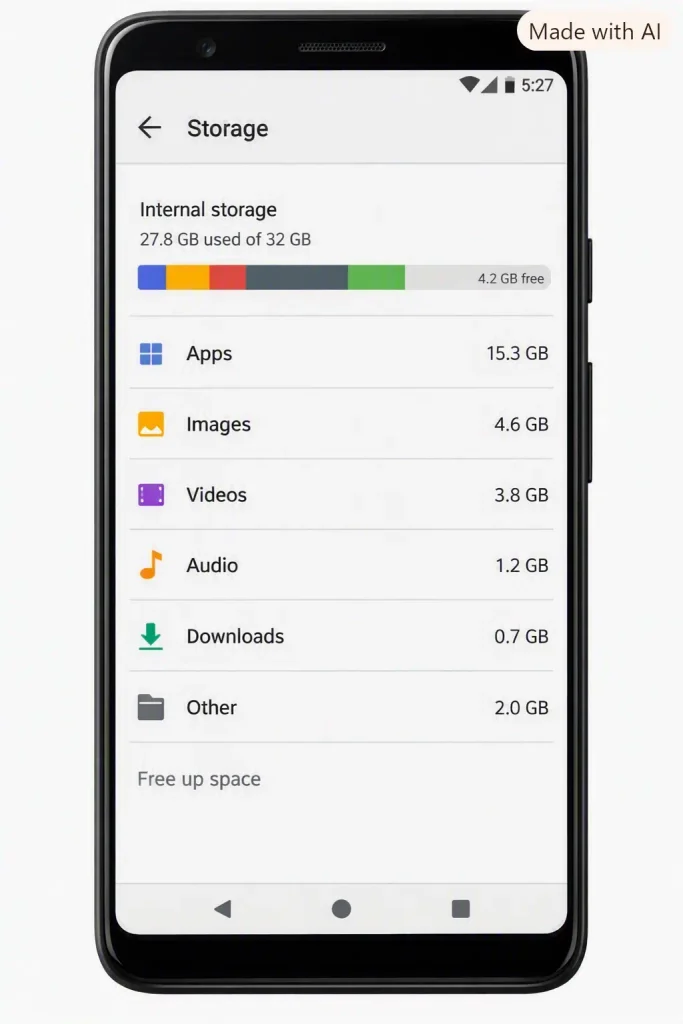
- Open Settings.
- Tap Storage.
- Look at how much free space remains.
- Open the categories taking up the most space.
- Remove large files, old downloads, unused apps, or media you no longer need.
Google’s current Android guidance also provides Settings > Storage as the place to review storage use and free up space.
You do not need a third-party “cleaner” app for this.
4. Weak Mobile Signal or Hotspot Use Is Adding Extra Work
This is one of the causes people often miss.
When cellular reception is poor, your phone has to work harder to maintain its connection. Hotspot use can also add extra network activity, especially when another device is constantly transferring data.
Google lists tethering and heavy data transfers among situations that can make a Pixel warm.
Try this comparison
If the problem usually happens in a place with weak mobile signal:
- Connect the phone to a reliable Wi-Fi network.
- Turn off mobile data temporarily.
- Use the same app or perform the same task.
- Compare how quickly the phone heats up.
You can do the same test with hotspot. Turn it off and see whether the temperature and battery drain improve.
This gives you a real comparison instead of guessing that your battery is failing.
5. The Problem Started After an App Was Installed or Updated
Timing matters.
If the phone was behaving normally and the heating started after installing or updating an app, that app deserves attention before you start changing system settings.
Try this
- Open Settings > Apps.
- Find the app you suspect.
- Check whether another update is available.
- Open Storage & cache if your phone shows that option.
- Tap Clear cache.
- Restart the phone.
- Use the phone normally again.
If the problem remains, uninstall the app temporarily.
If the phone becomes noticeably cooler afterward, you have a much stronger clue than you would get from repeatedly restarting the phone.
6. The Phone Is Already Too Warm From Its Environment
Your phone does not have to be working unusually hard to become hot in a hot environment.
Direct sunlight, a hot car, poor ventilation, and heavy use in a warm room can all make temperature control harder.
Google recommends keeping Pixel phones away from excessive heat and poorly ventilated areas.
This is especially important when charging.
Do not place a warm phone under a pillow, blanket, or other material that traps heat.
Also, do not try to cool an overheated phone by putting it in a refrigerator or freezer. Let it return to a normal temperature naturally.
7. The Battery, Charging Setup, or Hardware May Be Involved
This possibility becomes more important when the phone gets hot during light use.
Pay attention if the heating comes with:
- unusually fast battery drain
- repeated shutdowns or restarts
- excessive heat while charging
- charging that suddenly behaves differently
- physical damage
- a back panel that is lifting or swelling
A phone can also slow charging when it becomes too warm. Google notes that charging may be limited to help protect the device.
If you see signs of a swollen or damaged battery, do not continue using and charging the phone just to complete troubleshooting.
8 Fixes to Stop Your Phone From Getting Hot and Slow
Fix 1: Stop the Activity That Is Creating the Heat
If the phone is already hot, do not start by changing ten settings.
Stop the workload first.
- Exit the game, camera, video call, navigation, or other demanding activity.
- If the phone is charging, unplug it.
- Move it away from direct sunlight or another heat source.
- Place it on a cool, hard surface with normal airflow.
- Leave it alone until the temperature comes down.
Google recommends disconnecting the phone from power and avoiding use until it cools if it becomes too hot.
Once it has cooled, use it normally for a few minutes.
If the lag disappears, you have confirmed that temperature is affecting performance. Now you need to identify what keeps causing the heat.
Fix 2: Restart It After It Cools Down
A restart is worth doing, but timing matters.
Let the phone cool first, then restart it.
On most Android phones, hold the power button and choose Restart.
After it turns back on, do not immediately open every demanding app you were using before.
Use the phone normally for a few minutes.
If it stays cool and responsive, a temporary process or software problem may have been involved. If it quickly becomes hot again, move on to the next checks instead of restarting over and over.
Google also recommends restarting as a basic troubleshooting step for Android phones that are slow or lagging.
Fix 3: Identify the App That Is Causing Excessive Battery Activity
If the phone becomes hot without a clear reason, this should be one of your first checks.
Go to:
Settings → Battery → Battery usage
Then look for an app that is using much more battery than expected.
For example, if you spent ten minutes on an app and it has an unusually high share of battery use, investigate it.
Once you find a suspicious app:
- Update it.
- Clear its cache.
- Restart the phone.
- Test it again.
- If the problem continues, uninstall it temporarily.
Google’s Android troubleshooting guidance recommends checking apps, updating them, and using Safe Mode when an app may be responsible for poor performance.
Fix 4: Free Up Storage
If your storage is nearly full, deal with that before trying complicated performance tweaks.
Go to:
Settings → Storage
Then remove the biggest things you no longer need.
A practical order is:
- Large videos.
- Downloads.
- Unused apps.
- Offline videos or music.
- Old screenshots and duplicate files.
- Other large files you recognize.
Then restart the phone and test it again.
Google currently recommends checking storage and freeing space when an Android phone has performance problems.
Fix 5: Test the Phone Without Hotspot or Weak Mobile Data
If your phone tends to become hot while using mobile data, navigation, or hotspot, test the connection itself.
Connect to reliable Wi-Fi and temporarily turn off mobile data.
Then perform the same task that normally makes the phone warm.
If the phone stays noticeably cooler, poor network conditions may have been contributing to the problem.
For hotspot users, turn hotspot off completely and repeat the test.
This is particularly useful because the result tells you something specific. You are not just hoping a setting will work—you are comparing two conditions.
Fix 6: Change the Way You Charge the Phone
Some warmth during charging is normal, but excessive heat deserves attention.
For one test, charge the phone under simple conditions:
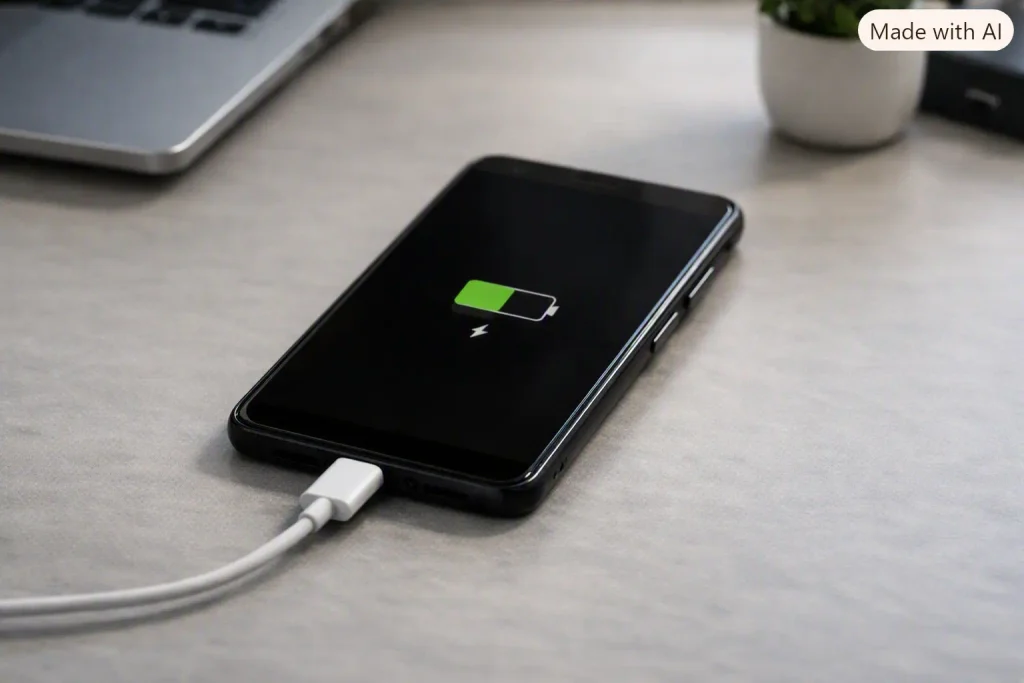
- Let it cool first.
- Use a compatible, reliable charger and cable.
- Place the phone on a hard, open surface.
- Keep it out of direct sunlight.
- Do not play games or run demanding apps while charging.
- Keep the screen off when possible.
Google says using resource-heavy features while charging can contribute to heat and that a Pixel may slow or pause charging when it becomes too warm.
If the phone becomes excessively hot even when it is sitting untouched, stop treating the issue as normal charging warmth and check the charger, cable, charging port, and battery.
If the charging behavior itself has also changed—such as very slow charging, repeated disconnects, or a battery percentage that barely moves—it may be a separate charging issue. Our guide on Android phone charging problems walks through the charger, cable, charging port, temperature, and other things worth checking.
If you suspect the cable, test the phone with a known-good cable that supports your charging setup. A reliable USB-C charging cable can be useful for ruling out a damaged or inconsistent cable before you start blaming the phone’s battery or charging hardware.
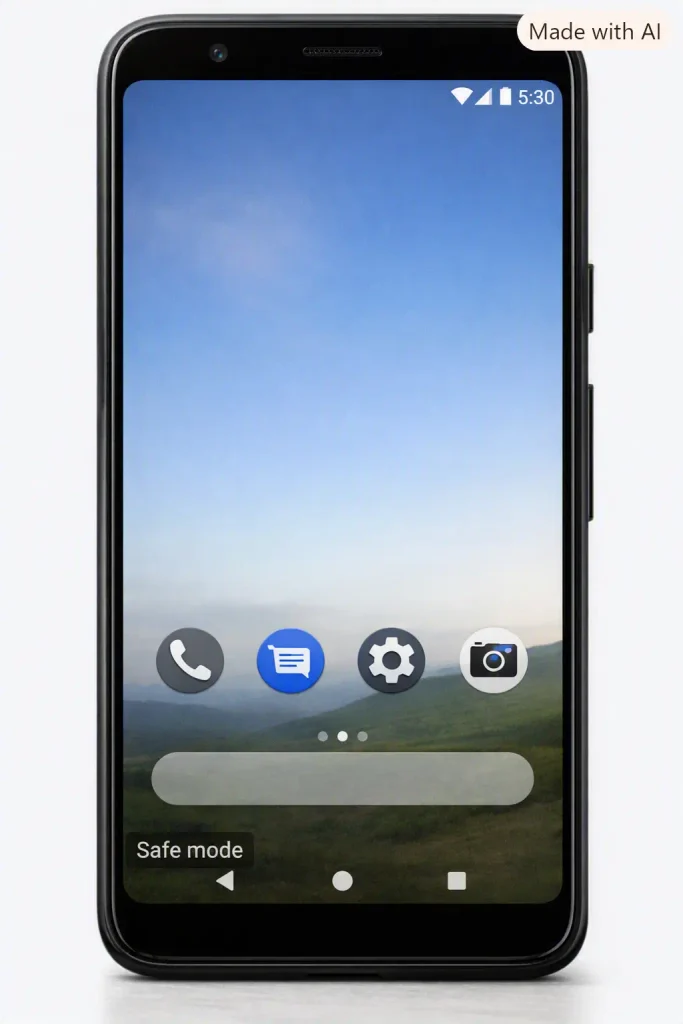
Fix 7: Use Safe Mode to Test for a Downloaded App
Safe Mode is useful when your phone gets hot even though you are not doing anything demanding.
Android temporarily disables downloaded apps in Safe Mode. If the heating and lag disappear there, a downloaded app becomes much more likely to be responsible.
The exact steps vary by manufacturer, so the Safe Mode method is not identical on every Android phone.
Once you enter Safe Mode:
- Do not start installing anything.
- Use the phone normally.
- Watch whether the lag returns.
- Check whether the phone stays cooler.
If the problem improves in Safe Mode
Restart normally and remove recently installed or updated apps one at a time.
Test the phone after each removal.
If the problem does not improve
A downloaded app becomes less likely to be the cause. Move your attention to storage, charging, network conditions, Android software, battery health, or hardware.
That is the main value of Safe Mode: it helps you stop guessing.
Fix 8: Check for a Hardware Problem Before Doing Anything Drastic
If you have reached this point and the phone is still getting hot, especially during light use, look at the warning signs rather than trying another random “performance” trick.
You should consider professional inspection when:
- the phone becomes very hot while idle
- battery life has suddenly become much worse
- it repeatedly shuts down
- charging causes excessive heat
- the phone has been dropped or exposed to liquid
- the battery or back panel appears swollen
Google recommends contacting the manufacturer or support when troubleshooting does not solve persistent problems.
A factory reset should not be your first move. It removes your data and installed apps, and Google treats it as an advanced troubleshooting step after simpler checks have failed.
What the Result of Each Test Tells You
This is the easiest way to avoid going in circles.
The phone becomes normal after cooling down
The heat is affecting performance. Find what is generating the heat.
It gets hot again after opening one particular app
Investigate that app first.
It stays hot while idle
Look at battery usage and test Safe Mode.
It improves when you switch from weak mobile signal to Wi-Fi
Network activity may be contributing.
It improves after freeing storage
Low storage was likely part of the performance problem.
It remains hot and slow even in Safe Mode
A normal downloaded app is less likely. Look toward system, battery, charging, network, or hardware causes.
If the phone remains slow even after the temperature returns to normal, you may be dealing with a broader performance problem rather than heat alone. In that case, our guide on Android phone keeps freezing and lagging can help you check storage, background processes, software problems, and other performance-related causes.
It is extremely hot while charging
Stop using it while charging and check the charging setup. Persistent excessive heat needs further investigation.
Common Mistakes to Avoid
Don’t put the phone in a freezer
Rapid cooling is not a proper troubleshooting method. Let it cool naturally.
Don’t keep gaming while the phone is already hot
That only adds more workload to a device that is already struggling to control its temperature.
Don’t install several “cleaner” or “cooler” apps
You may end up adding more background activity while trying to remove it.
Don’t factory-reset the phone immediately
First identify whether the problem is related to an app, storage, network, charging, or temperature.
Don’t ignore heat that happens during light use
Normal warmth during heavy activity is different from a phone that repeatedly becomes hot while sitting idle.
How to Prevent the Problem
Once you identify the cause, prevention becomes much easier.
Keep the phone out of direct sunlight and hot vehicles.
Give the device a break after long gaming or other demanding sessions instead of continuing until it becomes very hot.
Avoid demanding apps while charging if they make the temperature rise.
Keep enough free storage available.
Check battery usage when you notice sudden battery drain.
Turn hotspot off when you are finished using it.
Keep Android and important apps updated.
Use a proper charging setup and avoid blocking airflow around the phone while it is charging.
Google’s guidance also recommends reducing heavy resource use, lowering brightness when needed, keeping the phone away from excessive heat, and maintaining good airflow.
Frequently Asked Questions
Why does my phone get hot and slow at the same time?
When a phone gets too hot, it may reduce performance to control the temperature. Heavy apps, background activity, charging, weak signal, or other issues can cause the heat in the first place.
Why is my Android phone hot when I am not using it?
A background app or system process may be using resources even when the screen is off. Check Settings > Battery > Battery usage to see which apps are consuming unusual amounts of power.
Why does my phone get hot while charging?
Some warmth is normal, but excessive heat can come from heavy use while charging, poor ventilation, a faulty cable or charger, or a battery problem. Avoid demanding apps while charging and keep the phone in a well-ventilated place.
Can low storage make my Android phone slow?
Yes. Very low free storage can cause performance problems. Check Settings > Storage and remove large files, unused apps, and downloads you no longer need.
Can a bad app make my phone overheat?
Yes. A buggy or poorly behaved app can keep using resources in the background. Check battery usage and temporarily uninstall recently installed or suspicious apps to see whether the heating stops.
Why does my phone lag only after it gets hot?
The phone may reduce processor performance when its temperature becomes too high. That protective behavior can cause apps, games, and scrolling to feel slower until the device cools down.
When should I worry about my phone overheating?
Take it seriously if the phone becomes hot during light use or while idle, drains the battery unusually fast, shuts down unexpectedly, gets extremely hot while charging, or shows signs of a swollen or damaged battery.
Final Thoughts
When your Android phone gets hot and slow at the same time, the slowdown is often a clue rather than the main problem.
The useful question is not “How can I make my phone faster?”
It is “What is making my phone hot?”
Start with the situation that matches your phone. If the problem follows gaming or another demanding task, reduce the workload. If it happens while the phone is idle, check battery usage and use Safe Mode. If it happens during charging, test the charger and the way you are charging. If it appears in weak-signal areas, compare mobile data with Wi-Fi.
The goal is to change one thing, test the phone, and use the result to decide what to check next.
And there is one line worth remembering:
A phone that gets warm during heavy use can be normal. A phone that stays unusually hot during light use is telling you to investigate further.
That difference can save you from wasting time on unnecessary resets, cleaner apps, and random settings changes—and help you find the real cause much faster.